Setting Up a Case Update Triggered Standard WhatsApp Distribution

Updated 

A case‑update–triggered Standard WhatsApp distribution is an automated workflow that sends a WhatsApp message to a recipient whenever a specific change occurs on a case. When you configure this type of distribution, you define which case event (such as an update or resolution) should trigger the WhatsApp message. Once the event occurs, the system automatically sends the predefined WhatsApp communication—such as a notification, survey link, or follow‑up message, without requiring manual action.

Business Use Cases

  • Post-Care Feedback Automation: Rule‑based integration, helps to automatically trigger surveys through service workflows.

    Example: When a case status updates to Resolved, it guarantees that each interaction is succeeded by a prompt feedback request, enhancing efficiency and consistency without the need for manual involvement.

  • Actionable Insights from Service Cases: Initiating CFM Surveys immediately after case updates provides a robust method for monitoring satisfaction levels across a spectrum of case types, geographical regions, and individual agents. This streamlined, automated workflow, which progresses from case closure to survey distribution and then to comprehensive response analytics, empowers you to pinpoint any service deficiencies and subsequently enhance agent performance.

Key Features

  • Improves operational efficiency: Integrates seamlessly between Sprinklr Service and CFM, reducing dependency on separate tools or manual survey dispatches.

  • Automates post-case feedback collection: Eliminates manual effort by triggering CFM WhatsApp surveys directly through case update rules in Sprinklr Service.

  • Drives continuous improvement: Enables closed-loop insights, linking case management performance to customer satisfaction outcomes.

  • Ensures real-time customer insights: Collects immediate feedback after case closure, helping brands measure satisfaction at the moment of experience.

  • Boosts response rates: Personalized WhatsApp messages with case placeholders make it easy for customers to share feedback quickly.

Prerequisites

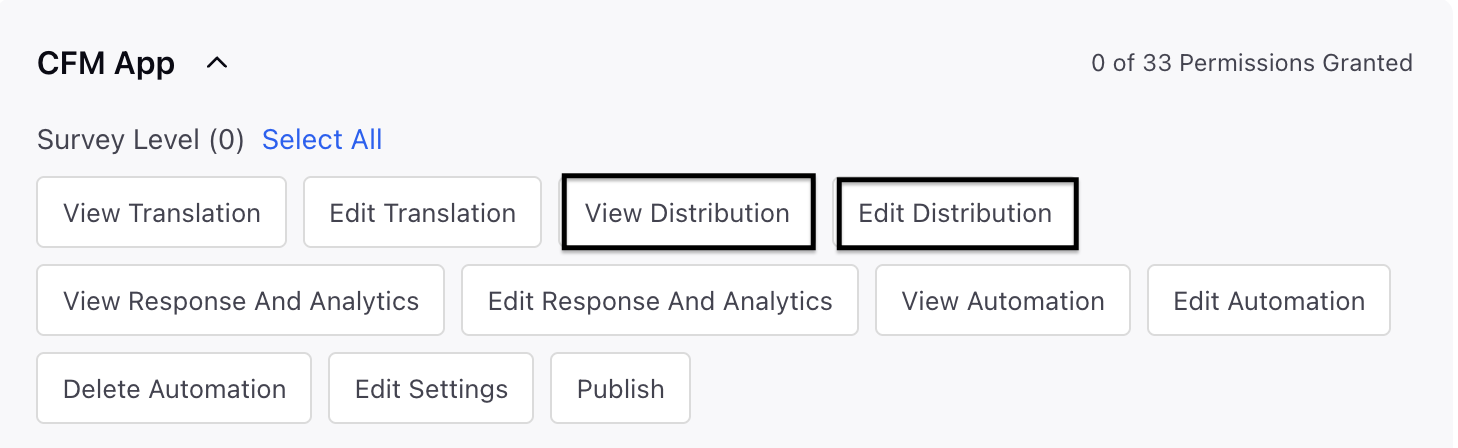
In order to access the WhatsApp distribution, you must have access to the following View and Edit Distribution permissions at Survey Level.
Setting Up Case Update Triggered Standard Distribution

Before you can select the trigger-based option in the schedule, you must follow the steps detailed in this article to set up the standard trigger-based distribution.

  1. Go to Schedule Distribution page and choose the Trigger Based option while scheduling the distribution.

  2. Proceed to the Sender Account and choose the WhatsApp account you intend to use for sending the message.

Setting Up Case Update Rule

Access the Rule Engine, then click on '+ Create New Rule'. Proceed to create a new Case Update Rule by selecting 'Case Update' as the content type.

Survey Conditions

In the Rule Engine, you can set up CFM survey conditions. These conditions enable the triggering of specific survey actions (such as sending reminders or thank-you messages) based on the invite's status, the response's status, or the time elapsed since a survey invite was originally dispatched. To configure a CFM survey condition, follow these steps:

  1. On the Rule Engine page, click the Add Element option and select Add Condition.

  2. Go to Edit Condition in right pane and fill in the details:

    1. Name: Provide a name to the Condition.

    2. Navigate to Conditions Applies to CFM Surveys and select one of the following conditions:

      Condition

      Configuration

      Survey Invite Status

      Use this condition to trigger follow-up actions (like reminder messages) based on the current status of survey invitations.

      Fields to configure:

      • Invite Status: Choose one of the following options:

        • Failed

        • Quarantined

        • Suppressed

        • Invite Sent

        • Invite Opened

        • Unsubscribed

      • Survey: Select the survey for which the invite status will be checked.

      • Distribution Channel: Select WhatsApp Business as channel

      • Distribution: Select the trigger-based WhatsApp distribution whose invite status should be evaluated.

      Survey Response Status

      Use this condition to trigger reminder or thank-you messages based on the recipient’s survey response progress. This condition is also useful before reminder or thank-you actions to:

      • Avoid sending messages to recipients whose invites failed, were quarantined, suppressed, or unsubscribed.

      • Skip reminders for recipients who have already completed the survey.

      Fields to configure:

      • Response Status: Choose one of the following options:

        • Not Started

        • Survey Opened

        • In Progress

        • Partially Completed

        • Completed

      • Survey: Select the survey for which the response status will be checked.

      • Distribution Channel: Select WhatsApp Business as channel

      • Distribution: Select the trigger-based WhatsApp distribution whose response status should be evaluated.

      Survey Last Sent Before Duration

      Set the reminder message frequency using this condition

      Use this condition to add a time delay between the survey invite and reminder message.

      Fields to configure:

      • Time Delay: Specify the duration (in seconds, minutes, hours, days, weeks, or years).

      • Survey: Select the survey for which the delay will be applied.

      • Distribution Channel: Select WhatsApp Business as channel

      • Distribution: Select the trigger-based WhatsApp distribution whose timing will be evaluated.

Survey Actions

Once your survey conditions are established, you can set up Rule Engine actions to automatically send out survey invitations, reminders, or thank-you messages. These automated communications will be triggered by specific case events and evaluation logic. Below are the steps to configure a CFM Survey Action:

  1. On the Rule Engine page, click the Add Element option and select Add Action.

  2. Go to Edit Action in right pane and fill in the details:

    1. Name: Provide a name to the Action.

    2. Navigate to Actions to CFM Survey and select one of the following action.

      Action

      Configuration

      Trigger Survey Invitation

      This action sends the survey invite automatically when defined case conditions are met.

      Key Details

      • The survey message will be sent using the link settings configured in the selected distribution.

      • Reminder and Thank You messages are not auto-triggered — they need separate actions.

      Fields to configure:

      Mandatory Fields

      • Survey: Select a survey to trigger WhatsApp distribution. (Only surveys owned by the user or shared with “Edit Distribution” permission are available.)

      • Distribution Channel: Select WhatsApp Business as channel

      • Trigger based Distribution: Select the survey distribution. (Only Trigger-Based distributions for the selected survey are listed. Failed and Expired distributions are excluded here.)

      Optional Fields

      Survey language conditions i.e. Survey language, Survey Language is Last Associated Message's Language within the rule engine overrides the translation conditions set up within the distribution. If the condition is not added in the rule engine, the existing translation conditions in the distribution setup will be considered.

      • Survey Language – Select a language in which the survey is to be triggered.

      • Survey Language is Last Associated Message’s Language – Auto-detect the recipient’s last message language and trigger survey in that language.

      • Case Custom Field for Recipient – Use an alternate phone number stored in a case field to send the invite.

      • Profile Custom Field for Recipient – Use an alternate phone number stored in a profile field.

      • Use Distribution Configured Account:

        • Yes: Sends the survey from the sender account defined in the selected distribution.

        • No / Unset: Sends from the same channel and account as the case conversation.

      Ensure that the Use Distribution Configured Account field is set as “Yes” and appropriate sender account is selected within WhatsApp distribution when triggering surveys for a case on which no active conversation is ongoing.

      Send Survey Reminder

      This action sends the survey reminder automatically when defined case conditions are met.

      Key Details

      • The survey reminder will be sent using the link settings configured in the selected distribution.

      • Thank You message is not auto-triggered — it is a separate action.

      Fields to configure:

      Mandatory Fields

      • Survey: Select a survey to trigger WhatsApp distribution. (Only surveys owned by the user or shared with “Edit Distribution” permission are available.)

      • Distribution Channel: Select WhatsApp Business as channel

      • Trigger based Distribution: Select the survey distribution. (Only Trigger-Based distributions for the selected survey are listed. Failed and Expired distributions are excluded here.)

      Optional Fields

      Survey language conditions i.e. Survey language, Survey Language is Last Associated Message's Language within the rule engine overrides the translation conditions set up within the distribution. If the condition is not added in the rule engine, the existing translation conditions in the distribution setup will be considered.

      • Survey Language – Select a language in which the survey is to be triggered.

      • Survey Language is Last Associated Message’s Language – Auto-detect the recipient’s last message language and trigger survey in that language.

      • Case Custom Field for Recipient – Use an alternate phone number stored in a case field to send the invite.

      • Profile Custom Field for Recipient – Use an alternate phone number stored in a profile field.

      Send Thank You Message

      This action sends the survey thank you message automatically when defined case conditions are met.

      Fields to configure:

      Mandatory Fields

      • Survey: Select a survey to trigger WhatsApp distribution. (Only surveys owned by the user or shared with “Edit Distribution” permission are available.)

      • Distribution Channel: Select WhatsApp Business as channel

      • Trigger based Distribution: Select the survey distribution. (Only Trigger-Based distributions for the selected survey are listed. Failed and Expired distributions are excluded here.)

      Optional Fields

      Survey language conditions i.e. Survey language, Survey Language is Last Associated Message's Language within the rule engine overrides the translation conditions set up within the distribution. If the condition is not added in the rule engine, the existing translation conditions in the distribution setup will be considered.

      • Survey Language – Select a language in which the survey is to be triggered.

      • Survey Language is Last Associated Message’s Language – Auto-detect the recipient’s last message language and trigger survey in that language.

      • Case Custom Field for Recipient – Use an alternate phone number stored in a case field to send the invite.

      • Profile Custom Field for Recipient – Use an alternate phone number stored in a profile field.

Key points to note

  • Separate Rules Required for Each Action: “Trigger Survey Invitation,” “Send Survey Reminder,” and “Send Thank You Message” actions must be configured in separate rules. Configuring multiple CFM survey actions within the same rule may lead to execution order issues, where a subsequent action (e.g., reminder or thank-you) could be triggered before the previous action (e.g., survey invite) has completed.

  • Reminder and Thank You Require Separate Configuration: Reminder and thank-you messages are not triggered automatically after the survey invite. They require independent Rule Engine actions to be configured explicitly.

  • Conditions Must Be Defined to Control Reminder Delivery: Appropriate Survey Status conditions (e.g., Failed, Quarantined, Suppressed, Unsubscribed, Completed) should be added to ensure that reminders and thank you messages are sent only to eligible recipients and not to users who have opted out or already completed the survey.

While setting up a distribution, you can preview how your message will appear in the WhatsApp chat interface. Although you can test the survey experience in the survey builder, it won’t simulate the full WhatsApp delivery flow.

To test the complete experience, including message delivery, timing, and reminders, create a dedicated test distribution and send it to a test account. After reviewing the results, clone the distribution and make any necessary adjustments before sending it to your actual audience.


Best Practices

To ensure reliable execution of survey-related actions in Rule Engine, configure each survey flow (Invitation, Reminder, and Thank You) as separate rules, rather than combining multiple actions within the same rule.

Recommended setup:

  • Rule 1: Trigger Survey Invitation: Configure the “Trigger Survey Invitation” action to send surveys on cases that meet defined conditions. Move the case to a specific queue after the invite is triggered.

  • Rule 2: Send Survey Reminder: Create a separate rule that runs on the queue used for survey invites. Add a “Survey Status” condition (e.g., to exculde Failed, Quarantined, Suppressed, or Completed) and configure the “Send Survey Reminder” action for eligible cases.

  • Rule 3: Send Thank You Message: Configure another rule that triggers based on survey completion status to send the “Thank You Message.”

This separation ensures that each action executes only after the previous one has been processed, avoiding timing or sequencing issues that can occur when multiple CFM survey actions are defined within the same rule.

  • Clear and Concise Messaging: Keep messages brief and easy to understand.

  • Optimal Timing: Send messages at the right time to maximize engagement.

  • Effective Use of Multimedia: Use images, videos, and GIFs to enhance messages.

  • Adherence to WhatsApp's Terms of Service: Avoid spamming and respect user privacy.