Engage with Direct Messages from TikTok Company Accounts to Profiles
Updated
Introduction
Sprinklr enables brands to engage with direct messages (DMs) received from TikTok profiles. While TikTok Business Accounts cannot initiate conversations, they can reply to DMs sent by individual TikTok users. This feature supports efficient community engagement within Sprinklr’s Engagement Dashboards.
 Important Notes:
DP Based: Access to this feature is controlled by the dynamic property: <TIKTOK_DIRECT_MESSAGE_ENABLED>. To enable this feature in your environment, reach out to your Success Manager. Alternatively, you can submit a request at tickets@sprinklr.com. Once enabled, TikTok DMs will populate as inbound messages, and cases may be created based on your workflows.
EU/UK Compliance: This feature is not available for brand handles registered in the EU or UK due to TikTok’s legal restrictions. Additionally, direct messages sent from TikTok accounts in these regions, to brand handles anywhere in the world, cannot be retrieved.
No Media Support: Image or media replies are not supported at this time.
No Message Request Support: If messages fall into your message request folder, these will not be available in Sprinklr to manage and respond to.
Business Account: Make sure you have converted to / enabled the Business Account toggle as described here
Username Changes: If a TikTok profile's username is changed, the account must be re-added in Sprinklr.
To be able to reply to messages from TikTok profiles, it is necessary to create a TikTok Engagement Column (Direct Messages) in the Engagement Dashboards.
The TikTok account must be added or re-added with the native permissions enabled to grab and engage with direct messages (DMs) in the Sprinklr platform (highlighted below).
Steps to Reply to Direct Messages from TikTok Company Accounts
Click the New Tab icon
in your Sprinklr platform. Under the Sprinklr Social tab, click Engagement Dashboards within Engage.
Click the Dashboard Menu icon
in the top left corner and select the desired dashboard.
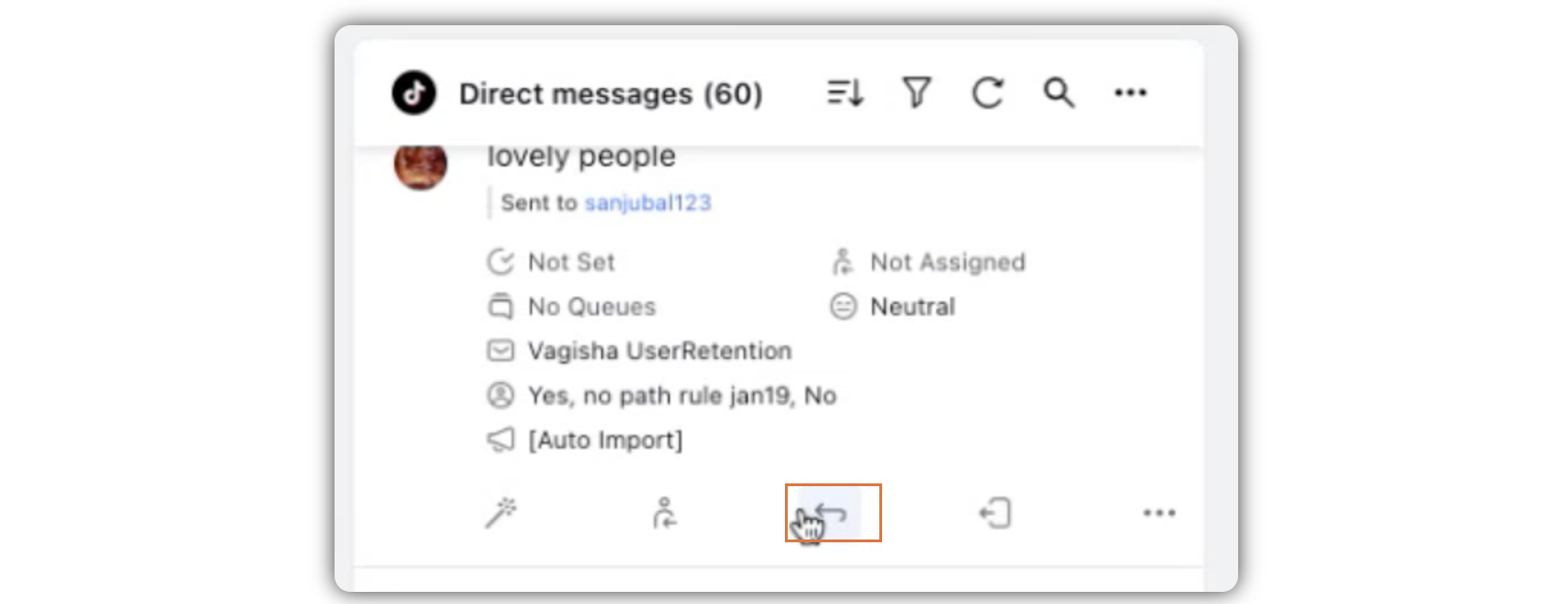
On the Engagement Dashboard, locate the Message from the TikTok Profile that you want to reply to, and click the Reply icon.
In the third pane that opens, write your reply in the Enter your reply here... field. Rich text is supported in the given field; as a result, you can format the content based on your preference.
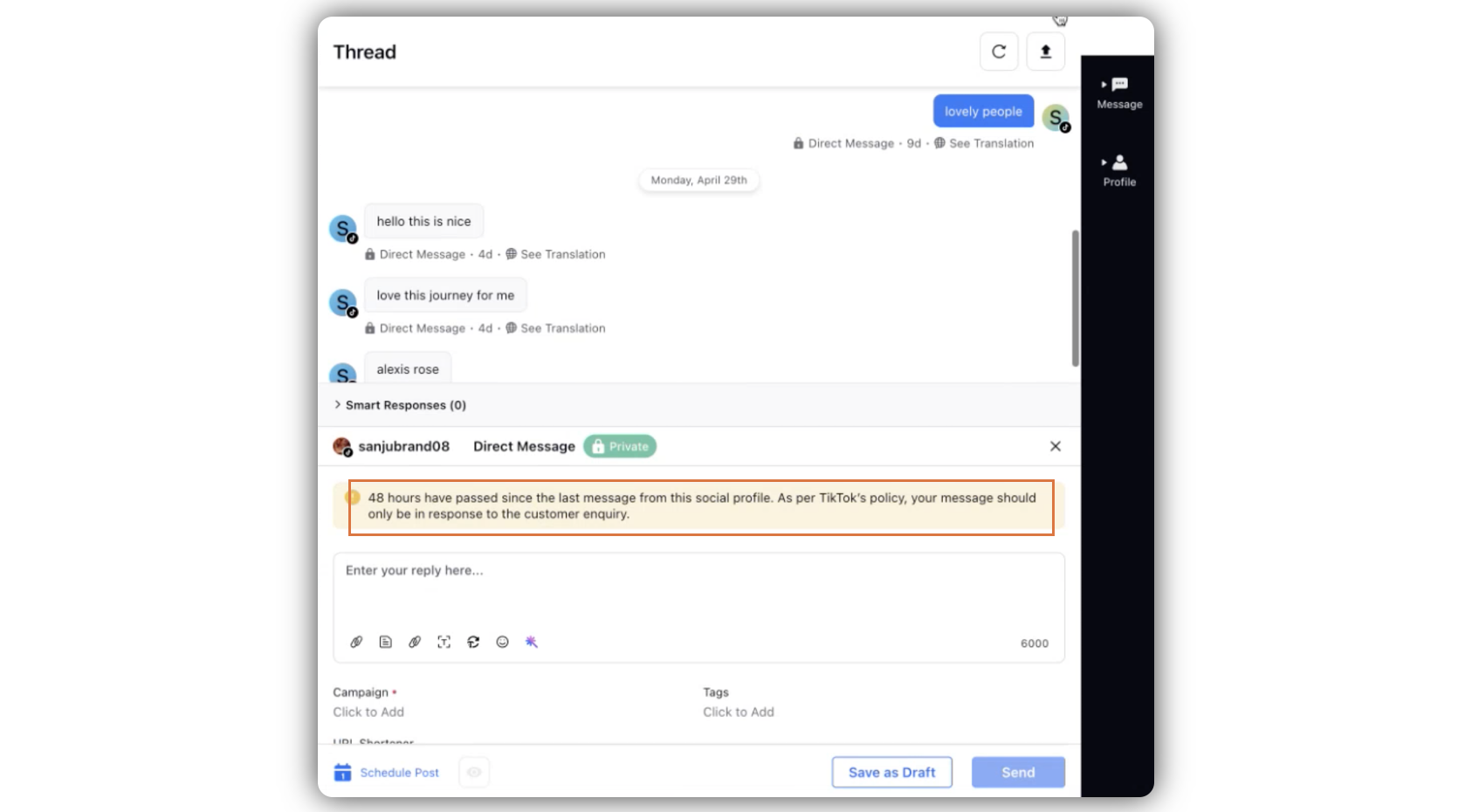
Click Save as Draft if you want to save the reply to be sent later. Click Send in the bottom right corner to send the reply right away.
Changes in TikTok DMs
For a Business Account's non-mutual follow conversations handled via the Business Messaging API, the following messaging limits apply:
Initial 48-hour window: After receiving the first message from a TikTok user, Business Account can send up to 10 messages within the next 48 hours.
Warning msg - “You can’t reply as the limit of 10 replies has been reached. The replying option will be enabled only when you receive a new customer message.”Active conversation window: If the TikTok user replies to the Business Account's message, a new interaction window starts. Within 48 hours after each last reply from the TikTok user, the Business Account can send an unlimited number of messages to that user.
Warning msg - “__ hours have passed since the last message from this social profile. As per TikTok’s policy, your message should only be in response to the customer enquiry.”Inactive conversation limit: If more than 48 hours have passed since the TikTok user's last reply, the Business Account is limited to sending a maximum of three additional messages. This restriction remains in effect until the TikTok user responds again, which will reactivate the unlimited messaging window for the next 48 hours.
Warning msg - “You can’t reply as the limit of 3 replies has been reached. The replying option will be enabled only when you receive a new customer message.”Example flow:
TikTok user sends first message
→ Business Account can send up to 10 messages in 48 hours
→ TikTok user replies
→ Business Account can send unlimited messages in the next 48 hours
→ If TikTok user doesn't reply for over 48 hours
→ Business Account can only send three more messages
→ TikTok user replies again
→ Unlimited messaging window reopens for 48 hours, and additional three more messages after 48 hours until the TikTok user replies again.