Agent Copilot Reporting
Updated
The Agent Copilot Reporting Dashboard provides key insights into how your Copilot is used, its performance, and its impact on agent productivity. You can import a pre-configured dashboard from the blueprint environment using Hyperdrive.
Deploy Agent Copilot Reporting Dashboard
To deploy the Agent Copilot Reporting dashboard using Hyperdrive, follow these steps:
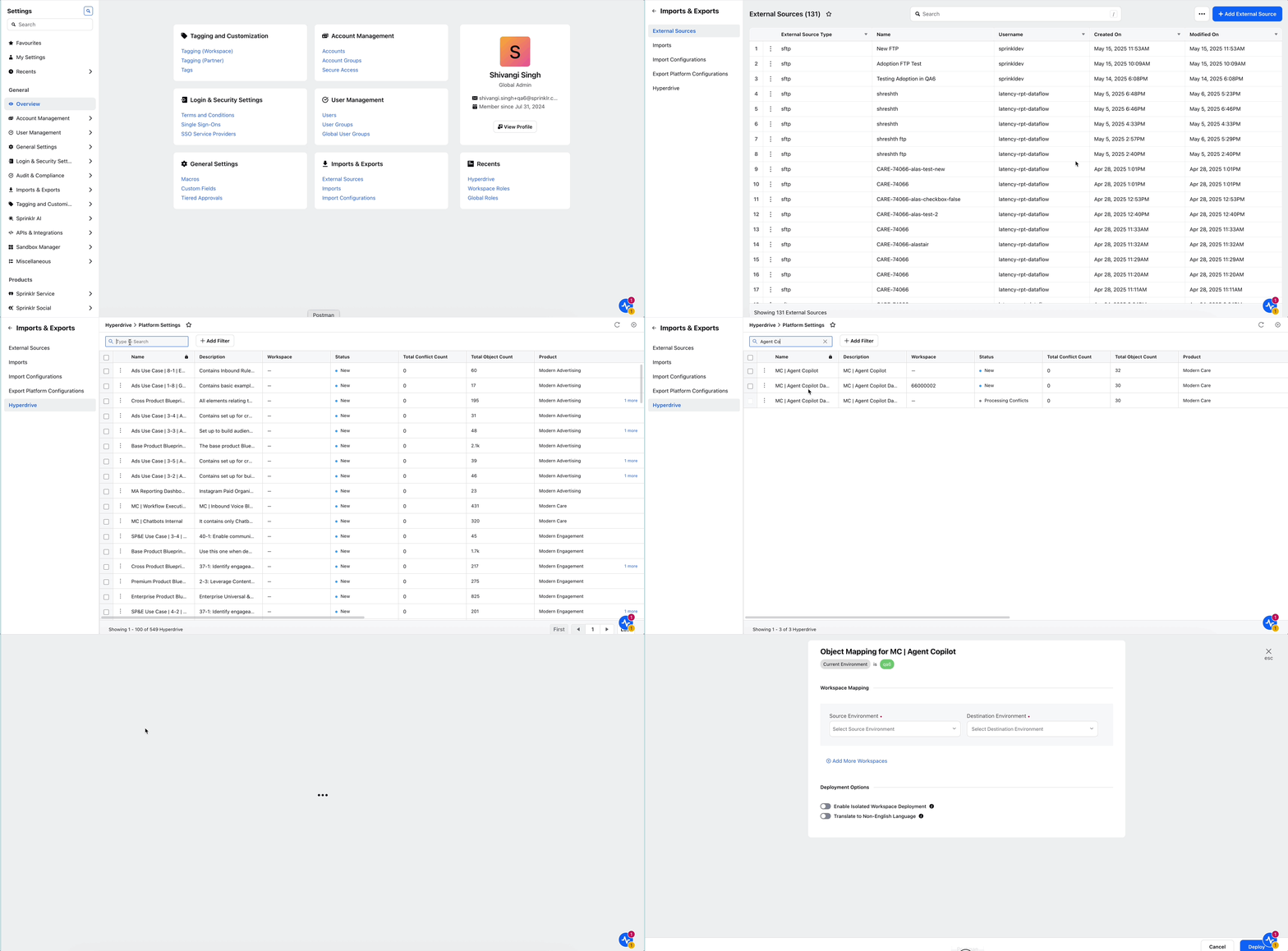
From the Sprinklr Launchpad, navigate to All Settings > Imports & Exports.
In the left navigation panel, select Hyperdrive.
On the Hyperdrive Record Manager screen, search for: 'MC | Agent Copilot Dashboard'
Click the vertical ellipsis (⋮) next to the result and select Deploy from the dropdown.
Configure Object Mapping
When the Object Mapping screen opens, configure the following fields:
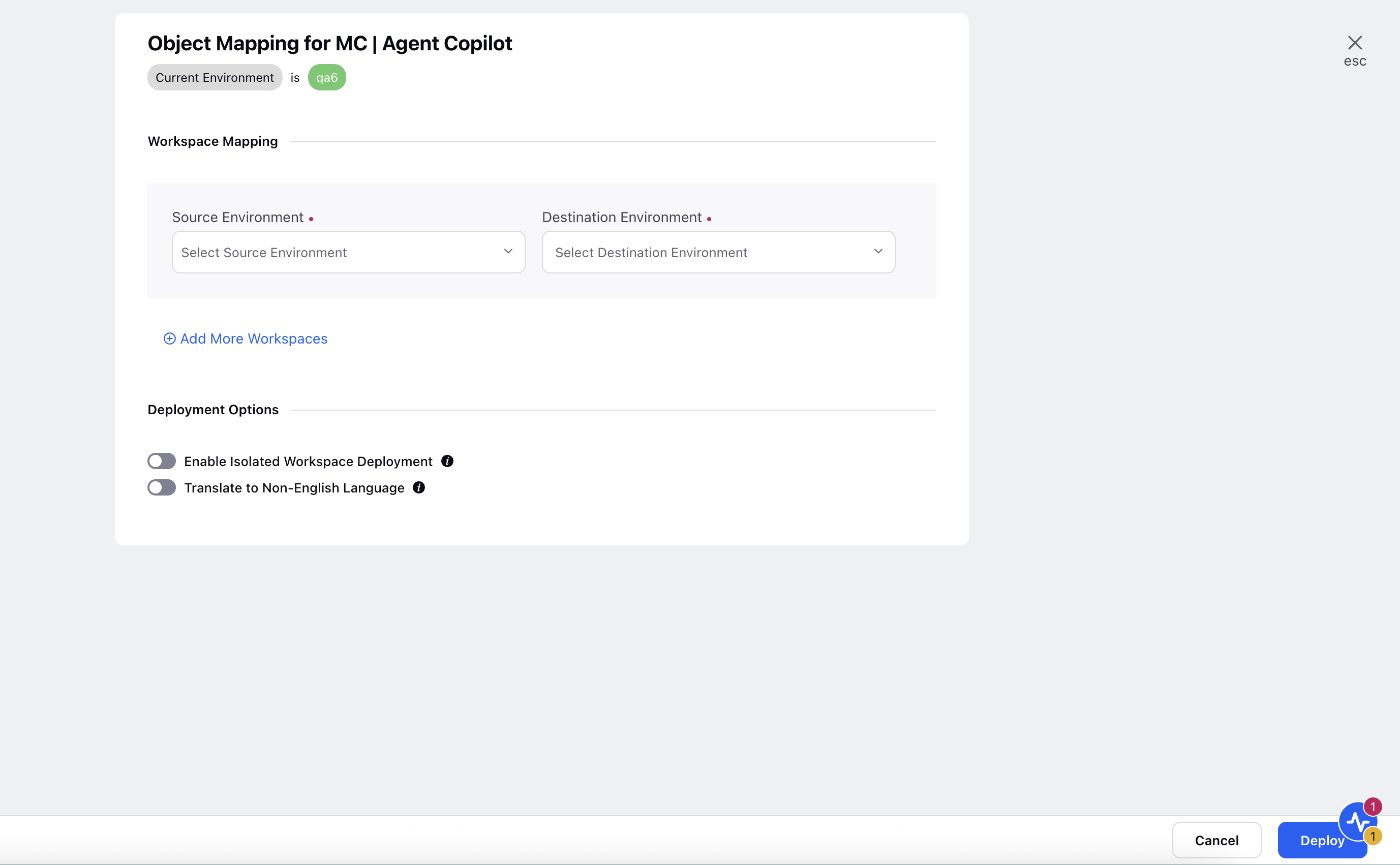
Workspace Mapping
Source Environment: Select the source environment from the dropdown.
Destination Environment: Select the destination environment where the dashboard should be deployed.
Deployment Options
Enable Isolated Workspace Deployment (Toggle):
Enable this if you want the deployment to be isolated from existing configurations.Prefix: Enter a unique prefix to avoid name collisions (e.g., HD_ will rename "Universal Inbox" to "HD_Universal Inbox").
Translate to Non-English Language (Toggle):
Enable this if you want the deployment objects to be translated.Target Language: Select the desired language from the dropdown.
 Note: This translation uses Google Translate and may not be 100% accurate.
After all fields are configured, click the Deploy button in the bottom-right corner.
You will receive a system notification confirming that the deployment has been initiated. Once the process is complete, the dashboard will be available in your Reporting Dashboards section.

Agent Copilot Reporting Dashboard Overview
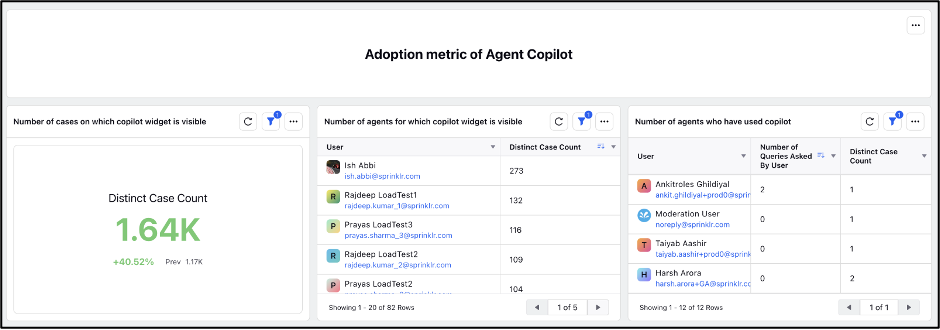
The Agent Copilot Reporting Dashboard provides comprehensive insights into how the Copilot widget is used and performs. It includes the following key metric categories:
Key Metric Categories
Adoption Metrics
Track the frequency of Copilot usage and identify which agents are using it. These metrics help assess adoption across teams.
Engagement Metrics
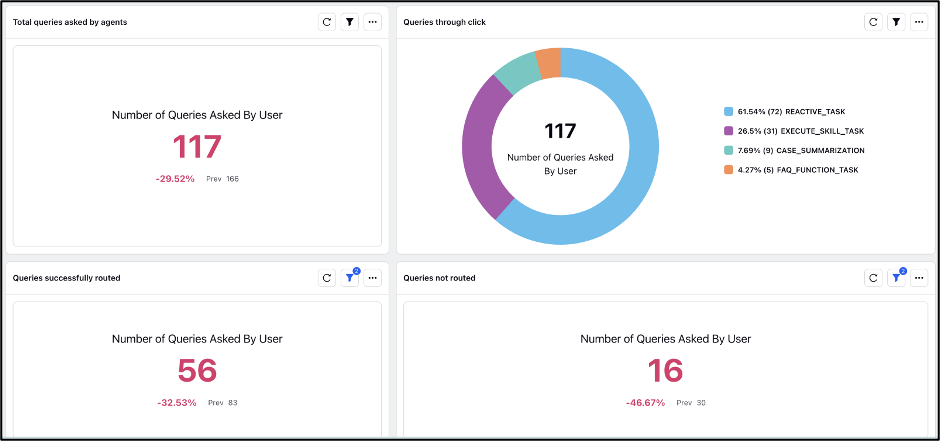
Measure agent interactions with the Copilot, such as the number and type of queries submitted and actions taken based on suggestions.
Feedback Metrics
Capture agent feedback on features like case summaries and answer generation, helping evaluate the quality and usefulness of Copilot responses.
Latency Metrics
Use latency metrics in Copilot Reporting to understand how long Agent Copilot takes to generate responses. You can analyze latency for reactive and proactive tasks and identify the stages that contribute to response time. Copilot Reporting supports the following fields for Agent Copilot latency analysis:
Field
Type
Description
GenAI Latency
Metric
Measures the time associated with generating an Agent Copilot response through generative AI processing.
Trigger
Metric
Measures the time between the applicable trigger and the start of response processing.
Nudge Trigger Source
Dimension
Identifies the source that triggered a proactive nudge. For example, the report can display MESSAGE when a message triggered the nudge.

These metrics enable you to monitor Copilot performance, identify training or adoption gaps, and inform improvements to enhance both agent productivity and customer satisfaction.
Benefits of Agent Copilot Reporting
Monitoring Agent Copilot usage helps you identify:
Adoption gaps across agent teams
Areas where training or task adjustments are needed
Performance and ROI of Copilot deployment
By using these insights, you can enhance agent productivity, reduce average handling time, and deliver more accurate and personalized customer experiences.