Case Summary
Updated
Case Summary provides a quick overview of a case, allowing agents to grasp the context at a glance without reading the entire case history.
All cases created in Sprinklr include a Summary field, where agents can enter notes that highlight key details. This field is also included when exporting a case, ensuring that the summary is available outside the platform. By using Case Summary, agents can quickly understand the essence of a case without reviewing the full interaction thread.
Case Summary in Agent or Care Console
The Summary field is available in the Overview tab of the Case Third Pane.
To view Case Summary:
1. Click the New Page (+) icon to open the Launchpad.
2. Under Sprinklr Service > Resolve, select either Agent Console or Care Console.

3. Open the Case Third Pane.
Agent Console: Clicking a case automatically opens the Case Third Pane with details upfront.
Care Console: From the Case Stream, click a case to open it. Then, in the Conversation Pane, use the three‑dots icon > View Case Details to open the Case Third Pane.

4. In the Overview tab of the Case Third Pane, locate the Summary field.
5. Click inside the summary box to add or edit notes.

Case Summary in Reporting
You can plot the Case Summary dimension across various supported visualization types in Reporting. In a Table widget, the text of the Case Summary will appear directly in the table cells. In other visualization types (such as charts), the Case Summary will be visible when you hover over a case’s data point.
To plot Case Summary:
1. Click the New Page (+) icon to open the Launchpad.
2. Under Analyze > Reporting, select Care Reporting.

3. On the Reporting Dashboards screen, click Create Dashboard in the top-right corner.
4. In the Create Dashboard window, enter the required details and click Create.
5. Add and configure a widget. For detailed steps, see the Widget Configuration in Reporting article.
While configuring the widget, consider the following points:
In the Data Source drop-down, select Social Analytics.
In What would you like to plot on your widget, select:
Case and Case Summary dimensions
Case Count metric

6. Click Add to Dashboard in the bottom right corner to add your widget to the dashboard.
Case Summary in Rules
You can configure rules in the Rule Engine using the Summary condition to trigger actions when a case summary contains or does not contain specific keywords.
Prerequisite
Before applying this condition, ensure that the keyword list has already been created in Sprinklr.
Steps
To create a rule with Case Summary:
1. Click the New Page (+) icon to open the Launchpad.
2. Under Platform Modules > Collaborate, click Rule Engine.

3. On the Rule Engine window, click Create New Rule in the top-right corner.
4. In the New Rule window, provide a Name and optional Description.
5. Set the Rule Scope to Customer.
6. From the Context dropdown, select Case Update.
7. If needed, adjust values for Activation Date, Rule Execution Batch, and Rule Type.
8. Click Next to proceed.
9. On the Rule Builder window, click the Add Element (+) icon and select Add Condition.
10. Under Condition Applies To Universal Case, choose Summary from the dropdown.
11. Select the desired keyword list.
Keyword Lists let you create and save custom sets of keywords or phrases. Once defined, these lists can be reused across rules and conditions. When a case summary contains any keyword from the list, the associated action is automatically triggered.
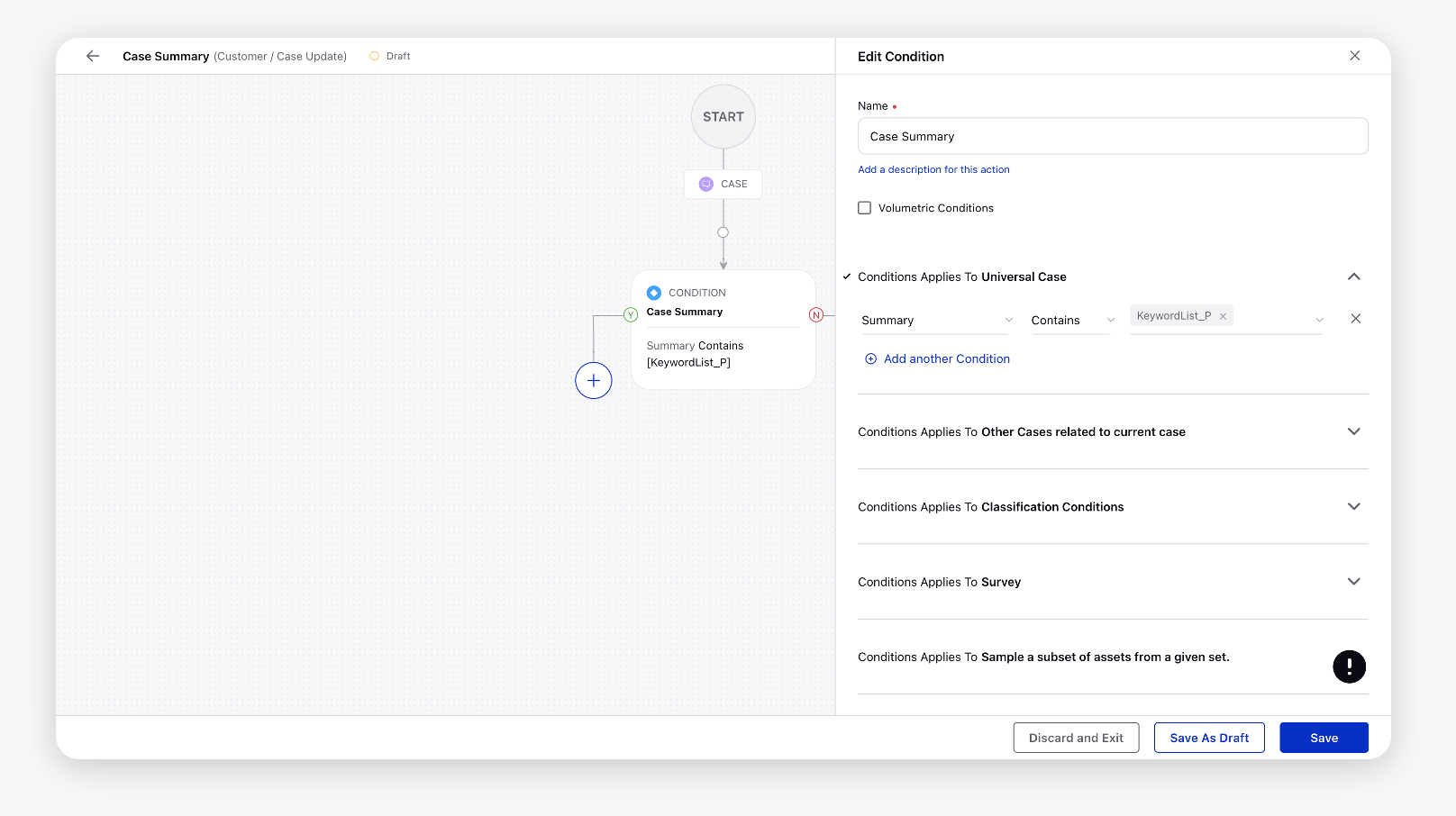
12. Click Save to finalize the rule.