Add User(s) in Sprinklr (Classic Roles and Permissions)
Updated
Adding users to Sprinklr helps you onboard your team by providing new users the access and permissions they need to start working in the platform. This article explains the basic information required to add users and outlines the options available to Admins for editing user details.
 Note: This article applies to Sprinklr customers using the Classic Roles and Permissions Model. If your organization uses the New Entitlement-Based Access Model, refer to the Add User(s) in Sprinklr (New Entitlement-Based Access) article.
Once the user(s) are added to Sprinklr, an email invite is sent which remains active for 60 days. After accepting the invite, the users can edit their personal details like First Name, Last Name, Phone Number, and Language regardless of their User type.
 Admin Set-up: To add a user, you must either be a Global Admin/User or a Workspace Admin of the customer/workspace environment where you want to add Users. You cannot create a user with a higher User level than yourself.
Also, you must have the appropriate permissions to add users to Sprinklr. To learn more about Global and Workspace level permissions, see Sprinklr Platform Permissions.
This article provides instructions on the following:
Add a Single User
Perform the following steps to add a new user on the New User page.
On the Launchpad, under Platform Modules > Settings, click All Settings.
On the left navigation pane, under General Settings, select User Management. The User Management page appears.
Select Users from the left navigation pane and then click Add User present at the top of the page. The Create Users page appears.
Fill in the required fields on the Create User page. Fields marked with a red dot are mandatory. Refer to the New User - Field Description table to view the descriptions of the fields on this page.
Create User — Field Descriptions
Fields | Description |
User Info | |
 | |
Upload Image | Upload an image of the user. |
First Name | Enter the user's first name. |
Last Name | Enter the user's last name. |
Email | Enter the email address of the user, which will be used when logging into the Sprinklr. |
Phone Number | Enter the phone number of the User. |
User Assigned Roles | |
 | |
Global Roles | Select a Customer Global Role if applicable. |
Local Roles | Select a Customer Local Role if applicable. Local roles are special global level roles that can be enabled for specific workspaces. |
Workspace | Select Workspace. |
Add New Local Role | Click this to add a new local role. |
Workspace Roles | Select a Workspace Role if applicable. |
Teams | |
| |
Designation | Enter the designation (you may use this field to describe the organizational role of the user). |
Department | Enter the department to which the user belongs. |
Manager | If the user's manager is available in Sprinklr, they can be selected from a drop-down list. |
Secondary User | Designate a secondary or backup user during the user creation process. This user will be responsible for transferring specific assets if the primary user is deactivated. Assets eligible for transfer include:
After the transfer, the secondary user will need to log in again to activate the scheduled export, run pipelines, and manage other reporting assets. This feature enables a hierarchical structure where User 2 can serve as the backup for User 1, User 3 as the backup for User 2, and so forth, ensuring a seamless transition and continuity in operations. |
Setup Supervisor Team | Add the user groups that are part of Supervisor's Team. |

User Properties | |
 | |
Product Seat | Select the desired product seat from the drop-down menu.
|
Service Bundle | Service Bundle reflects the Sprinklr Service capabilities enabled for the user based on your organization’s contract. This selection determines which supported channels (such as voice, live chat, and messaging) and AI‑powered features the user can access in Sprinklr Service. This field applies only when Sprinklr Service is selected in the Product Seat field. For details about which capabilities are enabled in your environment, contact your Sprinklr Success Manager. |
Language | Enter the language to be used by the user in Sprinklr. The following languages can be selected for users: Arabic, English (U.K.), English (U.S.), French, German, Italian, Japanese, Korean, Portuguese, Russian, Simplified Chinese, Spanish. |
Define logout timeout in minutes | Either enter or select the logout timeout in minutes from the drop-down list. Note that this setting will override any logout timeout setting defined in the user groups. |
Federation ID | Assigning a Federation ID helps for unique identification. You cannot assign the same federation identity to more than one user across the Workspace within the same Customer.
|
Restricted IPs | Enter the restricted IPs, if applicable. Once you have entered the IPs, you will be only able to access Sprinklr from those specified IPs. |
Interaction Visibility | Add the individuals whose conversations this user can access. |
Homepage Persona | Select the homepage persona view you want the user to see. |
Enable Persona App based experience | Select this if you want the user to only have access to Persona App UI. |
Is Active | Select this option to set a user as active or inactive. Inactive users cannot log in to the Sprinklr. |
Turn on Hyperspace | Enable the checkbox if you want to turn on Hyperspace UI for the user. |
Forbidden Mobile View | Enable the checkbox if you do not want the user to have Mobile View access. |
Login using only SSO | Select this option if you want the user to be able to login using only SSO (Single Sign-On). |
Revoke Auth Token on Password Expiry | Select this option to revoke authorization access tokens on password expiry. |
Is Distributed User | Enable this checkbox if you want the user to be in the distributed interface. |
Enable TFA | Toggle this checkbox to enable TFA for the user. |
Properties | |
Custom Properties | Enter the desired properties. |
User Groups to Include User In | |
 | |
Select User Groups | Select the user group(s) to include the user in from the drop-down menu. |
Primary User Group | Select the primary user group from the drop-down menu. |
Default Handles | |
 | |
Select Channel | Select the desired social channel from the drop-down menu. |
Select Handles | Select the default handle for the social channel. |
Add New Default Handle | Click to add a new default handle for the social channel. |
User Skills | |
 |
Skill | Select the desired skill from the drop-down menu. |
Proficiency Score | Enter the desired proficiency score for the skill. |
Add Skills | Click + to add the skills of the user and the respective proficiency score. Hence, when a new message or case comes into the queue, the Assignment Engine will route them to an agent who has the requisite skills and available capacity. |
Approvers | |
 | |
Publishing Approval Mandatory | Check the box if you want the user's posts to go through mandatory approval by another user or users. If a mandatory approval is set for a user who is added to multiple workspaces, the approval must be set in each workspace. |
Approvers | Select the approver(s) for this user. Approvers set will only apply if Publishing Approval Mandatory is selected. |
Approver User Group | Select the approver user group for the user. |
Clone User
To clone an existing user,
On the Launchpad, under Platform Modules > Settings, click All Settings.
From the left pane, under General, select User Management to open the User Management page.
Search the user name that you want to clone and click the vertical ellipsis (Options icon) next to it.

From the list of options available, select Clone to open the Clone User window. Here, all fields are prefilled except the User Info section. Enter the required details and click Save to clone the user.

Add Multiple Users
In the top right corner of the Users (Settings) window, click the Options icon
and select Import Users.

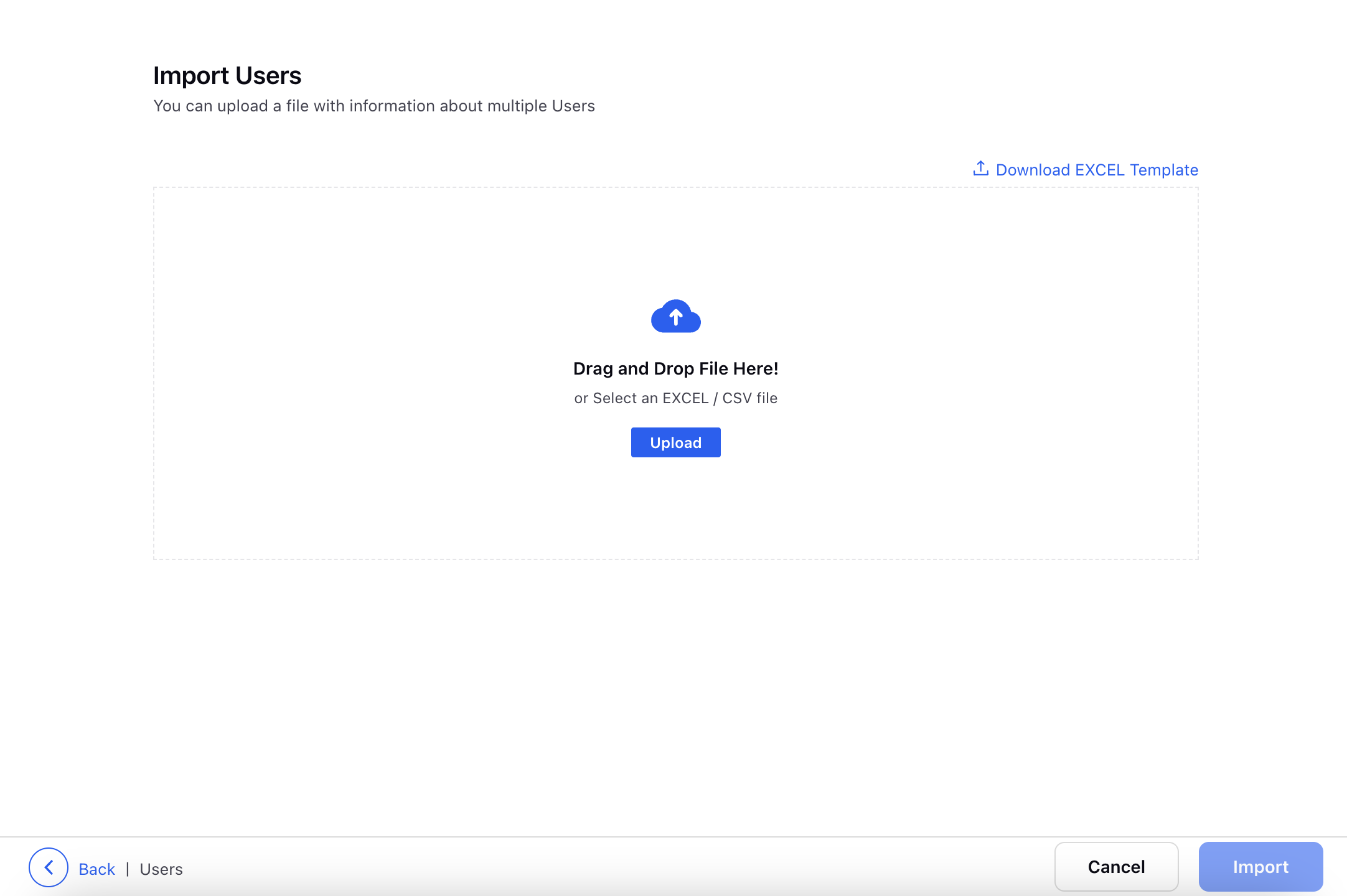
In the Import Users window, click Download EXCEL Template to download the excel file. Enter the details in the file. For more information, see New User— Field Descriptions.
Click Upload to upload the excel file.
Once the file is uploaded, click Import in the bottom right corner.