Agent Network and System Readiness Tool
Updated
The Agent Network/System Readiness Tool is designed to help agents diagnose and resolve system, network, and hardware issues that disrupt call quality. By providing a simple and efficient diagnostic mechanism, the tool improves agent productivity, ensures seamless customer interactions, and minimizes downtime.
The tool empowers agents and support teams to perform quick tests, identify root causes of issues, and take corrective actions promptly, thus enhancing overall operational efficiency and customer satisfaction.
Prerequisites
The following are some of the prerequisites that the agent must have:
Voice Appications shared
Platform Type as Enterprise
Headless voice disabled
Agent Readiness or Nailed Up enabled
The user is of type VOIP
Agent View
The interface allows agents to view results more clearly and navigate through the tool effortlessly.
Agents can run customized test sequences based on the provider or network configuration.
Depending on whether the VDI is Citrix or Azure, the appropriate test will run.
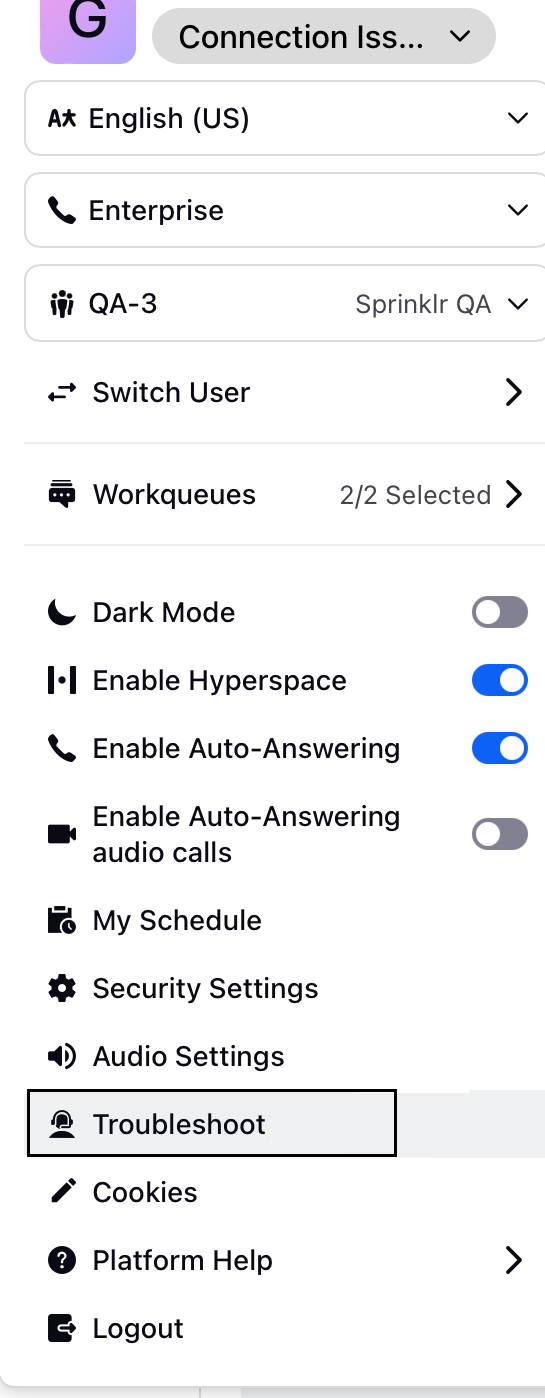
Agents can see the troubleshooting option in their profile in the bottom left corner.
Running Tests in the Agent Troubleshooting Window
Agent View
The interface allows agents to view results more clearly and navigate through the tool effortlessly.
Agents can run customized test sequences based on the provider or network configuration.
Agents can see the troubleshooting option in their profile in the bottom left corner.

VDI Media Offloading Test
The VDI Media Offloading Test is designed to support agents working in virtual desktop environments, such as Citrix or Azure. It checks whether media traffic is being processed on the local device instead of within the virtual session—an important factor for maintaining good call quality and minimizing system resource usage.
What the Test Does
When the test runs, it first identifies the type of environment the agent is using and then performs relevant validations:
In a Citrix VDI environment
The test performs checks specific to Citrix, including connectivity (such as WebSocket), availability of the WebRTC engine, and required background services.In an Azure VDI environment
The test runs Azure-focused validations, ensuring media redirection is functioning properly and that necessary components like WebRTC and supporting processes are available.Outside a VDI environment
If no virtual desktop setup is detected, this test will not appear.
Understanding the Results
If the test finds any issues, it highlights them with clear and actionable messages. These details help agents quickly identify misconfigurations or missing components, allowing them to fix problems and ensure media is correctly offloaded for the best possible experience.
Extra Automated Nudge
When a Citrix failure occurs and the troubleshooting screen does not open automatically, Sprinklr provides a nudge notification in the Agent Readiness screen to assist in initiating the troubleshooting process.
An (info) icon will appear next to the readiness status.
Clicking this icon will reveal a Troubleshoot button.
The Troubleshoot button opens the troubleshooting tool directly, with only the required Citrix-related tests enabled- simplifying the process for the agent.
This ensures that agents are always guided toward resolving Citrix connectivity or redirection issues without manual navigation or dependency on external links.

Running the Test
You can run various diagnostic tests to identify the problem in the network by following these steps:
On the Home screen, navigate to your profile.
Click Troubleshoot from the drop-down. The Agent Troubleshooting window appears.
Before starting the test, click on the gear icon to open the Settings dialog and ensure that the required options are set.

The following fields are available in the Settings dialog.
Microphone - Verify and select the correct microphone input. Additionally, you can test the speaker by playing a sample sound to ensure it is working properly.
Voice Application - The last used Voice Application (inbound or outbound) will be selected. If unavailable, the first shared Voice Application will be used as a fallback. You can also select the preferred Voice Application from the drop-down.
 Note: If you don't select any values for Microphone or Voice Application, by default, the last used voice application will be selected. Otherwise, the first available voice application will be chosen for test calls.
In the Agent Troubleshooting window, click Start Tests to run the test.

Note: The Start Tests option will be available only if you are not on a call and your status is set to something other than "Available".Clicking on Start Tests will run tests simultaneously for all the fields listed in the Agent Troubleshooting window.

Note: Click the expand icon to view more information for each test.
The following table provides information on various fields available in the Agent Troubleshooting window.
Fields | Description |
Citrix Redirection Setup Test | Verifies if the Citrix feature is enabled. Performs a basic setup check and displays failure cause incase of test failures. For more information on resolving Citrix Redirection Setup Failures, refer to Troubleshooting Citrix Redirection Setup Failures. |
Microphone Test | Verifies that the browser or system has granted the necessary permissions to access the microphone and verifies if the microphone is connected. |
Provider Connectivity Test | Provider Connectivity Test is used to test if there are any issues with the voice service provider's connectivity. The section provides information on Offline Voice Applications and Total Voice Applications. Click on the expand icon and then click on More Details, the Connection Status page appears that lists the voice applications and specifies whether or not the voice applications are connected.
|
Turn Connectivity Test | Turn Connectivity refers to the process of establishing a network link between two endpoints using a TURN (Traversal Using Relays around NAT) Server. There are three protocols in Turn Connectivity:
This Checks network connectivity to the configured TURN server, ensuring reliable audio during calls. The values under Result indicate the time taken to establish a connection using the TURN server using respective Transport protocols. This Test also verifies if the ICE (Interactive Connectivity Establishment) Servers are correctly configured or blocked by firewalls, causing call failures in restricted networks. ICE is a framework used in real-time communications (like voice and video calls) to help devices find the best path to connect with each other. Sprinklr calls use ICE to find the best network path. For more information on ICE Server Connectivity Troubleshooting tips, refer to ICE Server Test: Guide and Troubleshooting Tips.
The TURN Connectivity details are displayed only if the Voice Application used is SignalWire. |
Throughput Connectivity Test | Throughput refers to the amount of data successfully transmitted across a network for a specific session or set of sessions within a given time frame.
|
MQTT | Tests the MQTT (Message Queuing Telemetry Transport) protocol for maintaining a stable connection between your(Agent) device and the Sprinklr platform. All 3 connections below are checked and we receive time to connect to MQTT and RTT for each.
This is to ensure real-time notifications for calls and updates are working properly. |
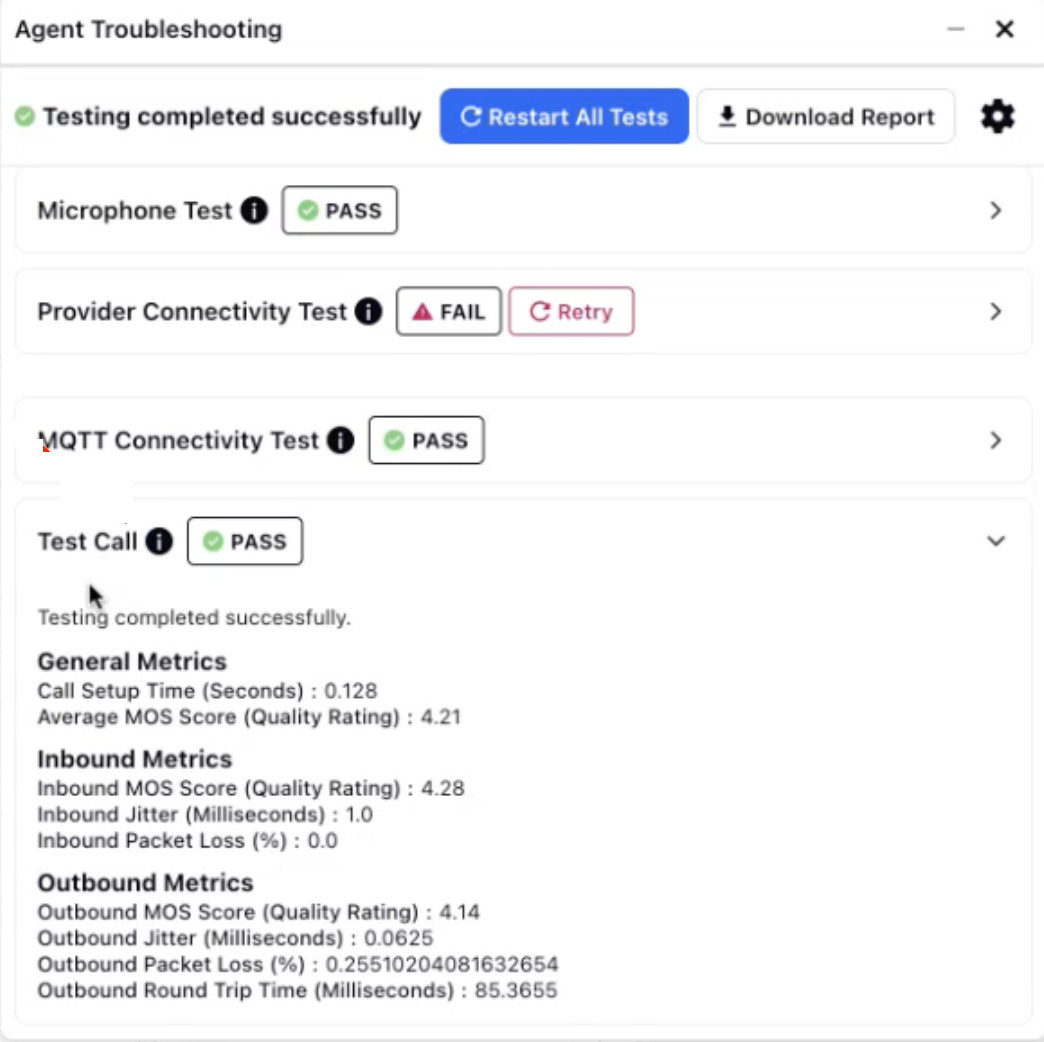
Test Call | The Test Call details are available only for Sprinklr Voice Connect, SignalWire, Ozonetel, and Twilio voice applications. It evaluates the call quality by initiating a test call. You can then speak something, and it will echo back, allowing you to check if the voice is clear and understandable. This will be a 10 sec short call. It will also display the following metrics:
|
After successful completion of tests, you can restart the test or download the report using the Restart All Tests and Download Report options.
Restart All Tests
You can restart the test by clicking on Restart All Tests. The Restart All Tests option runs all the tests. However, if a specific test fails, there is no need to rerun the entire test suite. You can simply retry the failed test individually.
Download Report
After successful completion of tests, you have the option to download the report using Download Report.