Configure Manual Audit Checklist
Updated
The Manual Audit Checklist Builder in Sprinklr helps you audit proactive content published across channels. You can create custom checklists that reflect your quality standards, including organization guidelines, regulatory requirements, message accuracy, and content quality.
Auditors use these checklists to review content in a consistent and structured way, either before or after publication. Audit results feed directly into reports, so you can track quality trends and monitor each creative author’s performance in the Reporting dashboard. This approach strengthens quality control, improves accountability, and supports ongoing improvement in content creation.
Create Manual Audit Checklists
Follow the steps below to create a Manual Audit Checklist in Sprinklr:
Open the Checklist Builder
Follow these steps to open the Checklist Builder:
Open All Settings from the Sprinklr launchpad.
Search for Global Audit Checklist from the All Settings page.
Click the Global Audit Checklist options to open the Checklist record manager screen

Click the ‘+ Checklist’ at the top right corner and select ‘Manual’ from the dropdown to open the Checklist Builder

Configure Checklist Page
Configure the following fields on the Checklist configuration page

Details
This section defines the basic details of the checklist.
Name: Enter a clear and descriptive name for the checklist. This name appears wherever the checklist is used and in reporting.
Description: Provide a brief description of the checklist purpose. This helps auditors and admins understand when to use it.

Select an Asset Type
Use this field to choose what the audit checklist applies to. The asset type determines how and where the checklist is used. The following asset types are supported.
Message: Select Message to audit outbound or published content. This includes posts, replies, or other proactive messages created in Sprinklr. Use this option to review content quality, brand adherence, and messaging accuracy.
Case: Select Case to audit customer service cases. This option is used to evaluate case handling quality, process compliance, and resolution standards.
When you select Case, the Audit Uniqueness Criteria toggle becomes available. Turn this toggle on to ensure a case is audited only once based on defined uniqueness rules. This helps prevent duplicate audits and improves audit coverage.User: Select User to audit user level performance. This option is useful for evaluating actions or behavior associated with a specific user, such as an agent or content creator. User based audits support performance reviews and coaching initiatives.
Asset Sharing
Use this section to control who can access and use the checklist.
Visible in all workspaces: Select this option to make the checklist available across all workspaces.
Workspaces: Select specific workspaces or workspace groups where the checklist should be available.
Users or User Groups: Limit access to selected users or user groups. This is useful when only certain roles perform audits.
Audit Uniqueness Criteria (Only for Case Asset Type)
Audit Uniqueness Criteria helps you control how a unique audit is identified for cases. When enabled, Sprinklr uses the responses to the configured criteria along with the evaluated agent, auditor, checklist, and case interaction to determine whether an audit already exists. This prevents duplicate audits for the same case scenario.
Use this configuration when your asset type is Case, and you want to ensure that a case is audited only once for a specific context. This is useful for quality programs that require strict audit coverage and controlled sampling.
Audit Uniqueness Criteria toggle: Turn on the Audit Uniqueness Criteria toggle to enable uniqueness enforcement. Once enabled, the configuration section becomes available and you must define at least one criterion.

The following fields will appear in the configuration section:
Criteria Name: Enter a clear name for the uniqueness criterion. This name identifies the criterion internally and helps admins understand its purpose.
Criteria Description: Describe what the criterion represents. Use this field to explain how the response contributes to defining a unique audit. This description supports maintainability and clarity for future updates.
Criteria Help Text: Add guidance that appears to the auditor while responding to the criterion. Use this to clarify how the auditor should answer the question.
Criteria Input Type: Select how the auditor records a response for this criterion. The input type determines how the response is captured and evaluated for uniqueness.
Supported Criteria Input Types
When you configure Audit Uniqueness Criteria, you must select a criteria input type. The input type defines how auditors provide responses and how the system evaluates uniqueness for a case audit.
PickList: Use PickList when the auditor must select one value from a predefined list. You define a list of options. The auditor selects one option. Use this input type when responses are mutually exclusive and standardized.
Example: Select audit outcome such as Pass or Fail.
PickList MultiSelect: Use PickList MultiSelect when the auditor can select more than one value. You define a list of options. The auditor selects one or more options. Use this input type when multiple conditions or attributes may apply to the same case.
Example: Select applicable customer issues such as Delay and Incorrect Information.
Check Box: Use Check Box for a binary response. The auditor selects or clears the checkbox. Each option represents a clear yes or no decision. Use this input type for simple confirmations or validations.
Example: Customer satisfied with the interaction.
Radio Option: Use Radio Option when the auditor must select one option from a visible list. All options are displayed at once. The auditor selects only one option. Use this input type when you want all choices visible to reduce ambiguity.
Example: Select interaction quality as Good, Average, or Poor.
Date: Use Date when the response must capture a specific date. The auditor selects a date from the date picker. Use this input type when audit uniqueness depends on timing.
Example: Interaction reviewed date.
How uniqueness is determined
Sprinklr combines the following to define a unique audit
The configured Audit Uniqueness Criteria responses
The evaluated agent
The auditor
The selected checklist
The case interaction
If an audit already exists with the same combination, the system prevents creating another audit for that case context.
Use the ‘+ Add new Criteria’ button to create multiple criteria for audit uniqueness.
Checklist Section
Use this section to define how the checklist is structured and evaluated.
Overall Score Calculation Method
Use this field to choose how category scores roll-up into a final audit score. Select a calculation method that aligns with your quality scoring framework and reflects how category performance should impact the result. The following scoring methods are supported:
Average: The overall score is calculated by taking the average of all category scores. This method treats every category equally and provides a balanced view of overall performance.
Maximum: The overall score is based on the highest score among all categories. This method highlights the strongest-performing category and reflects the best achieved outcome.
Minimum: The overall score is based on the lowest score among all categories. This method emphasizes areas that need improvement and ensures that low performance is not overlooked.
Sum: The overall score is calculated by adding together the scores from all categories. This method reflects total performance across all categories and rewards higher combined scores.
Weighted Category: The overall score is calculated by applying weights to category scores and then combining them into a final score. This method allows more important categories to have a greater impact on the overall result.
Overall Score Calculation under Criticality
Specifies how the system calculates the final audit score when critical checklist items are present.
Supported options:
Critical Category Score: Sets the overall score to the lowest score among categories that contain critical checklist items. Use this option when critical item performance should drive the final result.
Lowest Category Score: Sets the overall score to the lowest score across all categories, regardless of criticality. Use this option when any low-performing category should determine the final score.
Checklist content area
This area shows the categories and items included in the checklist.

This message appears when no categories or items are added. You must add content before the checklist can be used for audits.
You can add checklists in the following ways:
Add manually: Select this option to create checklist categories and items from scratch. Use this when building a new checklist.
Add from library: Select this option to reuse an existing checklist from the library. This helps maintain consistency and saves time. Refer to Checklist Library for more details.
Category Configuration Fields
Configure the following fields under Category section:

Category Name: Enter a name for the category to group questions.
Category Score Calculation Method: Category scoring methods define how item scores within a category are calculated to produce a single category score. Select a method that aligns with your quality evaluation goals. The following score calculation methods are supported:
Method Name | Description |
Average | The category score is calculated by taking the average of all item scores within the category. How it works
When to use
Example If a category has item scores of 70, 80, and 90, the category score is: (70 + 80 + 90) ÷ 3 = 80 |
Maximum | The category score is determined by the highest item score within the category. How it works
When to use
Example If item scores are 60, 85, and 90, the category score is: |
Minimum | The category score is determined by the lowest item score within the category. How it works
When to use
Example If item scores are 60, 85, and 90, the category score is: |
Sum | The category score is calculated by adding together all item scores in the category. How it works
When to use
Example If item scores are 20, 30, and 40, the category score is: |
Weighted Category | The category score is calculated by applying weights to individual item scores and combining them into a final category score. How it works
When to use
Example If:
The category score is: |
Category Weight: If scoring is enabled, define points/scores for every category. Scores can have 0 or any positive value.
Category Score Condition under Criticality: It defines how the score of a specific audit category affects the overall criticality of an audit or evaluation. This field helps you ensure that weak performance in important categories drives criticality. It prevents low scores in high impact areas from being ignored in the overall result.Example: If you set Category Score Condition as Compliance score less than 70, any audit where Compliance scores below 70 will be marked as Critical, even if the overall score is higher.
When to use it
Use this field when some categories are more important than others.
Use it to enforce strict quality or regulatory requirements.
Use it to highlight risk areas that need immediate action.
Exclude Category from Overall Scoring: Use this option to not allow this category score to be used in overall scoring.
Item Configuration Fields
Configure the following fields for the Checklist Items.

Field | Description |
Item Name | Enter a checklist item name. |
Item Description | Enter the description of the checklist item. |
Item Help Text | Enter a help text for a better understanding of the item. |
Skill Mapping | |
Item Input Type | Select an input type for the checklist item from the following options: Text Area, Check Box, PickList, PickList MultiSelect, Radio Button, Rating Scale, Date, Audio |
Item Score Calculation Method | Defines how the system calculates the score for an individual checklist item. Supported Values:
|
Item Weightage | If scoring is enabled, define points/scores for every item. Scores can have 0 or any positive value. |
| |
Label | Enter the labels for the answers to be added to your checklist item. |
Points | If scoring is enabled, define points/scores for every answer in case of a checklist, picklist, picklist multi-select, and radio button. Scores can have 0 or any positive value. |
Default Value | Specifies the option that is preselected for a checklist item when the audit is created or opened.
Use this field to define the expected or most common response for the item. Auditors can change the value during evaluation if needed. Setting a default value helps speed up audits and ensures consistency when a standard response is typically applicable. |
Item Criticality | Indicates that the item is critical to the evaluation.
If this item is scored 0 or marked as Fail, the system sets the overall category or template score to 0, regardless of other item scores. Use this option when failure on this item should automatically result in a failed outcome. |
Exclude Item From Category Scoring (checkbox) | When selected, this item is excluded from the category score calculation. Use this option for informational or reference items that should not affect the category’s overall score. |
Enable NA Option (checkbox) | Enable the ‘Scores Not Applicable’ scoring option - this will remove the question from calculating final scores in reporting if an auditor selects the field with NA scoring. |
Mark Item As Mandatory (checkbox) | Mark the question mandatory for the auditors. They will not be able to skip the question if it is marked mandatory. |
Enable Comment | Enable the comment field that appears after each question while filling out the evaluations. When Enable Comment is turned on for a checklist item during manual checklist configuration, auditors can add comments while evaluating responses. If a comment is provided, the system displays it with the corresponding checklist item in the Audit Results Card under Analyze Results.
Item comments are displayed only when both of the following conditions are met:
If either condition isn't met, no comment is displayed for the checklist item. |
Mark Comment As Mandatory | You have the option to make the comment box mandatory for users to fill out. |
Comment Visibility Based On Item Value | You can configure the visibility of the comment box based on specific checklist item responses. |
| |
Visible in all workspaces | Check the box to make this checklist visible across all the workspaces. |
Workspaces | Select the workspaces with whom you want to share this checklist item. |
Users/Users Groups | Select the users/user groups with whom you want to share this checklist item. |
Where | Add the conditions based on which the checklist item will appear. For example, select where Case Type is Complaint or where Priority is Very High. |
Add Condition | Use this button to add more conditions. |
Add New Checklist Item | Click to add more checklist items. |
Default Value | To set a predefined value of the parameter which will get populated everytime the checklist is selected for evaluation. |
+ Add Condition | To govern a parameter based on the response of another parameter. It enables conditional visibility of responses in certain checklist item types, specifically Checkbox, Picklist, Picklist Multiselect, and Radio Button, based on user responses to other items within the same checklist. The toggle button once enabled, allows you to select a single Controlling Item from a dropdown list (limited to supported question types). Users can then define Controlling Item Responses and map them to one or more Dependent Item Responses using a multi-select interface. This mapping determines which responses are visible in the Dependent Item during evaluation, based on the selected answer in the Controlling Item. If the Controlling Item is marked as Not Applicable or Skipped, all Dependent Item responses remain visible. Controlling Items cannot be of type Audio or Rating Scale. Once mappings are established and audits are conducted, updates to these mappings at the item level do not retroactively impact existing audit data or reports unless the audit is explicitly edited and saved post-change. |


Checklist Behavior Settings
Use these options to control how audits are viewed and approved.

Anonymize Auditor Name for Agent viewing their evaluations: Select this option to hide the auditor’s name when agents view their audit results. This supports unbiased feedback and reduces influence.
Enable Agent Approval: Select this option to allow agents to review and approve their audits. Use this when your process requires agent acknowledgment. Configure if an agent has to mandatorily select an item while raising a dispute. Configure which members of the agent hierarchy can view the evaluations done on an agent using this checklist.
 Enablement Note: To learn more about getting this capability enabled in your environment, please work with your Success Manager.
Enable Auditor Approval: Select this option to require auditor approval before an audit is finalized. This adds an extra validation step to the audit workflow. Configure if an auditor has to mandatorily select an item while raising a dispute. Also, configure which members of the agent hierarchy can raise disputes for evaluations associated with this checklist.
Enable snoozing audit submission: Select this option to allow auditors to pause and complete audits later. Use this for long or complex audits. For more details, refer to Snooze Audit Submissions.

Alignment Calculation Method
Choose how alignment percentage is calculated during calibration. The system compares scores or item responses between auditors and calibrators. This helps measure scoring consistency and audit reliability.
This configuration is introduced in case-level checklists, allowing users to define how the % Alignment metric is calculated during calibration evaluations. A new single-select field is available in the checklist setup, enabling users to choose the appropriate alignment logic, either score-based or based on response differences between the auditor and calibrator.
When setting up a checklist, users can choose how % Alignment should be calculated during calibrations. The dropdown includes the following options:
Item Score
Description: Calculates alignment based on all scorable items.
Formula: % Alignment = (Number of scorable items where auditor and calibrator scores are equal) ÷ (Total number of items that are scorable).
Note:
This is the default option when creating a checklist.
Scorable items are checklist items or evaluation parameters that directly contribute to the overall assessment score. Each item is assigned a numeric value ranging from -100 to 100, enabling a quantitative measurement and comparison of performance or quality alignment.
Item Responses – All Scorable Items
Description: Calculates alignment based on the selected responses of all scorable items.
Formula: % Alignment = (Number of scorable items where auditor and calibrator responses are same) ÷ (Total number of items that are scorable).
Item Responses
Description: Calculates alignment based on the selected responses of all items—both scorable and non-scorable.
Formula: % Alignment = (Number of items where auditor and calibrator responses are same) ÷ (Total items that are evaluated).
Item Responses – Non-Text Responses
Description: Calculates alignment based on the selected responses of only non-text type items.
Formula: % Alignment = (Number of non-text items where auditor and calibrator responses are same) ÷ (Total non-text items evaluated).
Specific Items – Responses
Description: Calculates alignment based on the responses of the selected items.
How it works:
A multi-select dropdown (Items for Alignment Calculation) appears.
You must select the items to include.
% Alignment is based only on responses to these selected items.
This field is mandatory before saving the checklist.
Specific Items – Scores
Description: Calculates alignment based on the scores of selected scorable items.
How it works:
A similar multi-select field appears.
Only scorable items are included.
The selected items will determine the % Alignment score.
This field is also mandatory.
Audio questions are excluded from the % Alignment calculation, regardless of the option selected from the dropdown.
Checklist categories are collapsable and the order can be changed by dragging and dropping.

Audit Checklist Overview
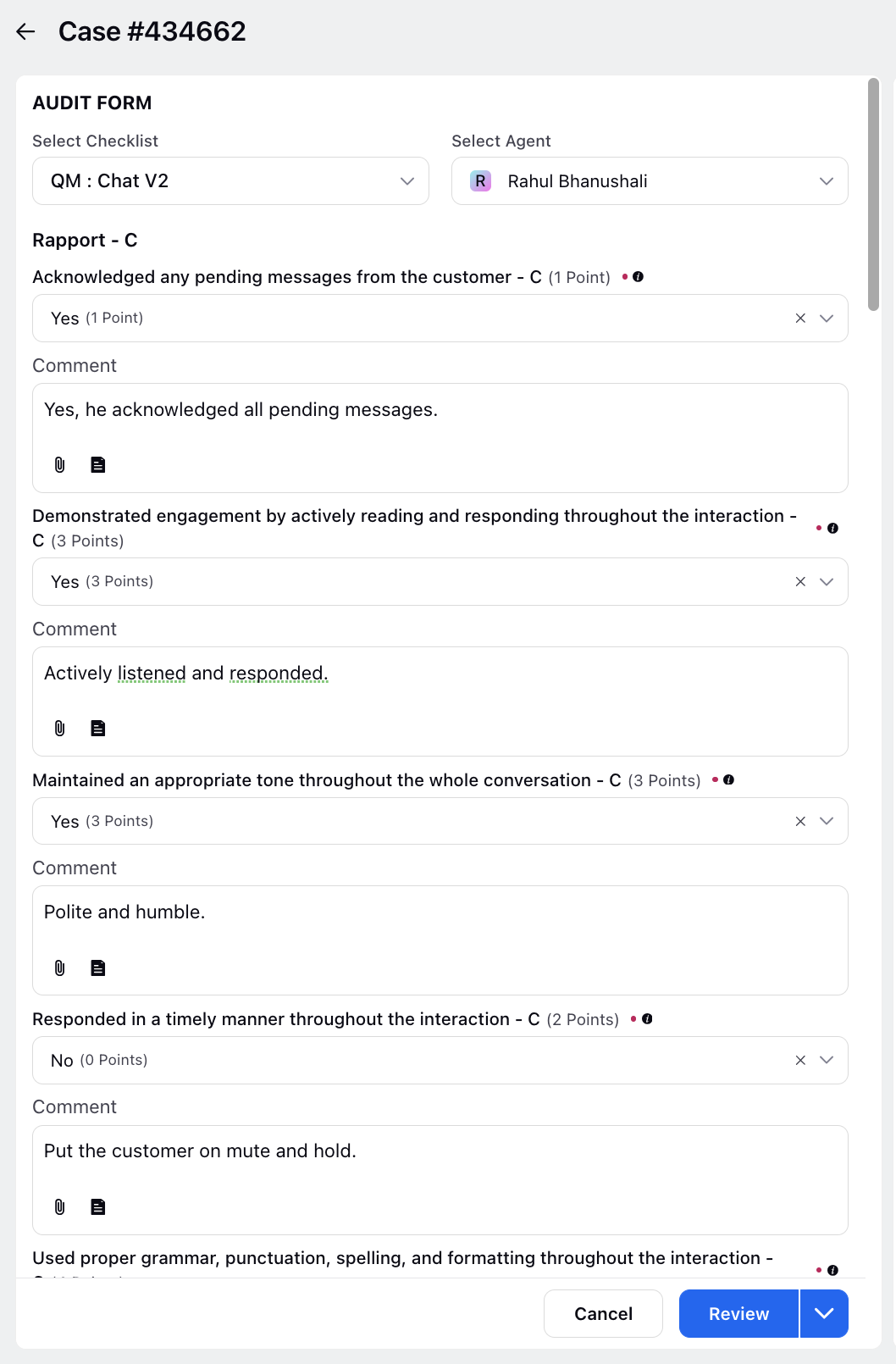
After creating an audit checklist, it will appear in the Quality Manager Persona view as shown in the image below.