Explore Lens
Updated
The Explore Lens functionality enables users to save, organize, and reuse tailored drill-down settings within CFM Custom Dashboards. This feature assists analysts in swiftly accessing saved exploration views for CFM Analytics metrics, facilitating deeper insights without the need to recreate configurations repeatedly.
Business Use Cases
Save Drill-Down Configuration as an Explore Lens: You can save a specific drill-down configuration as an “Explore Lens,” so you don’t have to recreate complex settings every time. This lets you quickly reuse your preferred setup for repeated analysis.
Reapply Saved Explore Lens: You can access your saved lenses directly through the drill-down interface and instantly apply them to your current view. This helps you maintain consistency and speeds up your analysis workflow.
This feature saves you time by preserving complex drill-down configurations, giving you reusable and standardized exploration views across dashboards. It promotes consistency and improves efficiency in recurring analysis workflows, making your data exploration faster and more reliable.
Prerequisites
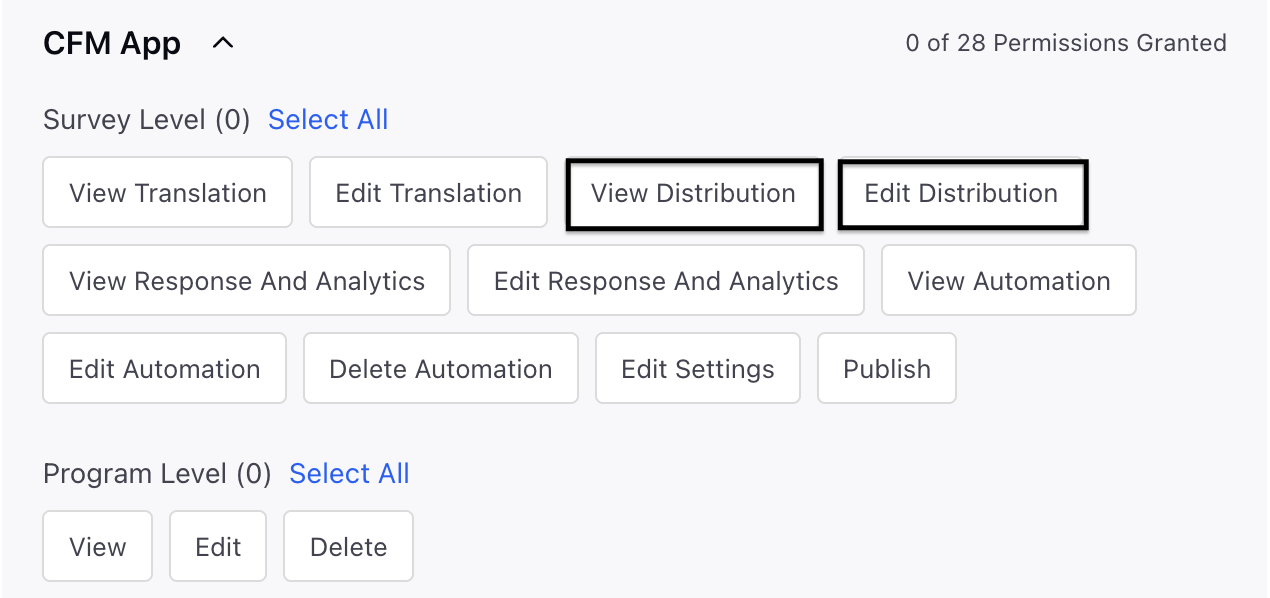
You need the Edit and View Reporting Survey Level permissions to create reporting dashboards in order to access the Custom Dashboards option. Currently, all users with access to the dashboard can view the available survey dimensions and metrics.
Setting Up Explorer Lens
Navigate to Custom Dashboard in the left pane and click the Settings option.


Select Explore from the drop-down.

Click + Create a new Explore.

In the Explore pop-up window, fill in the details:

Name: Add a meaningful name.
Description: Add a meaningful description.
Dashboard: Select a dashboard where you would like to add the explore. This dashboard's configuration will be used to view the drilled information.
Click Create.
Save Drill Down as Explorer Lens
Navigate and open any CFM Analytics widget.
Click on the Drill-Down option to open the detailed analytics view.
Configure filters, metrics, and dimensions for exploration.
Click Save as Explore Lens in the Drill-Down panel.
The configuration (widgets, filters, and layout) is saved as a new Explore Lens entry in the Explore Manager.

 How to use it?
View Saved Explorer Lens
Access the Drill-Down panel in any dashboard.
A new section called “Explore Lens” is displayed beneath the buckets.
This section displays all the Explore Lenses that have been saved previously.
Choosing an Explore Lens retrieves the stored drill-down setup in a panel that features the same widgets and filters as those used when performing a manual drill-down.


You can even test it by opening any CFM Dashboard and accessing Explore using the icon. Create a new Explore Lens and verify that it appears in the RM list. Drill down into a widget and save it as an Explore Lens, then confirm the new lens is visible in both the Explore Manager and the Drill-Down bucket. Click the saved lens name in Drill-Down to ensure widgets load correctly in the third pane. Edit the lens name or clone it through RM, and finally delete the test lens to confirm it is removed from all views.
Manage Explorer Lens
To change an Explore Lens, navigate to the Explore Record Manager. To make modifications, hover over any record and utilize the 3-dot menu to execute actions at the record level:

Edit: You can update Lens name or description.
Share: You can share lens with users, workspaces, or groups.
Clone: You can clone the lens.
Delete: You can delete the lens.
Explorer Record Manager
Every entry in this Record Manager corresponds to a saved Explore Lens. When the Explore Record Manager (RM) is opened, it displays all the Explore Lenses that have been created through dashboards.

Name | Description |
Lens Name | Represents the name of the lens. |
Owner | Represents the person who has created it. |
Dashboard | Shows the name of the dashboard where the explore lens will be incorporated. |
Created Time | Illustrates the time when the explore lens was created. |
Modified Time | Illustrates the moment when the explore lens was altered. |
Key points to note
Explore Lenses saved under non-CFM data sources are not supported.
Best Practices
Utilize clear names and brief descriptions for easy recognition.
Clone before modifying an existing lens to preserve historical configurations.
Only save validated and commonly used drill-downs as lenses.
Make sure that the dashboard permissions allow access to all associated metrics.