Call Controls Pop-up: Behavior, Accessibility and Multi-session Support
Updated
The Pop‑ups appear when supervisors take actions such as transferring, conferencing, recording, or adjusting audio during a live interaction. These pop‑ups provide quick access to essential call functions without leaving the main interface.
The Pop-up detaches the Call Control window from the main application window, creating a separate, movable window where you can continue using all the call functions such as add, transfer, and manage calls while working on other tasks on your computer.
Role‑Based Multi-session Behavior
Agents and supervisors use Sprinklr in very different ways. Agents primarily focus on handling calls and resolving cases efficiently throughout their shift. Their workflow is designed to be simple, focused, and optimized for speed.
Supervisors, on the other hand, perform a broader set of tasks. In addition to taking calls, they may listen to call recordings, complete audit forms, monitor work queues, and oversee overall operations. Because of these responsibilities, supervisors are better equipped to manage more complex navigation and multitasking scenarios.
Introducing a feature that maps agents across multiple tabs would add unnecessary complexity to the agent experience and could negatively impact call handling efficiency. For this reason, multisession and advanced navigation capabilities are intentionally designed with supervisors in mind, rather than agents.
 Note: This feature is currently in Limited Availability. To enable this feature in your environment, contact your Success Manager at tickets@sprinklr.com. Access to this feature is controlled by the dynamic property.
To enable this feature in your environment, contact your Success Manager.
This feature must be used only by Supervisors, Quality Managers (QMs), and Admins. It is specifically built to provide supervisory access to Listen, Whisper, and Barge‑In capabilities during live call interactions.
Pop‑ups open automatically when you use call‑related actions.
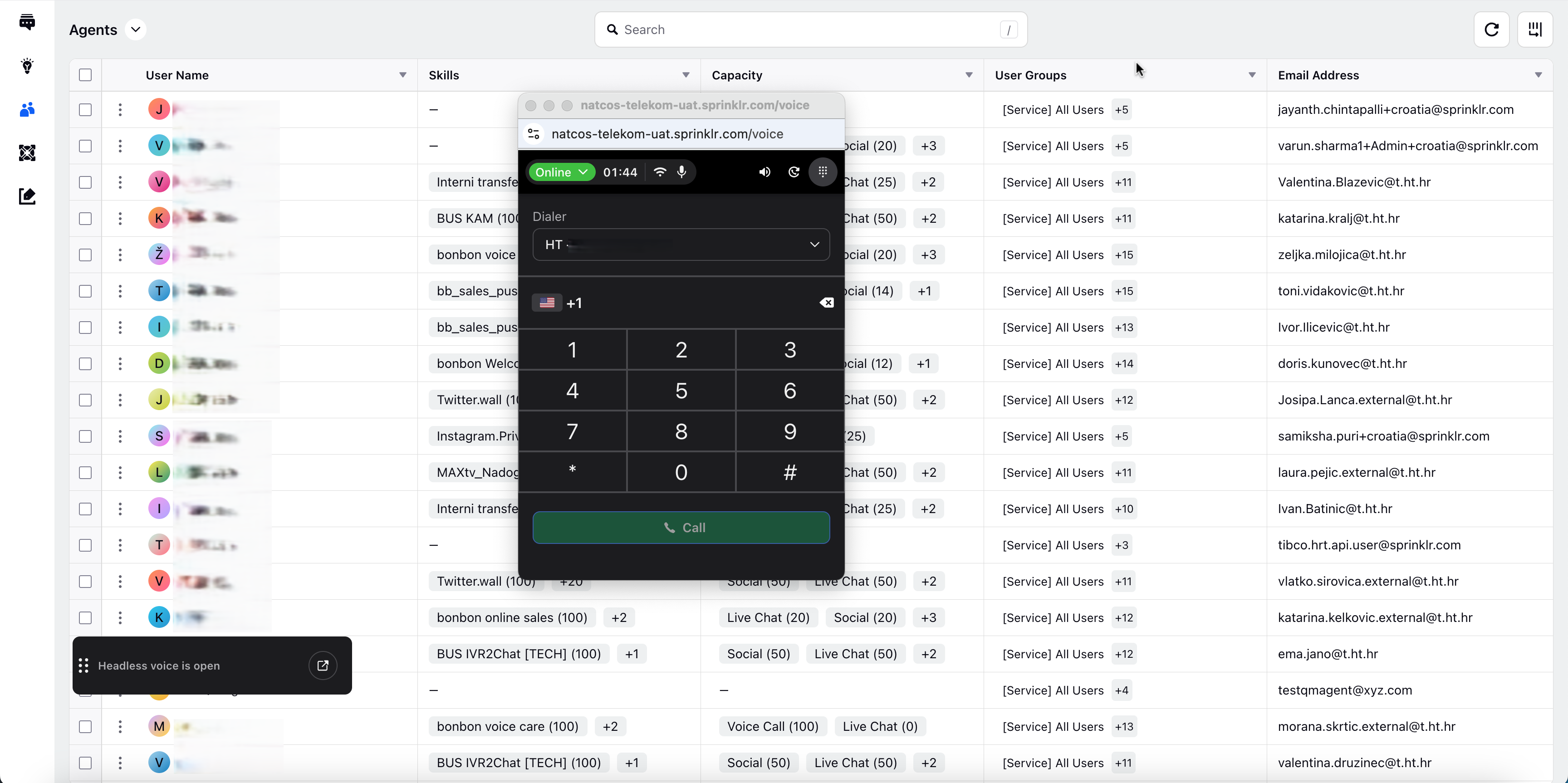
When Call Control Pop‑ups Appear
You may see Call Controls pop‑ups when performing the following actions:
Dialpad — Enter digits or send tones.
Transfer dialog — Transfer the call to another agent, queue, or external number.
Conference dialog — Add another participant to create a multi‑party call.
Recording dialog — Start or stop recording (if permitted for your role).
Audio Settings dialog — Adjust your microphone and speaker settings.
These pop‑ups open automatically when the corresponding action is triggered from the call interface.
To enable pop-up on your browser,
Click the
 icon present on the address bar of the browser.
 Select Site Settings.
Select Privacy and Security from the left pane.
Scroll-down and select Pop-ups and Redirects drop-down. Click Allow.
Enabling Pop-up Feature
Perform the following steps to enable the Call Control Pop-up feature,
Open Launchpad, navigate to Sprinklr Service, under Route > Triaging, click Unified Routing.
Select Agents from the left panel.
Switch to Agents from the Switch tab available to the left of the search box.
From the search box, enter the name of the agent for whom you want to enable this feature.
Hover over the ellipses next to the agent name and then select Edit. The User Assignment Settings page appears.
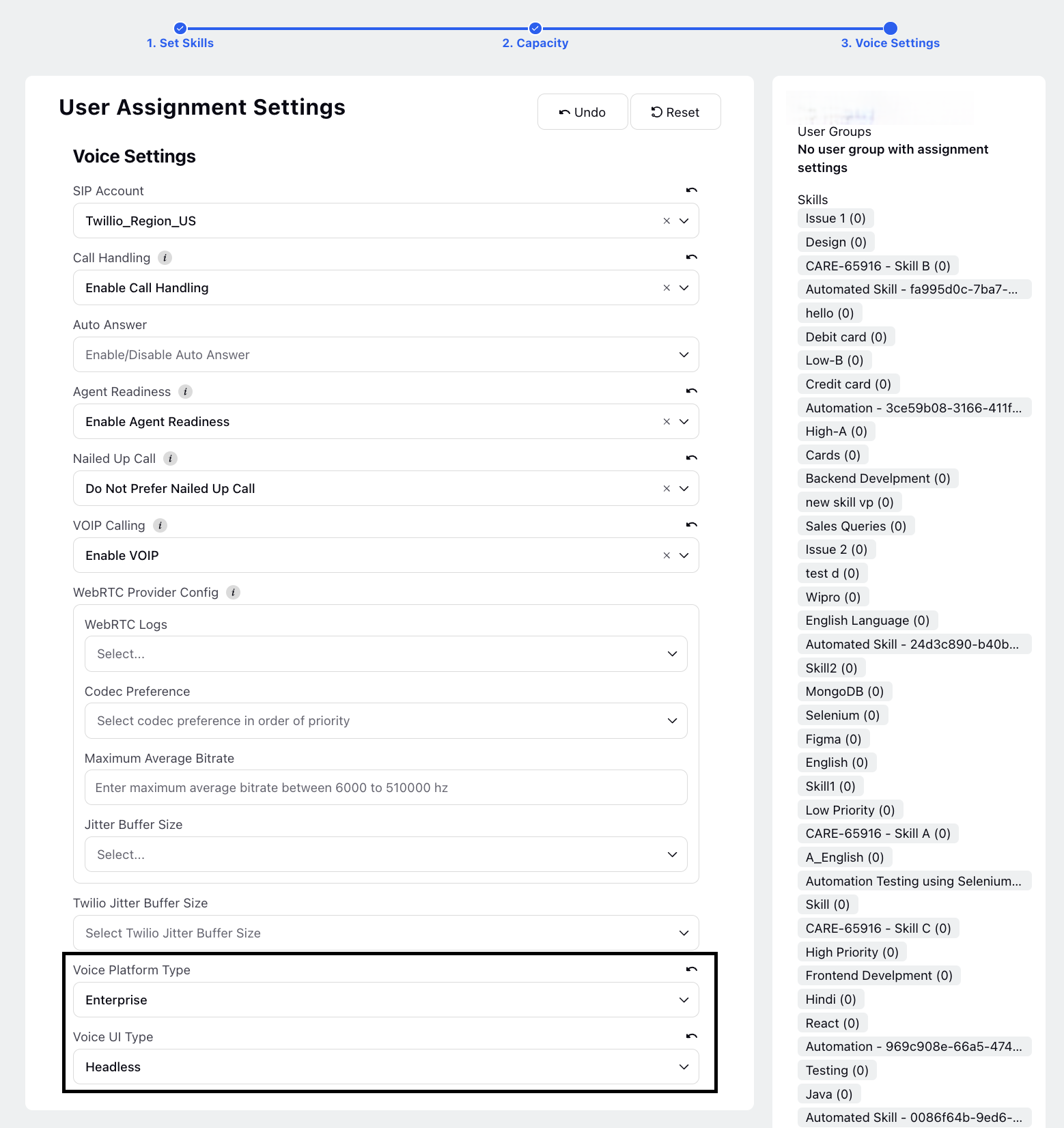
Navigate to Voice Settings by clicking on the breadcrumb available on the top of the page.
From the Voice Platform Type drop-down, select Enterprise.
From the Voice UI Type drop-down, select Headless.
Note: When this feature is enabled, instead of showing the agent readiness modal, a new modal will appear to indicate the current status of the pop-up. Following are the statuses:
Pop-up is open – Displayed when the pop-up is successfully opened.
Pop-up is closed – Shown when the pop-up is closed, with an option in the modal to reopen it.
Pop-up is blocked – Displayed if the browser has blocked pop-ups. In this case, the modal will also show an info icon, which, when clicked, opens a new tab with instructions to enable pop-ups at the browser level.
Pop-up failed to load – Shown if there is an issue with the build or the pop-up cannot be loaded.
Multiple Session Support
The Multiple Sessions feature in Sprinklr empowers users to manage and monitor multiple active sessions simultaneously across different windows or tabs. It is particularly valuable for supervisors and managers who need to oversee various aspects of customer interactions in real-time.
Note: Access to the Multiple Sessions feature is controlled by the dynamic property.
To enable this feature in your environment, contact your Success Manager. Alternatively, you can submit a request at tickets@sprinklr.com.
By enabling multiple sessions, users can:
Quickly switch between tabs to access necessary information, reducing wait times for customers and improving overall call handling time.
Manage calls while simultaneously researching issues, or accessing multiple support materials, leading to more effective solving of issues.
Access relevant information; agents can provide more accurate and timely responses, leading to higher customer satisfaction.
This feature is designed to simplify the supervision process, helping teams maintain high levels of customer satisfaction and operational efficiency.
Before enabling Multiple Sessions for supervisors, make sure:
The supervisor has access to the relevant modules (for example, Supervisor Console, Voice, Dashboards, or Reports)
Any required permissions are assigned in the user’s profile or role
To open multiple sessions,
On the Address bar at the top of the page, right-click and select Duplicate. This will open the same session in a new tab.
Call Controls Behavior Across Multiple Sessions
Call Controls continue to work normally when Multiple Sessions is enabled. Supervisors can open multiple active Sprinklr sessions across tabs or windows, and use streamlined Call Controls pop‑ups to manage calls efficiently during live monitoring.
Pop‑ups open automatically when you use call‑related actions.
During an active voice interaction, call‑related dialogs, such as the Dialpad, Transfer, Conference, Recording, and Audio Settings pop‑ups, open in the active browser tab to ensure actions are taken in the correct session.
If you have Multiple Sessions enabled and have more than one Sprinklr tab or window open, Call Controls pop‑ups always appear in the active session. This ensures call actions are performed in the correct place and reduces the chance of performing an action from a background tab.
If you close the pop-up, a message Headless voice is closed is displayed. To open the pop-up again, click on the
 icon present on the pop-up and the pop-up will open.
 You can use the minimize button to minimize the call control pop-up window. Minimized call control pop-up will be available on all the browser tabs that are open.
If multiple Sprinklr tabs are open simultaneously, then the primary tab or the active tab will be highlighted with a green symbol. This improves usability and prevents confusion.

If ACW for the call is not submitted, a red icon will be displayed as shown in the following image. Ensure to submit the ACW to close the call.

If the pop-up is blocked on your browser, the system will display an message to enable pop-up from browser settings.
Configure Persistent Notifications for Critical Events
You can configure browser notifications to remain visible until users take action on them. This is particularly useful for time-sensitive events such as incoming calls or case assignments.
When enabled, the notification remains on screen even if the user switches to another tab within the same browser. The notification is removed only after the user dismisses or acknowledges it.
Note: Access to this feature is controlled by the dynamic property NOTIFICATION_STICKY_POPUP_DISABLED. To enable this feature in your environment, contact your Success Manager. Alternatively, you can submit a request at tickets@sprinklr.com.
To configure a persistent notification
- Navigate to the appropriate Rule Engine rule that triggers the browser notification.
- In the notification configuration, set the explicitCloseNeeded property to true.
- Save and publish the rule.
{
"notificationId": "6a02e772c1736a6cad62f78a",
"createdOn": 1778575218037,
"senderId": "-100",
"senderName": "SprinklrSystem ",
"senderProfileImageURL": "https://spr.ly/spr-default-sender",
"totalNotificationsInGroup": 0,
"notificationContent": "{\"assetId\":\"0000019e1b57ffc9e4b08f761c2c248d\",\"message\":\"You have an incoming call waiting from a customer :\
Case Number: 2699701\
Phone Number : \",\"assetType\":\"UNIVERSAL_CASE\"}",
"isRead": true,
"isContentRead": true,
"isAcknowledged": false,
"eventType": "RULE_NOTIFY_USERS",
"eventGroupType": "SYSTEM",
"priorityType": "MEDIUM",
"explicitCloseNeeded": true,
"openInCareConsole": false,
"openInTaskConsole": false,
"actionType": "OPEN_CARE_CONSOLE",
"userNotificationId": "6a02e7721ad19d060ebe2d89",
"playSound": false,
"archived": false
},
Best Practices
Keep the tab containing the active call in focus to prevent confusion.
Close pop‑ups after completing actions to maintain screen clarity.
If using multiple tabs, perform all call actions from the one showing the live interaction.