Filter Articles by Custom Fields
Updated
You can create Custom Fields for tagging Knowledge Base articles, and subsequently employ these Custom Fields to filter articles within the builder interface. This feature enhances the organization and accessibility of your articles, allowing for more efficient content management and retrieval.
 Note: Before you apply articles with relevant Custom Fields, ensure that the Custom Field has the Asset Types selected as Knowledge Base Content. Refer to this page for detailed steps on creating Custom Fields.

Apply Custom Fields to Articles
You can apply Custom Fields to articles in two ways. The first option is to assign Custom Fields individually from the article's Third Pane. The second option allows you to modify Custom Field of several articles at once, saving time and ensuring consistency across large content sets.

To apply Custom Fields to individual articles, open the article's Third Pane and go to Properties tab in the Third Pane. Under the Others section, all applicable Custom Fields will be available for configuration.
Modify Custom Field for Multiple Articles
Follow these steps to modify Custom Field for multiple articles:
Navigate to the Knowledge Base homepage or the relevant Knowledge Base Category in which the articles are stored.

Select the articles you want to update by checking the box beside each article. To select all articles at once, use the checkbox at the top. Once selected, a toolbar will appear. Click Apply Custom Field from the toolbar to open the Apply Custom Fields window.
Fill in the required fields in the Apply Custom Fields window. Fields marked with a red dot are mandatory. Below are the descriptions of all the fields on this window:

Custom Field: Select the Custom Field you want to apply to the selected articles. (Required)
Operator: Select the operator, such as Add or Remove, depending on if you want to operator to be applied to the Custom Field value for the selected articles. (Required)
Custom Field Values: Enter or choose the Custom Field value. (Required)
Click the Submit button to modify the Custom Field for the selected articles.
Note: Bulk modification of Custom Fields is only supported for the following Custom Field types:
Single Select List
Multi Select List
Text
Textarea
Numeric.
This completes the process of applying Custom Field to articles.
Filter Articles Using Custom Fields
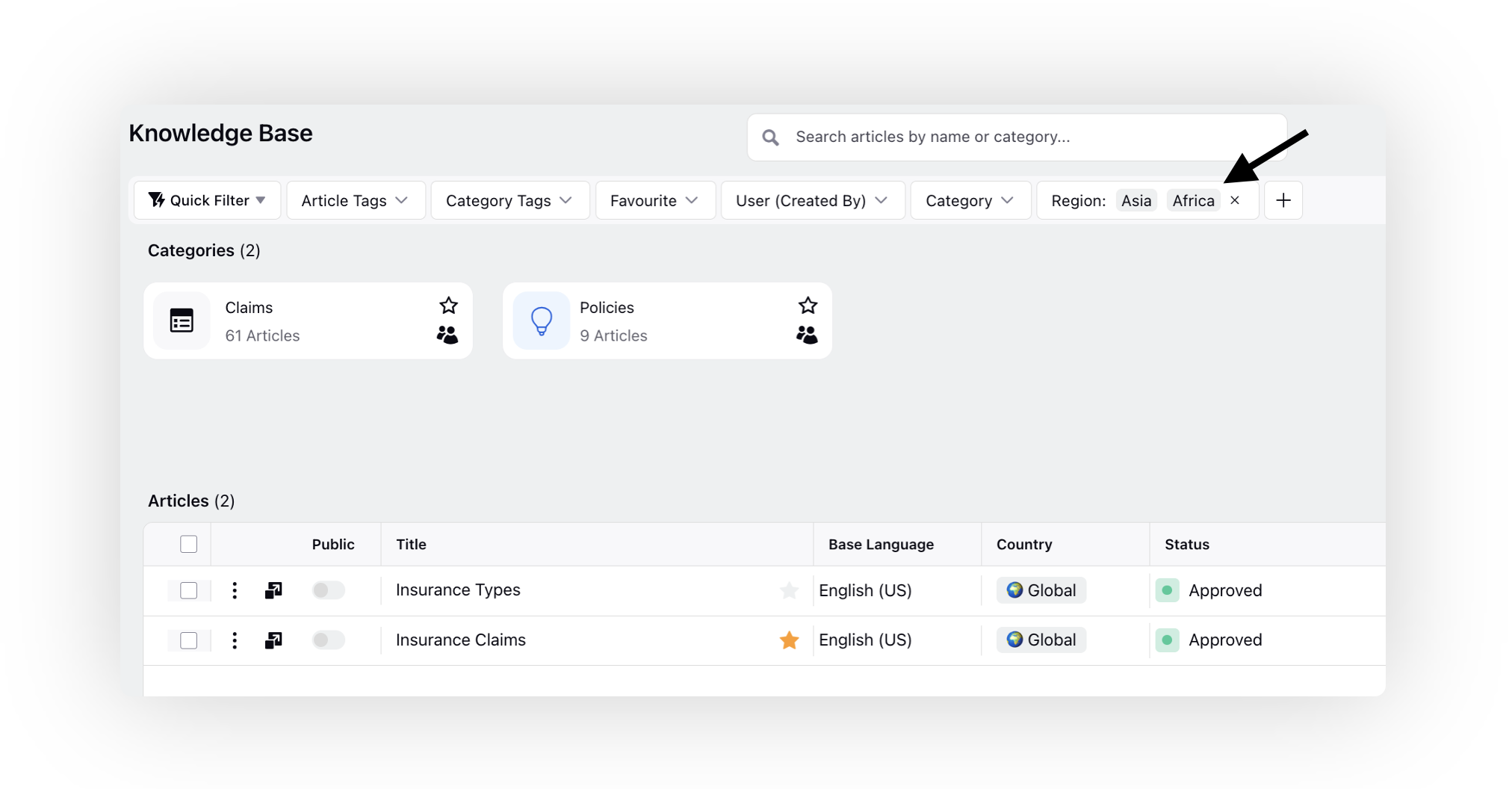
You can filter articles based on the values of the Custom Field. Apply the Custom Field filter located at the top of the Knowledge Base homepage. Choose the specific values you desire to use as filters for the articles. This process allows you to organize and sort through articles more effectively based on the chosen criteria.