Leveraging Smart Responses to improve average handle time
Updated
How to use Smart Responses in Agent Console and Care Console to provide AI-generated brand-compliant responses and improve agent AHT (Average Handling Time).
Sprinklr supports the enablement of an AI-generated and trained Smart Response Model to suggest responses to the agents. The AI learns and recommends suitable responses based on how the brand's agents have replied to the customers' queries in the past. At any given time, multiple smart responses are suggested to the agents, and the agents can choose the most suitable one among the suggested responses. The algorithm learns based on the response selected by the agents to deliver more contextual and relevant responses in the future.
Note:
|
Enablement note: To learn more about getting the Smart Response model trained and enabled in your environment, please work with your Success Manager. |
Use cases of Smart Response model
Reduced SLA
Enablement of the Smart Response Model eliminates the need for searching the canned responses or typing repetitive replies while responding to customer queries. You just need to hover over the suggestions and select a suitable response.
Virtual Real-Time Coach
If you are not sure how to respond to a specific customer query, Smart Responses can help you by giving suggestions as it is based on what the agents have replied in the past to similar queries.
Consistent Brand Voice
Brands can choose to train the Smart Response Model on the basis of the past interactions of their best agents. This will help the other agents in replying the same way as the best ones do, thus maintaining a consistent brand voice and enhancing the overall customer experience.
Reduced Human Error
While generating Smart Responses, grammatical accuracy and context of the conversation are always taken into consideration, preventing human errors.
Industries that support Smart Response model
Telecom
Food & Beverage
Technology
Entertainment and Media
Agency
Services
Banking
Manufacturing
Retail
Insurance
Government
Airlines
Automobiles
Non-Profit groups and organizations
Energy
Healthcare and Pharma
Hospitality
CPG (Consumer Packaged Goods)
To enable Smart Responses at user level
To enable smart responses in Agent Console and Care Console at a user level, please grant Smart Response Suggestions permission. For more information, see Add a Role.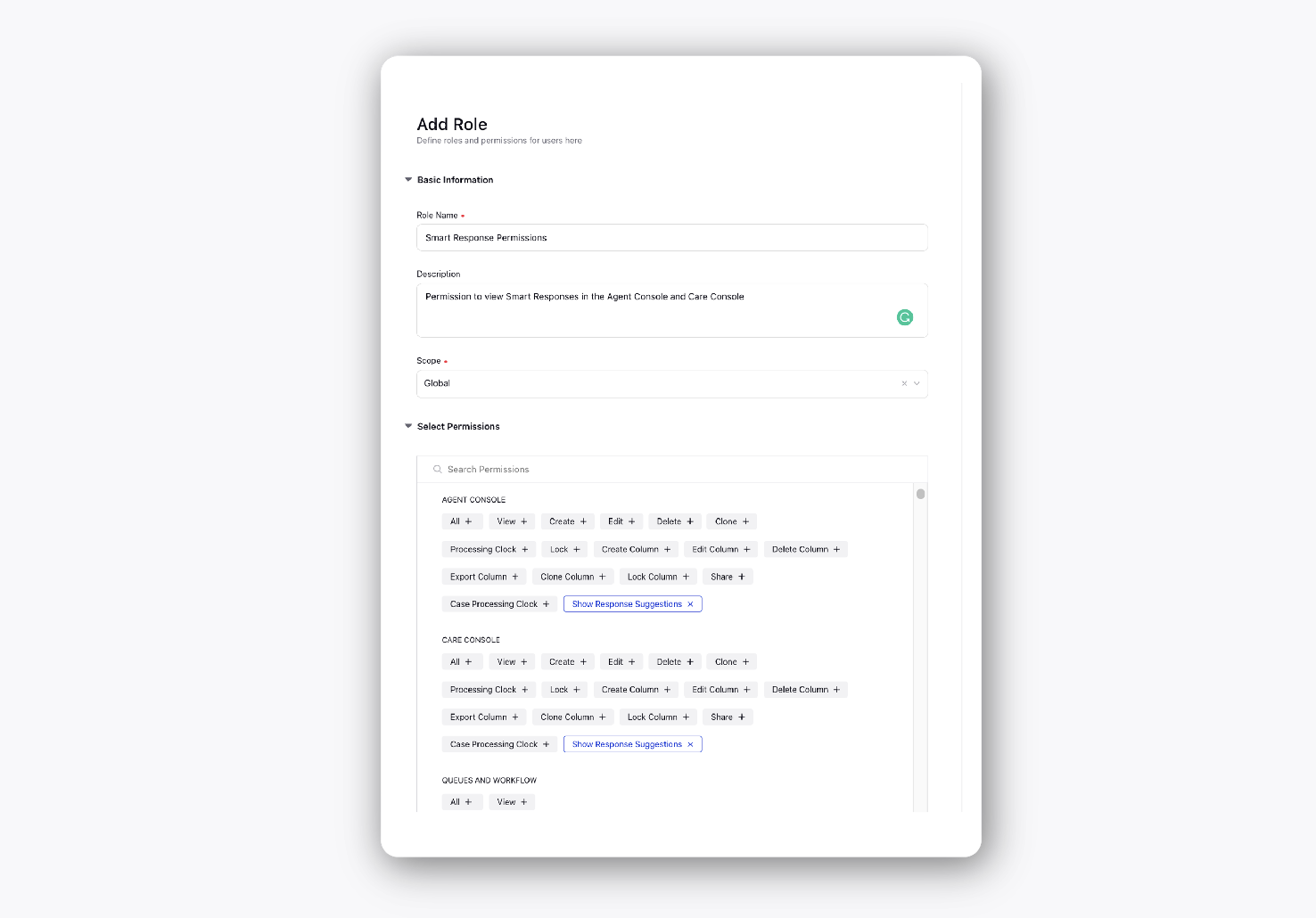
Enablement note: To learn more about getting this permission enabled in your environment, please work with your Success Manager. |
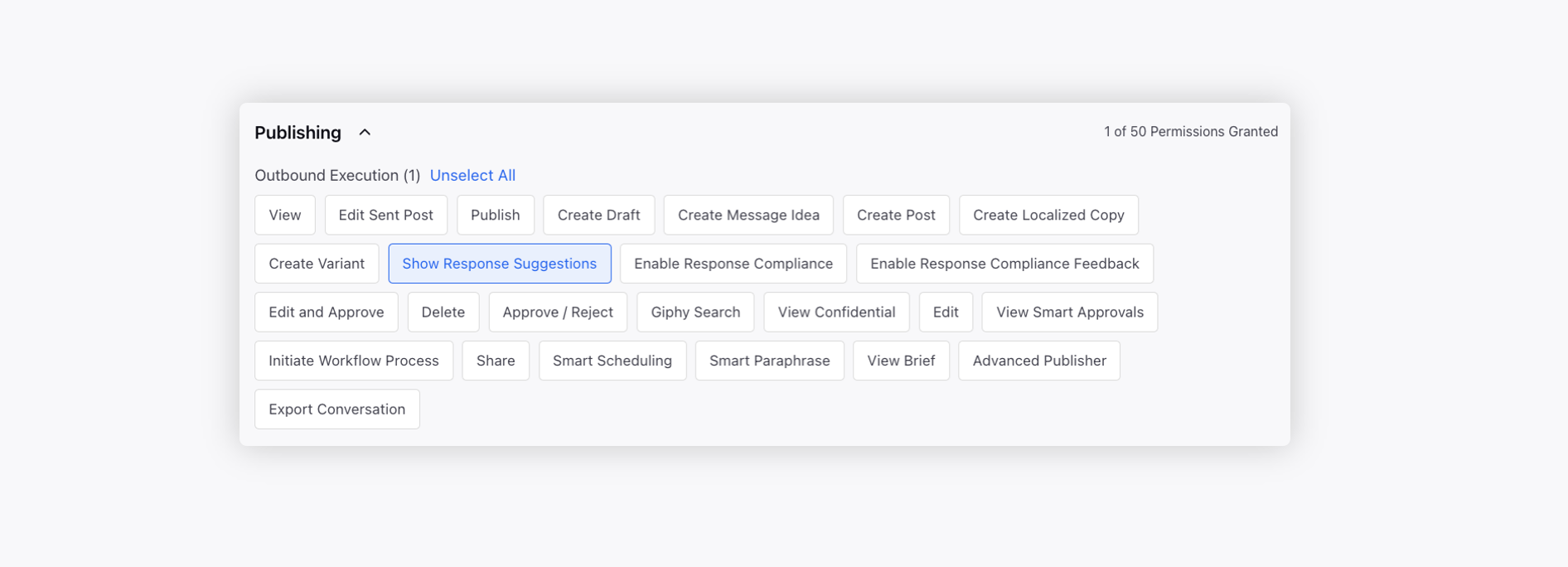
Alternatively, you can also control the visibility of smart responses at a user level with Show Response Suggestions permission under Outbound Execution.
To use Smart Responses in Agent Console
After a message has been assigned to an agent, smart responses will appear above the Reply box in the middle pane of the Agent Console.
Hover over a smart response to preview the full text or click Preview appearing on the smart response suggestion.
Note: The customer's name will automatically be included in suggestions. Currently, the following format is followed for addressing the customer:
Twitter: Handle Name
Facebook: First Name of the Customer
Click Use beneath the desired smart response. This will insert the smart response into the reply box where you can edit it if required or send it directly to the customer.

If there are more than 3 smart responses, click View All alongside Smart Replies to see all possible smart replies recommendations.
On the Smart Responses window, you can also share your feedback if recommended responses by AI were helpful or not helpful. Click the Feedback icon by hovering over the desired Smart Response. Enter your feedback and click Submit.
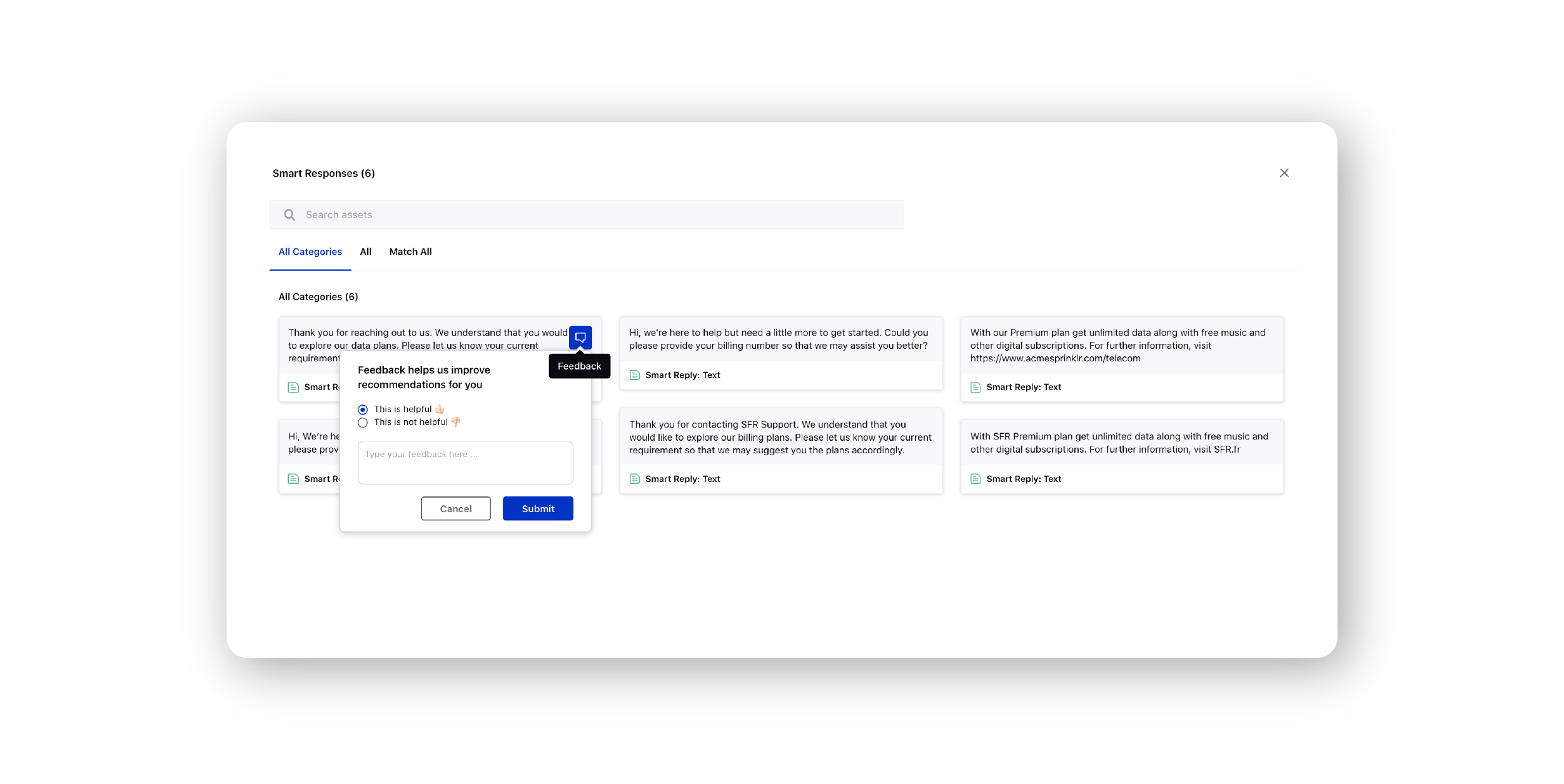
From the displayed suggestions, you can search for the desired response by entering the keyword in the search bar at the top.
Note: The Smart Response Model will not be able to predict the following entities. Currency/Price Value Date IMEI number for phones Zipcode Phone/Mobile Number URL Link However, in place of the following entities, a placeholder can be added in smart responses for the agents to add details as per the requirement. Email = %email% Phone/Mobile Number = %phone% URL Link = %urllink% In order to get these placeholders and the desired values added in the dropdown, you are required to reach out to support at tickets@sprinklr.com. 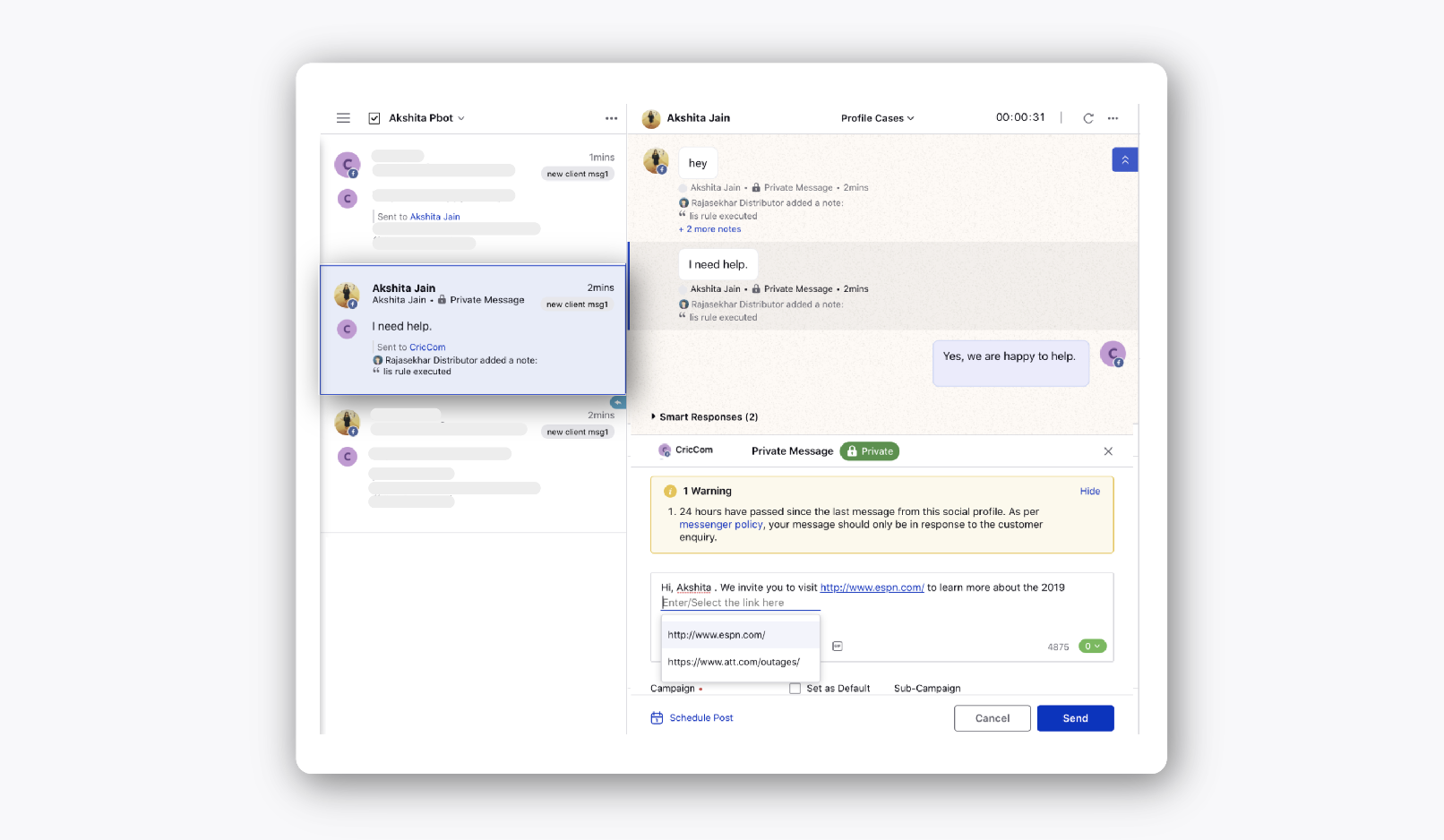 In order to get these placeholders added to the smart responses, you are required to reach out to Support at tickets@sprinklr.com. |
To use Smart Responses in Care Console
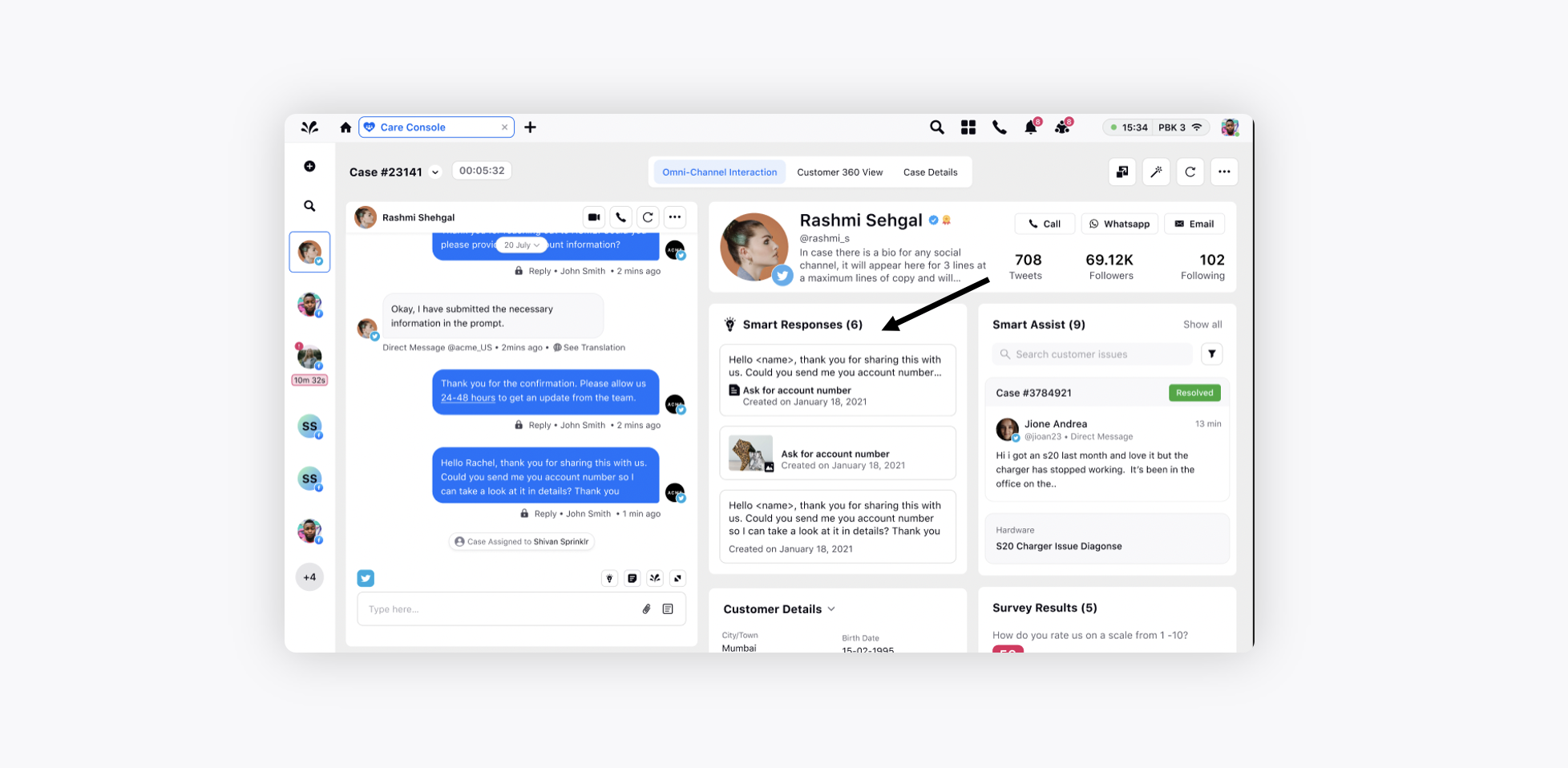
After a message has been assigned to an agent, smart responses will appear above the Reply box in the conversation pane of the Care Console.

Using smart responses in Care Console is similar to Agent Console.

You can get a separate widget created for smart responses by reaching out to support at tickets@sprinklr.com.
FAQs