Guided Workflow Reporting
Updated
Standard Pre-Built Reporting Dashboard
This standard dashboard allows you to analyze guided workflows, including execution trends, completion trends, comparisons of AHT between cases with and without guided workflows, and agent-wise trends. Additionally, the dashboard includes the capability to apply filters at the dashboard level, making it easier to analyze and interpret data efficiently.
.png "download (42).png")
Custom Widgets
By creating reporting widgets, you can measure the performance of guided workflows and analyze how it helps brands reduce resolution times and customers receive better, faster service.
To configure a reporting widget
Click the New Tab icon. Under the Sprinklr Service tab, click Care Reporting within Analyze.
On the Reporting Home window, select the desired dashboard within the Dashboards section.
On the selected Reporting Dashboard window, click Add Widget in the top right corner.
On the Create Custom Widget window, enter a Name for the widget, and select the required Data Source as mentioned below.
Select a Visualization for your widget from the available visualization types. For more information, view Visualization Type — Field Descriptions.
Next, within the What would you like to plot on your widget section, select the desired dimensions and metrics for which you want to view the reporting. You can also apply various filters, e.g., Account and Channel Type. View some common use cases.
Click Add to Dashboard in the bottom right corner to add your widget to the dashboard.
Guided Workflow Overview
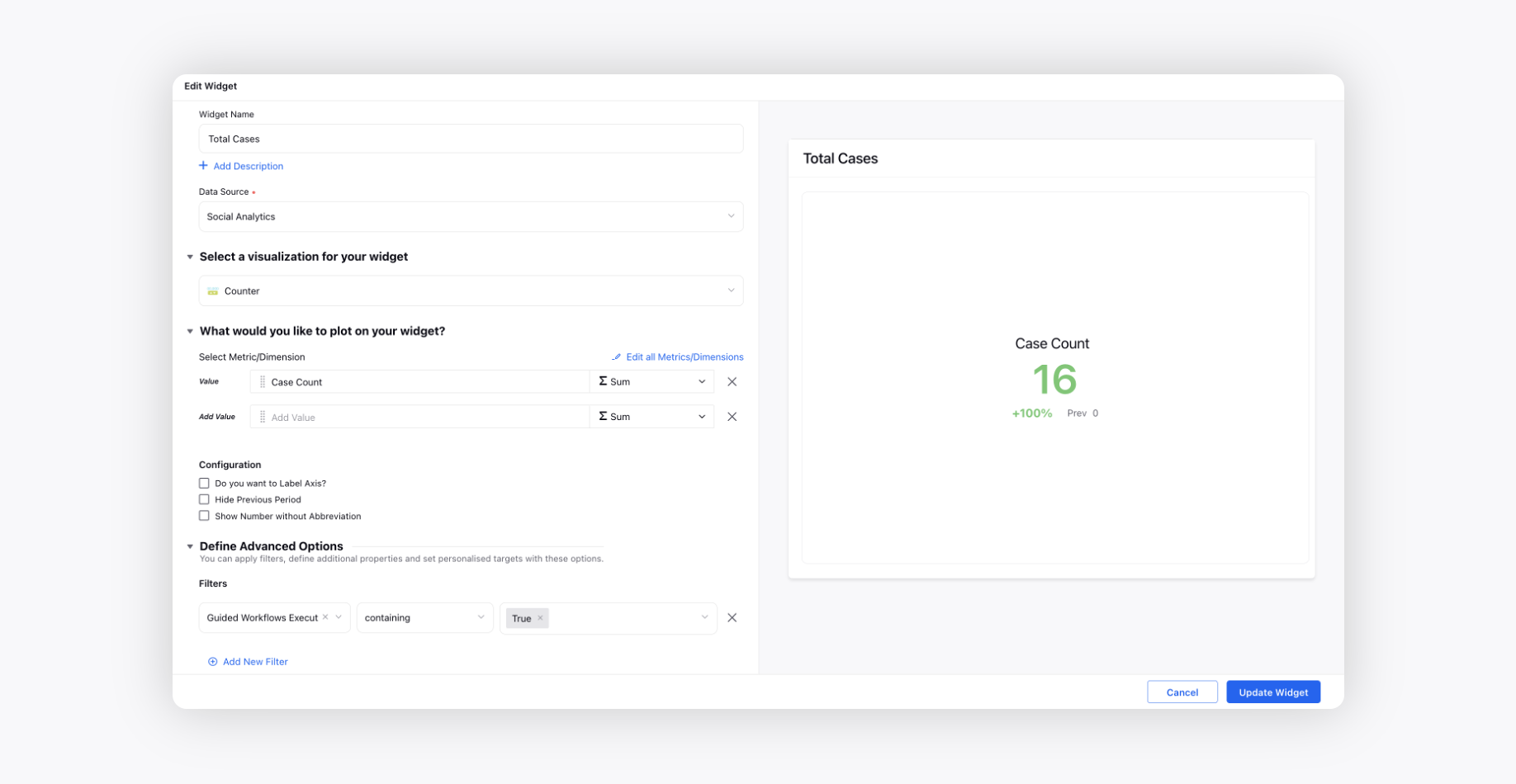
Total Cases
Create a Counter widget and choose the Data Source as Social Analytics.
Select the Case Count metric and add the Guided Workflows Executed filter as True.
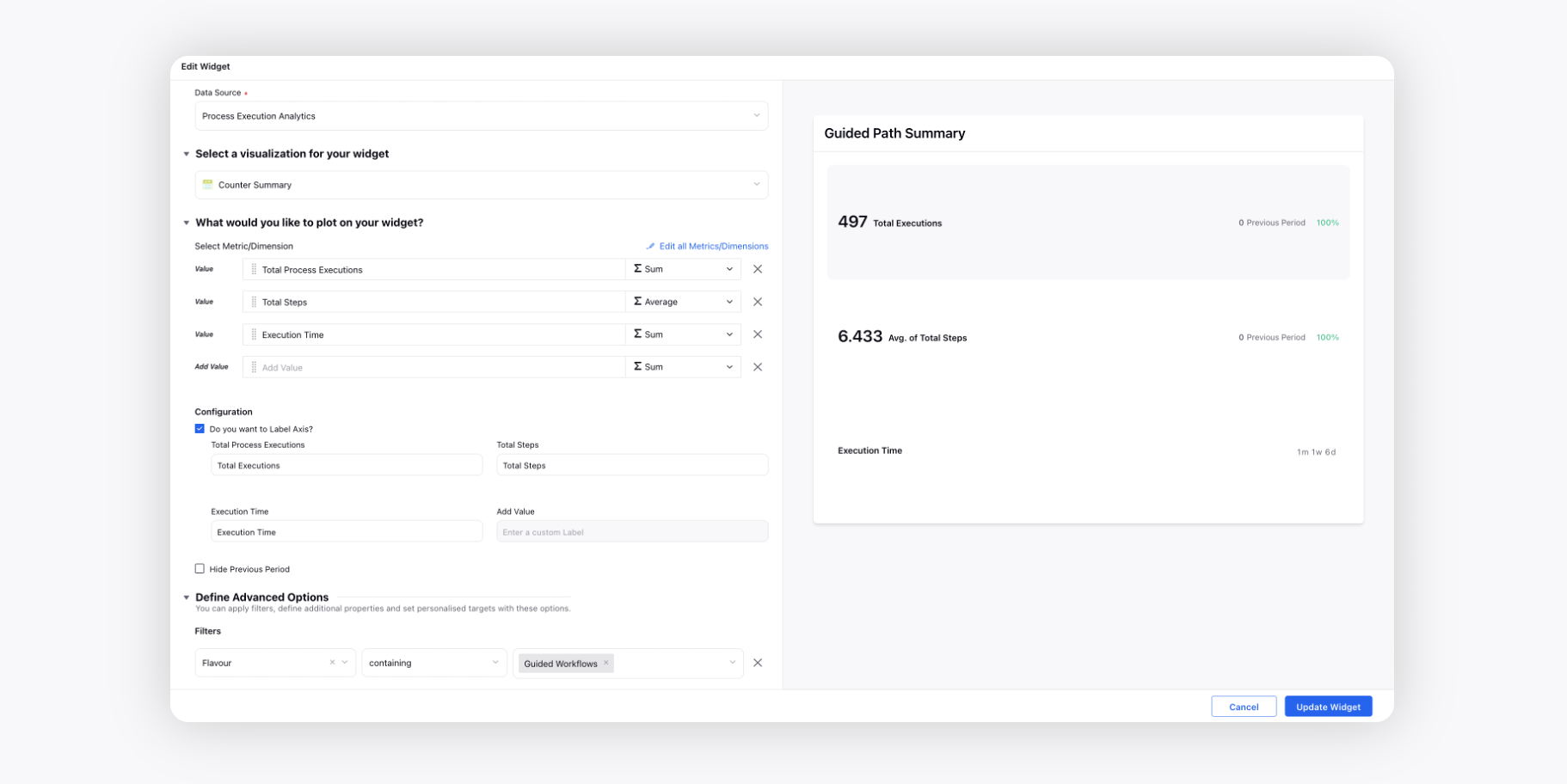
Guided Path Summary
Create a Counter Summary widget and choose the Data Source as Process Execution Analytics.
Select the Total Process Executions, Total Steps, and Execution Time metrics and add the Flavour filter as Guided Workflows.
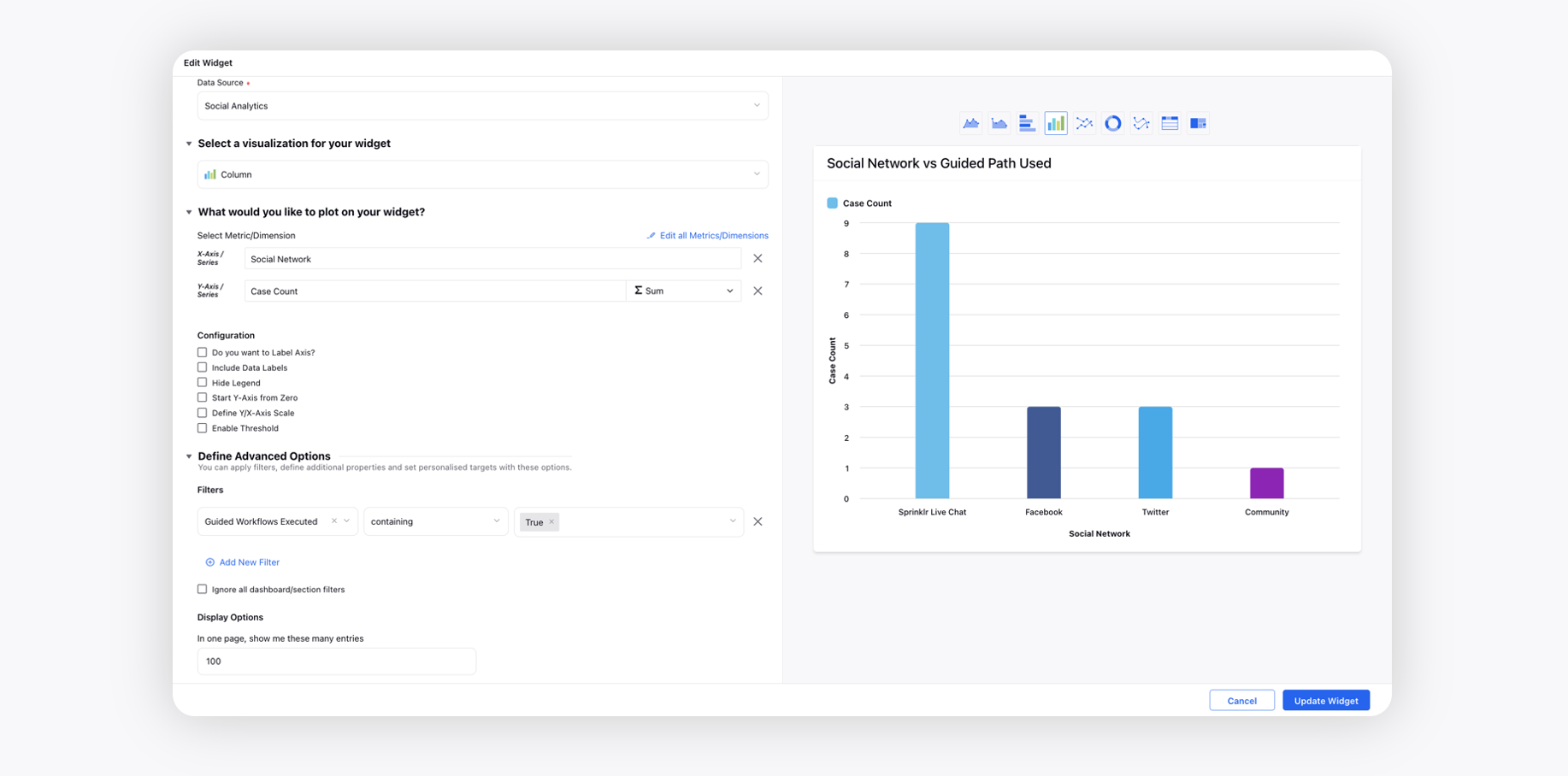
Social Network vs Guided Path Used
Create a Column widget and choose the Data Source as Social Analytics.
Select the Case Count metric with Social Network dimension. Add the Guided Workflows Executed filter as True.
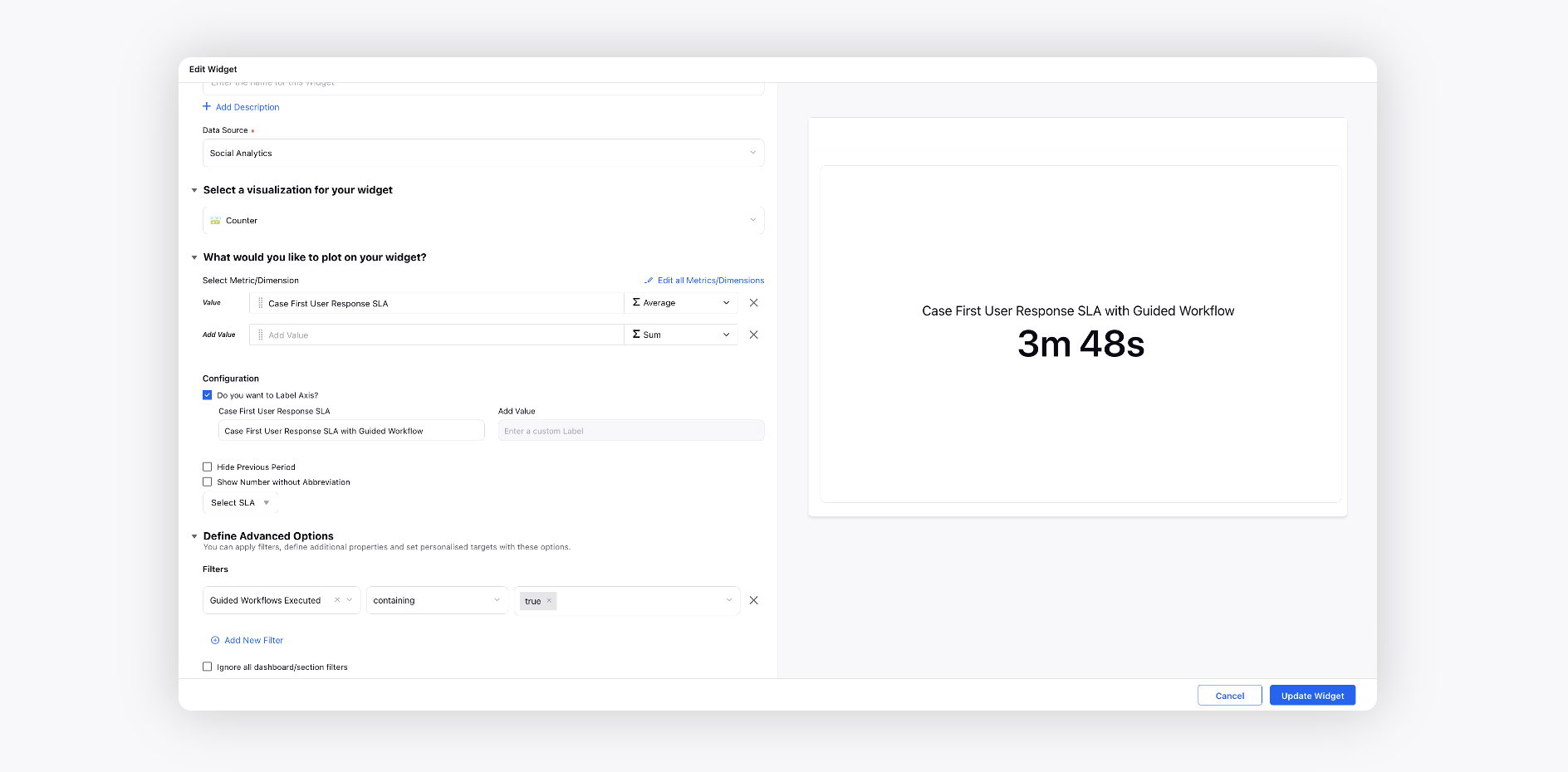
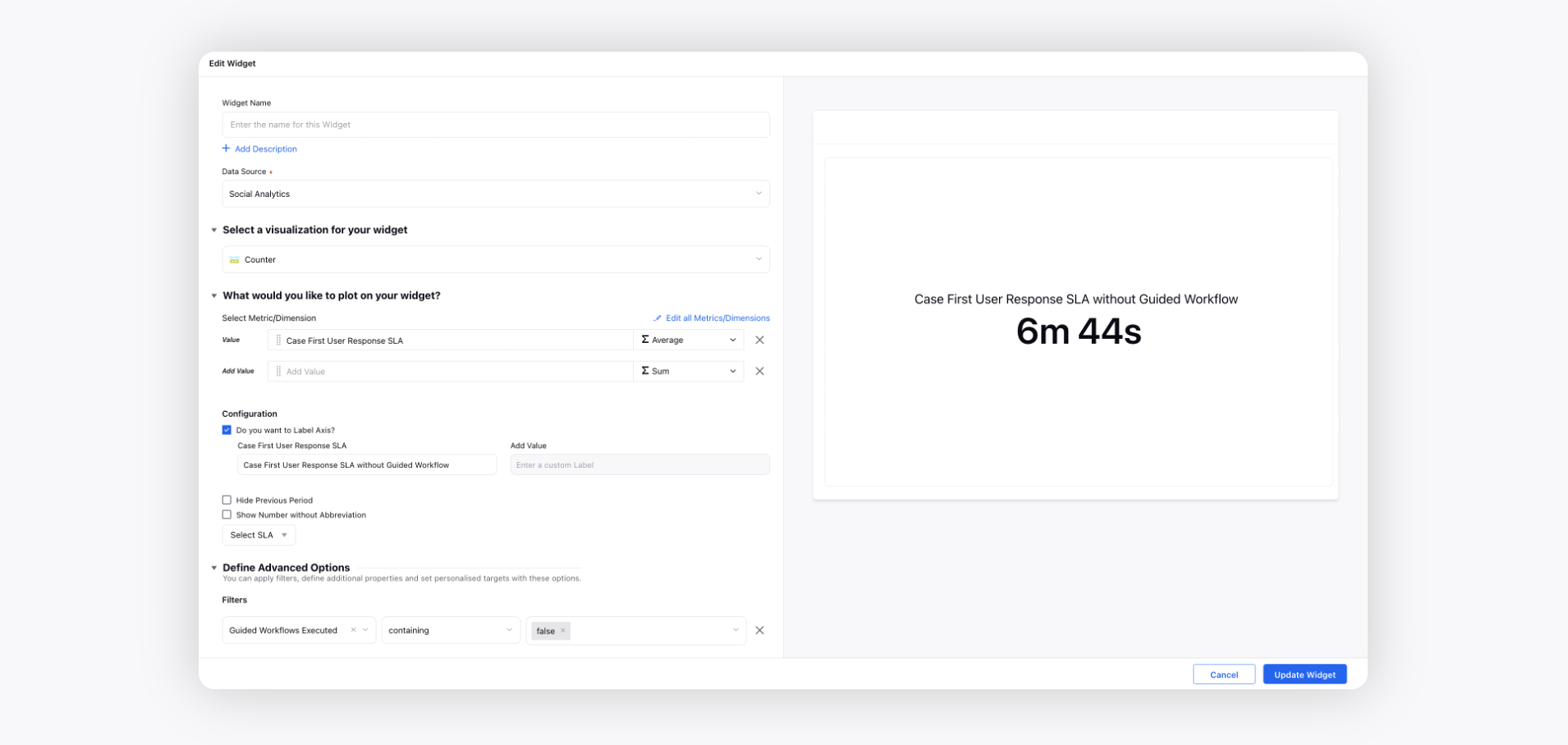
Case First User Response SLA with Guided Workflow
Create a Counter widget and choose the Data Source as Social Analytics.
Select the Case First User Response SLA metric and add the Guided Workflows Executed filter as true.
Case First User Response SLA without Guided Workflow
Create a Counter widget and choose the Data Source as Social Analytics.
Select the Case First User Response SLA metric and add the Guided Workflows Executed filter as false.
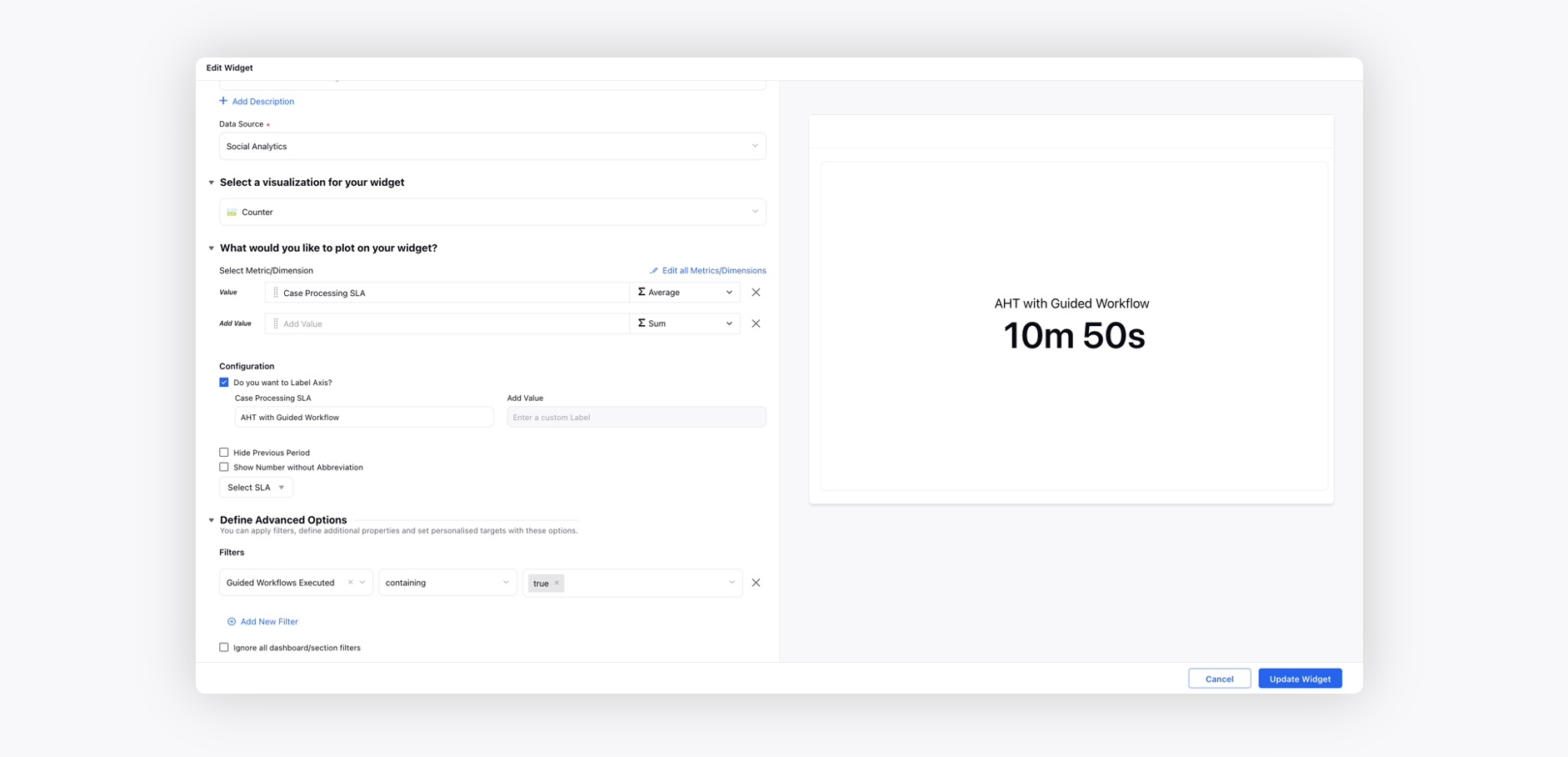
AHT with Guided Workflow
Create a Counter widget and choose the Data Source as Social Analytics.
Select the Case Processing SLA metric and add the Guided Workflows Executed filter as true.
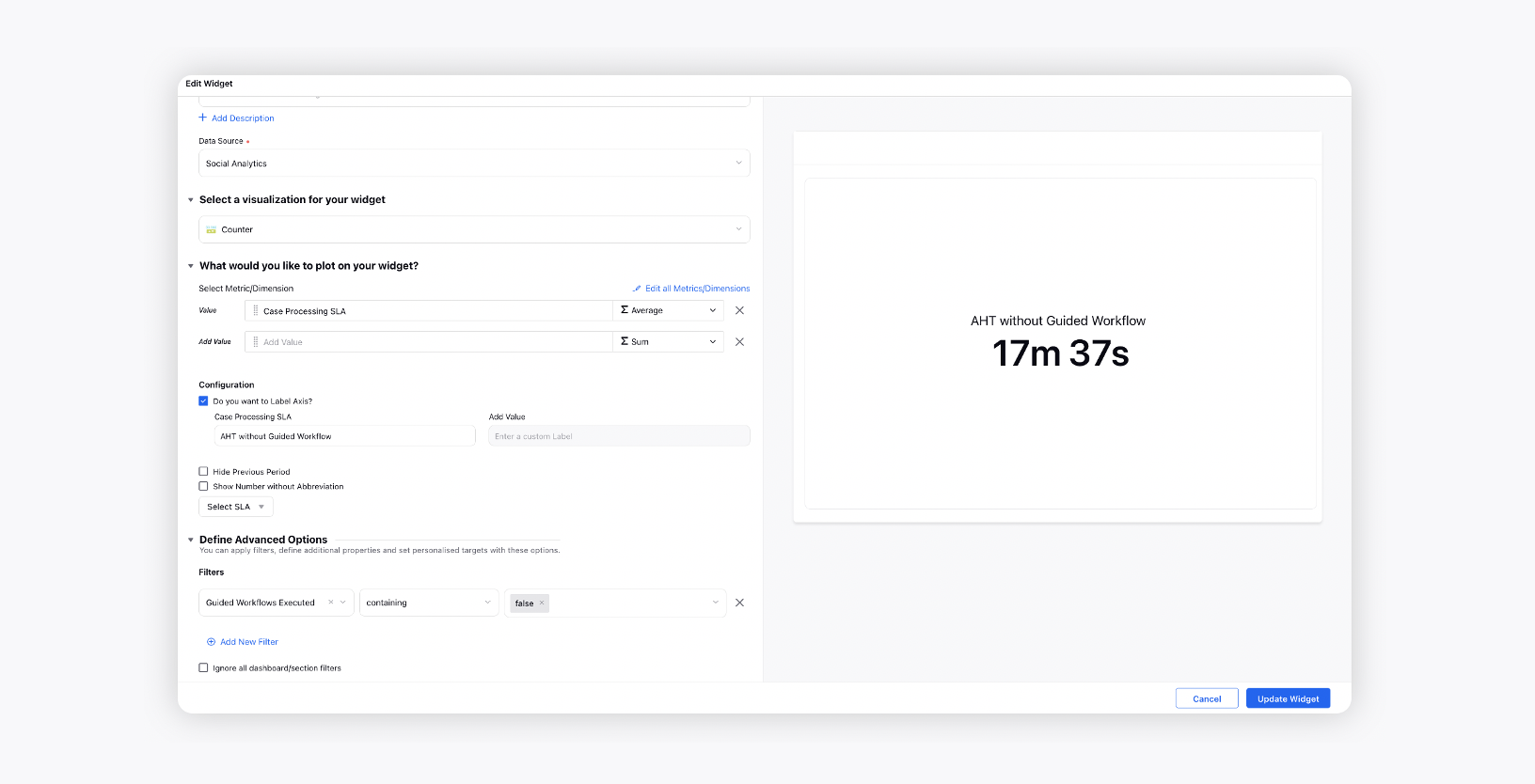
AHT without Guided Workflow
Create a Counter widget and choose the Data Source as Social Analytics.
Select the Case Processing SLA metric and add the Guided Workflows Executed filter as false.
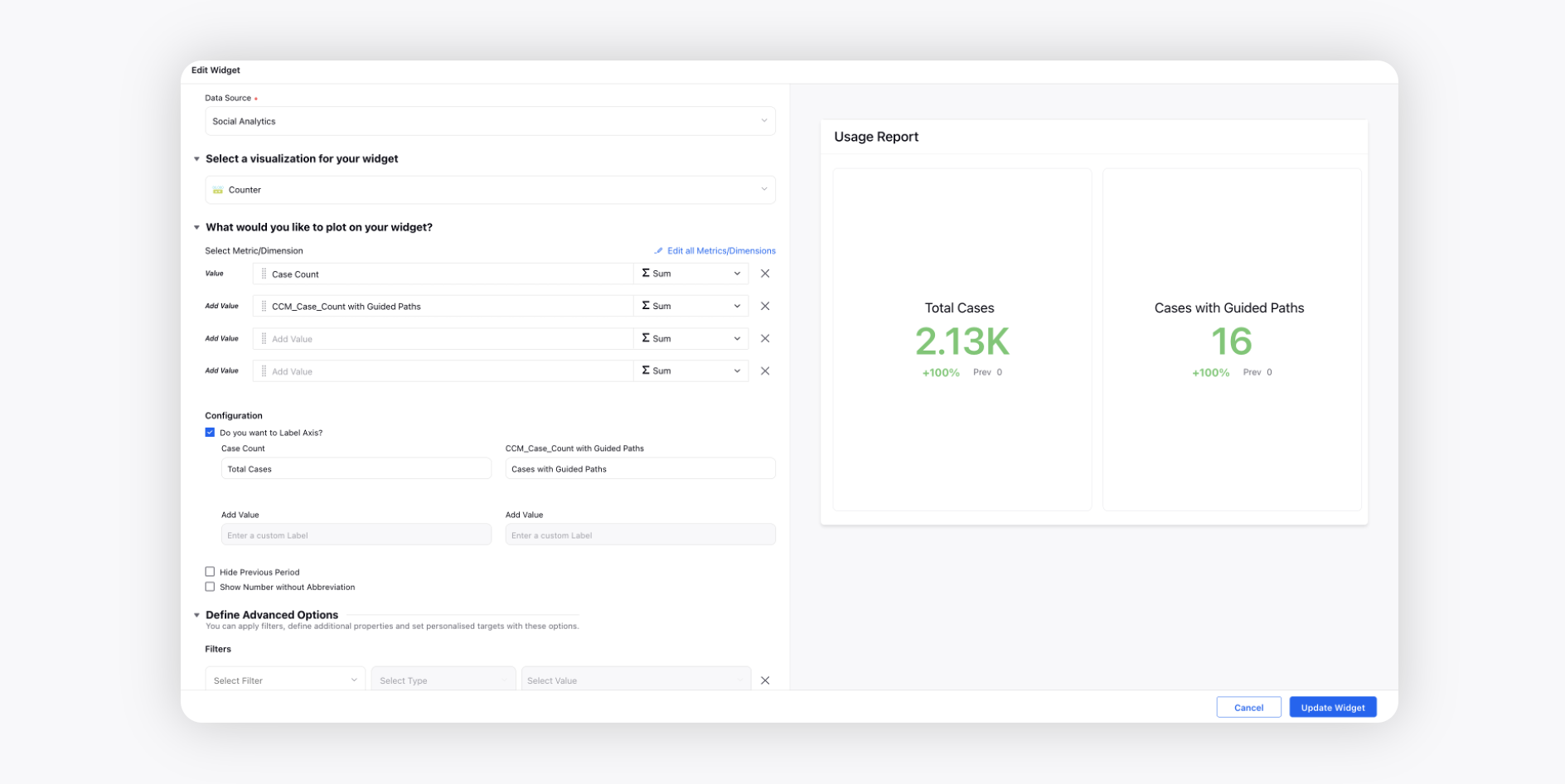
Usage Report
Create a Counter widget and choose the Data Source as Social Analytics.
Select the Case Count and CCM_Case_Count with Guided Paths metrics.
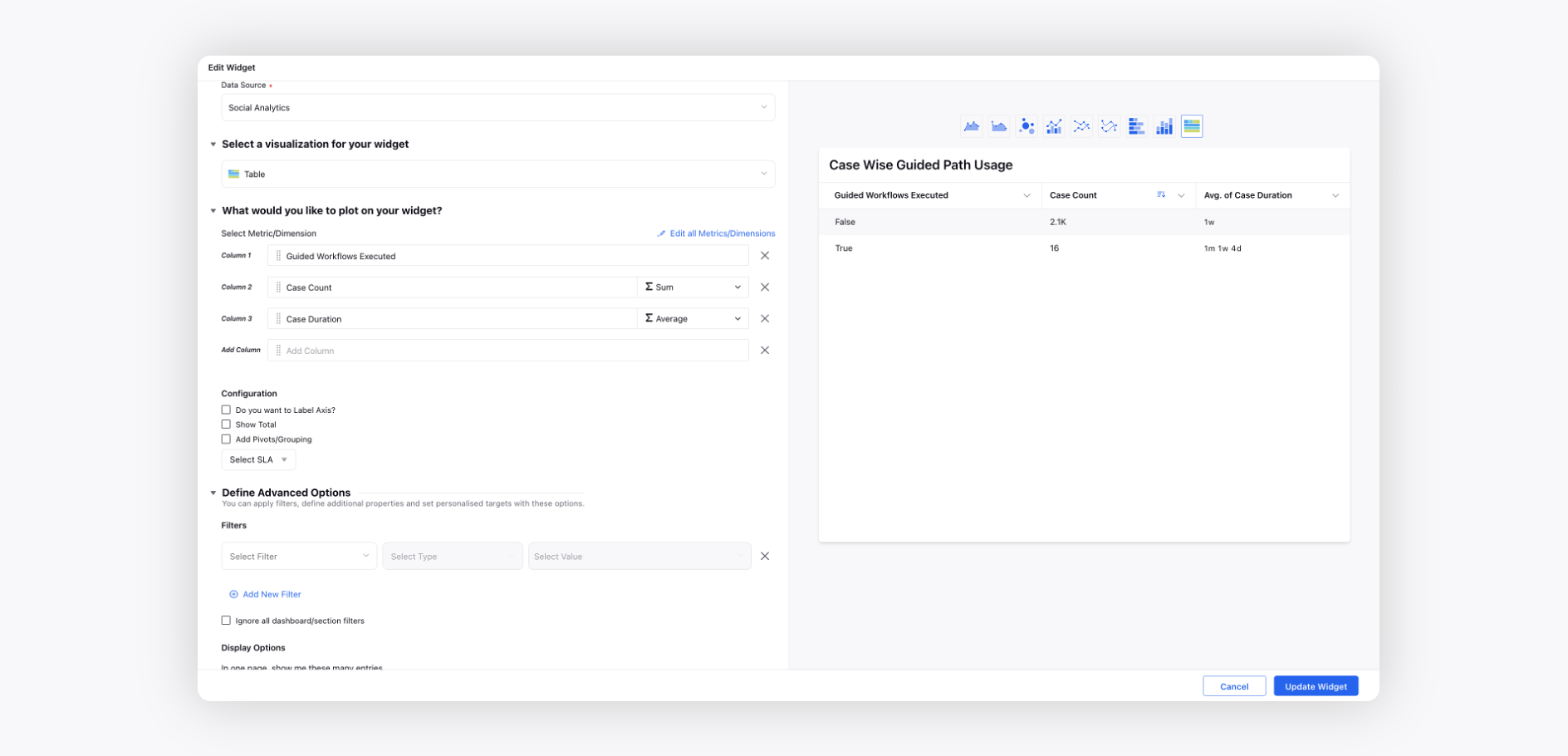
Case Wise Guided Path Usage
Create a Table widget and choose the Data Source as Social Analytics.
Select the Case Count and Case Duration metrics with Guided Workflows Executed dimension.
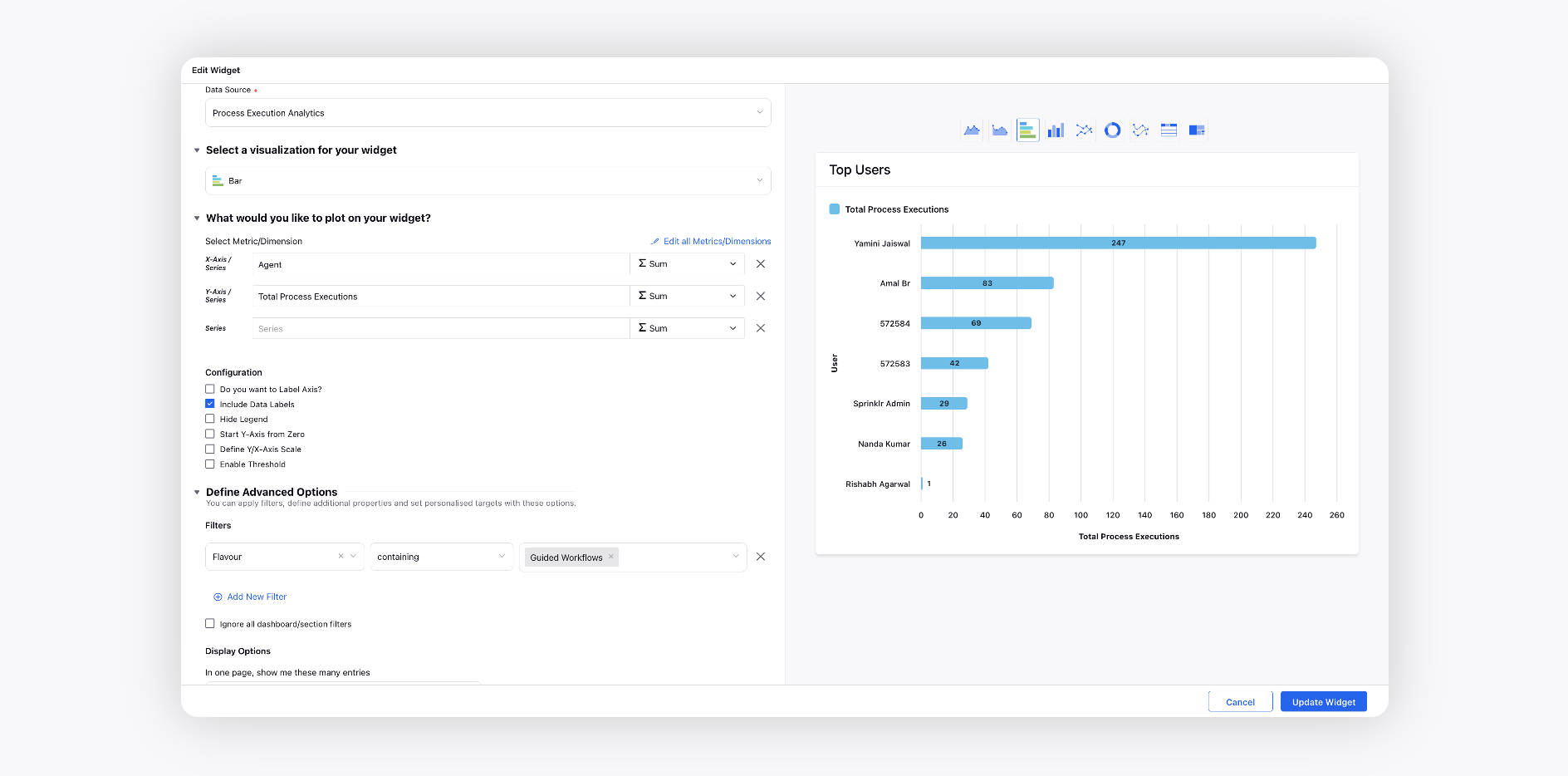
Top Users
Create a Bar widget and choose the Data Source as Process Execution Analytics.
Select the Total Process Executions metric with Agent dimension. Add the Flavour filter as Guided Workflows.
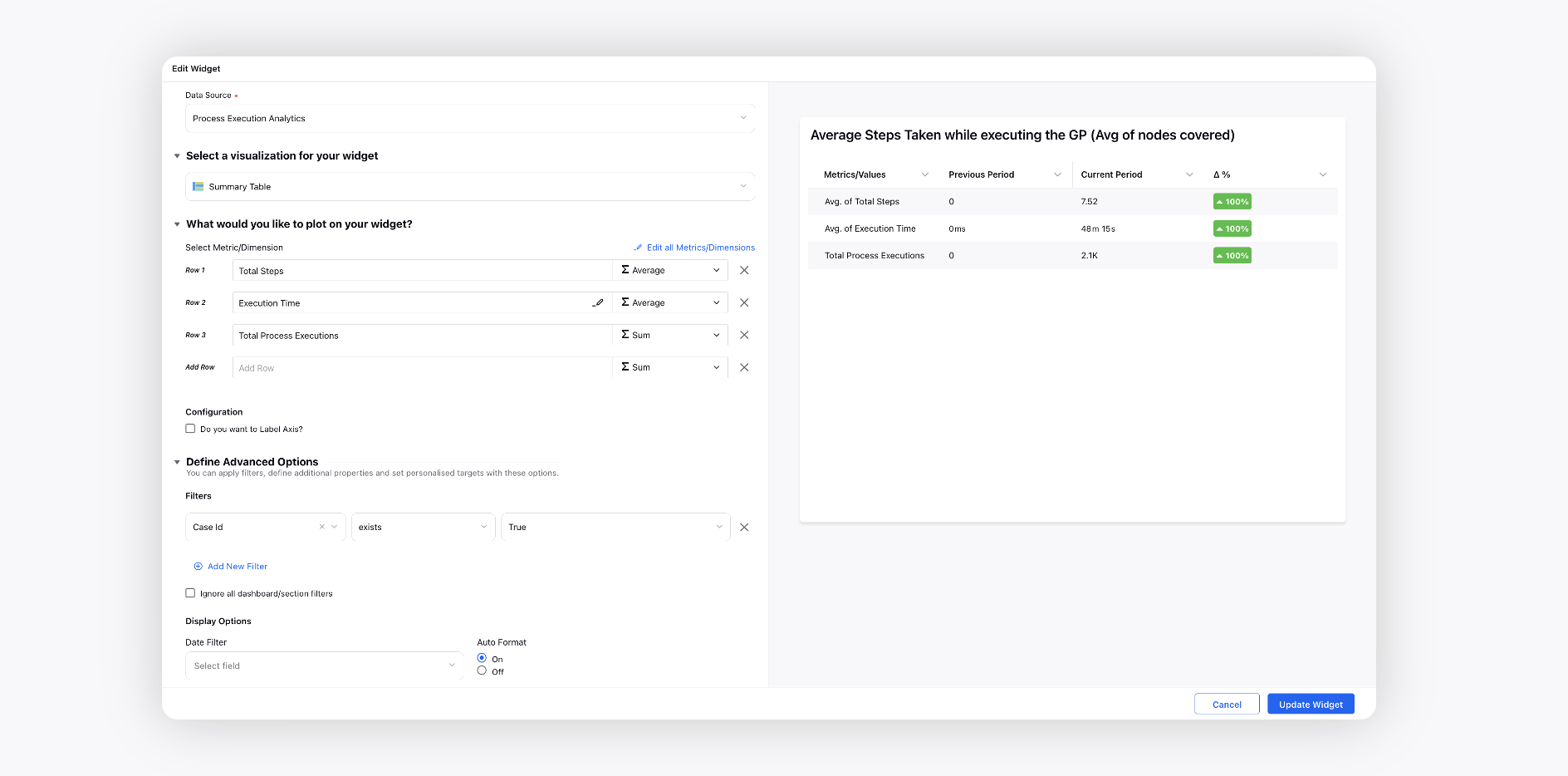
Average Steps Taken while executing the GP (Avg. of nodes covered)
Create a Summary Table widget and choose the Data Source as Process Execution Analytics.
Select the Total Steps, Execution Time, and Total Process Executions metrics. Add the Case Id filter as True.
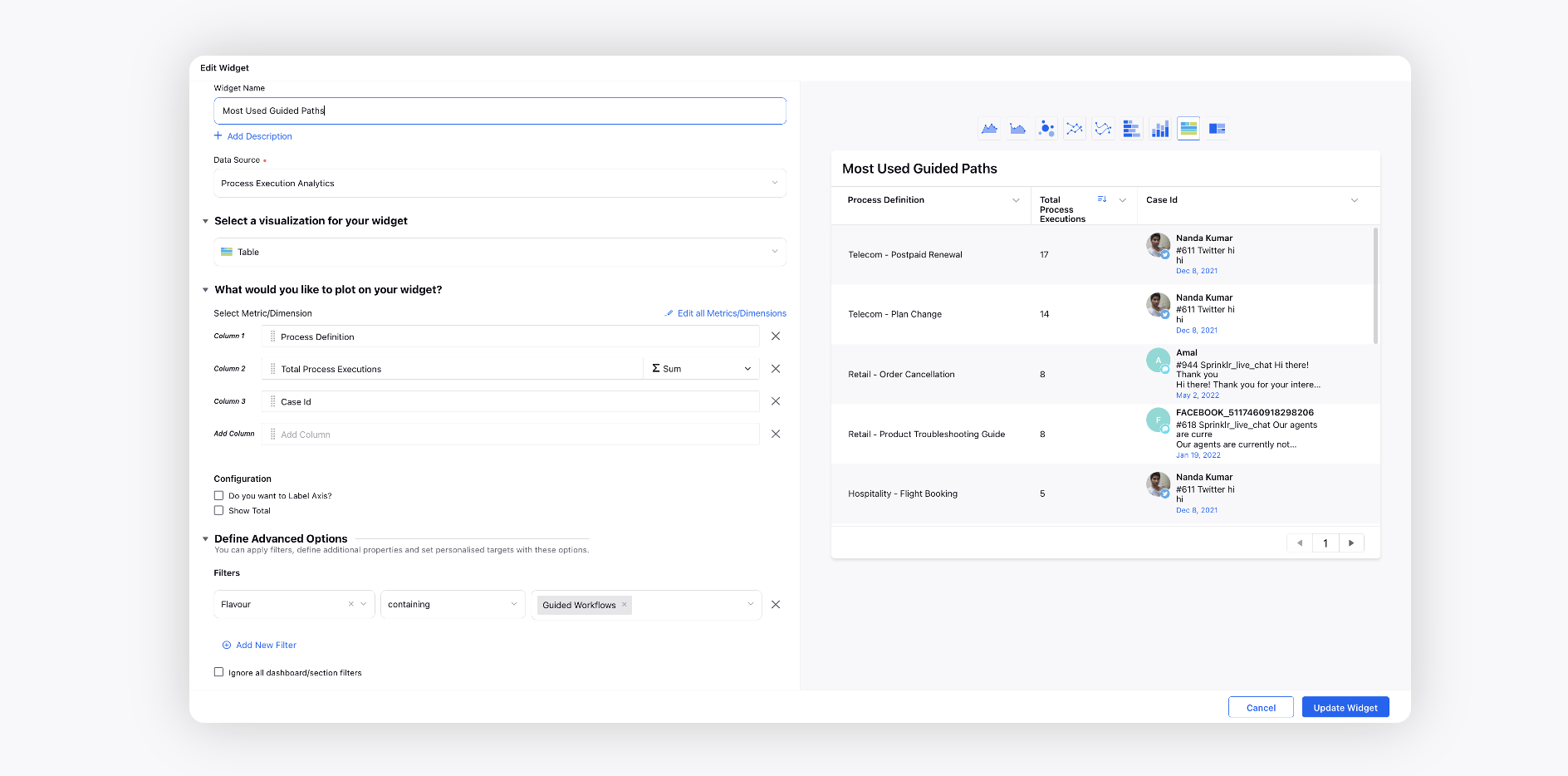
Most Used Guided Paths
Create a Table widget and choose the Data Source as Process Execution Analytics.
Select the Total Process Executions metric with Process Definition and Case Id dimensions. Add the Flavour filter as Guided Workflows.
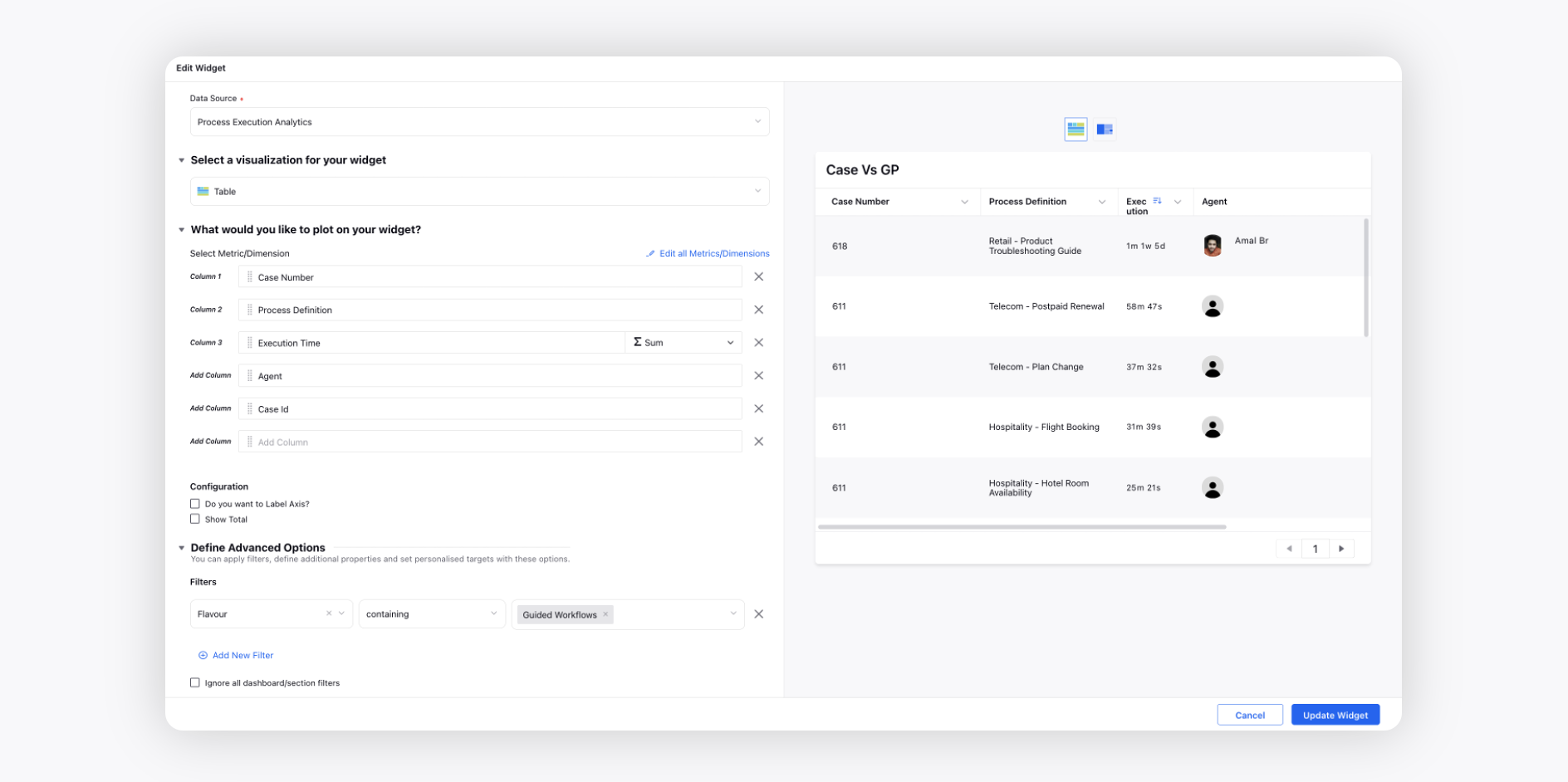
Case Vs GP
Create a Table widget and choose the Data Source as Process Execution Analytics.
Select the Execution Time metric with Case Number, Process Definition, Agent, and Case Id dimensions. Add the Flavour filter as Guided Workflows.
Guided Workflow Summary
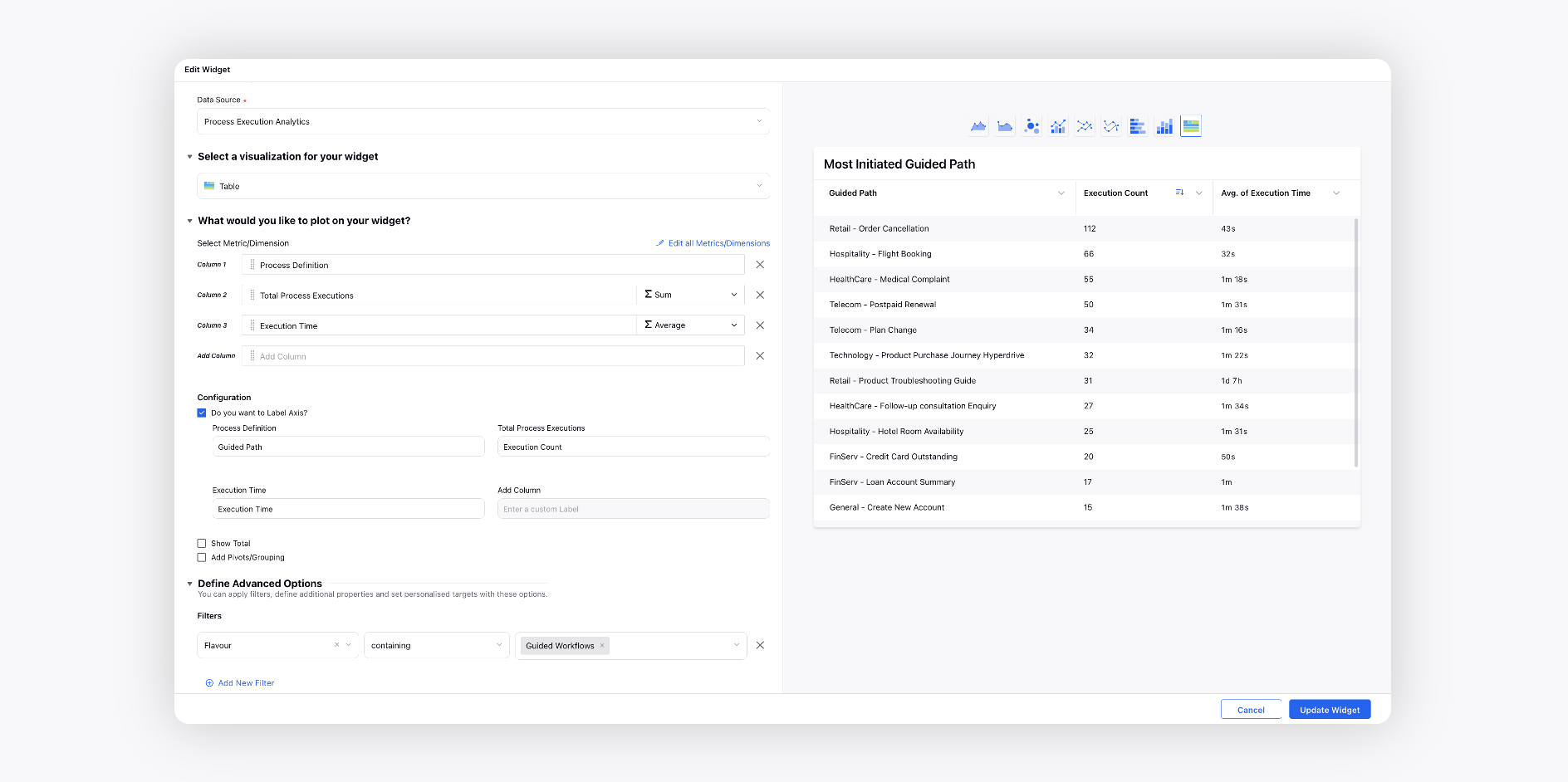
Most Initiated Guided Path
Create a Table widget and choose the Data Source as Process Execution Analytics.
Select the Execution Time and Total Process Executions metrics with Process Definition dimension. Add the Flavour filter as Guided Workflows.
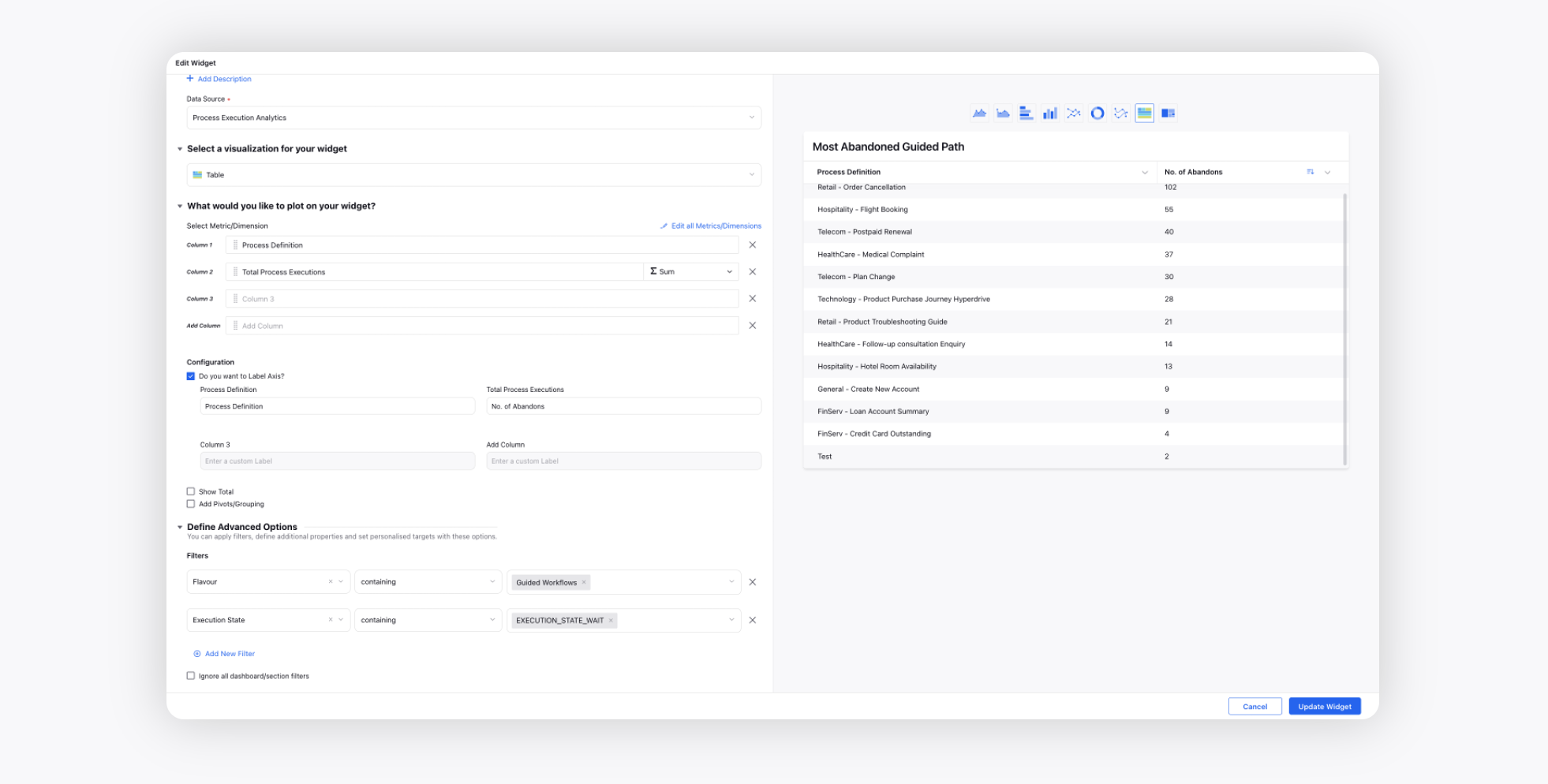
Most Abandoned Guided Path
Create a Table widget and choose the Data Source as Process Execution Analytics.
Select the Total Process Executions metric with Process Definition dimension. Add the Flavour filter as Guided Workflows and Execution State filter as EXECUTION_STATE_WAIT.
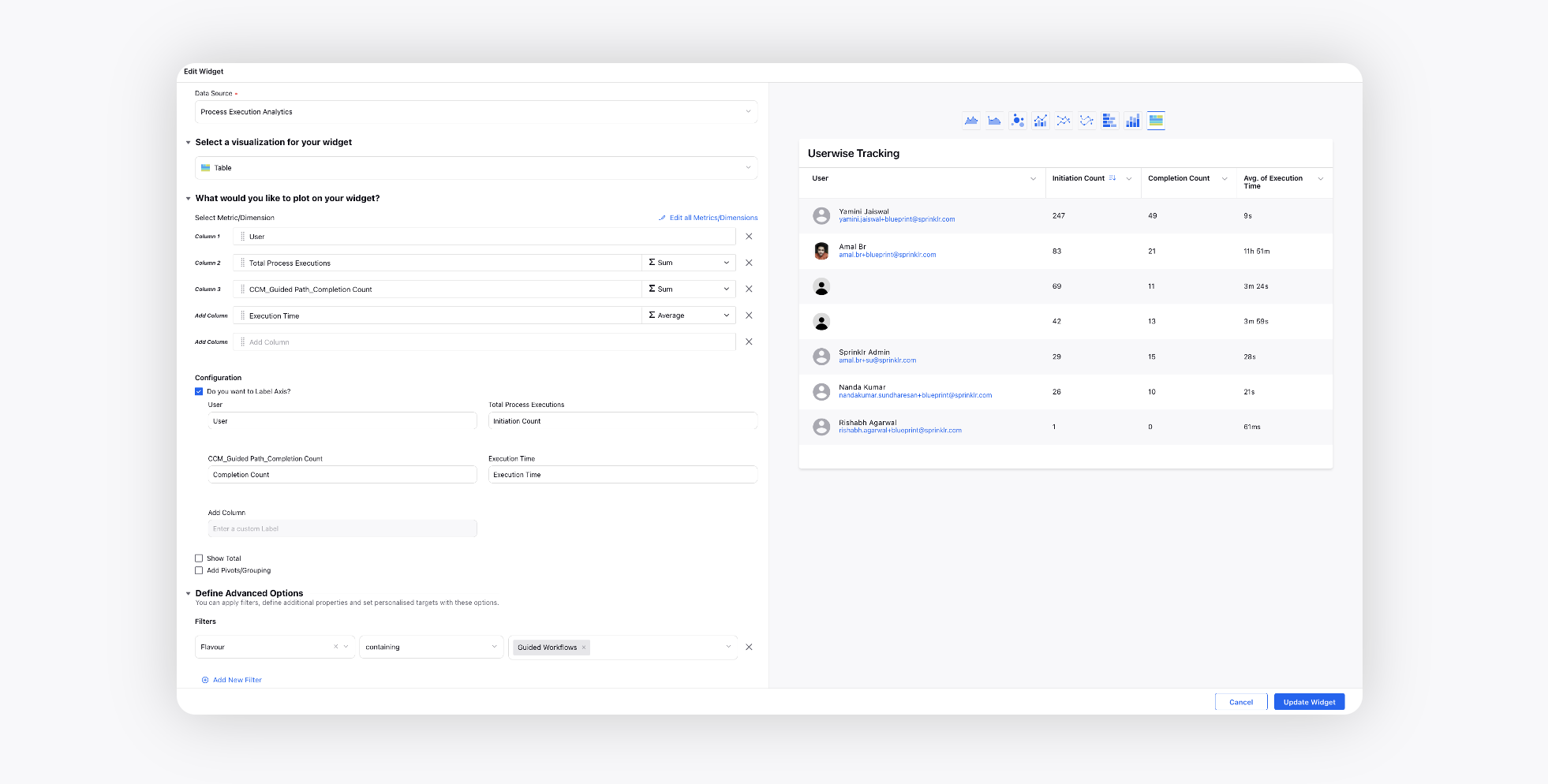
Userwise Tracking
Create a Table widget and choose the Data Source as Process Execution Analytics.
Select the Total Process Executions, CCM_Guided Path_Completion Count, Execution Time metrics with User dimension. Add the Flavour filter as Guided Workflows.
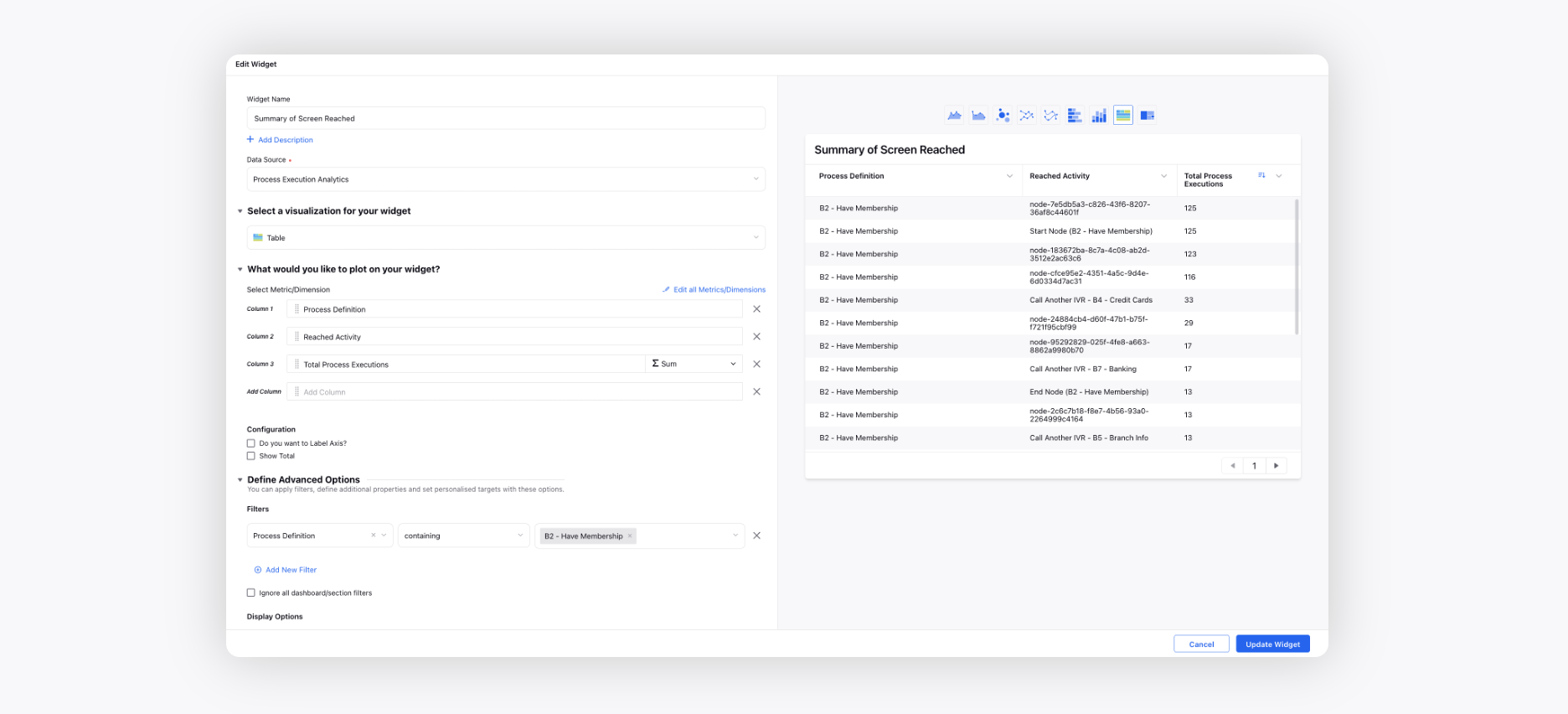
Summary of Screen Reached
Create a Table widget and choose the Data Source as Process Execution Analytics.
Select the Total Process Executions metric with Process Definition and Reached Activity dimensions. Add the Process Definition filter as B2 - Have Membership.
Guided Workflow Trend
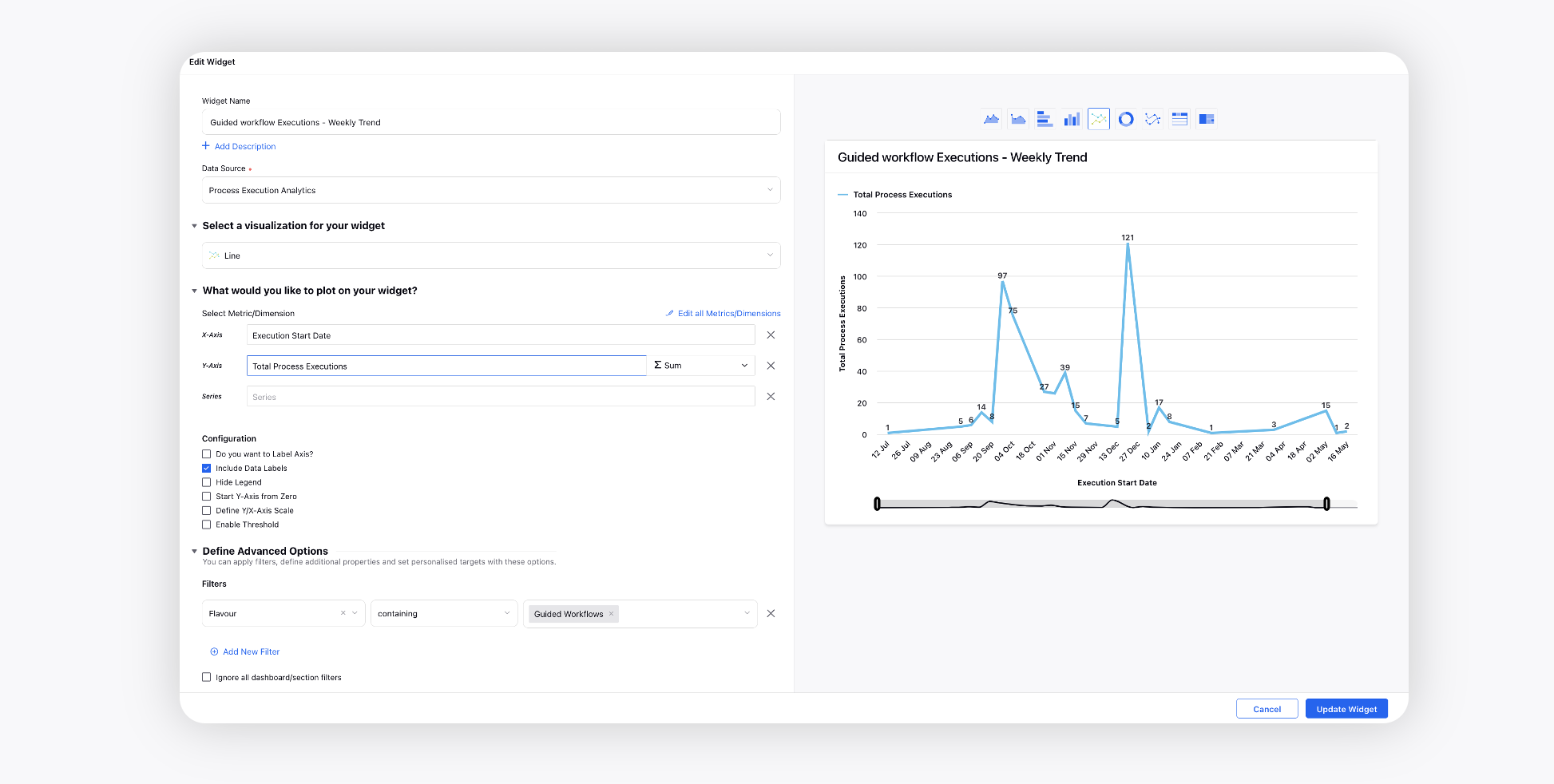
Guided Workflow Executions - Weekly Trend
Create a Line widget and choose the Data Source as Process Execution Analytics.
Select the Total Process Executions metric with Execution Start Date dimension. Add the Flavour filter as Guided Workflows.
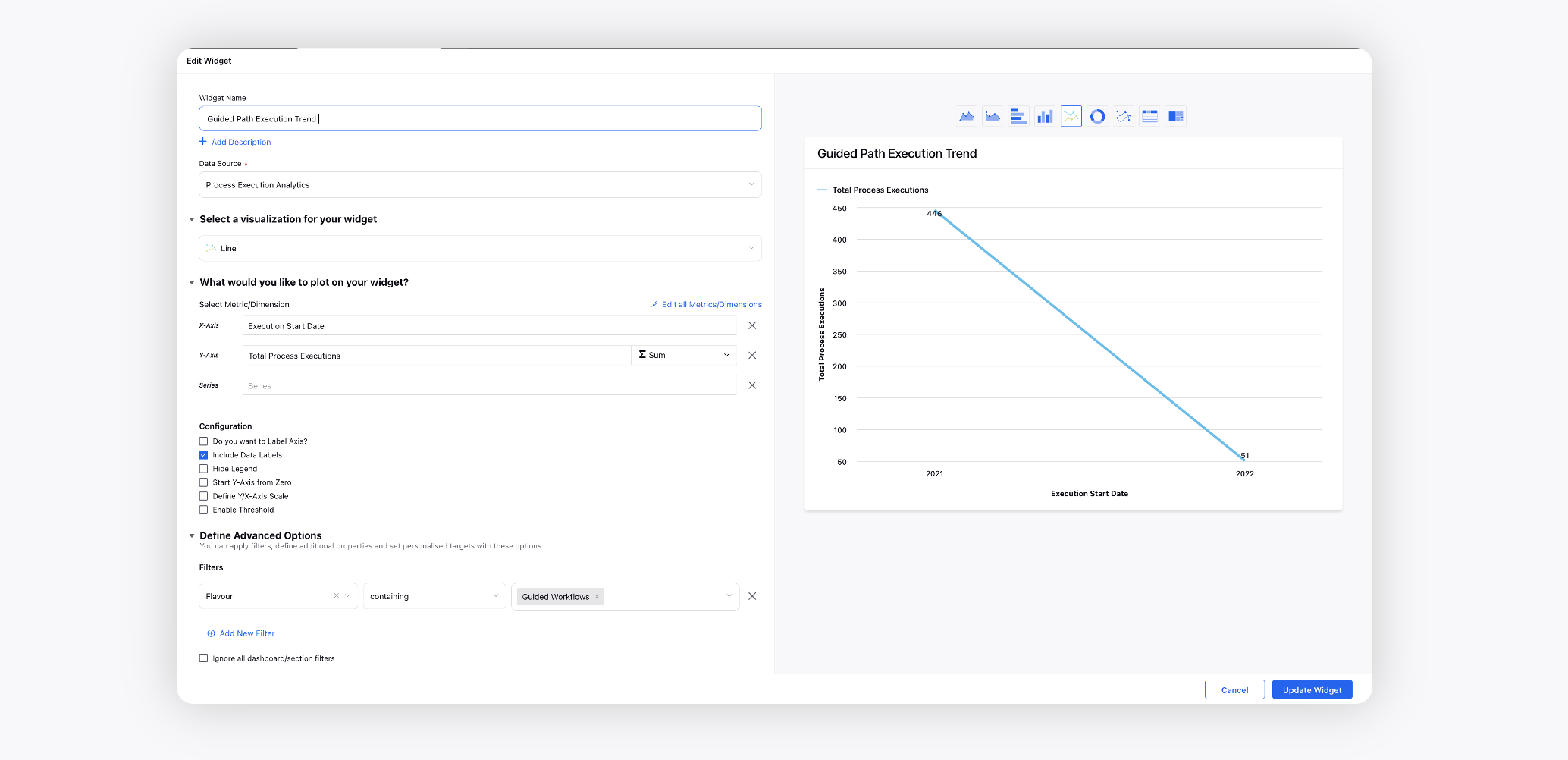
Guided Path Execution Trend
Create a Line widget and choose the Data Source as Process Execution Analytics.
Select the Total Process Executions metric with Execution Start Date dimension. Add the Flavour filter as Guided Workflows.
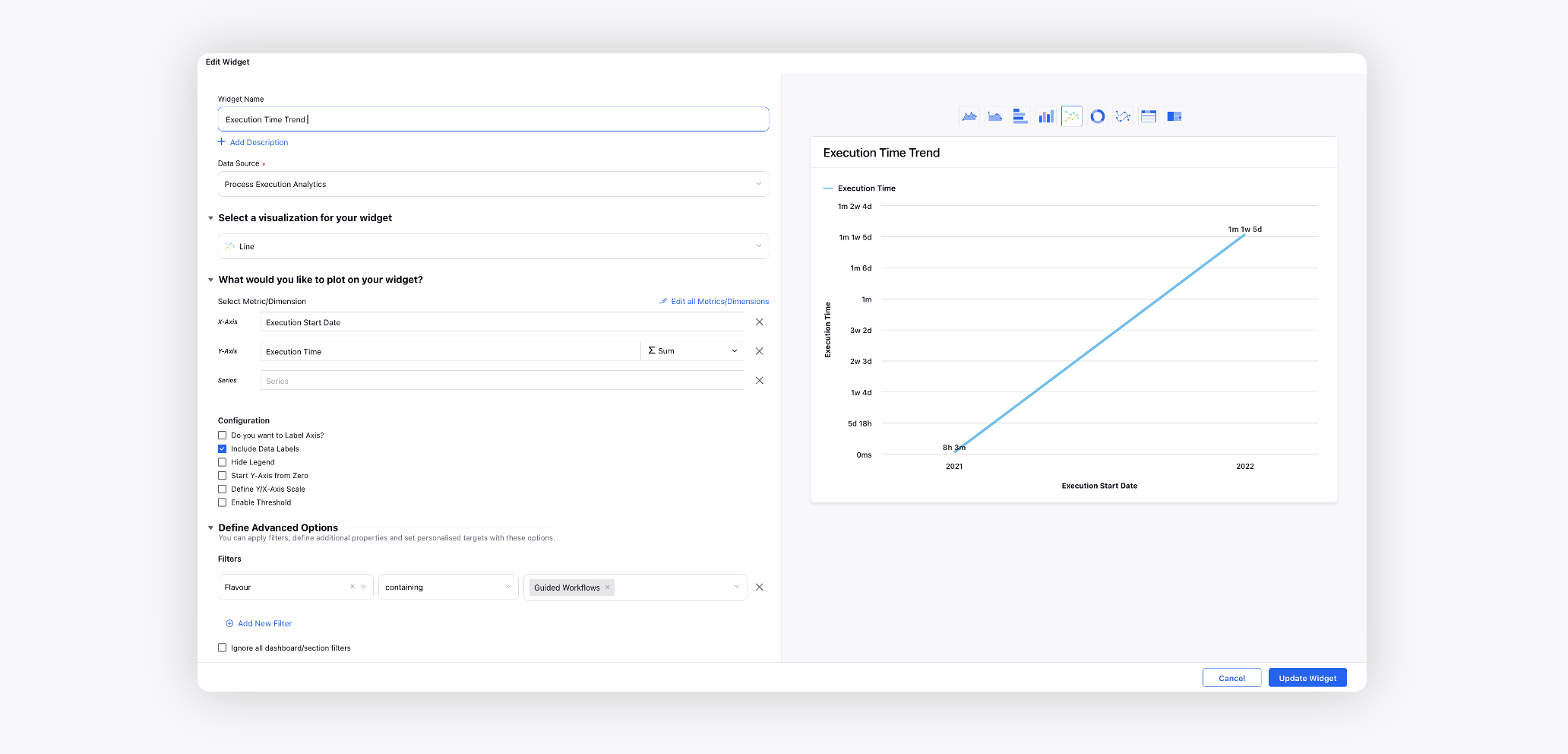
Execution Time Trend
Create a Line widget and choose the Data Source as Process Execution Analytics.
Select the Execution Time metric with Execution Start Date dimension. Add the Flavour filter as Guided Workflows.
GW Variable Reporting
Guided workflows, while configuring, allow us to make any variable available for reporting. This can be done under manage resources menu as show.


Under create new resource menu, the checkbox that says "Available for Reporting" has to be ticked. This will show the variable under the process execution analytics while configuring the reporting dashboard.


Reporting on Screen Components
You can report on values entered by your agents in guided workflows, even when the agent does not click the submit button. To acomplish this , you will need "Enable Reporting" for your field label. Once enabled the information would be available in your reporting dashboard .

To report on the value, you can use the custom dimension in the format << API Name of Screen API Name of Component ( Guided Workflow Name ) >>. This value will be unique as it is based on the three components - Name of Screen, Name of Component and Guided Workflow Name.
 Note:
Note:
This information is not available in real-time. The backend job is run twice a day that captures the reporting data.
If you want to report on screen components of other process definition other than Guided Workflow then please reach out to Success Manager.
Agent Telemetry
Agent Activity or Guided Workflow Telemetry provides comprehensive visibility into agent interactions within guided workflows. This tool tracks key metrics such as scroll depth (25%, 50%, 75%, and 100%), button actions (clicks, names, and actions), and time spent on each screen.
This enables you to identify process gaps, address inefficiencies, and improve workflow performance. Implementing insights gained from telemetry can lead to higher completion rates for guided workflows, enhancing productivity and efficiency.
To effectively utilize these metrics, you can enable the "Enable Screen Telemetry" option within your guided workflow.

You can also double click on your Guided Workflow canvas to view the Reports with telemetry metrics such as Time spent on each screen, Button Action and Maximum scroll depth.

Alternatively, you can utilize the scroll depth , button count, button action and button name in your care reporting dashboard for better insights into agent activity.
