Care Console Conversation Pane
Updated
The Conversation Pane is the primary workspace in the Care Console where agents view and manage conversations with customers. It brings together messages, actions, and controls required to handle customer interaction efficiently across supported channels.
Key Features
The Conversation Pane supports the following key features:
Seamless switching between channels, including integrated video and voice controls for supported channels.
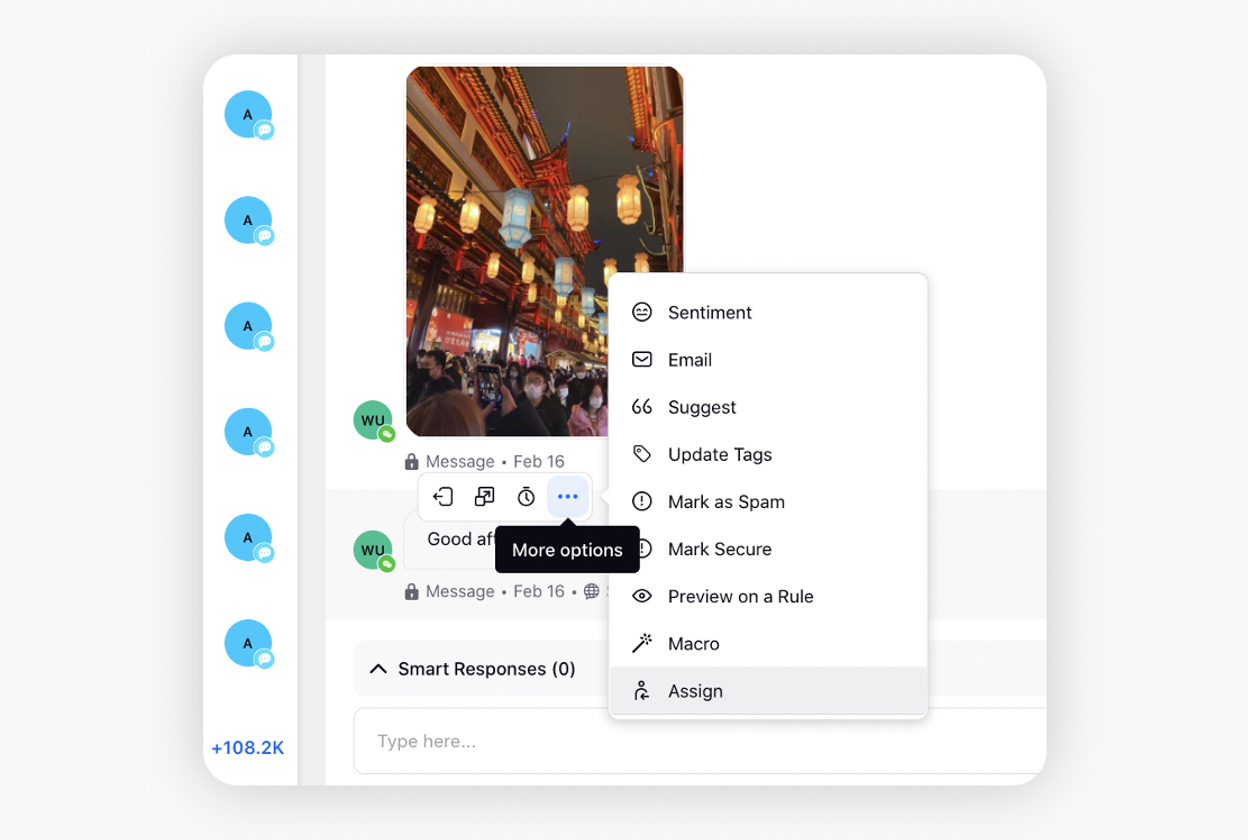
Message level actions such as updating sentiment, marking spam, applying macros, and managing tags.
Adding internal notes to individual conversation messages, with options to restrict the visibility to the current workspace.
Typing indicators and read receipts to help agents time responses effectively.
Quick macros to surface commonly used macros and reduce manual steps.
Reminders on messages or cases to track follow-ups and SLA related tasks.
Conversation Pane Components
The Conversation Pane consists of the following components:
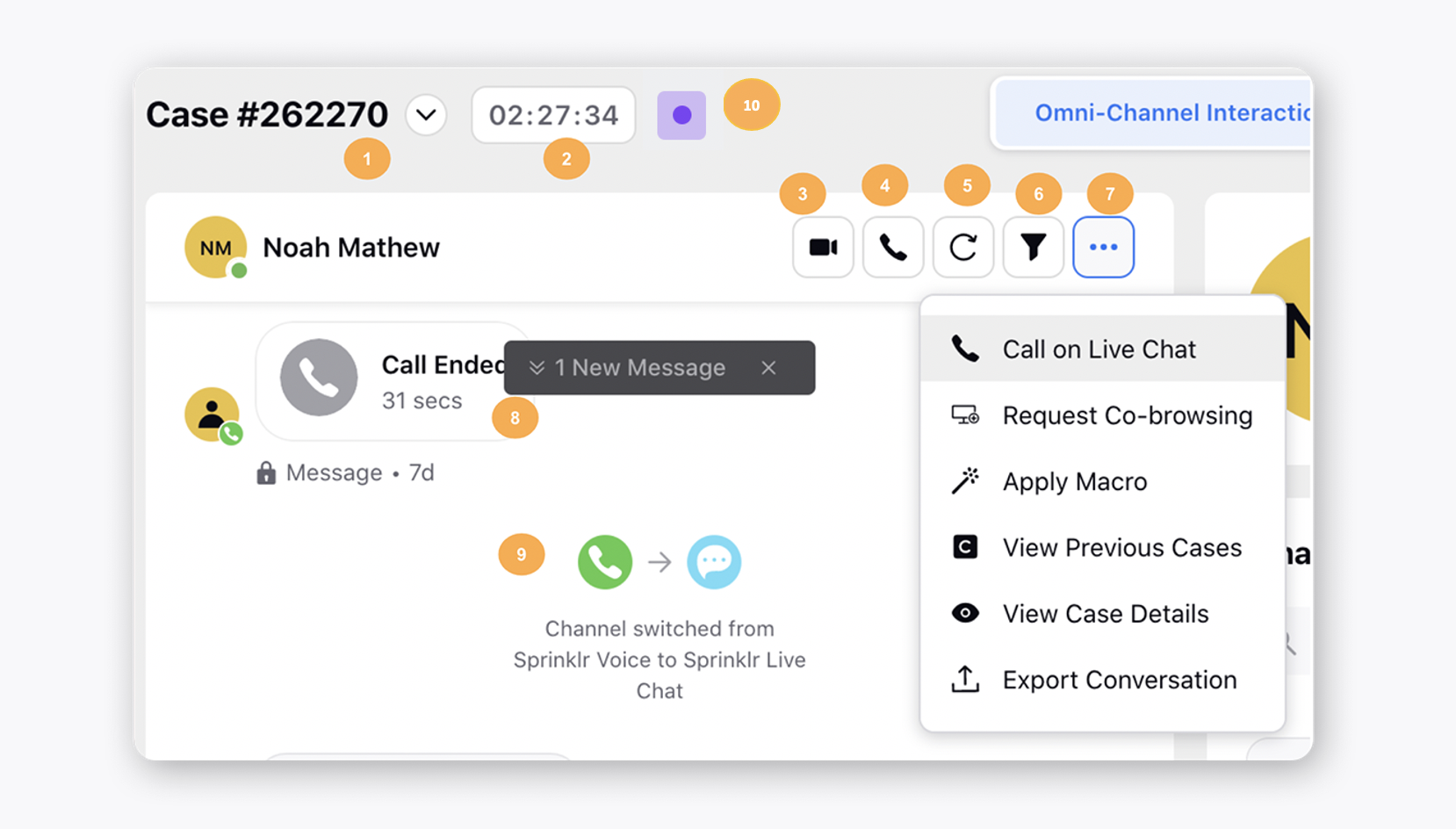
S.No. | Title | Description | |
1 | Case Number | View the case number. Click the dropdown icon alongside it to view all the cases along with the status associated with the same profile. You can also search for the desired case. Hover over the case number to copy it. | |
2 | Processing Clock | Shows the time spent on a case by the agent. Note that even if a user doesn't have the permission to view the case processing clock, it still keeps running in the backend for you to do reporting on it. You can get any Case Custom Field, which does not have a long value, configured to appear on the top that is used by agents the most by reaching out to support. | |
3 | Video Call | Make a video call. This is supported only for Sprinklr Live Chat. | |
4 | Call | Make a voice call if the user's contact details are captured. | |
5 | Refresh | Click to refresh the conversation. | |
6 | Filters | Filter the messages based on message tags. | |
7 | Options icon |
| |
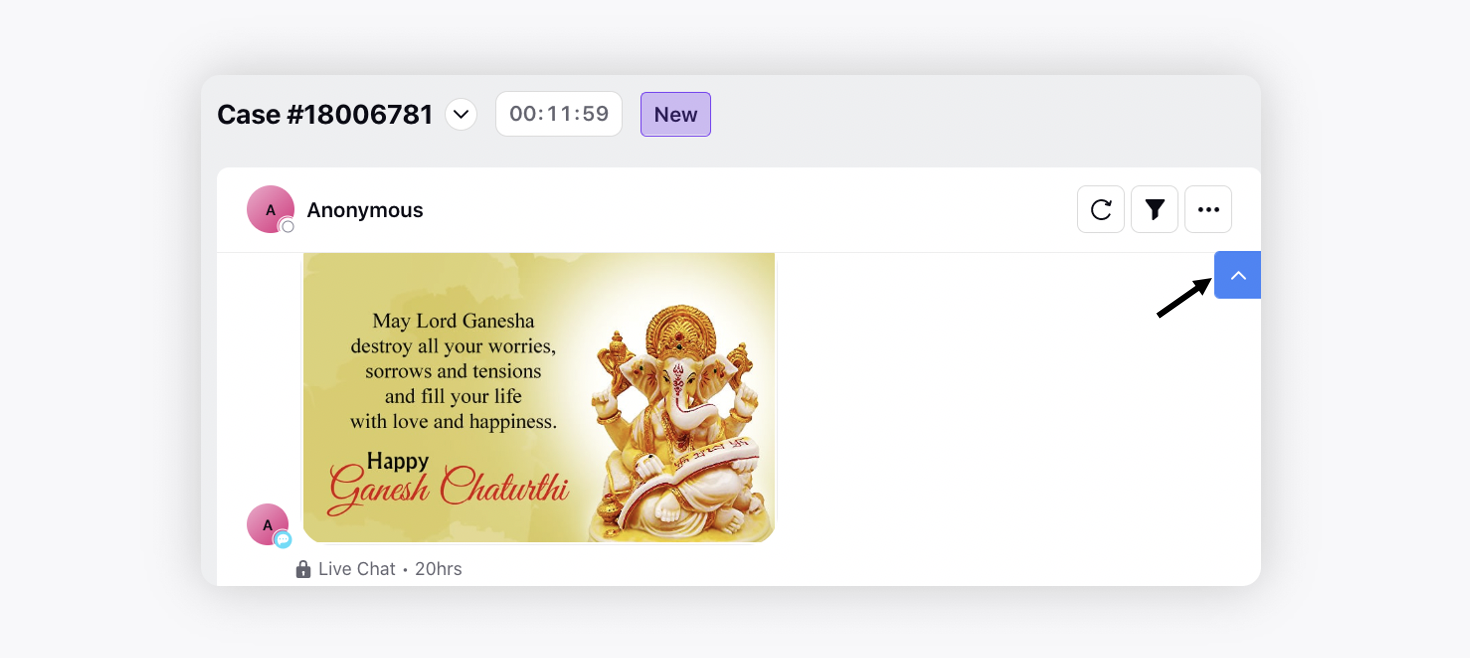
8 | New Message Pusher | Click on this to scroll to the latest message in the ongoing conversation. | |
9 | Channel Switch Indicator | View the channel switch indicator in case of a channel deflection in a case. | |
10 | Case Status | Status of the case with the background color as shown in the Case Overview third pane. | |
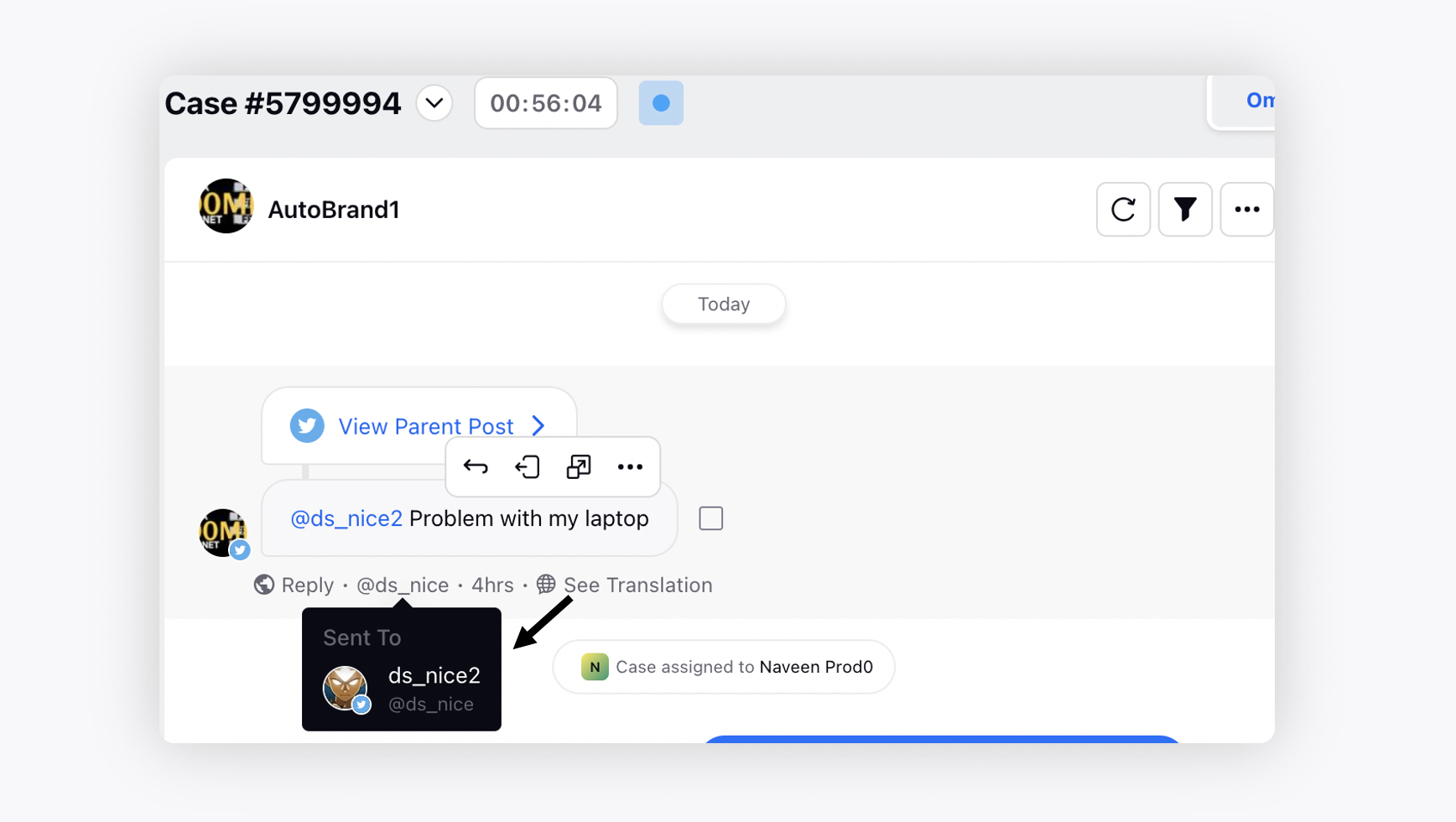
11 | Brand Account Name | View the brand account name the customer message was sent to.
| |
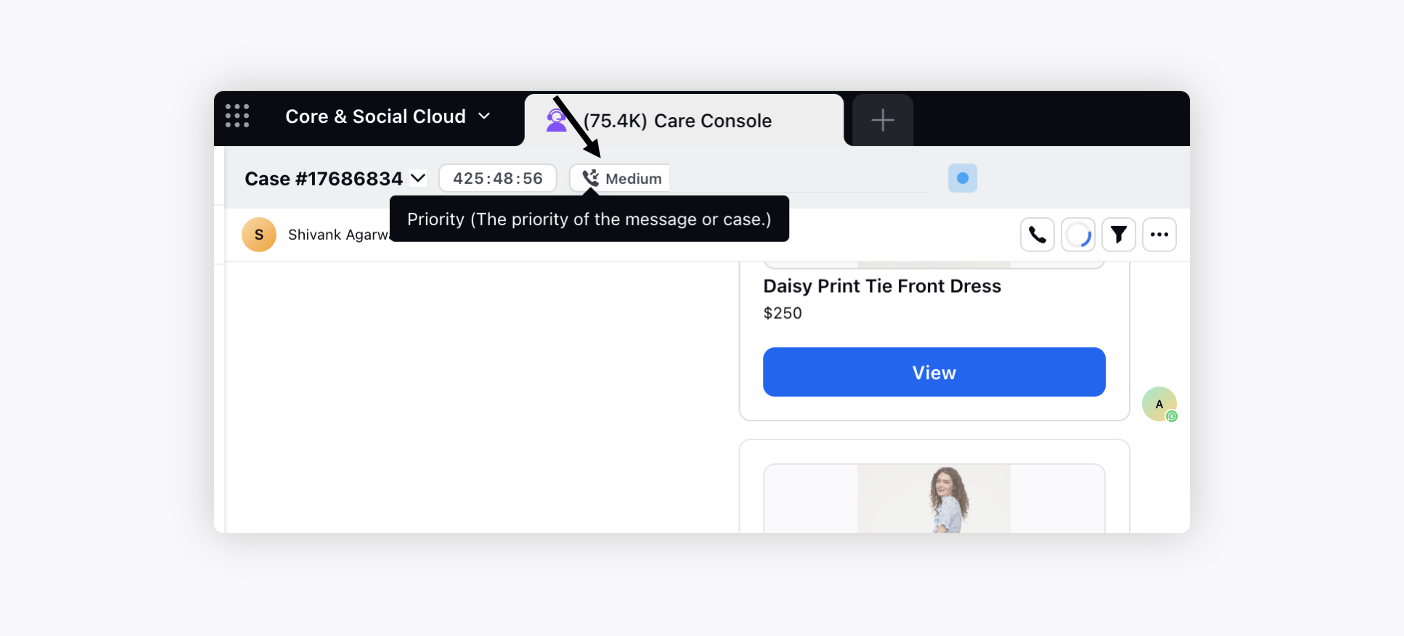
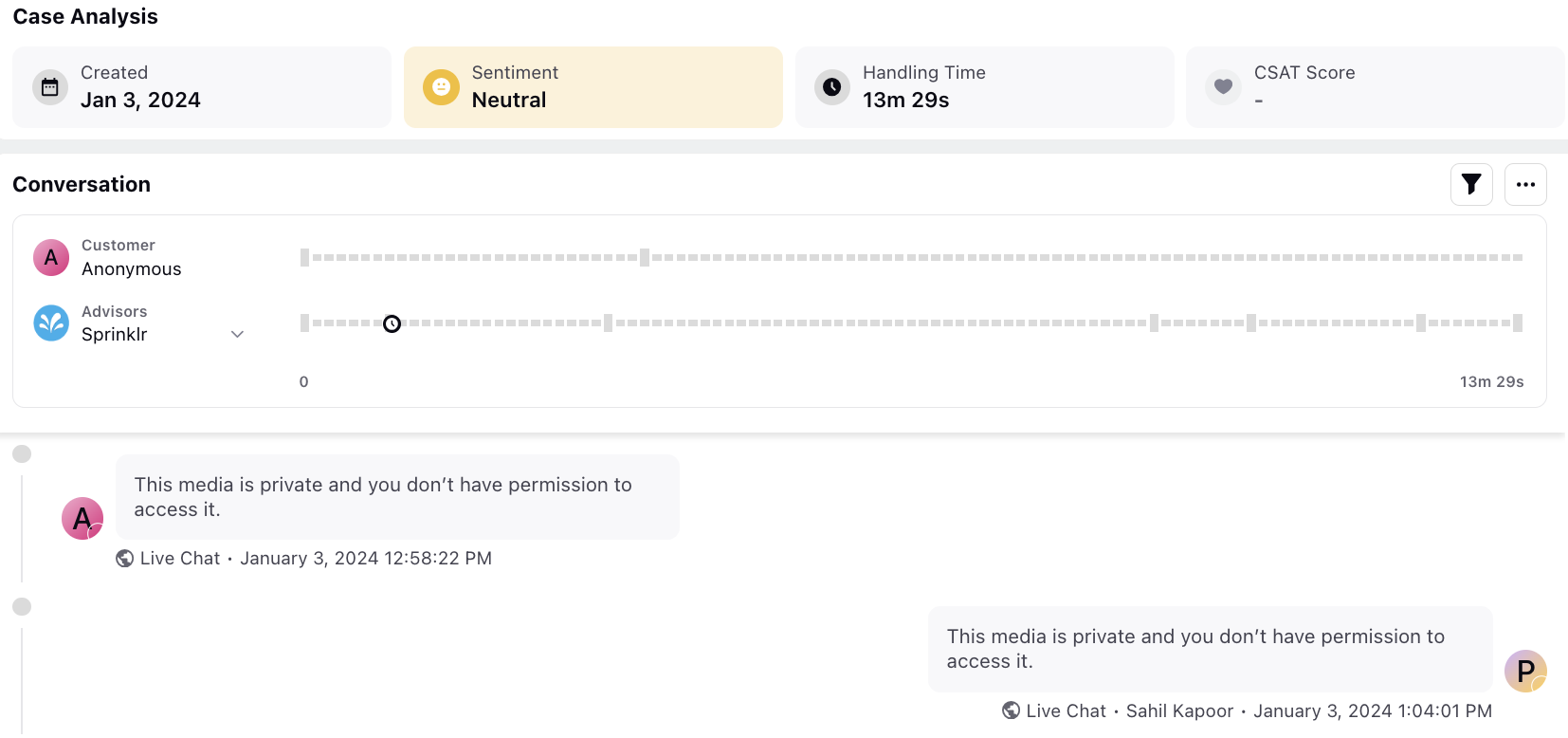
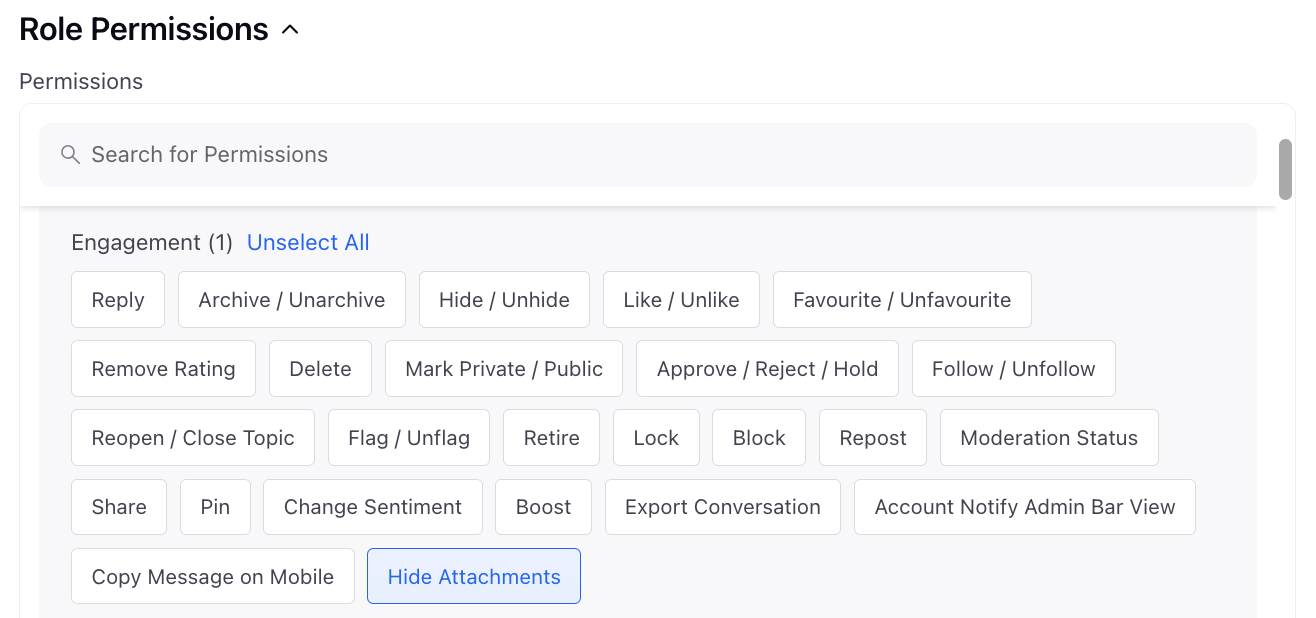
12 | Hide Attachments | For digital cases, in order to enhance data security and privacy, any detected attachments such as PDFs or screenshots will be automatically concealed. A message will be displayed, stating, "This media is private and you don't have permission to access it." Users with explicit permission will not be able to access or view the hidden attachments. Additionally, access to these attachments is restricted not only within the platform but also in exports.
Users with the Hide Attachments permission under Engagement will be restricted from accessing the attachments.
|
Note: 1. For hiding the parent post in the conversation widget, you can reach out to your Success Manager. To keep the parent post in an expanded state, please reach out to our support team at tickets@sprinklr.com.
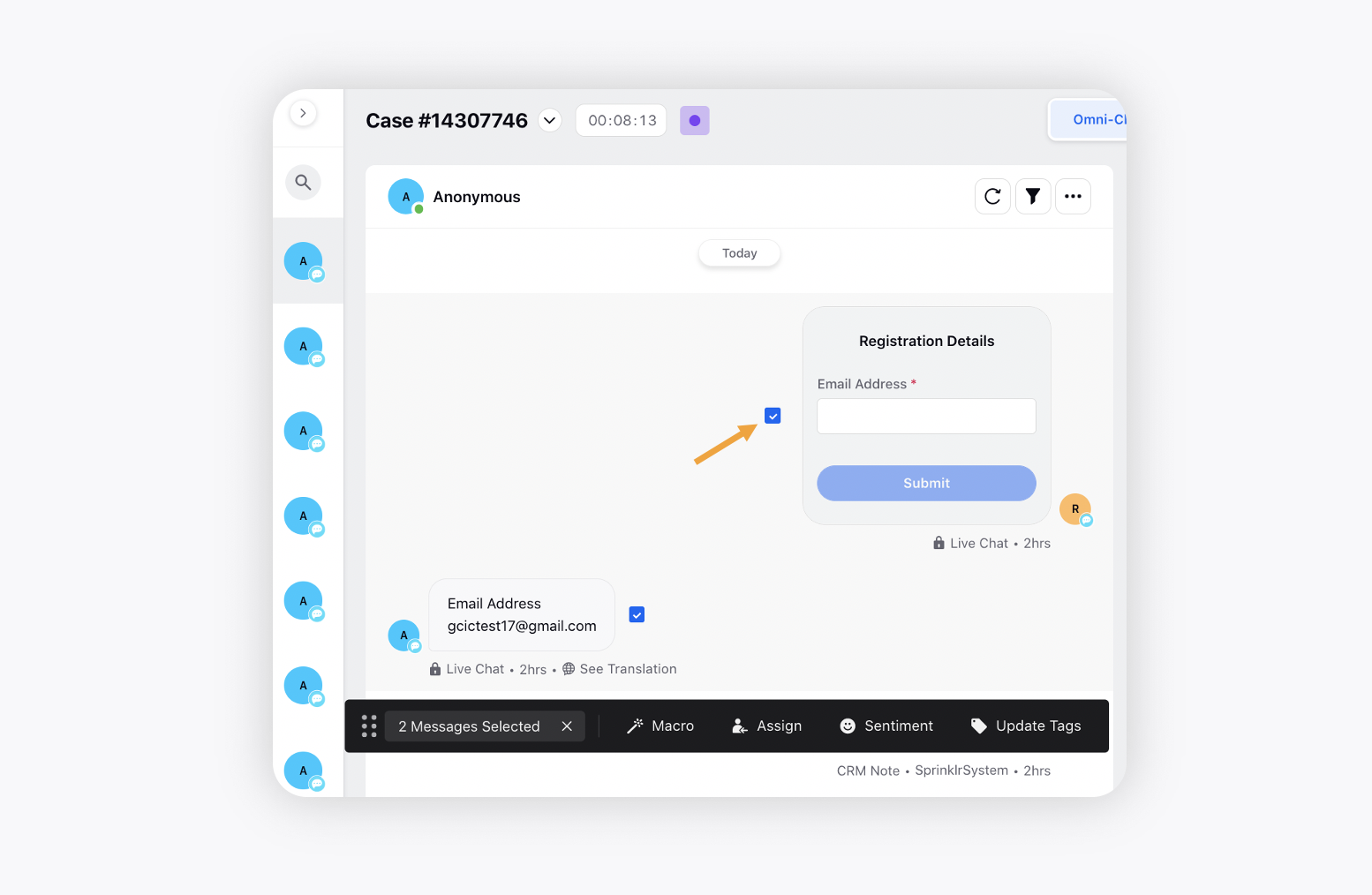
2. You can select the messages in bulk from the conversation pane and take bulk action on them, e.g., applying a macro, updating tags, associating/disassociating cases, archiving, assigning, etc.
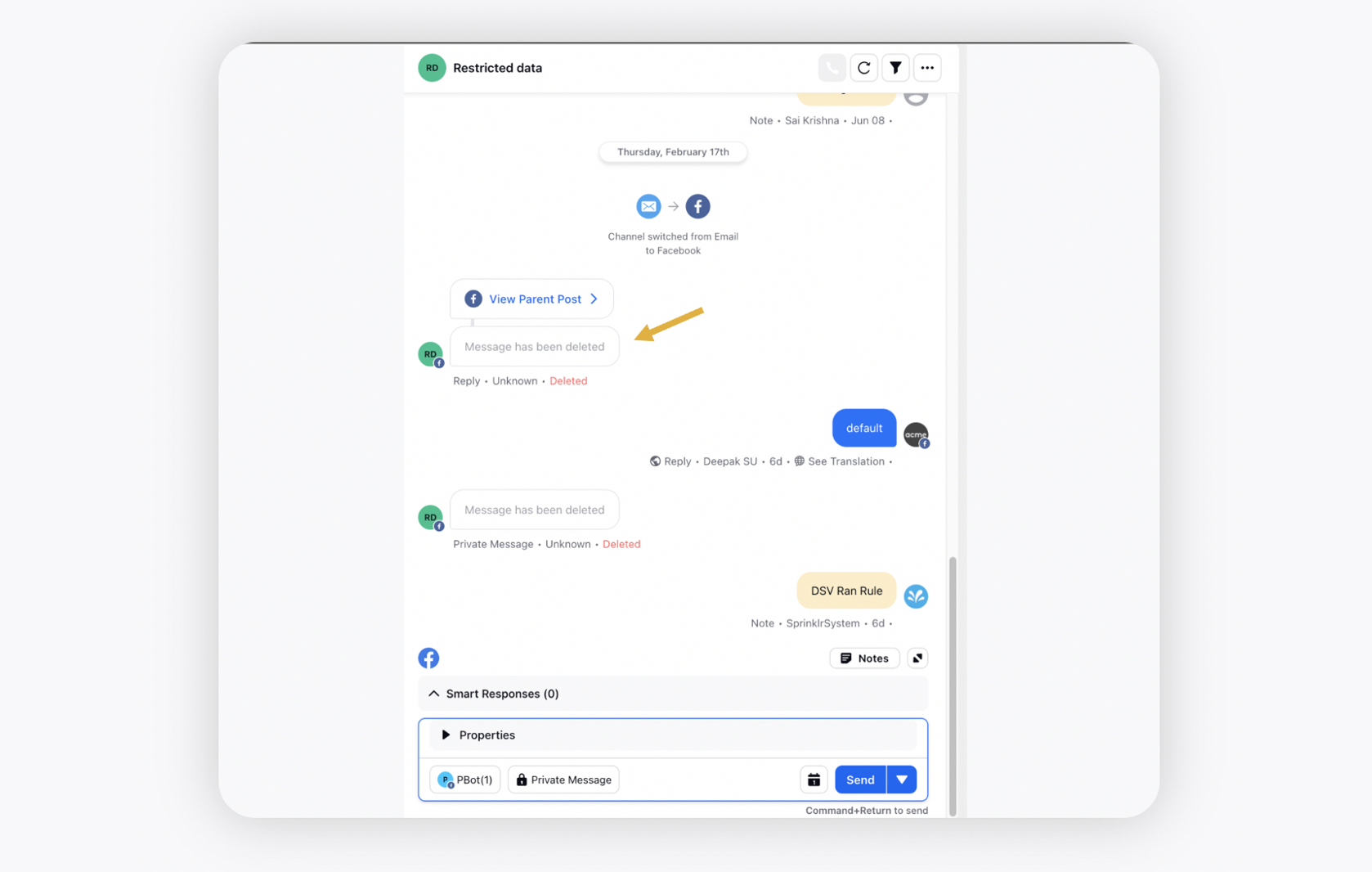
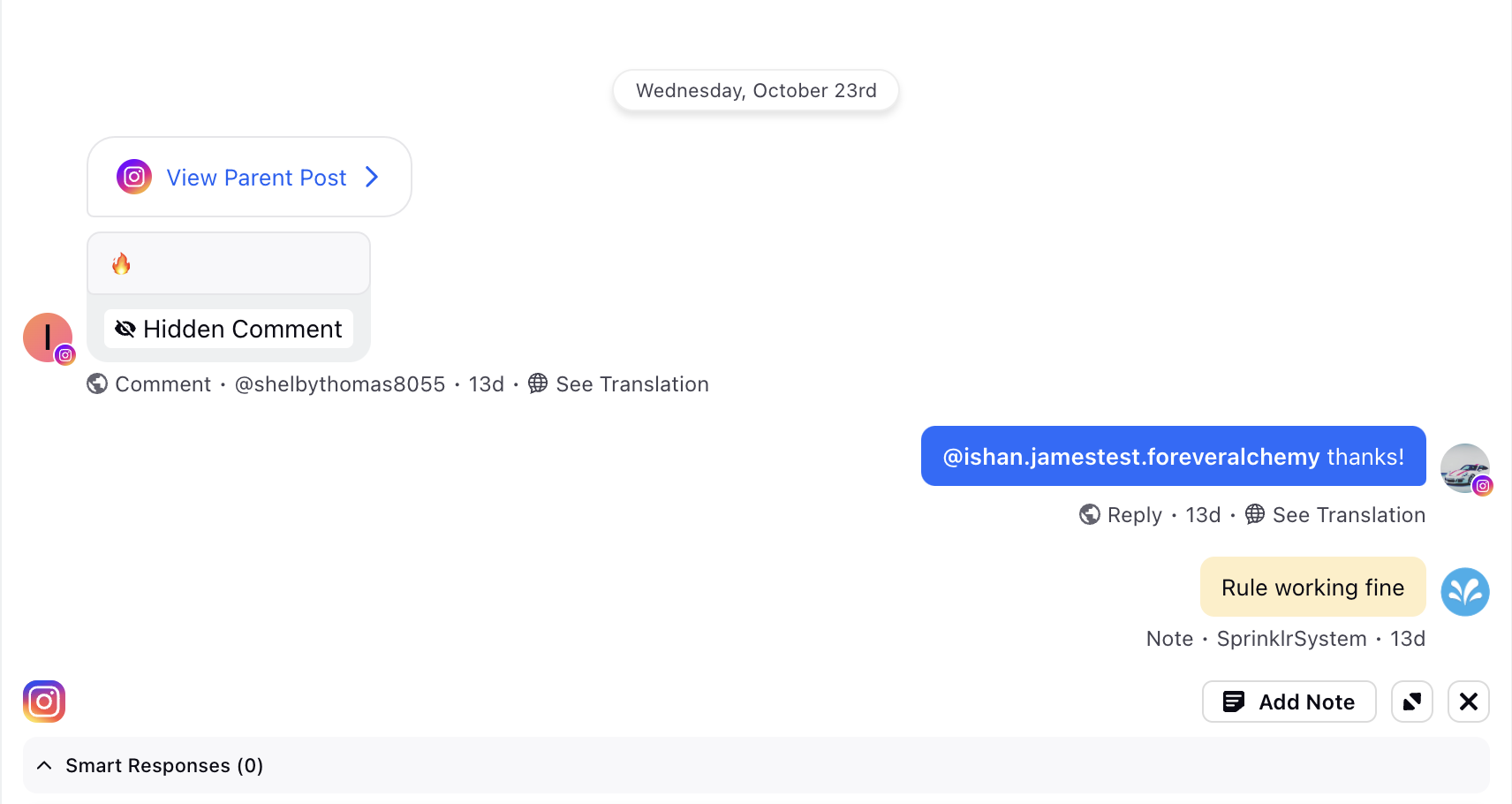
3. When a fan or a brand message is deleted, an indicator for the same will be displayed in Care Console.
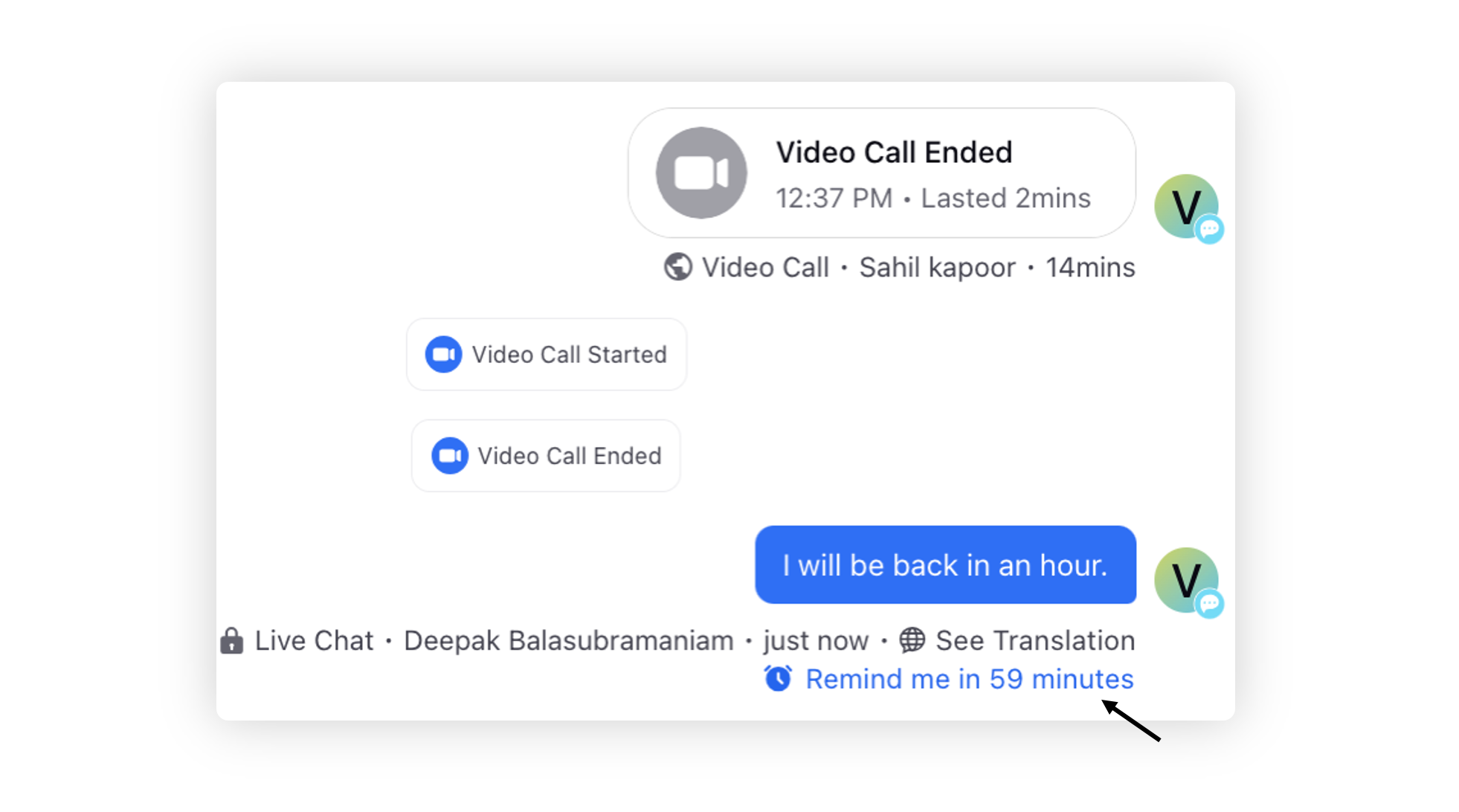
4. When there are more than 100 messages in a conversation and the agent is at the bottom of the conversation, extra messages will be removed from the top of the conversation widget. To get this enabled, please work with your Success Manager 5. As an agent, when you interact with customers and AI detects a message containing a timestamp (e.g., "I will text in one hour") indicating a need for a reminder, the system will prompt you to set up a reminder directly within the conversation pane. Clicking on this option will open a reminder pop-up, pre-filled with the detected date and time. To get this capability enabled, please reach out to our support team at tickets@sprinklr.com.
6. To get the scroll to top button enabled in case of large conversations, please work with your Success Manager.
|
.png "image (18).png")
Message Actions
S.No | Title | Description |
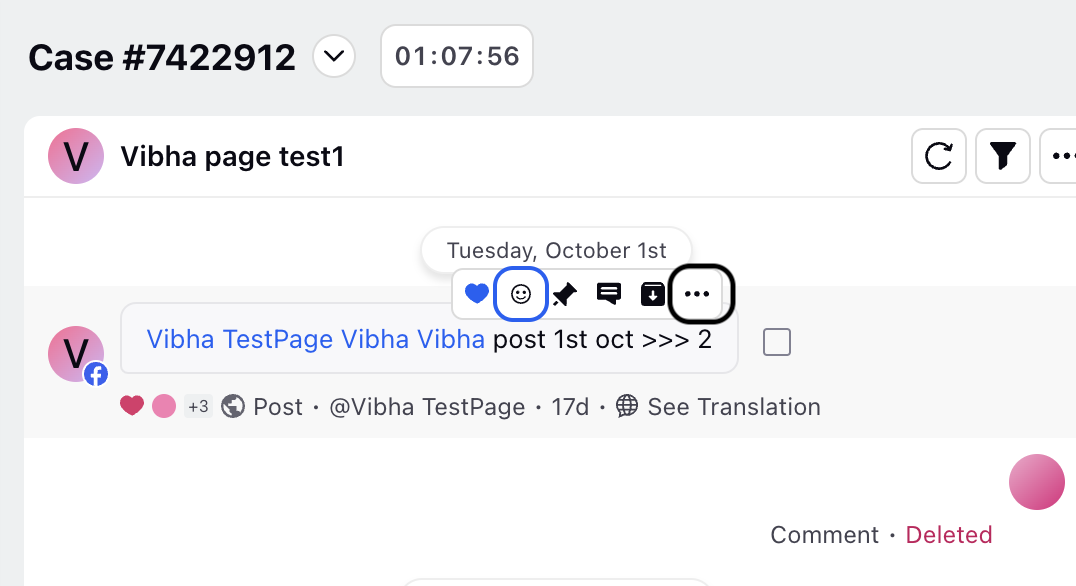
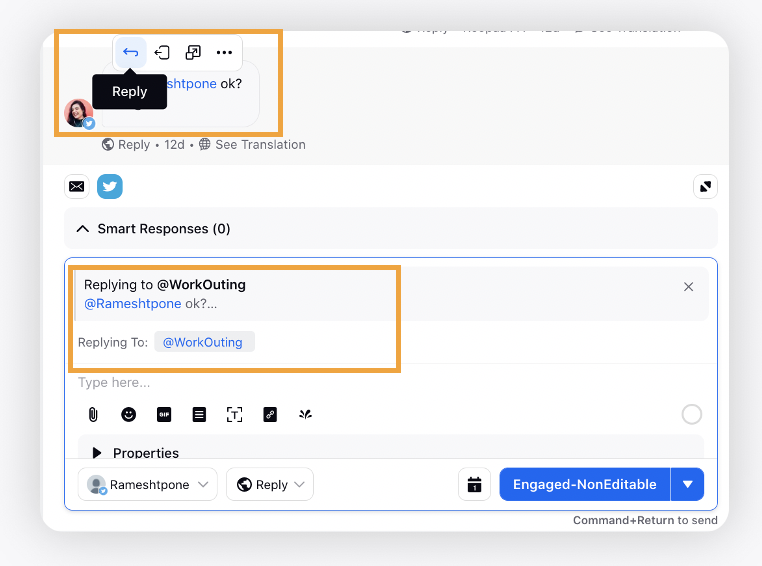
1 | Archive | Archive the message. |
2 | Open Details | View the message details in the third pane. |
3 | Reminders | Set a reminder on the message. |
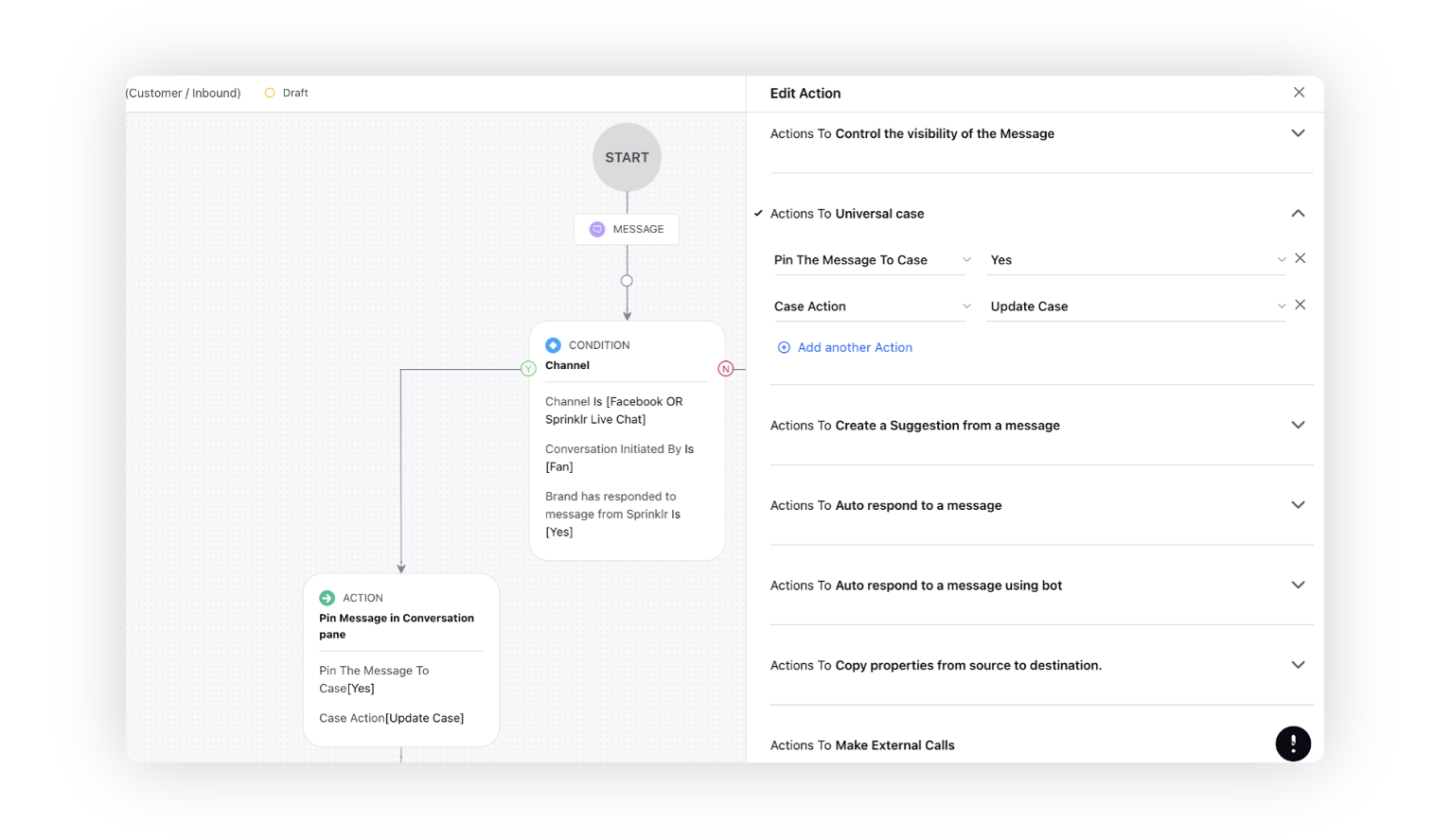
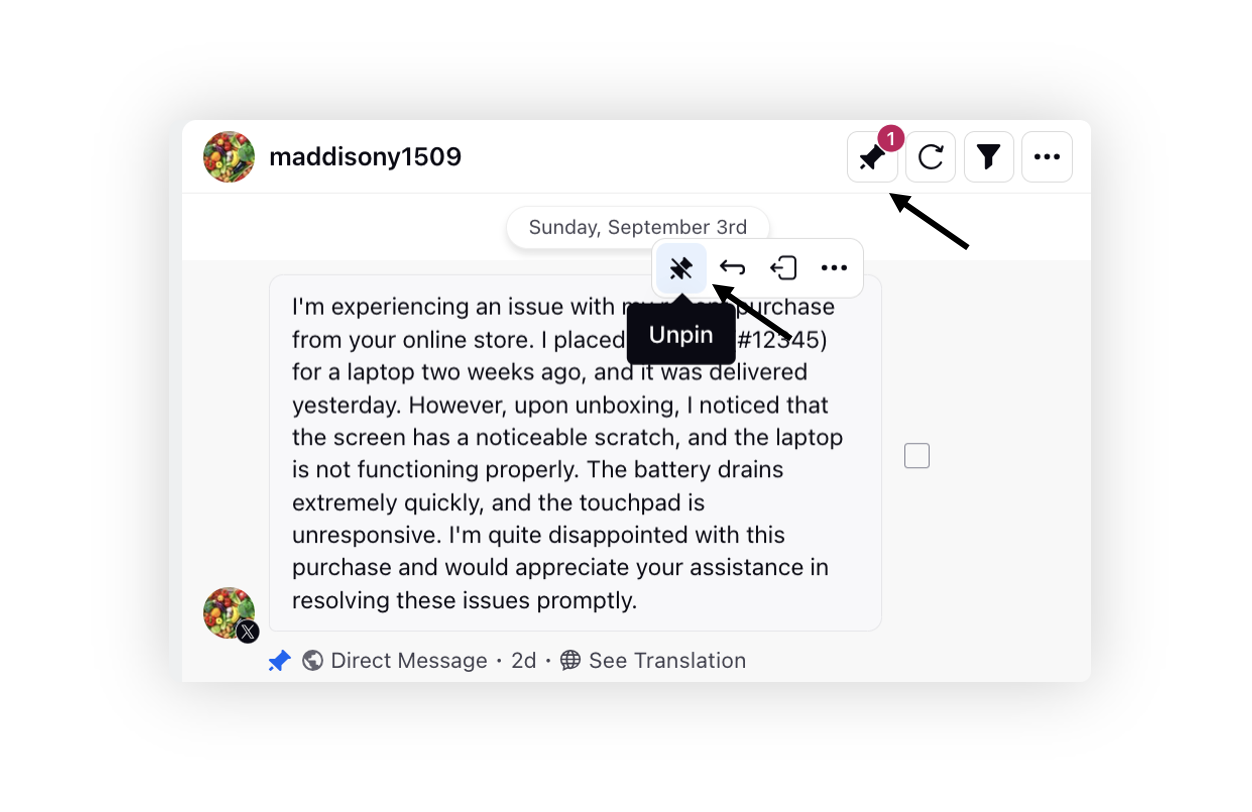
4 | Pin | When a customer sends a message describing their problem after the bot has initially responded and the conversation is handed over to an agent, that specific message can be automatically pinned in the conversation pane. It can be done by creating an inbound rule and adding an action "Pin The Message To Case" as Yes.
Agents have the flexibility to unpin this message if needed and manually pin multiple messages for the benefit of their team members, ensuring that important information is readily available for reference. This feature addresses the challenge of maintaining clarity and focus in cases where numerous messages are exchanged, ensuring that the initial problem statement is easily accessible even amidst a busy conversation. Agents and supervisors from various teams can conveniently access these pinned messages in the dedicated "Pinned Messages" section at the top, and clicking on a pinned message will take them directly to that specific point in the conversation for quick reference. To get this capability enabled, please work with your Success Manager.
|
4 | Options Icon |
|
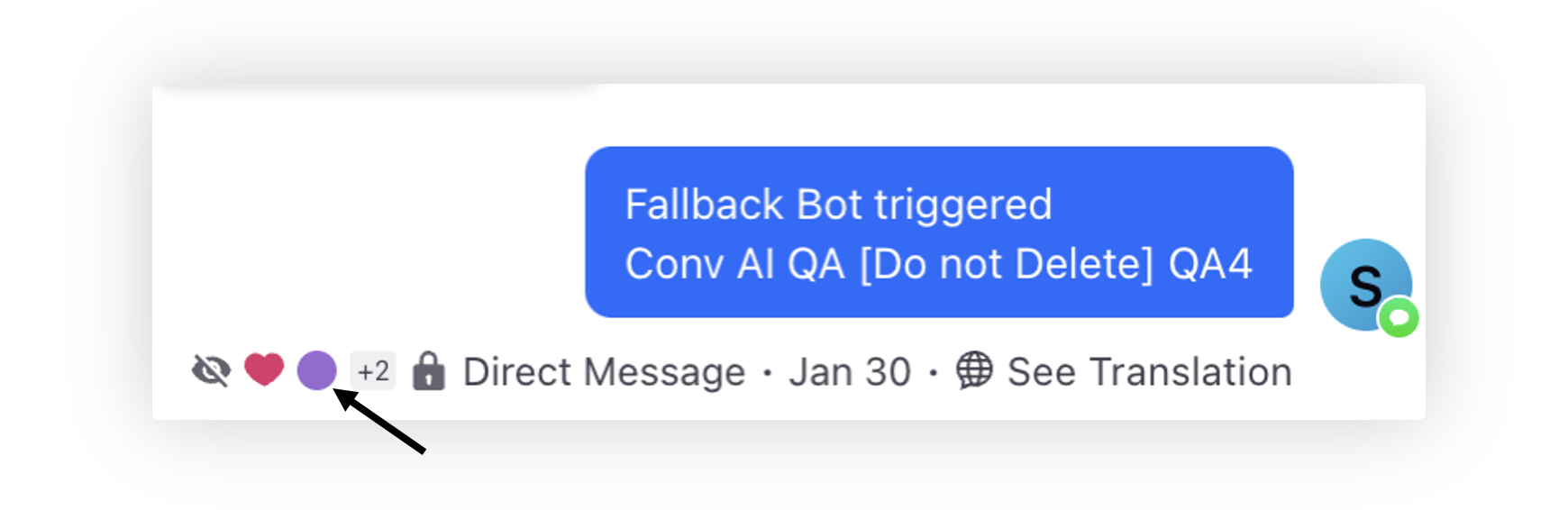
5 | Tags | View the message level tags.
|
Reply Box
The reply box has all the features relevant for the agent to customize the reply and edit it with following capabilities:
Using this, agents can schedule a response after typing it into the reply box.
Sprinklr’s Care Console has embedded support for adding images, videos, emojis, gifs, links and other attachments into the outbound replies.
Agents can select the preferred account to send the reply from without having to switch dashboards.
Smart Response suggestions help agents to choose the preferred one and send it quickly without the chance of errors.
Reply Box properties
While composing a reply, few brands assign outbound custom properties depending on their use cases which appear as an inline collapsible footer of the reply box. These are used to route messages into cases, move cases between queues and monitor assignment. The most used are :
Campaign: The campaign field is used for reporting purposes, usually auto-filled via outbound rules (can be edited in Care Console).
URL Shorteners: In case of long links, brands use URL shorteners to make it look better while publishing a reply and meeting the character limit (Twitter).
Canned Responses: Agents can create canned responses in Asset Management for frequently repeated replies on user level. These responses can be edited in the reply box before sending according to the agent’s requirements. Sprinklr also provides the functionality to stop an outbound message if changes made to a certain canned response fails the accepted criteria.
Smart Responses: Multiple Smart Responses are suggested to the agents through AI. These suggested responses allow brands to reduce time to respond, ensure high quality relevant response and decrease human error, particularly for new agents during onboarding. Agents can preview and edit, or use responses directly in their replies. Feedback on each response helps improve recommendations for the agents in future.
Other Conversation Pane Features
Visibility into Sub-Case Creation and Unlinking
The Conversation Pane displays a case relationship update message when a sub-case is created or unlinked from its parent case. This provides agents with clear visibility of case relationship changes.

Read Receipts
In the Conversation Pane, you can view the read reciepts for messages below the message. If the channel provides delivery and read timestamps, these details are also displayed, allowing agents to see when a message was delivered and read. This improves visibility into message delivery and engagement.
 Note: Read Receipts are supported for WhatsApp, Email, and Source Agnostic channels only.

Visibility into Call Recording Plays and Downloads
You can view who played or downloaded a call recording in the properties of the call recording. The system captures and displays the name of each user in the corresponding field, and if multiple users interact with the same recording, all names are listed for complete visibility.
This enhancement increases transparency into call recording usage, strengthens accountability, and ensures sensitive customer and business-critical information is handled responsibly.
To view who played or downloaded a call recording, follow these steps:
In the Conversation Pane, locate the desired call recording.
Double‑click the call recording to open it in the third‑pane view.
In the third‑pane, click Properties.

Notification Sounds for Key Events
Notifications for specific events have unique sounds, allowing users to identify important updates instantly for specific events such as New Case Assigned, New Fan Message, Post Approved, and Post Rejected.
Note: This feature requires backend configuration. To enable this feature in your environment, contact Sprinklr Support at tickets@sprinklr.com.
