Reply Box Functionalities
Updated
The Reply Box is a core component of Care Console where agents compose and send responses to customer messages. It provides the tools required to compose, format, and send replies across multiple supported channels, ensuring consistent communication regardless of where the customer engages.
Agents can draft responses, select Smart Responses, add notes, choose reply accounts and reply types, schedule messages, and send replies directly from the Reply Box. Drafted replies and notes are retained when agents switch between cases or tabs, allowing them to continue where they left off.
Reply Box Components
The Reply Box contains multiple components that help agents compose and manage replies efficiently. Each component serves a specific purpose within the Care Console.

The following table describes the components of the Reply Box:
Channel Switcher
Above the Reply Box, the relevant channels are shown on which you can engage with the customers. Select the channel from which the reply will be sent.
 Note: Admins can configure which channel icons appear above the Reply Box using the Channel Switcher Based on Contact information Persona App configuration. This configuration applies only to channels that are activated when contact details are added to the customer profile.
For example:
The Email icon appears when an email address is present.
The SMS, WhatsApp, Google RBM, or Source Agnostic (SMS) icons appear when a phone number is present.
For more information, see Persona App Configuration for Care Console.
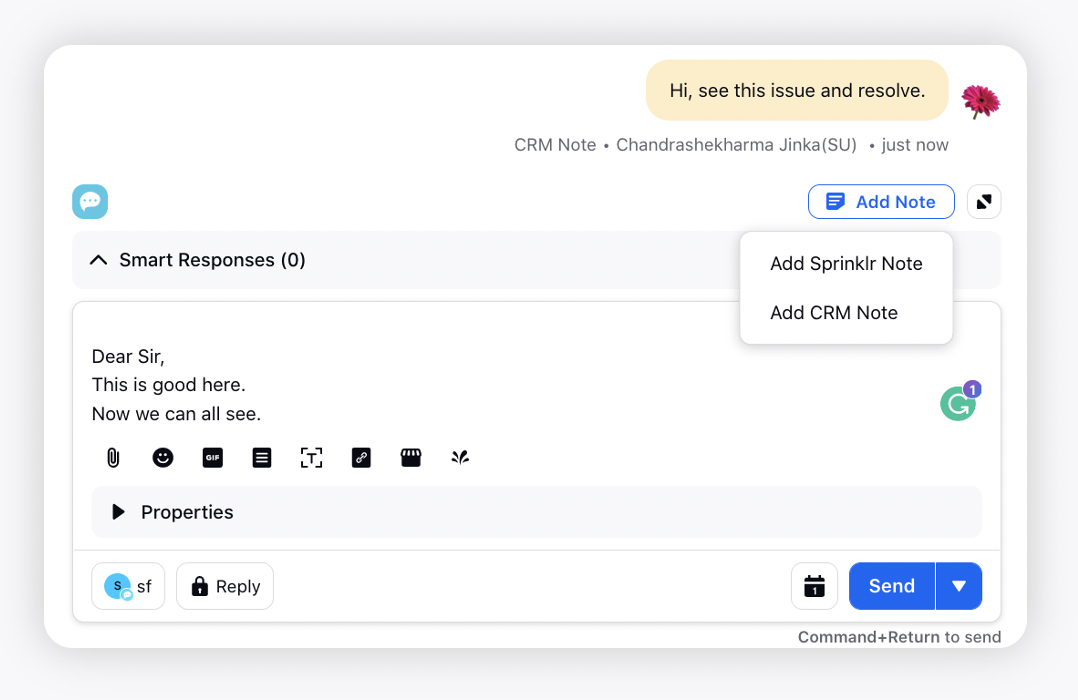
Add Note
Add internal notes for collaboration with other agents. These notes are visible in the Collaboration section. The note editor opens with a yellow background to differentiate notes from replies. Agents can edit or delete notes if the required permissions are enabled. PII masking is supported for sensitive information. For more information, see To Mask PII Data in Collaboration Widget.
If the Salesforce connector is enabled, agents can choose between these options: Add Sprinklr Note and Add CRM Note. The CRM notes will be linked to the CRM platform. In Care Console, agents will be able to differentiate between Sprinklr and CRM notes via an indicator that comes alongside every message.
Note: To learn more about getting this capability enabled, contact your Success Manager or raise a support ticket at tickets@sprinklr.com.
Expand Reply Box
Click to expand the Reply Box to get more space when composing longer replies.
Smart Responses
Select suggested Smart Responses generated based on the conversation context. Smart Responses are relevant replies generated by Sprinklr's in-house large language model (LLM), leveraging machine learning to analyze the current conversation.
Submit Feedback
You can help improve Smart Responses by providing feedback. To do so, hover over a Smart Response and click the Thumbs Up or Thumbs Down icon to indicate whether it was helpful.
If a response was not useful, click the Thumbs Down button and select multiple feedback options to provide more details. Your feedback will help refine and enhance future recommendations.
 Note: To enable the feature to select multiple feedback options in your environment, submit a request at tickets@sprinklr.com.

Track Smart Response Consumption via Rules
To track Smart Response usage in agent's responses, the following conditions are introduced in Post Publishing rules:
Smart Response Used: This indicates that the Smart Response was used as is.
Smart Response Edited: This indicates that the Smart Response was edited.
You can create rules using these condition to monitor whether agents send a suggested smart response as-is, or an edited smart response, providing insights into smart response adoption.

Reply
Enter your response in the Reply Box. You can include text, images, videos, links, canned responses, custom content placeholders, text and channel-specific templates, emojis, or GIFs. AI-driven Smart Response Compliance can also be enabled.
Refer to the following sections for details on Reply Box features and behavior.
Reply Properties
Set the reply properties as required.
Reply Account
From the dropdown menu, select the account you want to reply from.
By default, the reply box selects accounts based on the channel of the original message and the accounts that are shared with the agent. This ensures that agents can only reply using accounts they have access to, and that are appropriate for the message channel.
Note: Restricted Account Filtering
Brands can restrict agents to reply only from authorized brand accounts by limiting the accounts shown in the reply box. This helps enforce compliance policies and prevents replies from unauthorized shared or engageable accounts.
Access to this feature is controlled by a Dynamic Property (DP) and user permissions. To enable it in your environment, contact your Success Manager or submit a request to tickets@sprinklr.com.
Once the DP is enabled, the following permissions become available under Publishing:
Enable Restricted Account Filtering: Email
Enable Restricted Account Filtering: X
Enable Restricted Account Filtering: Facebook
Brands can assign these permissions to agents to control which accounts they can use when replying on each channel, such as X (formerly Twitter), Email, and Facebook.
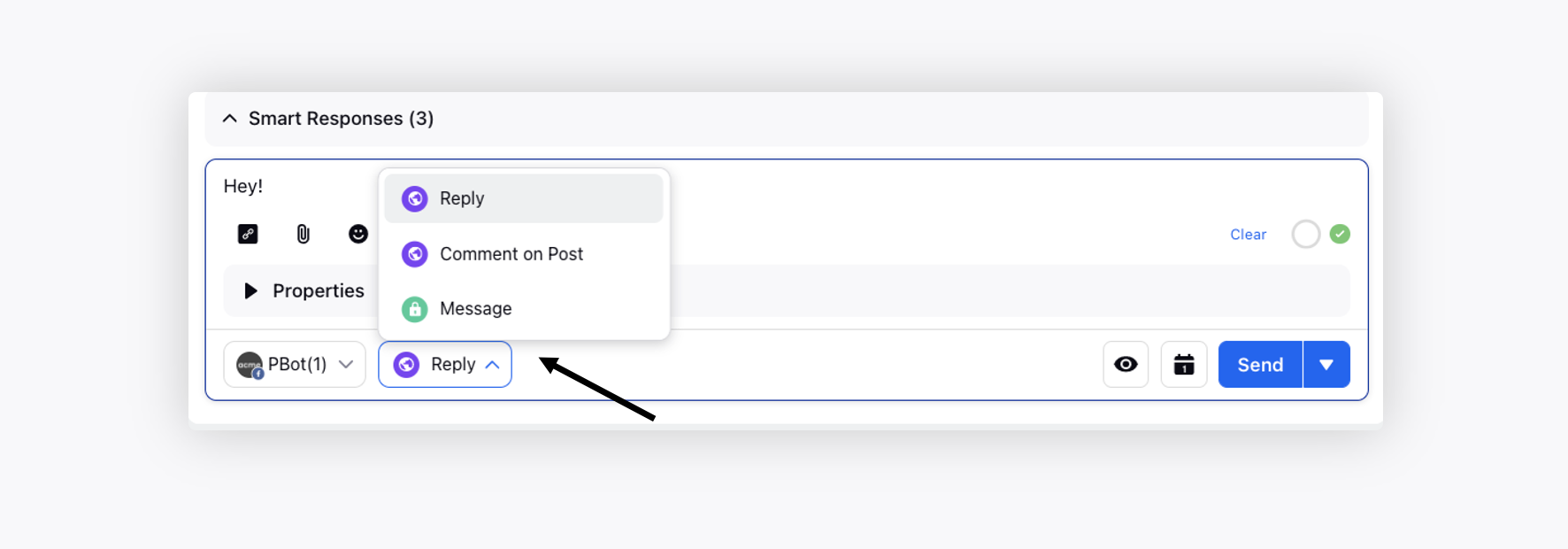
Reply Type
Select the reply type. These options will vary based on the social channel.
Public replies are shown with a purple icon.
Private replies are shown with a green icon.
Note: To get the colors changed or hide the reply type from the conversation widget, raise a support ticket at tickets@sprinklr.com.
For X, you can select the Ask To Send Private Message option to publish your tweet with a link that enables users to reply via private message. To hide this option for specific agents, reach out ot our support team at tickets@sprinklr.com.
Also, for public messages, you can get the default reply type set as Reply All via support.
Schedule Message
Schedule the preferred time for sending the reply.
The scheduling options can be customized to prevent agents from scheduling replies outside of the defined timeframe. For example, you can restrict scheduling to the same day to ensure a prompt response to customers.
Note: To enable this feature in your environment, reach out to your Success Manager. Alternatively, you can submit a request at tickets@sprinklr.com.
Send
Click Send to publish the reply. Click the dropdown icon alongside the Send button to view quick macro options.
Note: Raise a support ticket at tickets@sprinklr.com with all the information to get Quick Macros enabled in Care Console.
You can also post a reply by pressing Enter and go to the next line with CMD/Shift+Enter.
Note: To get this capability enabled, please work with your Success Manager. You can also control it at user level by reaching out to Sprinklr support at tickets@sprinklr.com.
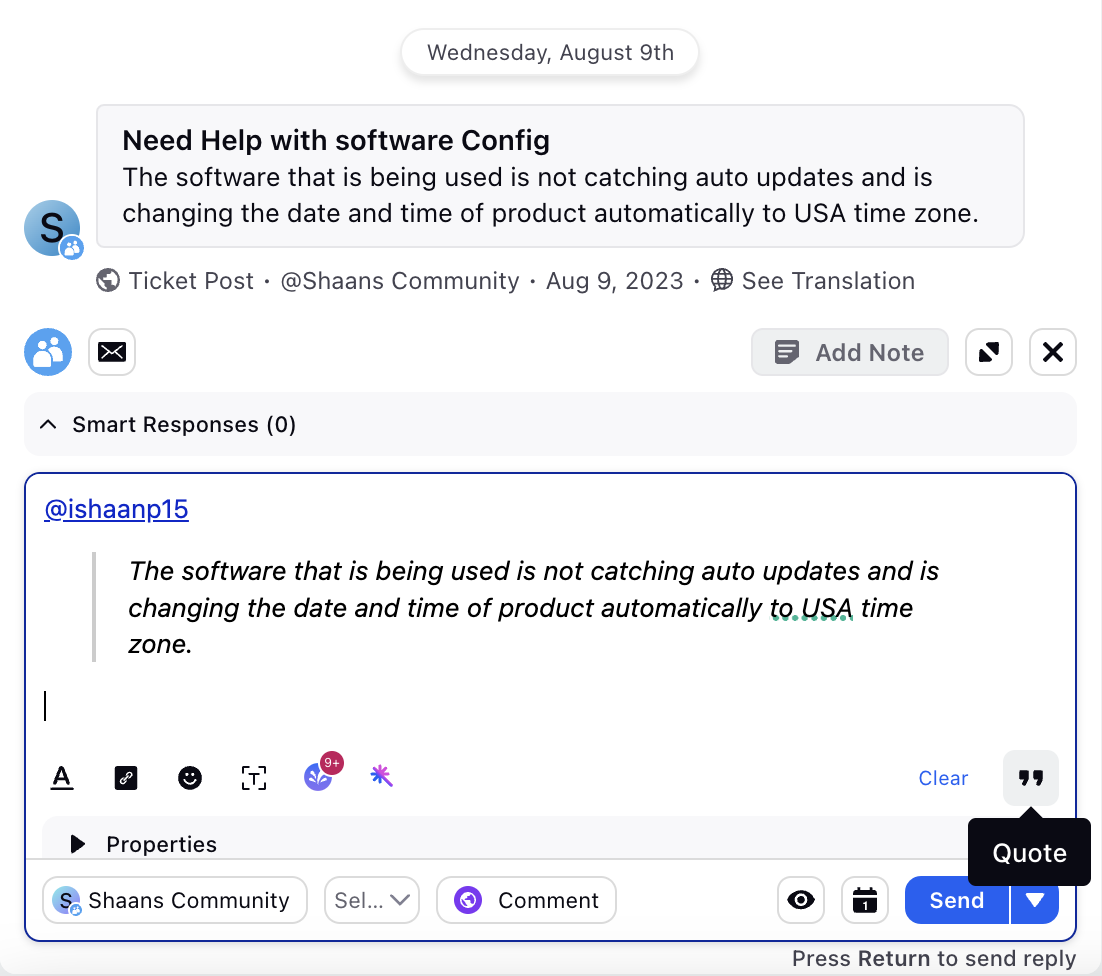
Quote
Click Quote to quote a customer comment or reply in your response.
When you quote a customer’s message in the Community channel, the customer's username is automatically tagged. This ensures easy tracking of the original user who posted the message.
Note: Access to the auto-tagging of customer username feature is controlled by the dynamic property. To enable this feature in your environment, reach out to your Success Manager. Alternatively, you can submit a request at tickets@sprinklr.com.
Reply Box Features
The following are the Reply Box features:
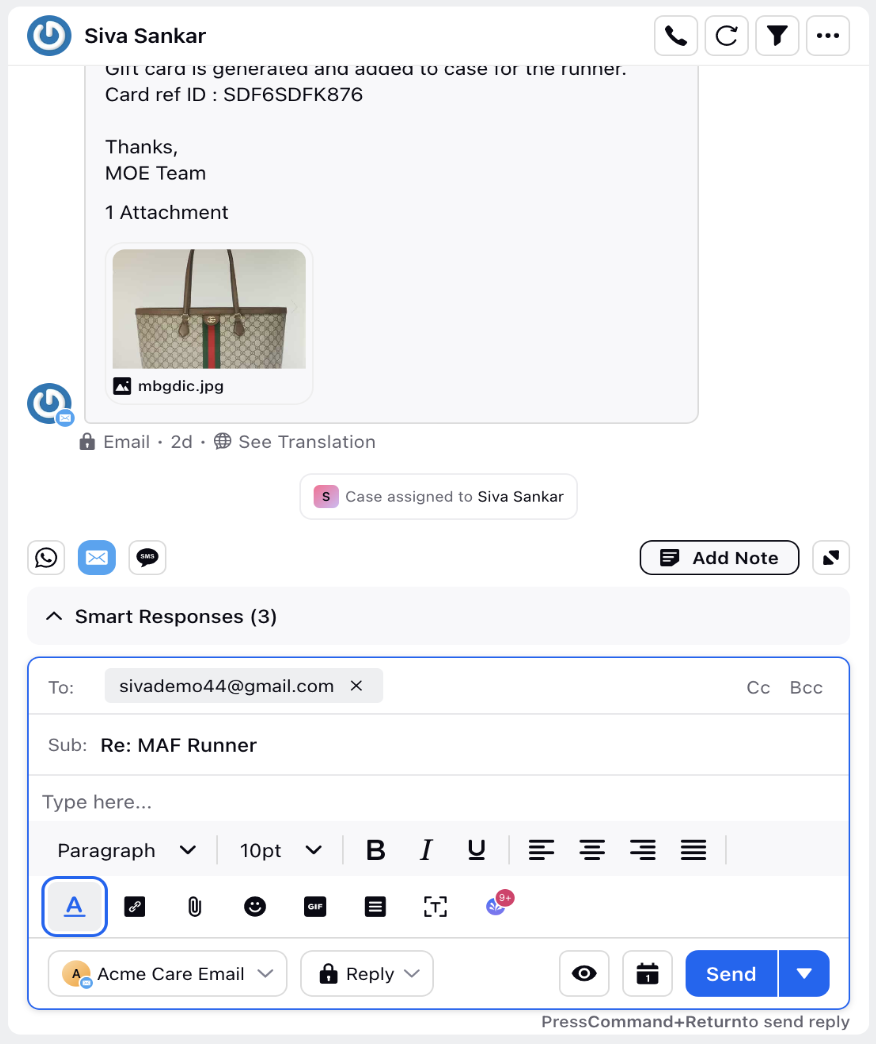
Text Formatting Toolbar
This functionality allows the agent to format the reply in the reply box. Features like alignment, font size, heading style, bold, italic, underline can be done here. This feature is available for email cases.
Rich Text Editor
The Rich Text Editor helps agents write clear, well‑formatted replies by providing text formatting options such as bold, italic, headings, and alignment.
Note:
Enablement: The Rich Text Editor is available by default in supported channels (such as Email and Community).
Source Agnostic: Enable rich text during account creation by selecting the Rich Text Formatting checkbox. See Setting Up Source Agnostic Account for steps.
Live Chat: Enable rich text through a Dynamic Property (DP) (contact Sprinklr Support at tickets@sprinklr.com).
When enabled, the text formatting toolbar appears in the Reply box.
Canned Response Shortcuts (snippets): Supported in multiple channels, including the rich text versions of Source Agnostic, Live Chat, and Microsoft Teams.
Content Placeholders: Supported in multiple channels, including the rich text versions of Source Agnostic and Live Chat.

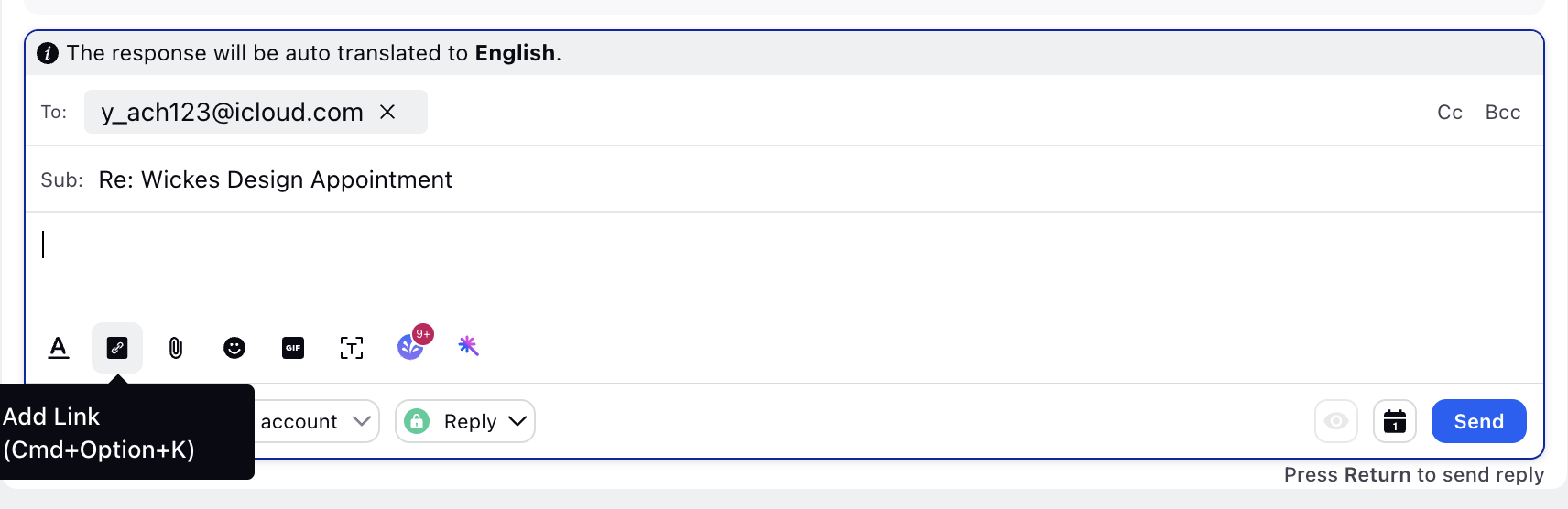
Add Link
This feature allows the agent to add a link in the reply box while publishing a reply.
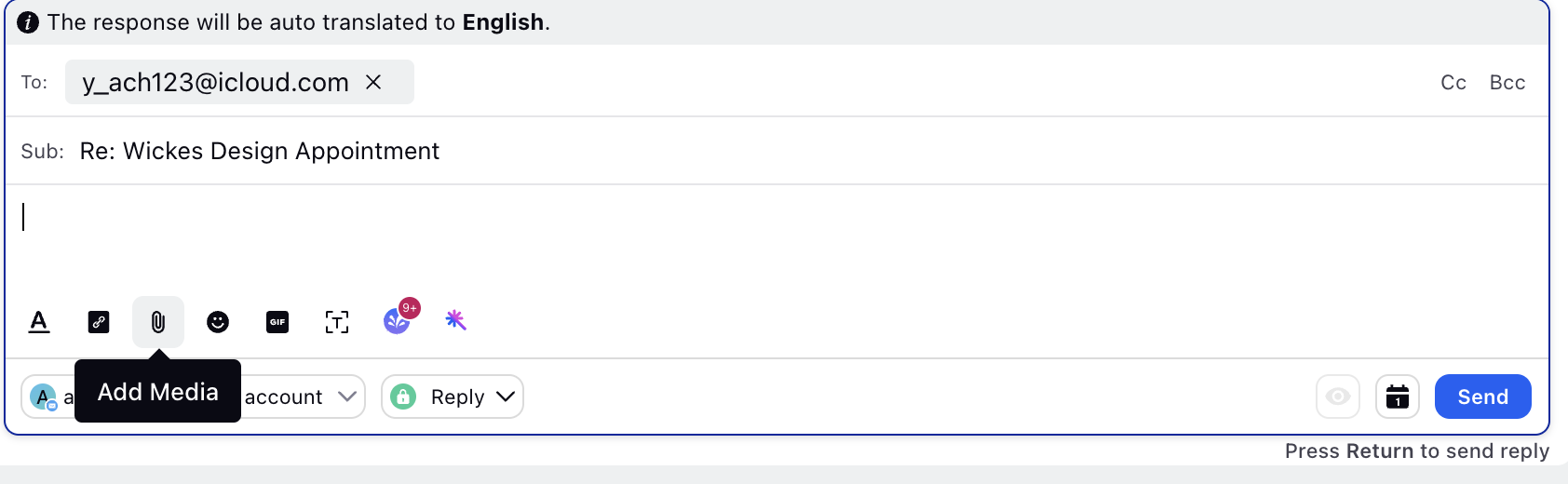
Attach button
Used for adding images, videos, documents while publishing a reply.
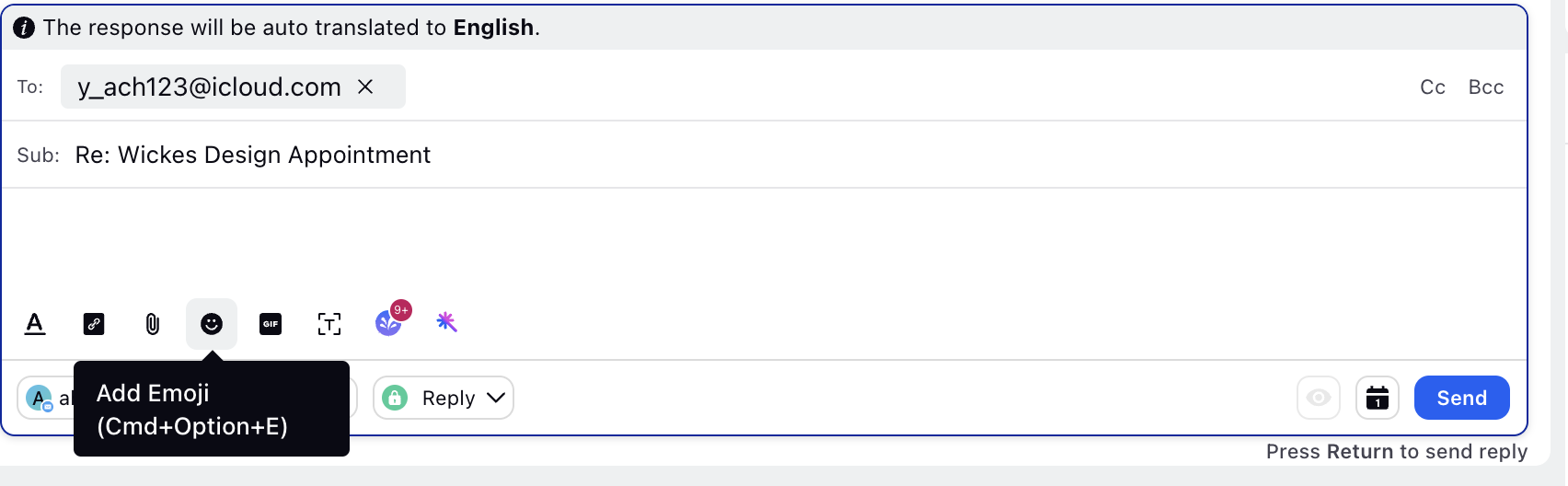
Emoji
To add emojis in the reply box while publishing a reply.
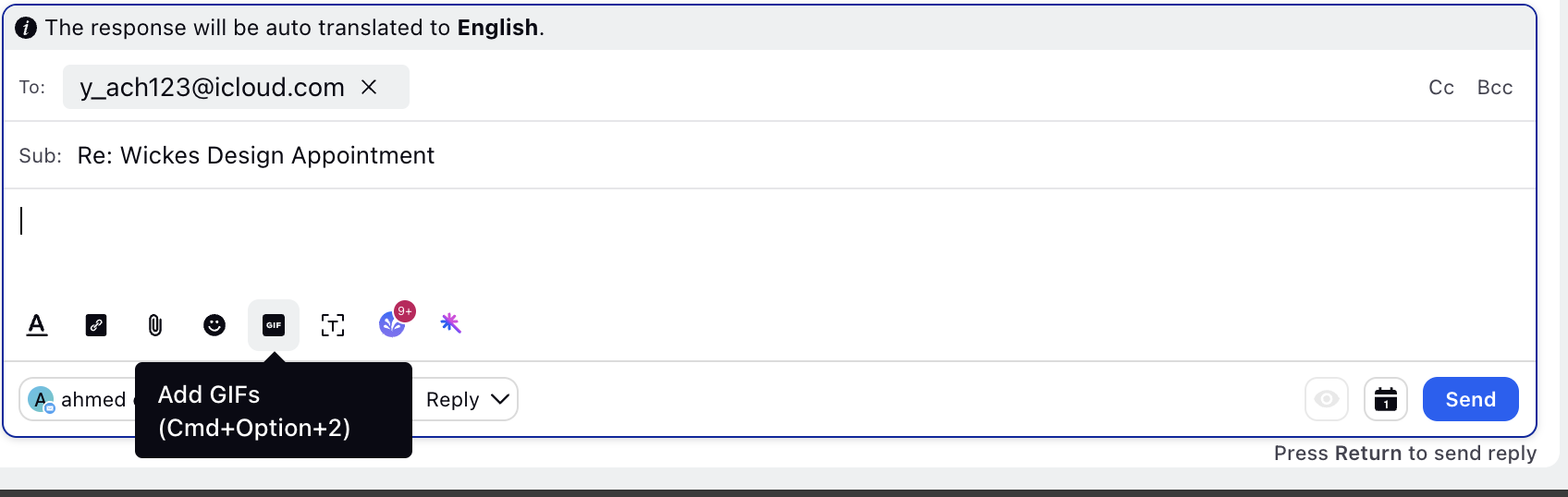
Add Giphy
To add GIFs/stickers in the reply box while publishing a reply.
Add Canned Responses
Pre-set responses for the agent to send to the customer, these canned responses can be edited/added in the reply box.

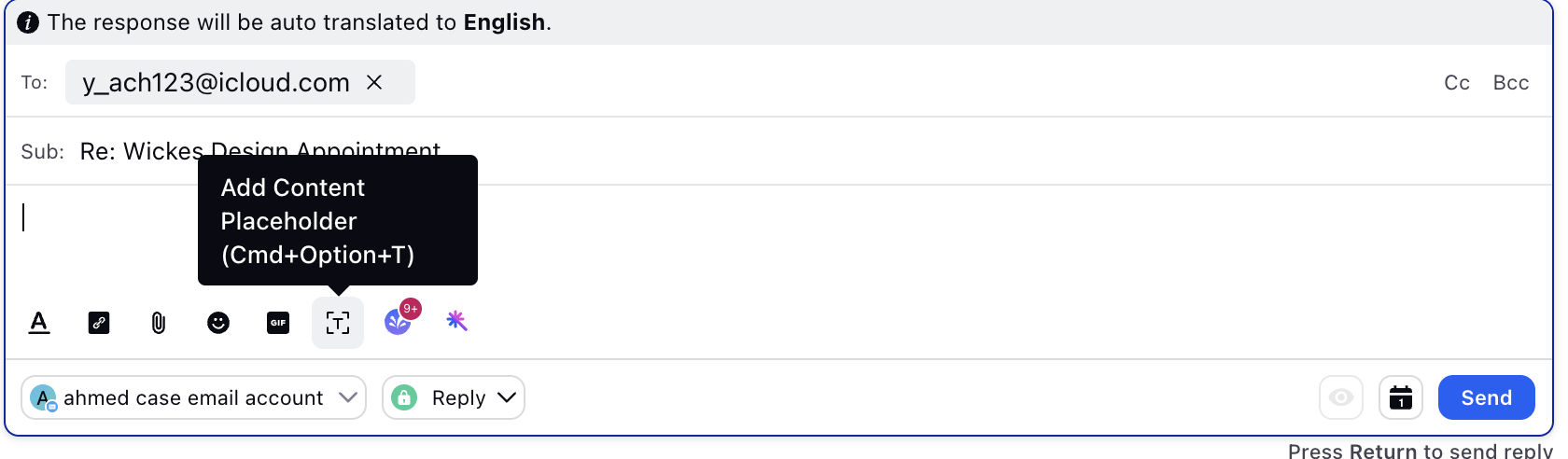
Add Content Placeholder
This feature allows the placeholder for various parameters like userID, username, etc to directly substitute with the respective user’s ID or name.
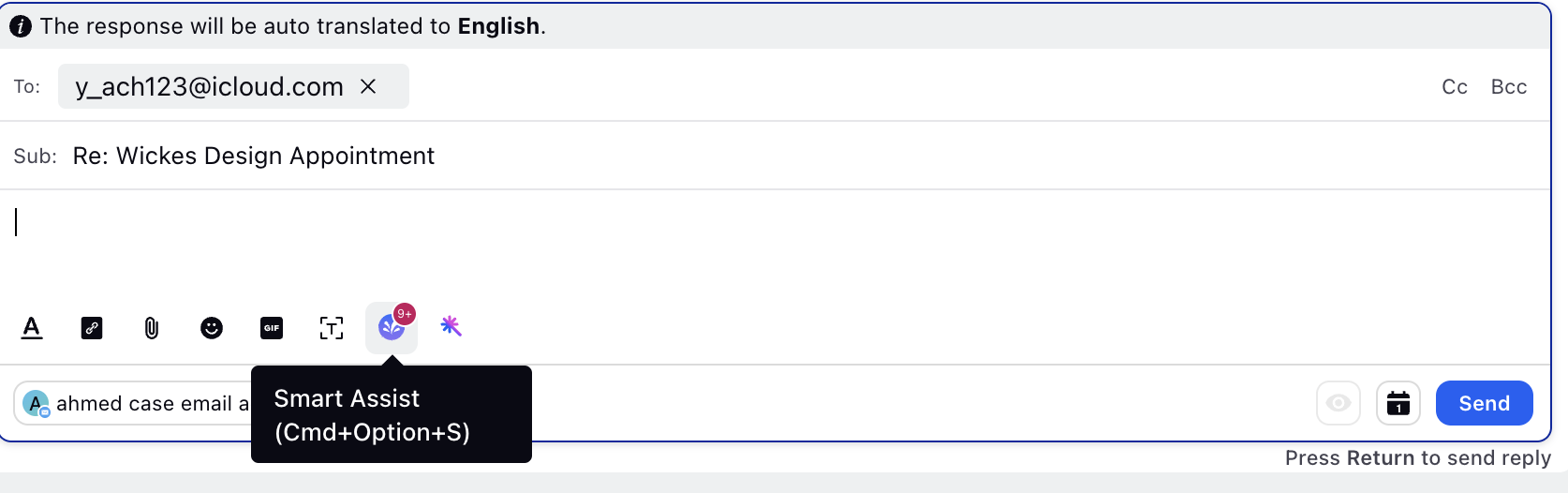
Smart Assist
This feature redirects the user to the smart assist overview, which includes similar cases, knowledge base link and relevant information.
Ask To Send Private Message
The Ask to Send Private Message option is a message type available on Twitter. When enabled with the Reply or Reply All options, it allows brands to send a public Twitter message containing a link. When the fan clicks the link, they are directed to the brand's Twitter Direct Messages (DMs).
This toggle option is visible when the last message received from the fan is a public Twitter message, and the agent chooses to respond with either Reply or Reply All as the response type. It provides a convenient way for brands to initiate a private conversation with the fan, ensuring secure and personalized communication through Twitter DMs.

Drag-and-Drop and Copy-Paste File Uploads
Agents can upload supporting files (images, documents, PDFs) directly into the Reply Box in the Care Console by either dragging and dropping or copy‑pasting. This streamlines case management and ensures quick access to relevant materials.
Note: Permission Requirement:
Agents must have the Desktop Upload permission under Media Uploader to use this feature.
Admins can create a role with this permission and assign it to authorized agents. For steps to create a role, see Manage Roles.

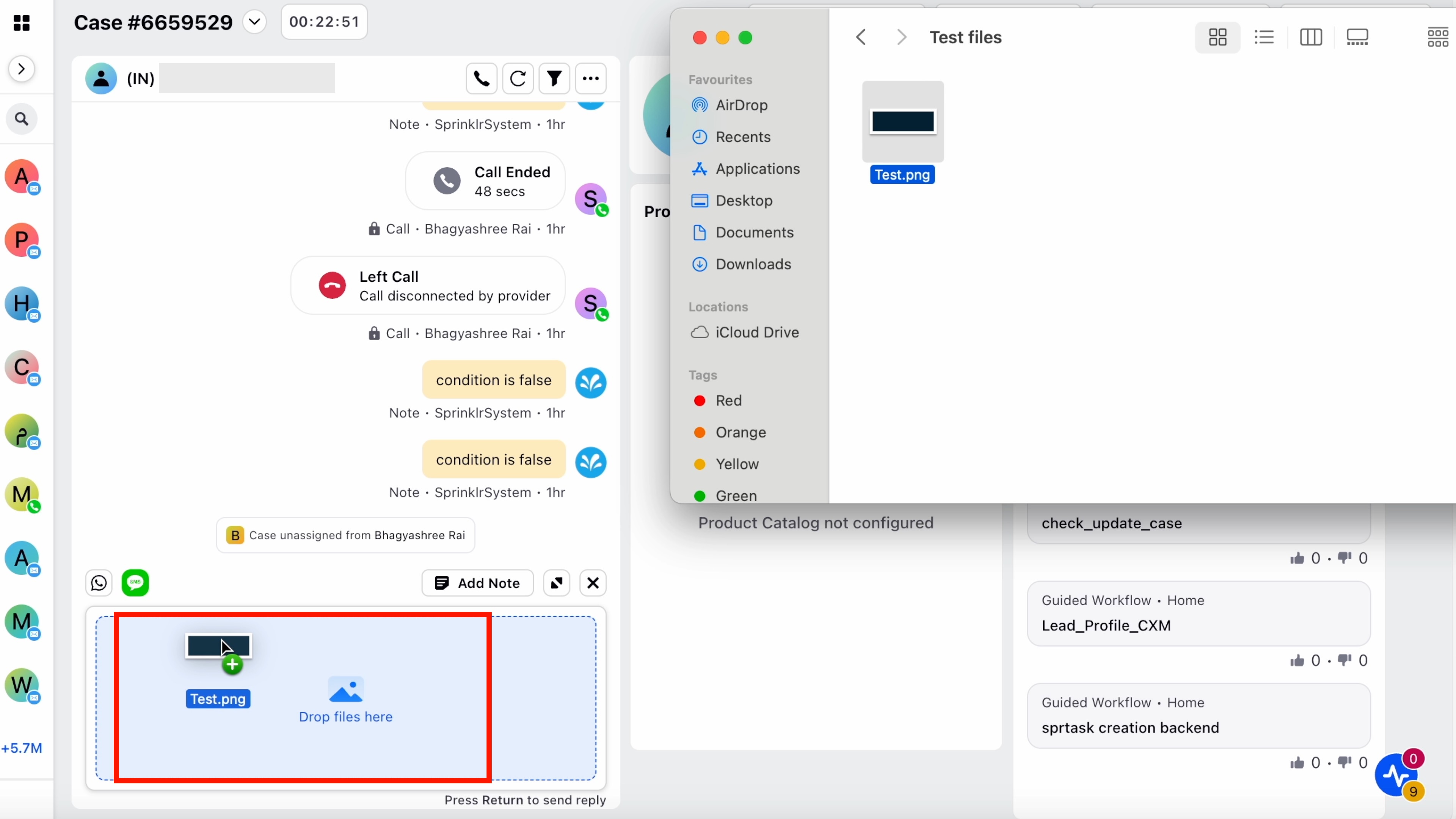
Drag‑and‑Drop Attachments for Email
The Reply Box supports drag‑and‑drop attachments for email replies. Agents can add files (PDFs, images, Word documents) directly from their desktop or file explorer. Files upload and attach automatically, improving speed and ease of email authoring.
Enablement Requirements
Agents must have the Desktop Upload permission under Media Upload.
The following toggles must be enabled for the Conversation Widget in Care Console Manager > Record Page Editor:
Enable Drag & Drop Attachments for Email: Enables drag & drop file uploads as attachments in email replies. Requires the Desktop Upload permission. When disabled, only images can be dragged in and will be inserted as inline images.
Enable Media Uploader for Email: Displays the Upload Media control in the email reply box. When disabled, the upload control is hidden. However, agents may still paste or drag images inline.
For steps to open the Record Page Editor, see How to Access Care Console Layout Manager?

Email Reply Publisher Options
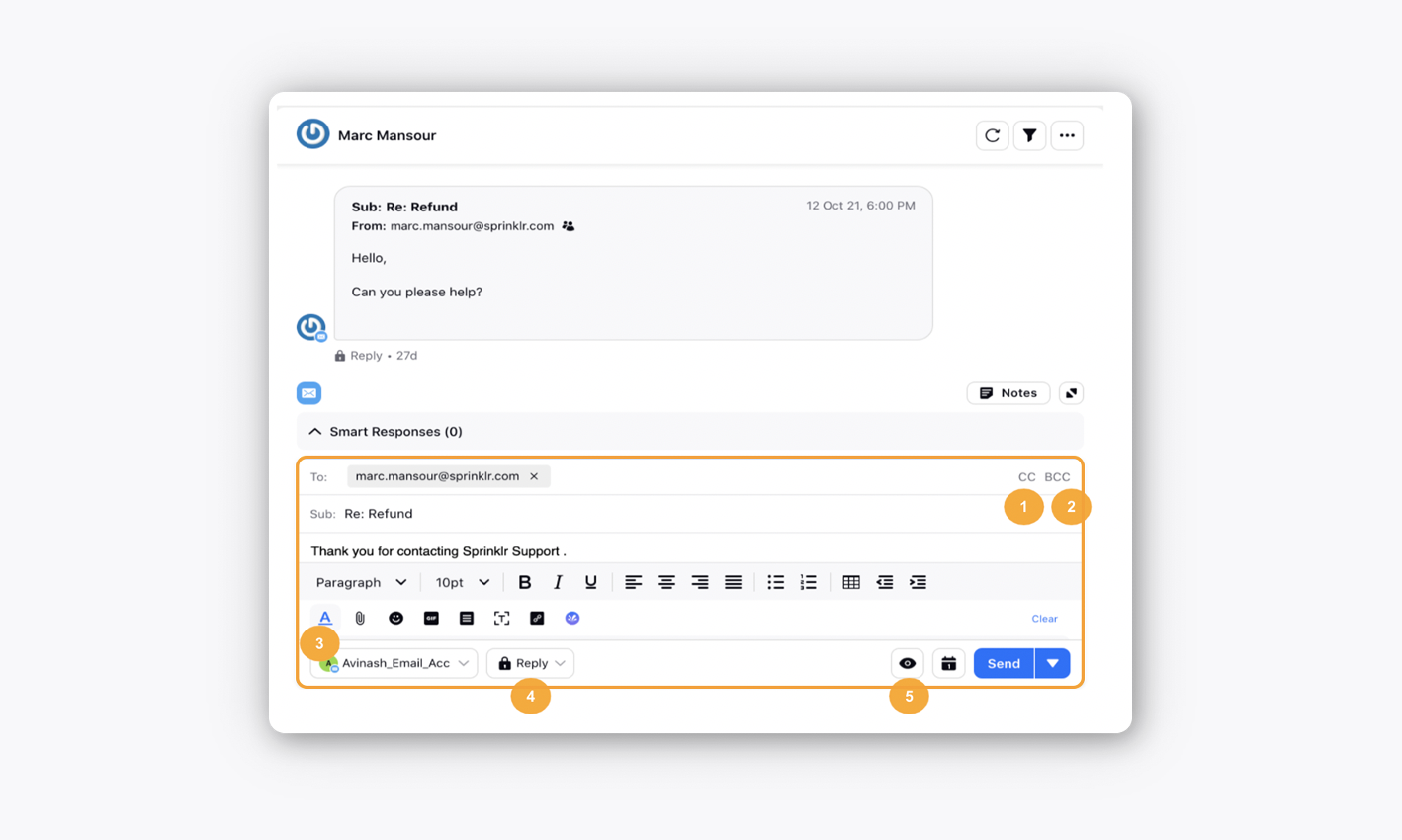
Option | Description |
CC | Add recipient(s) in the CC field. |
BCC | Add recipient(s) in the BCC field. |
Text Formatting Toolbar | Open the text formatting toolbar which includes formatting options such as font type, font size, bold, italics, underline, text-align, numbered list, bulleted list, insert table & increase/decrease indent. |
Reply Options | Includes the options Reply, Reply All & Forward. |
Preview | Preview the reply before sending it. |
Note: A warning will be shown to reconfirm the recipient's email id(s) in case of an invalid email id before sending the email reply.