Live Chat Creative
Updated
The Creative Library serves as a centralized space to create, view, and manage Live Chat survey creatives used for delivering feedback requests within Sprinklr Live Chat conversations.
Live Chat creatives define how surveys are introduced and experienced inside chat, supporting both embedded and conversational survey formats. From the Creative Library, users can view creative details, Create New creatives for supported channels, and perform standard management actions such as edit, clone, delete, and share—subject to permissions.
This article focuses specifically on managing Live Chat survey creatives, not on distribution setup or Rule Engine configuration.
You will have the option to select between 2 templates:
Inline Embedding: Opens the survey within the live chat window.
Inline Conversational Survey: Each question is presented only after the previous one is answered, creating a conversational flow.
Business Use Cases
Centralized Creative Asset Management: This feature strengthens broader organizational workflows by enabling teams to centrally manage and govern how creative assets are configured and delivered across customer-facing interactions. Centralized oversight ensures consistency, reduces duplication, and maintains control over assets used in dynamic engagement scenarios.
Without a unified creative management system, teams risk fragmented experiences, redundant resources, and unintended modifications to active processes. A Creative Library addresses these challenges by providing clear visibility, controlled access, and reusable assets, supporting operational consistency and efficiency at scale.
Centralized creative management and controlled collaboration enable teams to manage Live Chat creatives within the CFM Creative Library, reducing fragmentation, ensuring scalable governance of survey invitation assets, and allowing sharing with specific users or groups using View or Edit permissions to maintain proper access control and prevent unintended changes.
Prerequisites
To access the Live Survey distribution, you must have access to the following View and Edit Distribution permissions at the Survey Level.
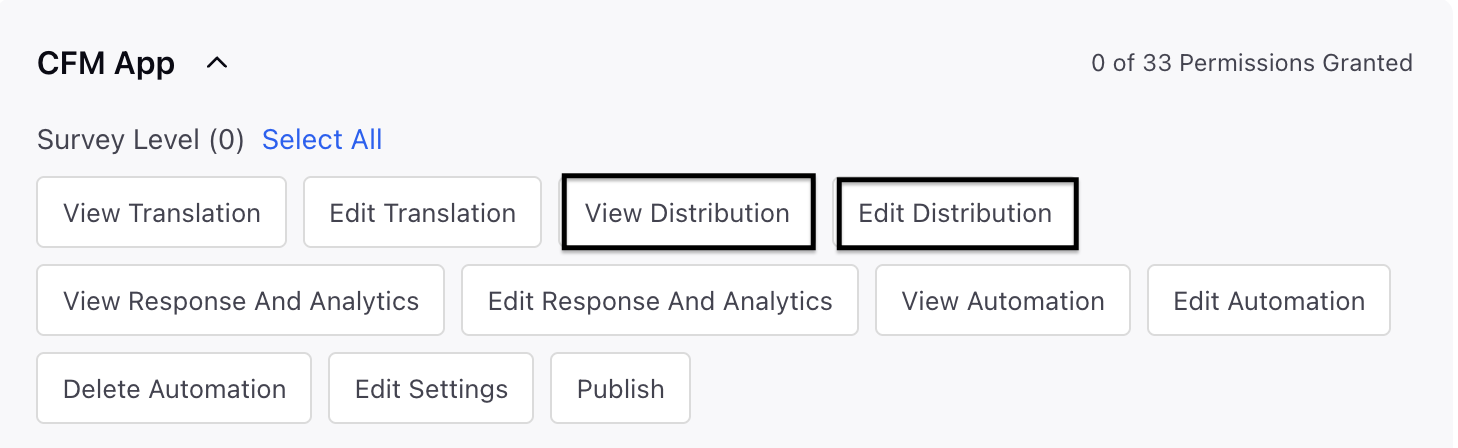
Setting Up Creatives
Navigate to Customer Feedback Management and go to Creative Library in the left pane. You will get a list of creatives that are shared with you across different different channels.
Click + Creative and select Sprinklr Live Chat.

Go to Choose Template page and select the template out of the two either Inline Embedding or Inline Conversational Survey and click Next.
Inline Embedding: Opens up the survey in the livechat window.
Inline Conversational: Where each question is asked after the previous one is responded in a conversational format.

Go to Creative Details page and fill in the details:

Go to Creative Details page and fill in the details:
Name: Enter a meaningful name.
Description: Enter a meaningful description.
Go to Creative Permissions and provide View and Edit permissions to the user and user groups and then click Next.
Go to Creative Content page and fill in the details:

Distribution Content: You can add a body of the invitation message and add a link button text.
Body Text: You have the ability to include the body of the message, and there are several options available to personalize the message description. Additionally, you can utilize Sprinklr AI+ to generate and enhance content. To tailor the asset, employ placeholders in order.
Link Button Text: You can add a button text to the distribution content.
Thank You Text: You have the ability to include the Thank You message.
Translations: Navigate to the Translations section where you can add translations. Click on + Add Translations, then choose the language in which you wish to translate into. By selecting the auto-translate option, all your survey content will be automatically translated into the chosen language. You can modify the content at any time or revert it to the original language.
Click Save.
Manage Live Chat Creative
To manage Live Chat Creative, click the Vertical Ellipsis against a creative and access the following:

Edit: You can edit the content or configuration of an existing Social DM creative, and if that creative is linked to one or more active distributions, any updates you make will automatically apply to all new surveys triggered through those active distributions. These changes take effect only for newly generated survey invitations and do not impact any messages that have already been sent.
Clone: You can create a copy of an existing Social DM creative, and the cloned version can then be edited independently without affecting the original creative or any distributions linked to it.
Share: You can share Social DM creatives with users or user groups by assigning View or Edit permissions, allowing you to control how recipients interact with each creative. However, creative‑level sharing functions only in combination with a user’s global Role permissions, meaning it does not override their overall access level.The possibilities for using a shared creative are determined by:
The permission assigned on the creative (View or Edit), and
The user’s global permissions in assigned Role.
Delete: You can delete Social DM creatives from the Creative Library, and if a creative is currently linked to an active distribution, deleting it will automatically move all associated active distributions into a Paused state to prevent further use of the removed asset.
There are actions also available in the Record Manager:

Search: Search for creatives by Creative Name to quickly locate specific assets. You can sort by Creative Name and Modified On.
Filter: You can narrow down creatives by applying filters such as Distribution Channel or Associated Distribution to quickly find relevant assets.
Sort: You can sort creatives to quickly organize and locate assets by using sorting options such as Creative Name or Modified On, allowing you to view creatives alphabetically or based on their most recent updates.
Record Manager
The Creative Library displays the following details for Live Chat creatives:
Creative Name: Internal identifier used to label and manage the survey creative.
Creative Description: Brief summary explaining the purpose or usage of the survey creative.
Distribution Channel: Indicates channel used for creative distribution.
Survey Format: Indicates whether the survey is delivered in Standard or Conversational format.
Associated Distribution: Displays the distribution(s) where the creative is currently being used.
Modified On: Shows the date and time when the creative was last updated.
Modified By: Indicates the user who last modified the creative.
Actions available in Record Manager

Search: Search for creatives by Creative Name to quickly locate specific assets.
Sort by:
Creative Name
Modified On
Filter: Narrow down creatives using filters such as:
Distribution Channel
Associated Distribution
Sort: Sort creatives by:
Creative Name
Modified On
Key points to note
Live Chat creatives can only be used for Sprinklr-hosted Live Chat survey distributions.
Creative changes apply only to future survey deliveries, not previously sent surveys.
Distribution logic (triggering, timing) is managed separately through Rule Engine.
Best Practices
Use clear naming conventions to differentiate creatives by use case.
Clone creatives instead of editing live ones when testing variations.
Review associated distributions before deleting a creative.
Limit edit permissions to prevent accidental updates to live workflows.