Manage All Social Creatives
Updated
The Creative Library serves as a central hub for viewing and managing survey invitation creatives across various supported distribution channels.
Within the Creative Library, you can manage Social DM creatives alongside creatives for other channels. This includes viewing creative details, understanding where a creative is used, and performing management actions such as editing, cloning, deleting, and sharing, depending on their permissions.
Business Use Cases
This feature supports the broader Social DM Distribution use case of collecting post-care feedback directly within private social care conversations. You can refer to the overview article for more details on use cases and value additions.
With centralized creative management, you can manage Social DM creatives in the same Creative Library used for other survey channels, reducing fragmentation and making it easier to govern survey invitation assets at scale. Additionally, controlled collaboration and sharing let you share creatives with specific users or user groups using View or Edit permissions, ensuring the right level of access while preventing unintended changes.
Prerequisites
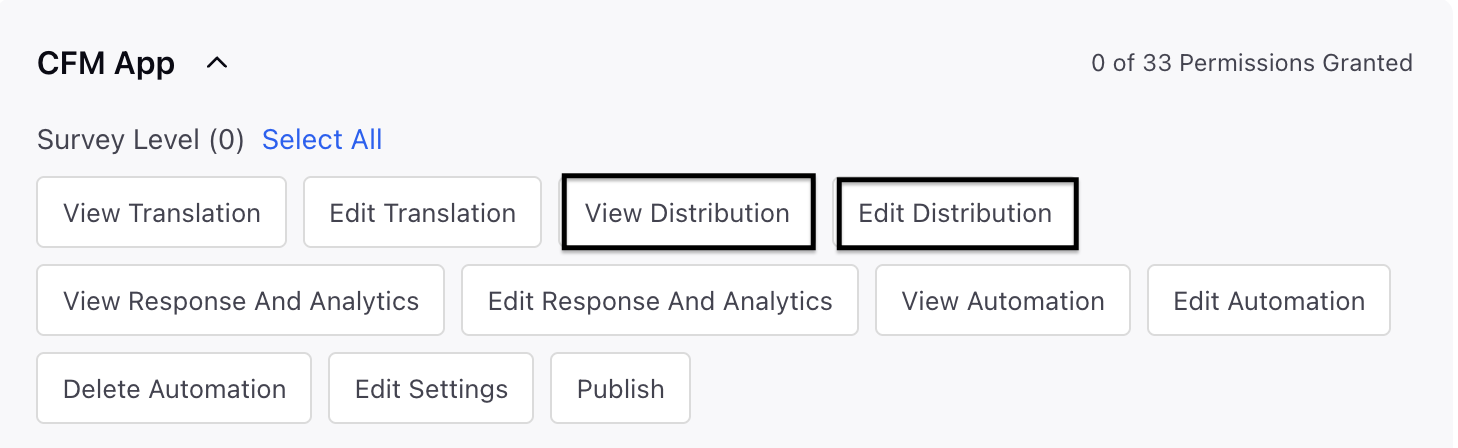
In order to access the Social Distribution, you must have the following View and Edit Distribution permissions at the Survey Level.
Record Manager
Go to the Creative Library using the left navigation bar. Filter by distribution channel to see all Social DM survey invitation creatives made in CFM.

Creative Name: Internal identifier used to label and manage the survey creative.
Creative Description: Brief summary explaining the purpose or usage of the survey creative.
Distribution Channel: Indicates channel used for creative distribution (for example, Social DM).
Distribution Type: Specifies the Social DM channel on which the creative is used (for example, DM-X).
Survey Format: Indicates whether the survey is delivered in Standard or Conversational format.
Associated Distribution: Displays the distribution(s) where the creative is currently being used.
Modified On: Shows the date and time when the creative was last updated.
Modified By: Indicates the user who last modified the creative.
Manage Social Creatives
You can perform the following actions from the Creative Library:
Quick Action | Description |
Edit Distribution | You can edit the content or configuration of an existing Social DM creative. If the creative is linked to one or more active distributions, your changes will automatically apply to all new surveys triggered through those distributions. Keep in mind that updates affect only new survey invitations and do not impact messages that have already been sent. |
Pause Distribution | You can click on pause distribution; this social distribution will be halted from retrieving responses until it is reactivated.
|
Clone | You can create a copy of an existing Social DM creative, and the cloned version can be edited independently without affecting the original creative or any of its linked distributions. |
Share | You can share Social DM creatives with users or user groups by assigning View or Edit permissions, which control how recipients interact with the creative. However, creative‑level sharing works only in combination with each user’s global Role permissions and does not override their overall access level. What a user can do with a shared creative depends on both the permission assigned on the creative (View or Edit) and the global permissions defined in their assigned Role. |
Delete | You can delete Social DM creatives from the Creative Library, and if a creative is linked to an active distribution, deleting it will automatically move all associated active distributions into a Paused state to prevent unintended survey triggers. |
Search | You can search for creatives by Creative Name to quickly locate specific assets, and sort results by Creative Name or Modified On for easier organization and access. |
Filter | You can narrow down creatives using filters such as:
|
Sort | You can sort creatives by:
|
Create | You can create new Social DM creatives directly from the Creative Library. |

Best Practices
Use clear naming conventions to differentiate Social DM creatives by use case.
Clone creatives instead of editing live ones when testing variations.
Review associated distributions before deleting a creative.
Limit edit permissions to prevent accidental updates to live workflows.