Setting Up Social Direct Message-X Creative (Standard)
Updated
Social Direct Message-X Creative empowers brands to craft and oversee survey visuals tailored for private social direct messaging. These visuals dictate the appearance of survey invitations within ongoing social care DM exchanges.
A Social DM‑optimized survey invitation that includes the survey URL and is designed for use within active social care direct message conversations. It functions as a selectable creative during Social DM distribution setup, allowing teams to control how the survey invitation appears to the end customer.
Business Use Cases
This feature supports the broader Social DM Distribution use case of collecting post-care feedback directly within private social care conversations. For an end-to-end view of the post-care feedback workflow and business context, refer to Social DM Distribution, Overview article. Creatives are optimized for social DM channels, designed around direct message constraints and user behavior to enhance readability and encourage responses. Once created, these Social DM‑X creatives can be reused across multiple distributions and workflows, making them scalable and reducing repeated setup effort.
Prerequisites
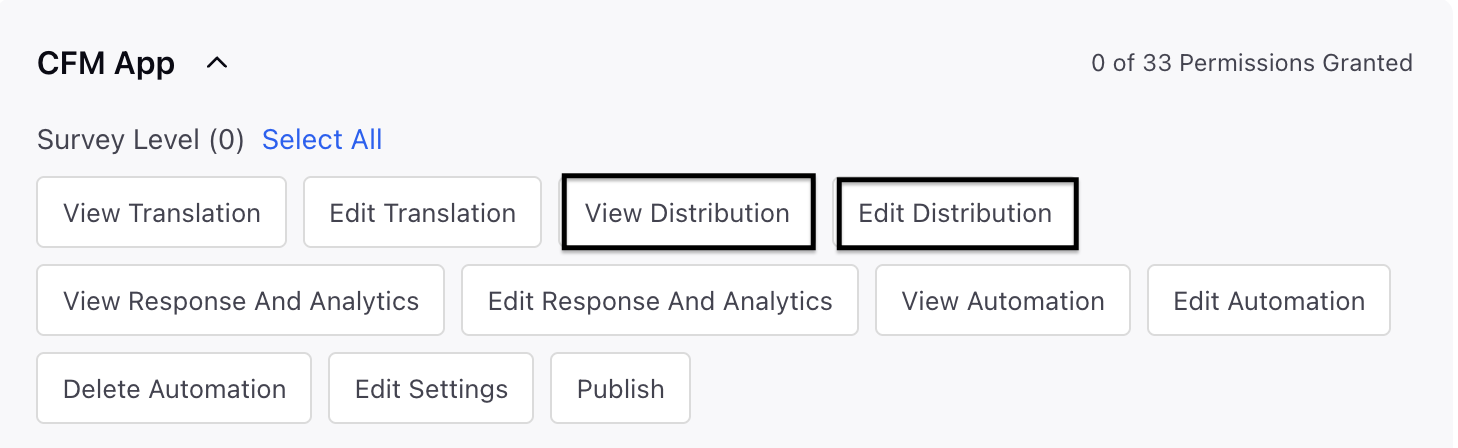
In order to access the Social Survey distribution, you must have access to the following View and Edit Distribution permissions at Survey Level.
Setting Up Creatives
Navigate to Customer Feedback Management and go to Creative Library in the left pane.

Click + Creative and select Social DM.


Go to the Details section and fill in the details:

Go to the Creative Details section and fill details:

Name: Add a meaningful name to the creative.
Description: Add a description to the creative.
Go to Creative Permissions section and fill in the details:

Set User Permissions: You can select the users and user groups and provide edit or view only permissions by clicking Add User(s).
However, creative-level sharing works only in combination with the user’s global Role permissions.
Sharing a creative does not override a user’s global access level. What a user can do with a shared creative depends on:
The permission assigned on the creative (View or Edit), and
The user’s global permissions in assigned Role
You can save the creative as Draft and click Next to continue the configuration.
Go to Configuration page and fill in the details:
Go to Select Platform section:

Social Media Platform: Select X as the social media platform from the drop-down.
Asset Type: Select the asset type as Standard from the drop-down.
Go to Invitation Message section:

Body Text: You can incorporate the body of the message, and there are various options to customize the message description. Moreover, you can use Sprinklr AI+ to create and improve content. To personalize the asset, make use of placeholders in the correct order.
 Note: For text modification, with dynamic date-time placeholders in the Current Distribution Date bucket, you insert the current date or time directly into your messages. These placeholders resolve at send time, not creation, and work across all supported channels. This keeps your instructions, reminders, and contextual messaging accurate without manual updates. To access them, you click the placeholder option, select Distribution Metadata, and then choose Survey Expiry Date to view the date-time field placeholders.
Link Button Text: You can add a Link Button text.
Opt-out Button Text: You can use this call‑to‑action to open an unsubscription window, giving you the option to stop receiving future surveys whenever you choose.
Navigate to the Translations section where you can add translations. Click on + Add Translations, then choose the language you wish to translate into. By selecting the auto translate option, all your survey content will be automatically translated into the chosen language. You can modify the content at any time or revert it to the original language. You can review translations using the side-by-side preview.

To save the invitation settings, click Save. You can either save it as a draft or return to a prior step to modify it.
Note: With Creative Translations, you can manage multilingual content across creatives and distributions by creating, editing, or auto‑translating fields. Added translations are shared across all linked distributions for consistency. When setting up a Social DM survey on X, you’ll be notified if translations are missing or unpublished, with a warning that the invitation will send in the chosen language while the survey displays in the browser or base language if no translation is available, using the same format as email translations.
Confirm the accuracy of your Social DM creative by comparing it with the survey invitation as you set up the invitation message. This preview feature lets users double-check the content and layout before saving or deploying the creative in a distribution.
Key points to note
Rich formatting options are limited due to channel-specific DM policies.
Survey reminders and Thank You messages are not supported for Social DM distributions.
Best Practices
Keep DM creatives short and conversational to match social messaging behavior.
Avoid adding unnecessary context already present in the support conversation.
Use neutral, friendly language to avoid sounding promotional.
Reuse a single Social DM-X creative across similar use cases for consistency.