Rating Scale
Updated
The Rating Scale Question enables survey designers to gather organized feedback by allowing participants to evaluate items using a numerical or visual scale. This method is effective for assessing opinions, satisfaction, or levels of agreement along a specified range.
The anticipated outcome is a versatile and visually appealing approach to capturing user sentiment and quantifying responses for informed decision-making based on data.
Business Use Cases
Evaluating Employee Satisfaction: Using rating scale questions in a survey is an effective way to gather structured feedback on people's experiences or opinions. The collected data can reveal patterns and insights that support informed decision-making and drive targeted improvements.
Assessing Product Usability: Adding a rating scale question to a survey is a useful way to quantify user satisfaction with a product, service, or experience. This approach helps capture valuable feedback, highlight strengths and weaknesses, and guide future improvements based on user needs.
Using the rating scale format enables structured data collection and easy analysis, allowing you to quickly identify trends and gain valuable insights. With flexible scale options, such as numerical, labeled, or percentage scales this question type is highly customizable and versatile, making it suitable for a wide variety of survey goals and industries.
Prerequisites
You will need View, Edit and Delete permissions at the Program Level to access Survey Logics.
View: Helps to view the feature.
Edit: Helps to edit the feature.
Delete: Helps to delete the feature.

Setting Up Rating Scale
Navigate to Builder and move to Question Library and select Rating Scale.
Components of Rating Scale Question
To edit Rating scale question, click anywhere within the question card. Using options present in the details pane on the right.

Question Layout
You can modify the Rating Scale Survey Question Type.

Question Title: You can add the question title by clicking on the Question Title Option.
Font Size: Click Font Size to change the size of the title text.
Text Color: Click Text Colour to change the colour of the text.
Bold: Click Bold to bold the text.
Italic: Click Italic to make it italics.
Underline: Click Underline to underline the text.
Insert Link: Click to insert URL.
Add Bulleted List: Click to add bullets.
Add Numbered List: Click to create a numbered list.
Align: Assistance in aligning the text (to the left, right, or center) is needed.
Insert Table: Click to insert table.
Clear Formatting: Select to remove the formatting.
Placeholder: Click to incorporate placeholder text into the information piping of a question title externally, making it dynamic in nature.
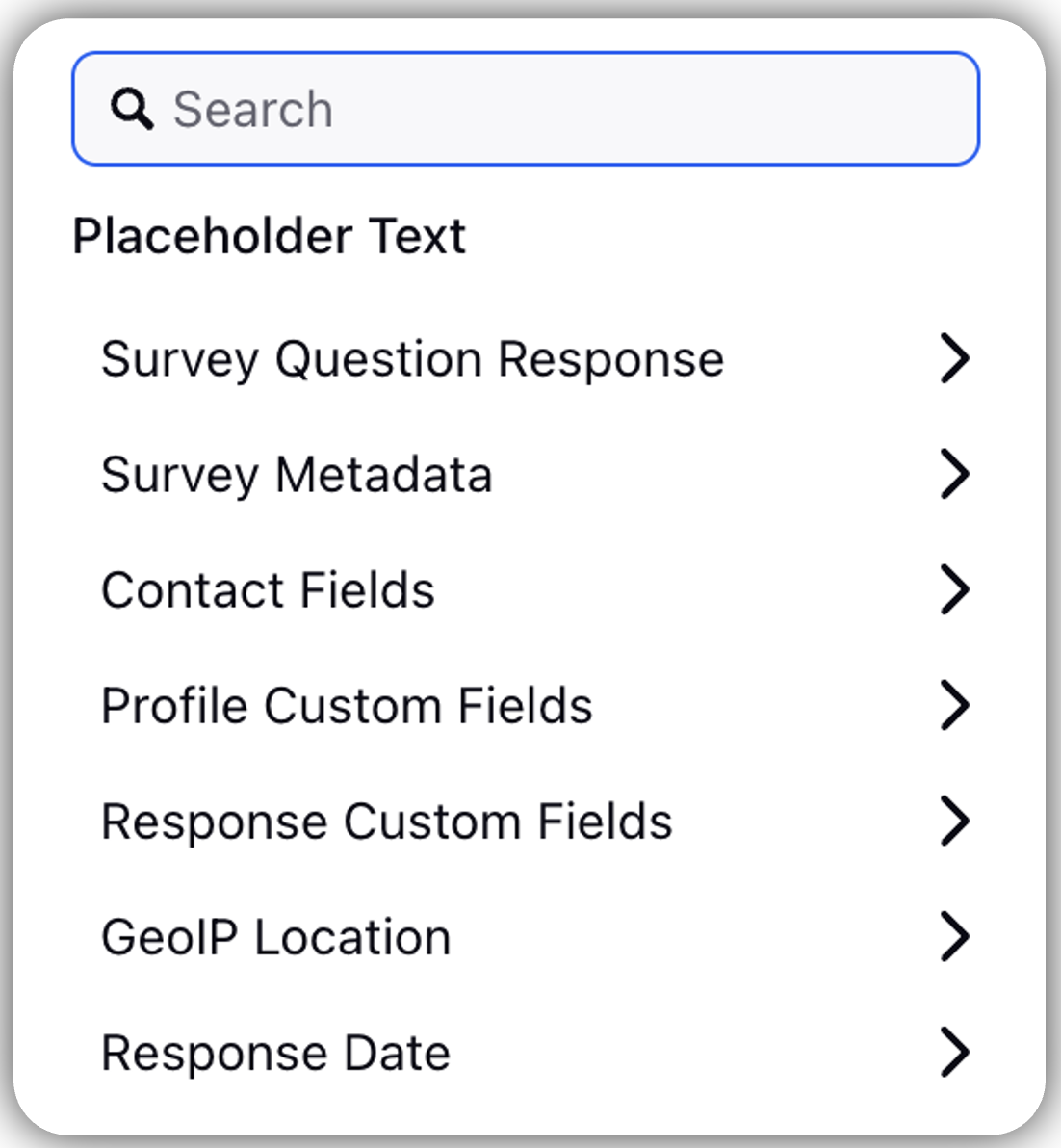
Survey Question Response: Response to one question can be added as a placeholder question title for another.
Example: Capture name in first question and use them for other questions.
Response Metadata: Essentially, it assists in gathering details regarding the particular browser and operating system that the respondent is utilizing. The Response Metadata is further divided into Browser Metadata and Survey Response Standard Fields.
Contact Fields: Assists in gathering customer contact details such as their address, email address, and both first and last names.
Profile Custom Fields: Helps to tag user profiles.
Example: user type -advocate, influencer, detractor, etc.
Case Fields: Case Custom Fields can also be added as placeholder text. Use the search bar to find your appropriate custom field and select it as Placeholder Text.
Response Custom Fields: It is located in the anonymous section and chooses from the response custom field. When the respondent provides an answer, the particular custom field associated with it will be linked to that response.
Example: If we receive a location response custom field from a particular site for a retail chain, it will be labeled here.
Response Date: It records the exact moment when the response is obtained (in various formats). These are utilized in transactional surveys.
Transaction Fields: Gathers details pertaining to any additional custom field.
Add a Description to a Question
You can add a description to provide additional context or instructions for respondents.
- Locate the Description toggle below the question text field.
- Enable the Description toggle.
- Enter the description text.
Use formatting options such as:
- Bold
- Hyperlinks
- Bulleted lists
- Numbered lists
Description Placement and Spacing
In the Styling tab, you can:
- Display the description Above or Below the main question text.
- Adjust the Top Spacing and Bottom Spacing for the description.

Optimize Survey for Different Screen Sizes
- While creating a survey, select a device view such as Desktop, Mobile, Tablet, or Custom to preview how the survey appears on different screen sizes.
- Switch between device views and adjust the survey layout, question alignment, spacing, media, and other elements to improve the experience for each screen.
- Validate your configuration to ensure the survey is optimized and displays correctly across all targeted devices.

Answers
You can select the various Answer Button Type available:

Scale Type: There are 4 scale types that you can select from the dropdown:
Numbered Button

Radio Button

Emoji

Star

When a respondent chooses a star rating, all the stars up to that selection are filled in. This is a typical response trend seen in feedback collection across various industries. [Refer to this screenshot below]

You can confirm the number of icons (stars) required on the scale. Minimum 3 and maximum 11 stars can be used.
Graphic Slider

Utilize either the standard graphics (emoji) provided or add custom graphics for each scale point, with a limit of 7 scale points in total.
Respondents will see the graphics associated with the selected scale point in their responses. [Try in Preview]
You can include labels above the buttons to give additional context to the scale. A maximum of 5 labels may be included.Notice the visual difference between answered and unanswered states of the graphic slider.
Unanswered

Answered

Start Scale: You have the option to establish a starting scale. This range determines the lowest and highest values for your question. Even if the numerical labels are disabled, these values will still be utilized for data analysis and reporting. It is not applicable for Graphic Slider.

End Scale: You can define an end scale. It is not applicable for Graphic Slider.
Show Scale Numbers: Toggle on scale numbers to display the numerical values linked to each point on the scale. These values can range from 0 to 10, depending on the scale setup. Note that scale numbers are not available for numbered buttons or graphic sliders. When enabled, the numbers will be visible to respondents during the survey. You can customize the appearance of these numbers using the settings in the Answers section within the survey styling tab.

 Note:
Note:
Minimum 3 scales and maximum 11 (when start is set to 0) can be added to a rating question. (expect graphic slider)
Use scale numbers when scales are more than 5. This helps quick decision making that can result in better response collection.
N/A Option
You have to option to toggle "Enable Non-Applicable Option" if there are statements that are not applicable for certain respondents. N/A option can also be applied on a single statement.
Customizing the N/A Label: Survey creators can rename and customize the N/A label directly from the details pane on the right (e.g., "Not Applicable", "No Experience", or "Not Relevant").
Default Labels: Single-statement Rating questions default to "Not Applicable", whereas multi-statement Rating questions default to "N/A".
Label Retention: If the N/A toggle is turned off and later re-enabled, the previously customized label text is retained and does not reset to default.
N/A option can be applied to both single-statement and multi-statement Rating questions. Refer to this set of articles to learn more about response collection when N/A is selected
Reverse Scale Order
Rating questions allow you to reverse the scale so the highest value is shown first. To enable this, turn on Reverse scale order in the question settings panel on the right.

Statements
You can add multiple statements to a single question.
Click Statements Option to add multiple statements to collect Rating for different features or components within a single question.

Select Bulk Edit to change statements in large quantities. Utilize the bulk edit feature located beneath the labels list to add, remove, or modify labels in bulk. Refer to this article for more details.

Labels
You can add Labels to add more context to the scale. You can add up to 5 labels. You also have the option to modify labels in bulk using the Bulk Edit feature.

Question Media
Question Media files helps to attach media files to provide more context to the question. You can click Upload Asset to upload media files using Upload Media or select from Asset Library. You have the option to adjust the media size by clicking on the slider.
You can align the Question Media in by selecting the options from the Alignment drop-down. Media aligment can also be customised for mobile and desktop screens individually.

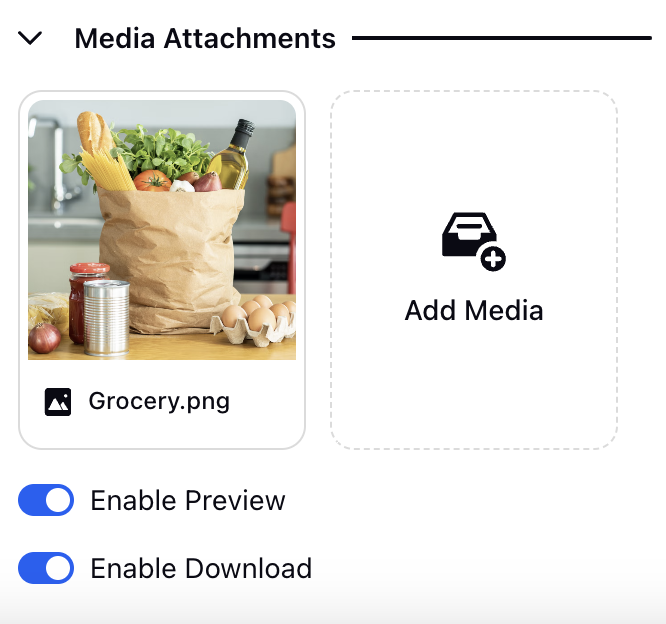
Media Attachment
You can include media files for further details by selecting the Add Media option. You have the ability to enable the media preview and also to download the media.
Styling Rating Scale

You can modify the label size by sliding it left or right. Additionally, you can alter the alignment of the labels by choosing an option from the dropdown menu.
Above Scale
Below Scale
For Numerical-numbered/radio buttons Scale Type:
You have the option to modify the radius of the buttons (for buttons that are numbered with digits).
You have the option to choose a color scheme, either a single color or a two-color combination, and you can also set the background and border colors for the buttons based on your chosen color scheme. Additionally, you can change the color of the button text.
For Emojis scale type:
You can use the slider to adjust the button size.
For Icons fill scale type:
You can use the slider to adjust the button size.
You can set colors for icons in filled and empty states.
For Graphic slider
You can use the slider to adjust the graphic size.
You can choose colors for the pin border surrounding the graphic and the slider scale.
Manage Rating Scale

Clone: You have the ability to clone a question without having to create that again.
Edit Logic: The Edit logic option allows you to modify the logic of the question.
Delete: Using delete option you can delete a question.
Rating Scale Question Settings
Question Settings
Go to Settings and toggle Mark as required to make the question mandatory. Every mandatory question will be indicated by a small red dot. You have the option to incorporate personalized Error Messages for questions that are mandatory. Translations for these custom error messages can be managed under the Translation section. Essential text formatting and styling can be applied to the error text, ensuring that critical guidance is clearly visible. Creators are empowered to use bold, italic, and underline, and to adjust font style, size, and color through the Styling Tab. This functionality is designed to enhance readability, fulfill branding requirements, and support accessibility. For respondents, this translates into errors and instructions that are easy to notice and understand, ultimately providing a smoother survey experience.

Preview
To preview the survey, click the Preview option located at the top right of the survey builder. This allows you to see exactly how the Rating Scale question will appear to respondents.
You can test the survey flow by responding to the rating scale question on different devices and screen sizes to ensure it functions smoothly, then check the analytics dashboard to confirm that all rating responses are being recorded accurately. You can also change the screen resolution of the survey to view how the survey is displayed in various devices


How to use it?
Standard Analytics:Examine the rating scale data in Standard Analytics for closed question types to monitor general trends and response distributions.
Custom Reporting: Use rating scale data in Custom Reporting to analyze variations, compare satisfaction levels, and track feedback patterns.
Data Filtering: Filter responses by rating categories to isolate and analyze specific feedback segments for targeted insights.
Key points to note
For a numbered scale type, a maximum of two colors can be assigned to the scale buttons.
The maximum scale points differ: the graphics slider can accommodate up to 7 points, whereas numerical scales can extend to 10 points.
Best Practices
Use Even or Odd Scales Thoughtfully: Scales with an odd number of options provide a neutral middle choice, whereas scales with an even number compel respondents to choose a positive or negative stance.
Provide Clear Labels: Clearly defined labels enhance respondents' comprehension and lead to more precise data gathering.