Standard Features Available to Edit Survey Questions
Updated
Editing survey questions allows you to customize content in real time, whether it is refining language, updating logic, or rearranging the flow. This ensures your survey remains aligned with your goals, delivering a smooth and adaptive survey-building experience.
Business Use Cases
Adapting to Evolving Survey Objectives: The survey's question-editing feature allows for revisions that target the most relevant areas, eliminating the need to create a new survey and ensuring the capture of more meaningful insights.
Responding to User Feedback: The editing feature allows refinement of question wording to improve clarity, ensuring future responses are more accurate and maintaining the overall quality of data collection without requiring a complete survey redesign.
This feature provides flexibility in survey design by enabling real‑time edits to questions, which directly enhance data quality through clearer wording and more accurate and actionable responses without requiring a complete survey redesign.
Prerequisites
To access this module, the Program Level permissions are necessary, which can be found under the Customer Feedback Management App within the roles. Let us have a look at the permissions:

View: With view permissions, you will be able to access the given feature.
Edit: With edit permissions, you will be able to edit the given feature.
Delete: With delete permissions, you will be able to edit the given feature.
Navigation Steps
Navigate to Survey Builder, select the question you want to edit, and access the detailed pane.
Add a Description to a Question
You can add a description to provide additional context or instructions for respondents.
- Locate the Description toggle below the question text field.
- Enable the Description toggle.
- Enter the description text.
Use formatting options such as:
- Bold
- Hyperlinks
- Bulleted lists
- Numbered lists
Description Placement and Spacing
In the Styling tab, you can:
- Display the description Above or Below the main question text.
- Adjust the Top Spacing and Bottom Spacing for the description.

Question Title
You can edit the question title directly using inline editing or through the details pane on the right.
You can modify the following Question titles using the right pane.
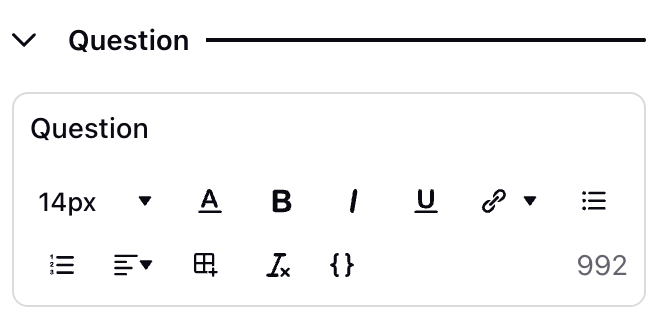
Font Size: You can edit the font size and select a suitable one from the list provided.
Font Colour: You can select the font colour.
Text Type: You can select the text type as bold, italics, or underlined.
Hyperlink: You can add a hyperlink to the question title and can edit the same.
Bullets and Numbered List: You can customize how bullet points are displayed.
Alignment: You can change the alignment of the text, can make it center aligned, left or right aligned.
Insert Table: You have the ability to add table.
Clear Formatting: You can removes all edits by clearning the format.
Add Placeholders: Select specific placeholders and add.
Adding description to questions

Find the description toggle below the question text field.
Toggle description to enable/dissable additional text
Enter the description text to provide context or instructions for the question.
Use formatting options (bold, links, lists, etc.) to improve readability if needed.
In question level Styling tab, you can add the description either Above or Below the main question text.
Within the Styling tab you can also adjust the top and bottom spacing for descriptions.
Bulk Edit Options and Statements: For questions with options or multiple statements, you can use the bulk edit feature to modify all options at once. Each option in the bulk edit space is separated by line break. You can copy and paste options or statements here, and delete multiple items at once.

 Note: Questions that support bulk edit include:
MCQ and Rank Order: For editing options.
CSAT Rating and Matrix: For editing statements and scale items.
Slider and Rating Scale : For editing statements and label items.
Question Media: You can add media to any question to provide additional context.
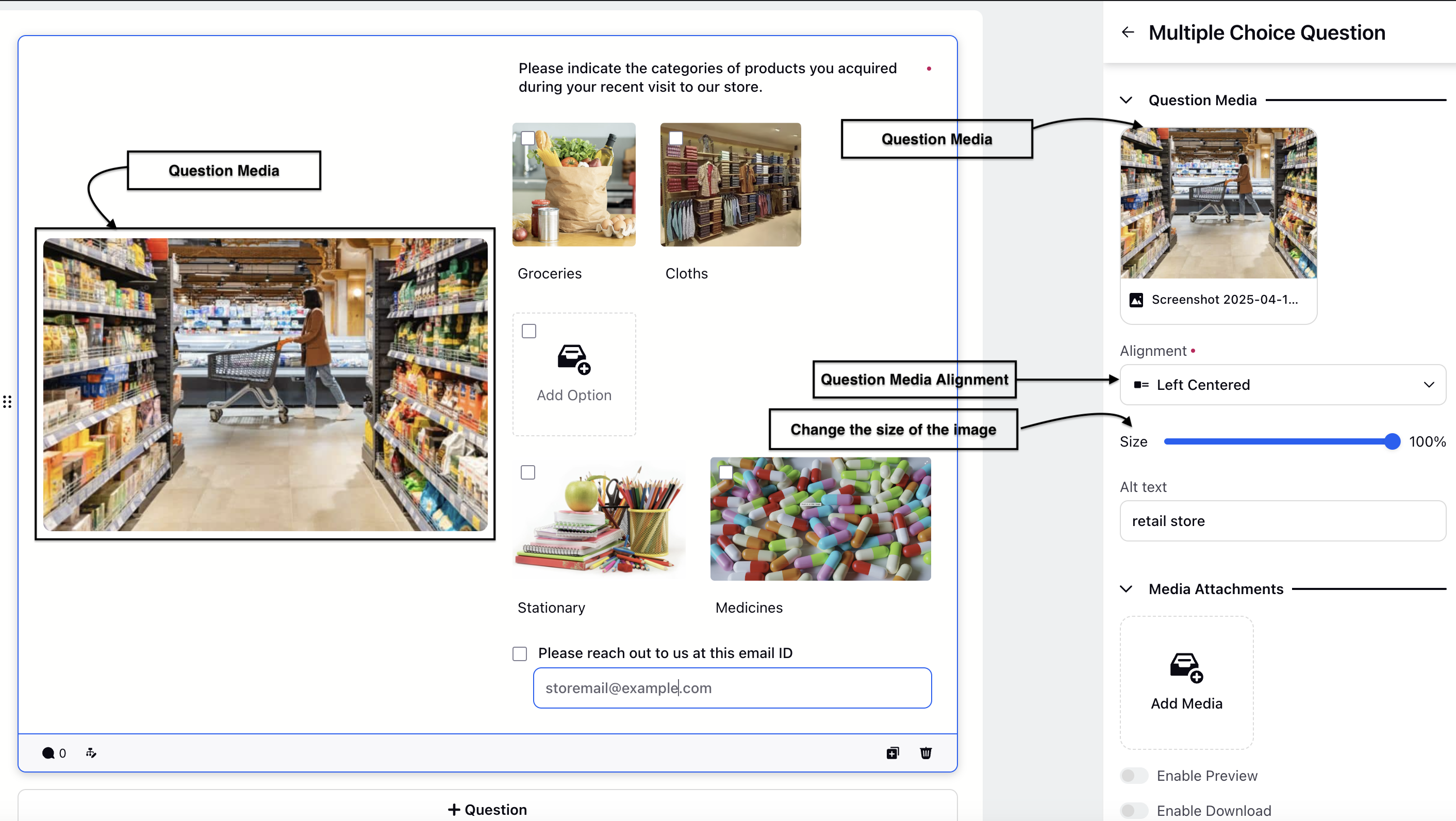
Click the Upload Asset button in the Details pane of a question.
Choose media from the Asset Library or upload a file from your device.
Once added, use the dropdown options to adjust the media alignment.
Finally, resize the media as needed and add alternate text, which will be shown if the media can’t be rendered.
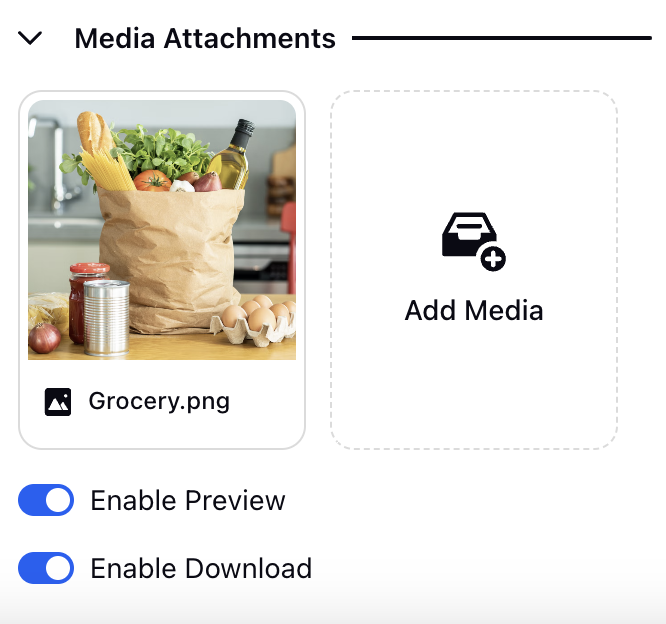
Media or File Attachment: In addition to media, you can attach multiple files to a question.
Use the toggles to allow respondents to preview or download the attached files. You now have the ability to confirm the preview and download functions in the Survey preview before the survey is published.
Media Alignment:
- Survey creators can now independently configure how question media is positioned on mobile devices, allowing for a more optimised experience across different screen sizes.
- Select the question containing the media.
- Navigate to the Question Assets section.
- Add or upload the image that you want to associate with the question.
Configure the image placement using the available alignment settings:
- Web Alignment controls how the image is displayed in desktop and web experiences.
- Mobile Alignment controls how the image is displayed on mobile devices.
▪Preview the survey in both Desktop and Mobile views to validate the image placement and ensure the experience is optimised for each device type.

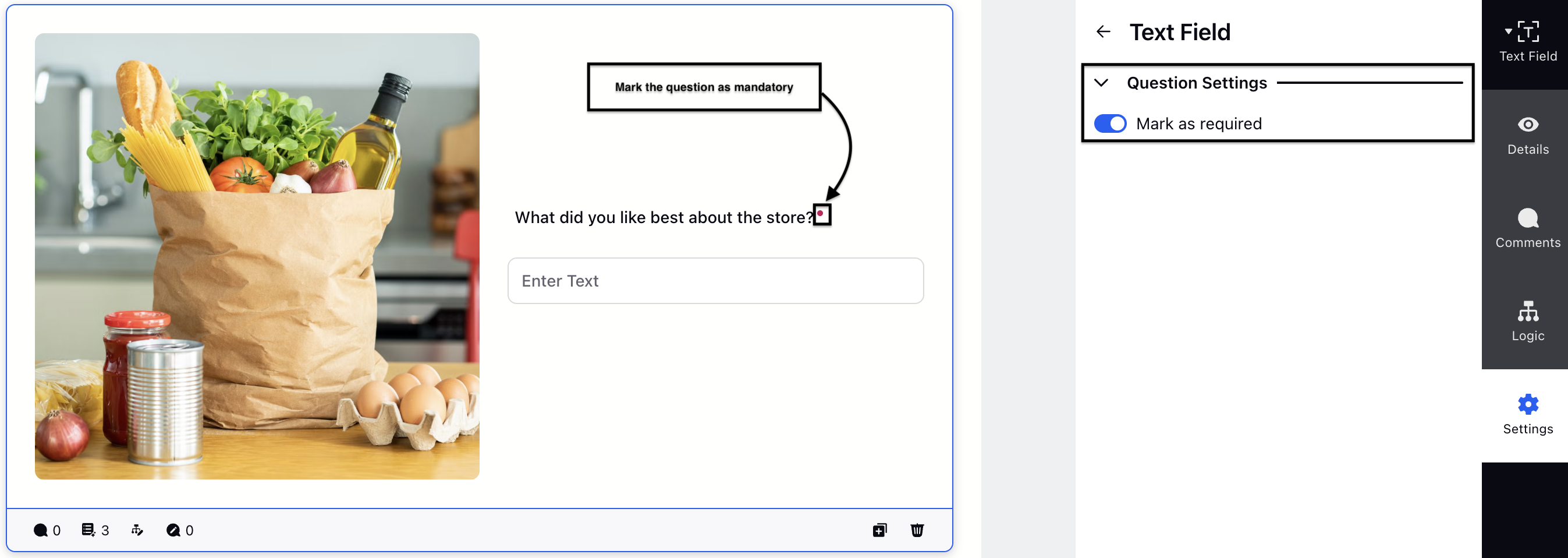
Mark as required: Enable this option to make the question mandatory for respondents. You can go to the Settings option and enable this option.
Previewing the Survey:
Click Preview Survey (top-right corner) to see how respondents will view it.
While creating the survey you can select the device view option (e.g., Desktop, Mobile, Tablet, or Custom screen) and switch between device views to adjust how the survey is structured for each screen size.
Modify layout and elements (question alignment, spacing, media, etc.) to suit the selected screen.
Validate the configuration to confirm the survey is properly optimised for each targeted screen size.
Note: In a live survey, respondents won't be able to proceed to the next page without answering a required question.
How to use it?
You can edit the question title and format it according to the needs of your survey, ensuring clarity and relevance. The bulk edit feature allows you to efficiently modify options for MCQ or CSAT questions, saving time and effort. To provide additional context or supporting materials, you can add media or file attachments directly to the questions. Finally, by marking questions as required, you ensure that respondents must answer them before continuing, which helps maintain the completeness and reliability of your survey data.
After editing a question, it is important to preview the survey to verify that the changes have been applied correctly. Completing the survey as a respondent would allows you to check whether the skip/display logic functions as intended and ensures that the question order flows properly. This step helps confirm that the survey delivers a smooth and accurate experience before it is shared with participants.
Key points to note
Single question preview: Current builder capabilities do not support preview for a single question separately.
Question Media: More than one media cannot be added to a question.
Best Practices
Review Logic: Always verify that changes in one question don't break the flow of others.
Preview Regularly: Test the survey after each edit to ensure consistency in the user experience.