Setup for Enabling Citrix Media Offloading
Updated
For media offloading to work correctly, the following configuration steps must be completed. These steps are related to the Citrix environment, the Sprinklr platform, and network-level configuration.
This article outlines how to enable and verify Citrix Media Offloading within Sprinklr’s contact-center platform.
Follow the order listed for detailed instructions.
Citrix Environment Configuration (For Citrix Implementation Team)
Sprinklr Platform Configuration (For Sprinklr Implementation Team)
Network Consideration for Enabling Media Offloading (For Network Implementation Team)
1. Citrix Environment Configuration (For Citrix Implementation Team)
Verify version requirements for Citrix components. Refer to Versioning of Citrix Components for more information.
Verify whether or not Microsoft Teams redirection policy is enabled. On the Citrix side, ensure that the Microsoft Teams redirection policy is enabled to allow the application to run in optimized mode; see the Multimedia Policy Settings documentation for details. Note that this policy is ON by default.
On the VDA (Virtual Desktop)
By default, Citrix only allows approved applications to access the WebRTC redirection service. To enable Sprinklr on your browser, add the browser to Citrix's whitelist.
Open Windows Registry.
Navigate to this path - Computer\HKEY_LOCAL_MACHINE\SOFTWARE\WOW6432Node\Citrix\WebSocketService
Update the following Registry Key.
Key Name: ProcessWhitelist
Key Type: MULTISZ (multi-string value)
Add the following values for whitelisting Chrome and Edge browsers. Sprinklr recommends using Chrome for optimal voice performance.
chrome.exe
msedge.exe
Once the above registry is configured successfully, reboot the VDA or restart CtxHdxWebSocketService to finish the Whitelist setup.


On the Client (Agent's machine), no configuration is needed. Just install the correct version of Citrix Workspace app.
2. Browser Policy Configuration (Local Network Access)
Media offloading requires the Sprinklr UI (running in Chrome/Edge on the virtual desktop) to connect to the local HDX WebSocket service at 127.0.0.1:9002. Starting with Chrome 147 / Edge 147 (Apr 2026), browsers block this loopback WebSocket by default — and because WebSocket blocks show no user prompt, offloading fails silently and reverts to routing audio through the virtual desktop. Applying the following policy is required for offloading to establish.
Set the following browser policy:
Policy | Value | Supported From |
LoopbackNetworkAllowedForUrls | [*.]sprinklr.com | Chrome 146 / Edge 146 |
This is different from the VDA ProcessWhitelist registry entry in Step 1 — both are required.
Where to set it
This is an enterprise browser policy, applied to the agent's browser by your IT team through whichever management plane you use:
Windows Group Policy (GPO) — via the Chrome / Edge ADMX templates (use current templates; these policies are recent)
Microsoft Intune or other MDM — via the settings catalog / configuration profile
Registry — for testing or unmanaged machines:
Chrome: HKLM\SOFTWARE\Policies\Google\Chrome\LoopbackNetworkAllowedForUrls\1 = [*.]sprinklr.com
Edge: HKLM\SOFTWARE\Policies\Microsoft\Edge\LoopbackNetworkAllowedForUrls\1 = [*.]sprinklr.com
Exact setting name and location per browser (authoritative):
Browser | Vendor documentation |
Chrome | |
Edge |
Verification
Fully restart the browser, open chrome://policy or edge://policy, and confirm LoopbackNetworkAllowedForUrls shows Status OK with value [*.]sprinklr.com. If it shows Conflict or Ignored, a higher-precedence Blocked policy is overriding it — that block must be removed or narrowed; adding the allow alone won't take effect.
For full details, alternatives, and the policy precedence order, see Resolving Browser Local Network Access Restrictions for Sprinklr WebSockets — specifically the Recommended Fix and Verifying the Configuration sections.
3. Sprinklr Platform Configurations (For Sprinklr Implementation Team)
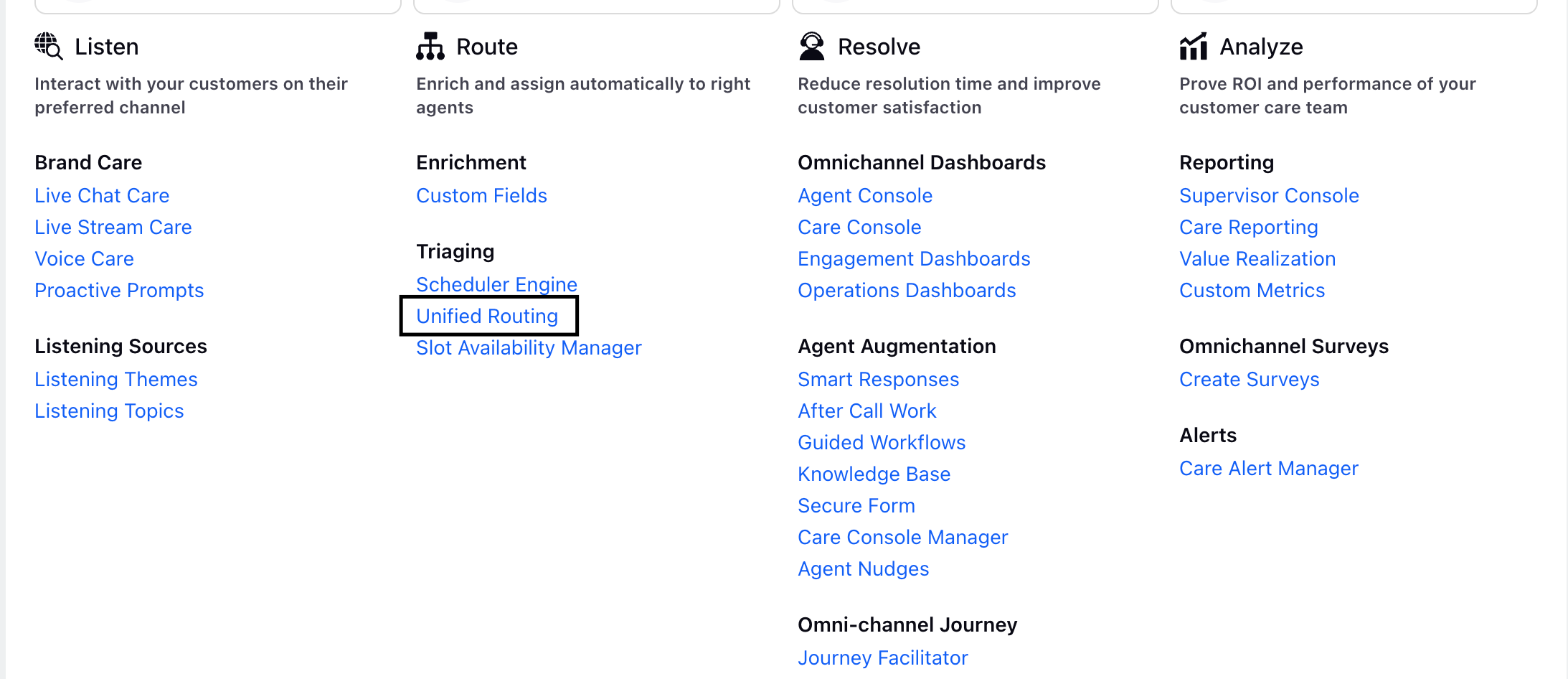
Click the New Tab icon. Open Launchpad. Within the Sprinklr Service tab, click Unified Routing within Route.
From the left navigation pane, select Agents.

Switch to User Groups from the top left. The list of user groups is displayed.
Click on the three dots next to the user group you want to assign voice settings to. Then, select Edit.
Navigate to the Voice Settings section.
From the Citrix Media Redirection drop-down, select Enable Citrix Media Redirection. By default, Disable Citrix Media Redirection is selected.
 Note: The Citrix Media Redirection drop-down on the UI is controlled by the Dynamic Property ENABLE_CITRIX_MEDIA_REDIRECTION_CONTROL_SIGNALWIRE.
 To enable this feature in your environment, contact your Success Manager. Alternatively, you can submit a request at tickets@sprinklr.com.

Milestone 1:
If the aforementioned configurations are done correctly, Citrix Media Offloading should work for the agent. This can be verified using ‘Citrix Offloading Active’ status in readiness modal as shown in the following image. This only ensures that Citrix related configurations are correct and does not gurantee that calls will be able to connect as the peer-to-peer connectivity can still fail to establish.
Check “Network Considerations for Enabling Media Offloading” section for next steps.

If Citrix Redirection setup fails, the same is indicated in the readiness modal as shown in the following image.

In such cases, Sprinklr automatically falls back to the default mechanism, allowing agents to continue taking calls without media offloading. Audio is routed to the media servers through the virtual desktop environment.
4. Network Considerations (For Network Implementation Team)
Ports used by Sprinklr
All WebRTC-related connectivity, including connectivity to STUN (Session Traversal Utilities for NAT) and TURN (Traversal Using Relays around NAT) servers and provider media servers, must be allowed from the agent’s local machine. In addition, if you plan to use the non-optimized path or want agents to continue taking calls when media offloading is unavailable, the same connectivity must also be allowed from within the virtual desktop environment.

A common issue observed when customers enable media offloading is call connectivity problems. This typically occurs because, once media offloading is enabled, the second WebRTC peer is no longer the virtual machine but the agent’s local machine itself. As a result, the agent’s local network becomes directly involved in media connectivity, and its network requirements must be taken into consideration.
Therefore, if you were previously using Sprinklr in a Citrix environment without offloading, it is important to ensure that all WebRTC-related firewall rules, specifically connectivity to STUN and TURN servers, provider media servers, and ICE candidate discovery, are also permitted from the agent’s local network.
It is also important to note that connectivity to signaling servers and the Sprinklr backend continues to originate from Sprinklr UI within the virtual machine and does not require any changes. Only WebRTC-related connectivity needs to be considered from the agent’s local network.
Agents are strongly recommended to run troubleshooting when enabling this feature for the first time.

Note: Reach out to Sprinklr team to get exact provider IPs, ports, and protocols.
Milestone 2:
After performing the aforementioned steps, ensure to run the Agent Troubleshooting and verify if all tests are passing. Refer to the Setup Checklist section to to confirm that all setup steps have been completed correctly.
Ports used by Citrix
Ensure the following ports are open on the Citrix machine. These are standard ports used by Citrix’s proprietary ICA/HDX protocol and are typically part of a standard Citrix environment setup.
Protocol | Destination | Ports | Reason |
TCP, UDP | Virtual Delivery Agent | 1494 | Access to applications and virtual desktops by ICA/HDX. EDT protocol requires port 1494 to be open for UDP. |
TCP, UDP | Virtual Delivery Agent | 2598 | Access to applications and virtual desktops by ICA/HDX with Session Reliability. EDT protocol requires port 2598 to be open for UDP. |
TCP, UDP | Virtual Delivery Agent | 443 | Access to applications and virtual desktops by ICA/HDX over TLS/DTLS. |
UDP | Virtual Delivery Agent | 16500-16509 | ICA/HDX audio over UDP Real-time Transport |
For more information on communication ports used by Citrix refer to this article: Communication Ports used by Citrix Technologies.
5. Setup Checklist
Run the following checklist, in the order listed, to confirm that all setup steps have been completed correctly.
If you still encounter any issues, download the checklist table and complete the requested details in the third column, and share it with Sprinklr support for further assistance.
Configuration | Verification | To be shared with Sprinklr Support | |
1 | VDA and CWA versions are correct | Refer to the article for more information on version details. | VDA version, CWA platform (Linux/Mac/Windows) vs versions in use |
2 | Browser to be able to connect to CtxHdxWebsocketService | Check Citrix Offloading Active Status in Readiness Modal.
| Screenshot of Windows Registry that clearly shows configuration.
Run Agent Troubleshooting. Download the report and share it with Sprinklr. For more information, refer to the Agent Troubleshooting article.
|
3 | Providers Signaling servers must be reachable from within VDI network | Check if Voice Apps are connected by clicking on "VoIP" icon on the top menu of the Sprinklr Landing page. Here is the sample screenshot that indicates the apps that are connected and disconnected. | |
4 | Provider’s media servers and TURN servers should be reachable from within VDI. This is required only if you plan to use the non-optimized path or want agents to continue taking calls when media offloading is unavailable. This may be done as a safe fallback plan. |
| Run Agent Troubleshooting. Download the report and share it with Sprinklr. |
5 | Provider’s media servers and TURN servers should be reachable from agent’s physical machine |
| Run Agent Troubleshooting. Download the report and share it with Sprinklr. |


6. Verifying the Setup
The following are the ways to confirm if the media has been offloaded.
If milestones 1 and 2 are successfully completed, it indicates that media is being offloaded; however, you can perform the following checks if you want additional confirmation:
Use Wireshark to confirm that audio RTP packets are being routed directly from the agent’s local machine to the provider media server IPs.
Check browser’s webrtc-internals when a call is happening. If media offloading is working, there should be no active peer connections from Sprinklr’s domain to media servers.
Related Articles