Adding video account
Updated
To enable Video call feature, please raise a support ticket with the following details:
Partner Name
Partner ID
Specify the account you prefer for video calls: AWS Chime
Adding AWS Chime account in Sprinklr
1. From quick search, go to Social Accounts.
2. Click on ‘Add Account’ and search for AWS
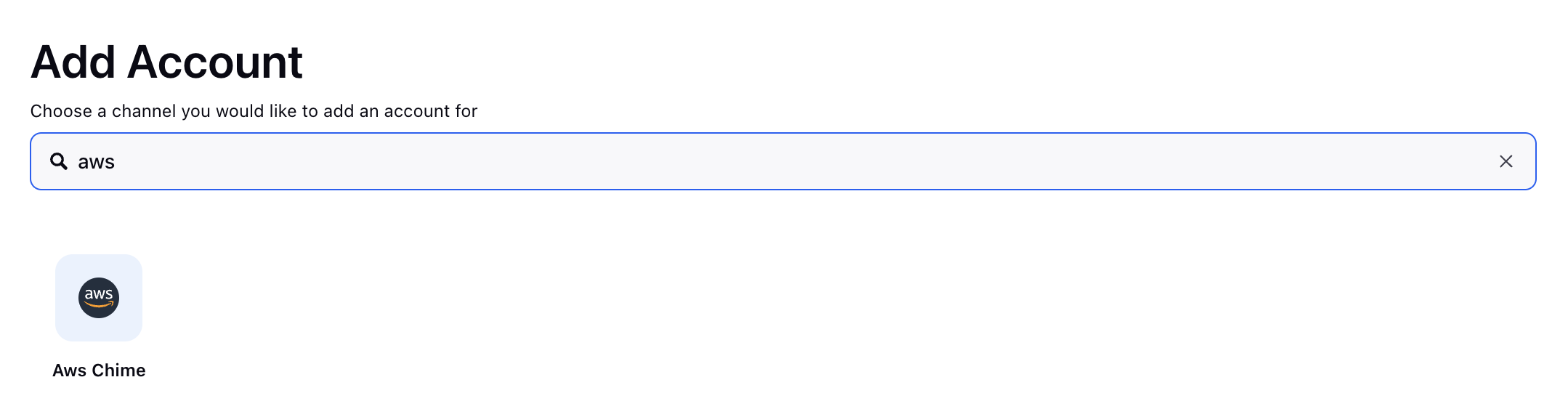
3. Enter your AWS credentials (AWS access key, AWS secret access key)

4. Verify that your account is added.
Go to social account section again and see if your AWS Chime account is reflecting.
Link Live chat application to AWS Chime account
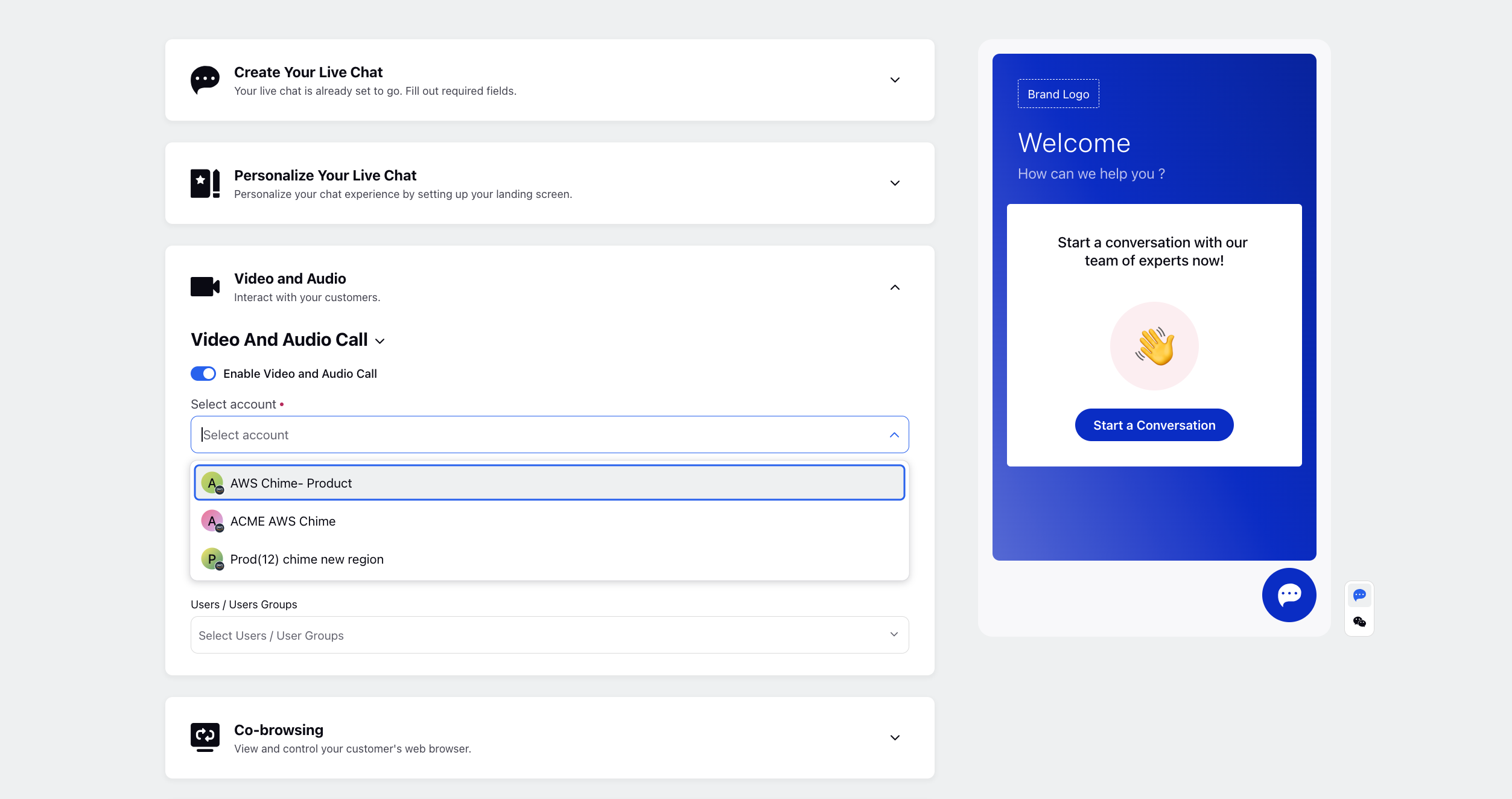
Edit your livechat application and open the ‘Application Configuration’ tab
Check the “Enable Video and Audio Call” option and select your AWS Chime account from the drop down list