Configure Task in Agent Copilot
Updated
Tasks are collections of actions your Copilot performs in specific scenarios, while tools are the building blocks of those tasks—essentially, individual micro-capabilities like fetching data or processing text.
Access Task Manager in Agent Copilot
Follow these steps to go to Task Manager in Agent Copilot:
Navigate to AI+ Studio from the Sprinklr launchpad.
Click the Manage Copilots card.
On the Choose Your Copilot screen, select the Agent Copilot under the Sprinklr Service tab.
The Agent Copilot Record Manager screen opens. Select the Copilot in which you want to configure a Task.

On the Manage your Copilot screen, click the caret (expand) icon corresponding to the Define Tasks and Tools section.
Navigate to Tasks and click the View button.
On the Tasks Manager window, click + Add Task button in the top right corner.
Configure Task
Configure the following input fields as per your task requirement:
Task Overview
In the Task Overview section, configure the following fields:

Name: Enter a unique and descriptive name for the task.
Task Category: Define a category to organize tasks by function or department. It helps in filtering, reporting, and governance.
Description
Provide a detailed description of the task, explaining what it does and when it should be triggered.
Example: This task allows agents to cancel customer orders and update CRM records accordingly.
Task Type
Choose the type of Task you want to configure:
Reactive Task: A response-driven task that activates only when the user prompts the copilot.
Proactive Task: An anticipatory task that monitor user activity and context to provide suggestions without being prompted.
Task Triggers (Applicable only for Proactive Tasks)
When configuring a Proactive Task, you must define the triggering conditions.
Trigger Type
Two types of triggers are supported:
Message Based Trigger: The Task is triggered when a message enters or exits Sprinklr.
Case Update Trigger: The Task is triggered when case fields ( for example, status, assignment, tags) are updated.

Conditions
Configure trigger conditions based on Case level or Message level properties.
Use + Add Condition Group button to define multiple trigeering conditions with AND or OR logic.
Max Limit
Define the maximum number of times the task can trigger within a single conversation.
After the limit is reached, the task will not trigger again.
Frequency (Applicable only for Message Based Triggers)
Define how often the task should trigger, based on message count.
Example: If set to 3, the task will trigger on every third message.
Smart Qualification (Applicable only for Proactive Tasks)
Use smart qualification to control when a proactive task surfaces a nudge to an agent. Qualifying conditions identify relevant conversations, while disqualifying conditions prevent the nudge from appearing in situations where the guidance is not needed.
Smart qualification helps reduce unnecessary interruptions and improves the relevance of AI-assisted guidance during customer interactions.
 Note: Smart Qualification is only available for Proactive Tasks.

Add Qualifying and Disqualifying Conditions
- In the Smart Qualification section, turn on Enable smart qualification toggle.
- Under Qualifying Conditions, enter a value in Condition Value.
The proactive task becomes eligible to run when one or more qualifying conditions are met. You must define at least one qualifying condition to use smart qualification. - To add another qualifying condition, select the Add icon next to Condition Value.
- Optional: Under Disqualifying Conditions, enter a value in Condition Value.
If any disqualifying condition is met, Agent Copilot does not trigger the task, even when the conversation meets a qualifying condition. - To add another disqualifying condition, select the Add icon next to Condition Value.
How Smart Qualification Evaluates Conditions
Agent Copilot evaluates smart qualification as follows:
- If the conversation does not meet a qualifying condition, the proactive task does not trigger.
- If the conversation meets one or more qualifying conditions and does not meet a disqualifying condition, the proactive task can trigger.
- If the conversation meets any disqualifying condition, the proactive task does not trigger, even when it meets a qualifying condition.
Task Details
In the Task details section, configure the following fields:

Create Prompt
Click + Create Prompt to define how the AI Agent will handle the task:
From Scratch: Write custom instructions tailored to your workflow.

From Template: Use pre-built prompt templates and modify them as required.
Each prompt should be clear, structured, and action-oriented.
Tools
Select the required Tools configured in your Agent Copilot for the task execution from the dropdown.
Supported Entities in Task Prompt
These entities can be dynamically referenced using placeholders while configuring task prompts to provide contextual and personalized AI responses.
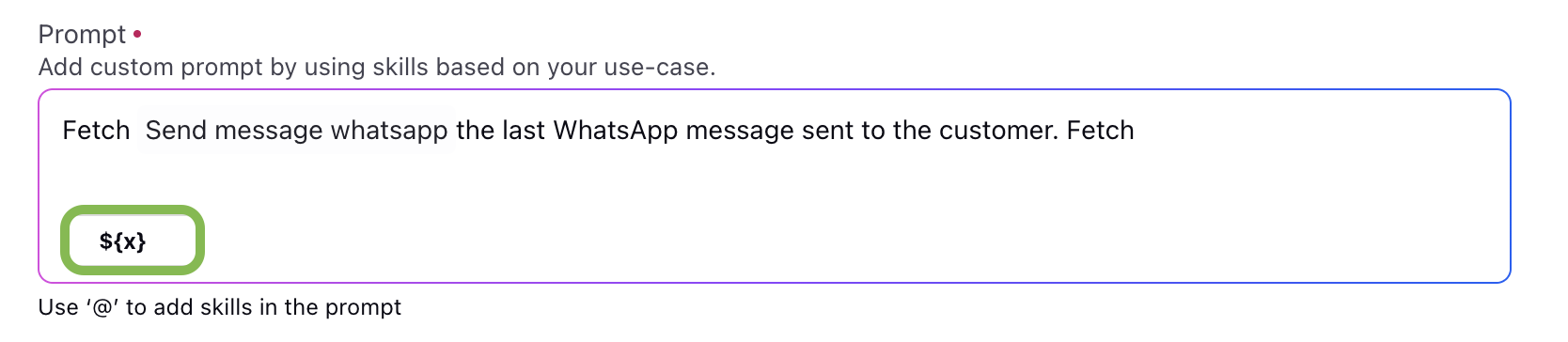
Use the variable button to open Resource Manager and use the entity based resources as per your requirement.
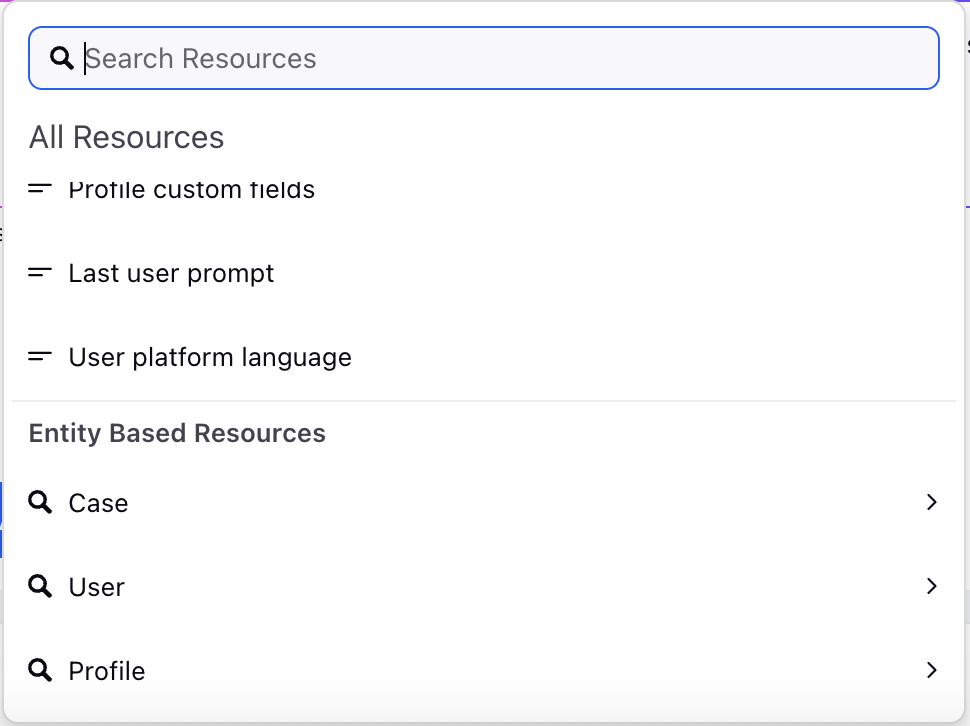
Case Standard Properties (${case_standard_properties})
Refers to default case attributes such as Case ID, Status, Priority, and Channel. Useful for tailoring responses based on the case metadata.
Case Properties (${case_properties})
Includes both standard and custom properties configured on the case. These may involve category, sentiment, or SLA breach status—enabling context-driven prompts.
Case Conversation (${case_conversation})
Represents the full conversation thread between the customer and the agent. This allows the Copilot to analyze previous messages and provide relevant follow-ups.
Case Notes (${case_notes})
Captures internal notes added by agents. These notes can guide the Copilot in understanding prior agent actions or instructions.
Associated Cases (${associated_case_details})
Refers to linked cases such as duplicates, child/parent cases, or escalation threads—providing a holistic view of the issue for accurate resolution prompts.
Fan Custom Fields (${fan_profile})
Includes customer-specific attributes like name, preferences, past purchases, or tier level. These enrich the prompt with user-specific context.
User Text (${user_text})
The most recent customer message. Helps generate real-time, direct responses to customer queries.
User Platform Language (${user_locale})
Detects the language of the customer’s platform or profile. Enables multilingual response generation or translation.
Previous Suggestions (${previous_suggestions})
Refers to earlier recommendations made by the Copilot in the same session. Ensures consistency and avoids repetition.
Historical Cases Variable
This variable allows you to control how many past cases, based on a selected time window, or past cases are sent to Agent Copilot as contextual input. Click the edit icon to configure this variable. The following screen will appear.

Configure the fields as mentioned in the table below:
Field Name
Description
Variable Name
Enter a descriptive name for the variable
Historical Case Range
Configure how many past cases, based on a selected time window, or past cases are sent to Agent Copilot as contextual input.
By default 20 cases are sent to copilot.
Case Filters
Use this section to define which cases should be included. Filters help reduce irrelevant context and improve Copilot output.
Each condition includes:
Field: The case field to evaluate
Operator: The condition (for example, containing)
Value: The value to match. You can also create custom code to match the value.
Available actions
+ Add Condition: Add a new filter condition
+ Add Condition Group: Add multiple conditions grouped together
You can use multiple conditions to narrow down case selection.
Custom Fields For Each Case
Select the custom fields that will be sent to Copilot as additional context, along with the conversation history and the standard fields from historical cases.
Click Save to save your variable.
Additional Settings
In the Additional Settings section configure the following fields:
LLM Configuration
Select the LLM (Large Language Model) Configuration for the task. This determines:
Model to be used (e.g., GPT-4, domain-specific LLM)
Parameters such as temperature, max tokens, and response style
Guardrails or policies applied to the model
Note: The Task level LLM configuration will override Copilot level LLM configuration.

Response Template
Select the response template from the dropdown. IThe selected template defines how responses are displayed in the agent interface, ensuring consistent formatting for outputs such as case summaries or suggested replies.
Available Response Templates
CASE_SUMMARY_ON_DEMAND: Generates a case summary only when requested by the agent.
CASE_SUMMARY_PROACTIVE: Provides a case summary automatically, based on predefined triggers or context.
SUGGESTION_GENERATION: Generates suggested replies that agents can use directly or edit before sending.
Is Multi Turn
Enable this toggle to make the Task multi turn.
When enabled, agents can continue a task across multiple messages with saved context.
Copilot injects orchestration instructions for smarter handoffs without routing every message globally.
When disabled, tasks run as single-turn interactions.
Note: Multi Turn toggle feature is controlled by a dynamic property (DP). To enable this feature in your environment, reach out to your Success Manager. Alternatively, you can submit a request at tickets@sprinklr.com.
Click the 'Save' button to save your Task. Your task will be availble in the Task record manager.