Conversation Screen Header
Updated
The Conversation Screen header provides navigation options, logos, the title, and other available chat actions.
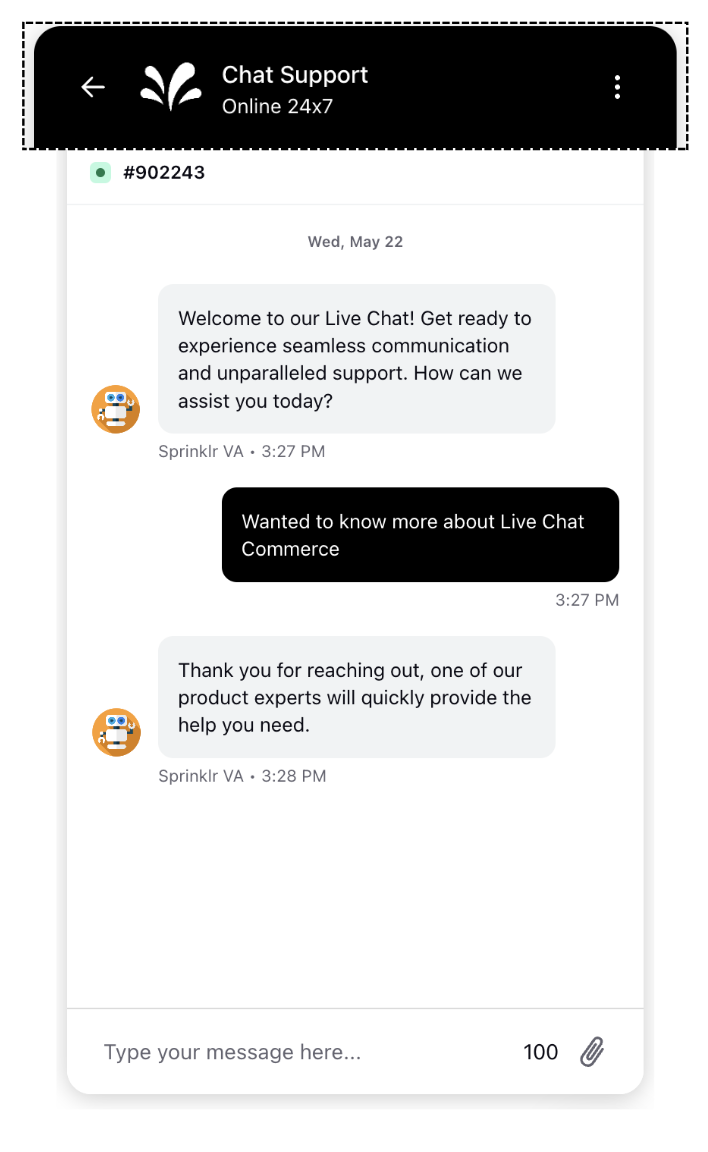
Back Button
By default, we show a chevron icon as shown in the screenshot above. If you want some other icon, please raise a support ticket with the appId and the button icon (in svg format).
Brand Logo
The brand logo that appears on the home screen will also be visible in the conversation screen header. If you wish to hide it, you can do so by raising a support ticket.
Title
In the conversation screen we have chat screen title. You can also change the font type by raising a support ticket containing the the appID and the font files in .WOFF format. This will change the font across the whole Live Chat application.
The Font color will be automically selected based on WCAG compliance

Dynamic Chat Header Titles
The Chat Header can be configured to dynamically update its title in real time based on the session type (bot or live agent). This ensures users have clear, contextual awareness of whether they are interacting with a bot or a live agent during the conversation.
For example, when a user is interacting with a bot, the header displays Live Chat – Bot Assistance. If the case is escalated to a live agent, the header automatically updates to Live Chat – Agent Assistance without requiring a page refresh.
 Note: To enable the feature, raise a support ticket at tickets@sprinklr.com and provide your Live Chat application ID and partner details.
Description
In the conversation screen we have Description box. You can also change the font type by raising a support ticket containing the the appID and the font files in .WOFF format. This will change the font across the whole Live Chat application.
The Font color will be automically selected based on WCAG compliance

Header Message
By default, we take the color set for the home screen. This was set in Styling section of Live chat Builder. If you want to have a different color for the conversation window, please raise a support ticket with the appId and the hex code of the color required.
Chat Actions
You can define what chat actions a user can perform from the Live Chat widget conversation screen which includes delete chat, close chat, save transcript and open a new conversation. Under the “Conversation Screen” tab, just go to the “chat actions” section and select the desired actions. Brands can set labels for the same and choose to enable a confirmation box.
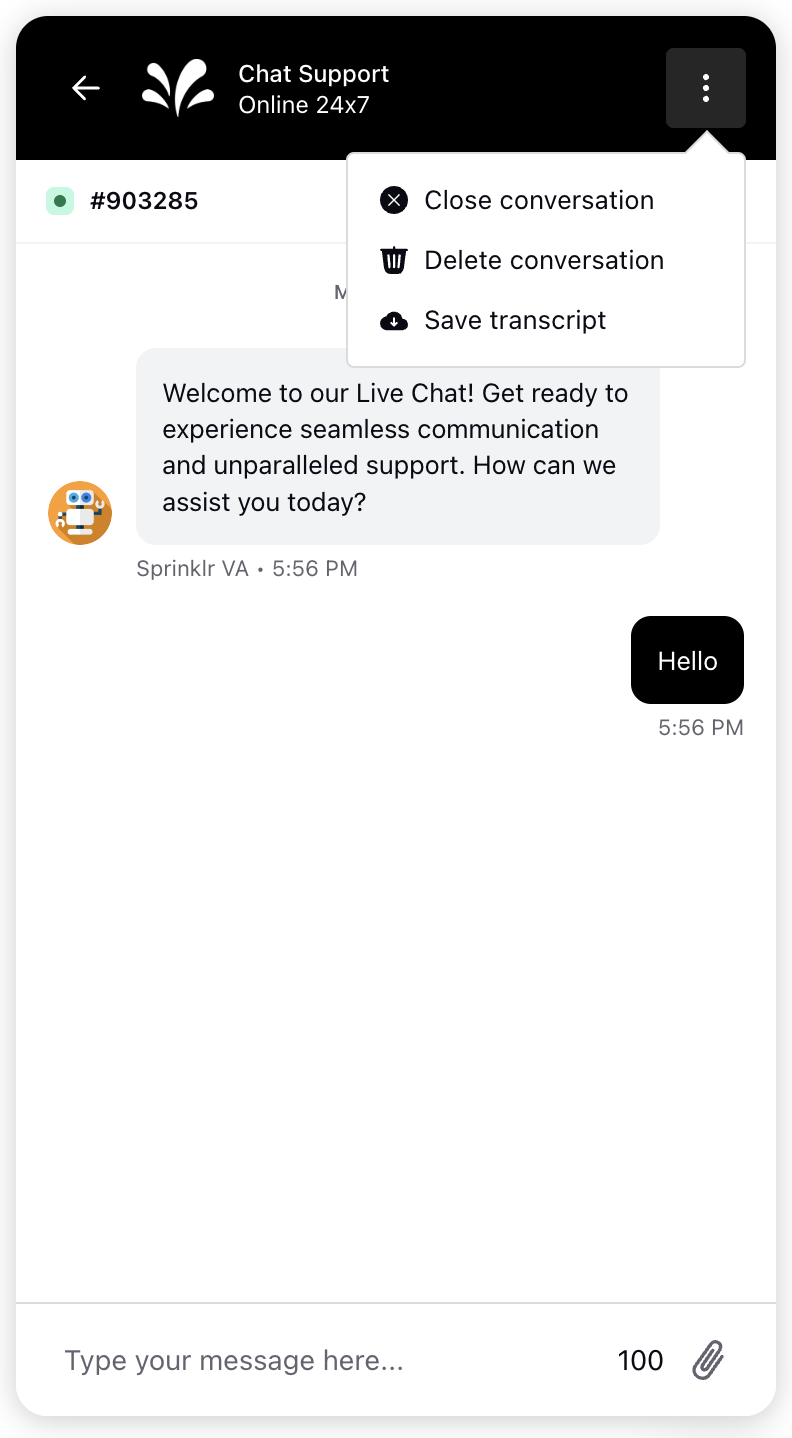
Note: To display header actions upfront (icons directly visible on the header), contact Sprinklr Support at tickets@sprinklr.com.
In the following example, the Minimize Live Chat icon is configured to be displayed upfront. Other chat actions can also be configured to appear upfront in the header.

You can run a rule on chat actions you define for the user. Brands can perform desired actions like unassign, set a CF and many more. To enable this, in the “Conversation screen” tab, under relevant chat action, choose “Select the rule to execute on new conversation action” and select the desired rule.
View All Conversations
The View All Conversations chat action allows users to access the complete list of past conversations from the three-dot menu in the Live Chat interface, even when the chat scope is set to conversation. This ensures users can revisit previous interactions without the home screen being triggered, maintaining a seamless experience within the current session.
To enable View All Conversations, follow these steps:
1. In the Live Chat Builder, go to Personalize Your Live Chat > Home Screen.

2. In the Actions section, click + Action, then select View All Conversations.

3. In the embed code for your Live Chat, add "scope": "MULTI_CONVERSATION".
For example:
window.sprChatSettings = {"appId": "681b01292df1935672c9f0a7_app_66123130","skin": "MODERN", // Options: MODERN or CLASSIC"scope": "MULTI_CONVERSATION" // Options: ALL, CONVERSATION}
Once enabled, View All Conversations appears when the user clicks the three-dot icon in the chat header, as shown below:

Chat Header Actions in Reply Box More Menu
By default, chat header actions such as Close or Delete Conversation appear under the three‑dot menu in the top‑right corner of Live Chat. Live Chat can also be configured to show these actions in the Reply Box More menu at the footer, making it easier for users to access secondary actions during a conversation.
Note: This feature requires backend configuration. To enable this feature in your environment, contact Sprinklr Support at tickets@sprinklr.com.