Guided Workflow Canvas
Updated
Use the Guided Workflow Canvas to design and manage workflows in Sprinklr. The canvas provides a visual workspace where you can add, configure, and connect nodes. Each node represents a specific action or decision in your workflow.
 Note: To view the description of a guided workflow, click the Info icon next to the workflow name in the canvas header.
Auto-Updating API Names Across Nodes
When you update the API name of a screen or its associated components, Sprinklr automatically updates all references to that API name across the guided workflow, including decision boxes, visibility conditions, and any other nodes where the name is used. This applies to values selected via a resource picker as well as those entered manually.
Note: This functionality is controlled by the Disable Auto Updating API Name toggle in GW Global Settings.
If there are no references to the updated API name
Update the API name in the Screen node.
Click Save.
The changes are saved, and the node closes.
If there are existing references to the updated API name
Update the API name in the Screen node.
Click Save.
A confirmation modal appears. It shows the number of places where the API name is referenced.Choose one of the following options:
Confirm changes: Saves the updated API name and updates the selected references.
Ignore changes: Saves the updated API name and does not update the references.
Note: If you update multiple API names in the same Screen node, all affected references are listed together in a single confirmation modal.

Steps to add a Node
To add a node to the canvas, click the Plus (+) icon. A menu appears with the available node types:
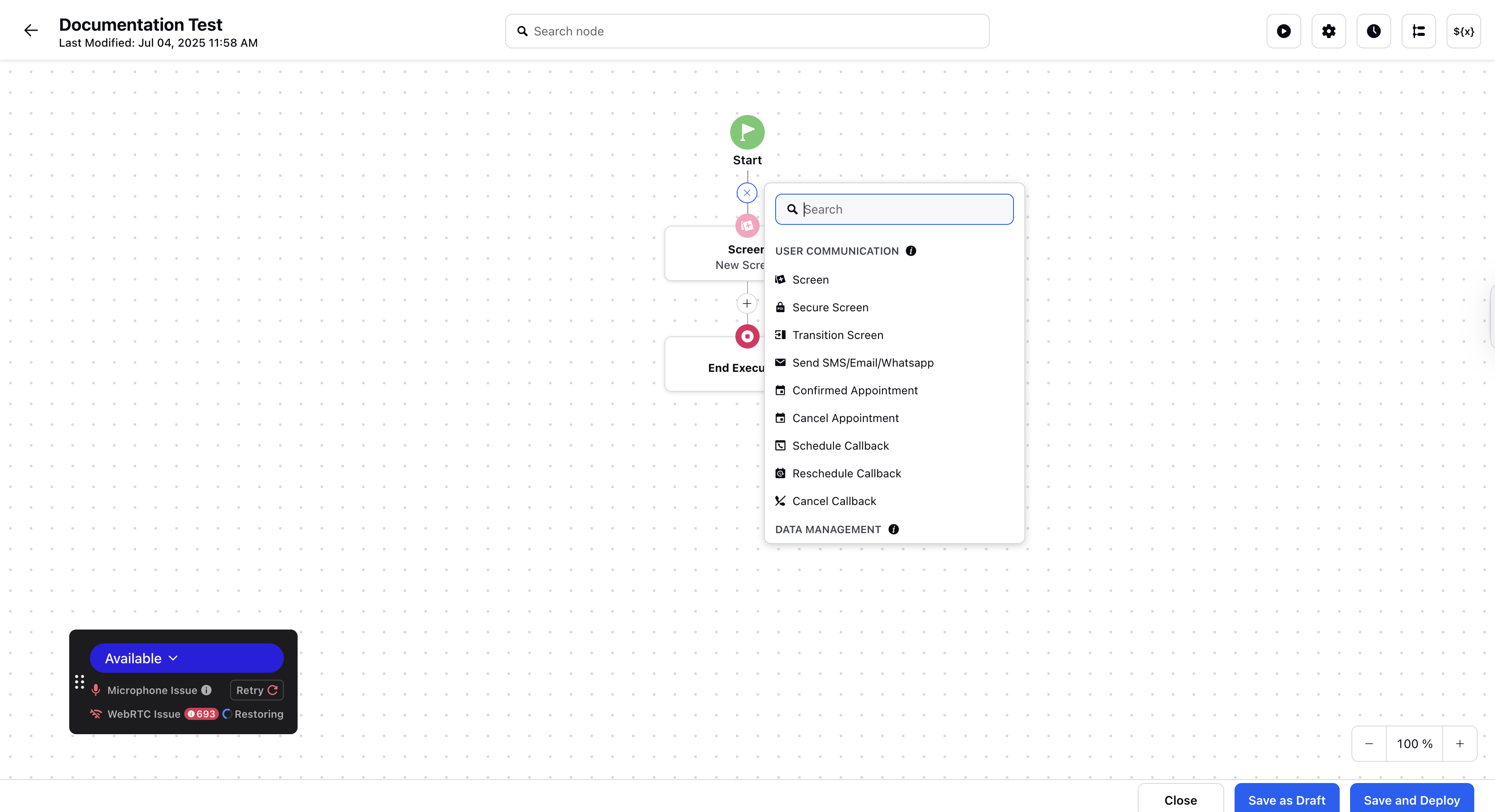
To explore actions, simply browse through the menu to discover a variety of options you can add to your workflow. These include:
User Communication Elements: These elements serve the purpose of communicating a message, update, or any other details to the user executing a guided workflow. The component elements include a screen, a secure screen, a transition screen, a send SMS/email/WhatsApp, a confirmed appointment, a cancelled appointment, a scheduled callback, and a rescheduled callback.
Data Management Elements: These elements serve the purpose of managing data records in Sprinklr’s internal database or via third-party APIs. The component elements include Get Records, Update Records, Create Records, Count Records, Delete Records, and Add API.
Workflow Logic Elements: These elements serve the purpose of determining the logical actions to be taken within a workflow. The component elements include – Update Properties, Decision Box, Call Another Guided Workflow, and Embed Guided Workflow.
Profile Management Elements: These elements serve the purpose of managing the actions to be taken on the user profiles while executing a guided workflow. The component elements includ Profile List Change, Add Auth Profile To Case, Merge Profile, and Add to Suppression List.
System Actions Elements: These elements serve the purpose of performing actions, such as assignments, transfers, custom field updates, etc., on the case on which the guided workflow is being executed. The component elements include – Execute Action, Custom Fields Action, Add or Remove from Queues, Add Note, Work Queue Properties, and Assign Case.
Other Actions Elements: The component elements includ Create Support Case, Generate Document, Create External Workflow URL, and Create Customer Session.
Note: Click on the title of each element for detailed knowledge.
Actions on a Node
In the Guided Workflow canvas, you can perform multiple actions directly on a node to edit, manage, or reposition it within the workflow.
Quick Actions
Hover over a node card to access the following options:
Edit Element – Modify the configuration and properties of the selected node.
Delete Element – Remove the node from the workflow.
Additional Node Actions
Click the Options (⋯) icon on a node to access the following actions:
Delete Element with Subtree: Deletes the selected node along with all its child nodes.
Move Element with Subtree: Moves the node and its entire subtree to the end of another branch.
Move Single Element: Moves only the selected node to a new position within the workflow, except directly above or below its current location.
Copy Element with Subtree: Copies the node and all child nodes, allowing you to paste them at the end of the workflow or into another Guided Workflow.
Copy Single Element: Copies only the selected node and allows you to paste it anywhere in the workflow.
Skip Node: Skips the execution of the selected node during workflow runtime.
Disconnect Subtree: Disconnects the node and its child elements from the workflow. These elements can be reconnected later if required.

Mini‑Map View
The mini‑map view, located at the bottom‑left of the guided workflow canvas, provides a compact overview of the entire workflow. It allows you to quickly navigate large and complex workflows by clicking on any section of the mini-map to jump directly to that area. This helps you stay orientated and manage workflows more efficiently without excessive scrolling.

Watch Tutorials
Each node category includes built‑in tutorials to help you understand how nodes work.
Click the Information (ℹ) icon next to the node category.
Select Watch Tutorial to view a video walkthrough.
Tutorials are available at both the category and node levels.

Workflow Execution Settings
Enable Progress Bar
Use the Settings icon at the top of the canvas to enable a progress bar. The progress bar visually represents how far an agent has progressed in the workflow.
Note: The progress bar applies only to agent‑facing Guided Workflows executed in the Quick Window.

Enable Progress Timeline
When enabled, the progress timeline shows a step‑by‑step view of executed and pending workflow screens.
Note: The progress timeline is supported only for agent‑facing Guided Workflows executed in the Quick Window.
Enable Screen Telemetry
Screen Telemetry captures insights into how agents interact with guided workflows, such as the following:
Scroll depth
Button clicks
Time spent on each screen
These insights help identify workflow bottlenecks, optimise user experience, and improve productivity through data‑driven decisions.
Version History
The Version History feature lets you view all previously saved versions of a Guided Workflow in one place. From the version list, you can:
Preview earlier versions
Restore a previous version
Compare two versions using the version comparator.
This helps you track changes and safely evolve workflows over time. 
Execute Guided Workflow
You can execute the guided workflow directly from the canvas:
Click Execute.
Select Entity Type as Case.
Enter the Case Number.
Click Execute.

Manage Resources
The Manage Resources section allows you to:
View all variables created within the guided workflow.
Create new variables
Edit existing variables
To make a variable reportable, edit the variable and mark it as Available for Reporting.
Create New Resource
Click Create New Resource to define a new variable by specifying:
API Name
Data type
Permissions (Available for Input, Output, Reporting, and Multivalued)
Activity Log
The Activity pane provides a detailed log of all changes made to the Guided Workflow. It records:
What was changed
Who made the change
When the change occurred
This helps with auditability and collaboration.
Reports
The Reports pane displays usage and execution metrics for the Guided Workflow. You can select a specific time range to view:
Execution count
Usage trends
Completion metrics
Save and Deploy Options
Save as Draft: Saves workflow changes without deploying them.
Save and Deploy: Deploys the workflow and makes it available for execution.
Note: If the Guided Workflow exceeds the maximum size limit of 16 MB, the system displays a clear error message explaining why the save or deploy action failed and how to resolve it.