Setting Up Adhoc Standard Live Chat Survey Distribution
Updated
Live Chat Standard Survey Distribution in Sprinklr sends customers a link to an external survey after a chat ends, rather than embedding questions in the chat. It’s easy to set up, supports complex survey designs, and ensures a consistent experience across channels.
Business Use Cases
Post-Chat Feedback Automation: Helps organizations to gather customer satisfaction and agent performance feedback consistently, without relying on manual follow‑ups or external survey links. By using automated survey triggers within their support platform, a workflow is configured to send a feedback survey immediately after a chat interaction is marked as resolved. The customer receives the survey directly within the same chat interface, allowing for timely, seamless, and context‑rich feedback collection while minimizing friction and operational effort.
Surveys delivered immediately after an interaction ends drive higher response rates by capturing feedback at the most relevant moment. Because customers remain in the same Live Chat interface without needing to switch channels, the experience stays seamless and interruption‑free. Automated triggering through the Rule Engine ensures surveys are consistently sent across all eligible conversations, reducing manual effort and improving reliability. Responses are also tied directly to the original chat context—agents, queues, and resolution details, resulting in richer, more actionable insights.
Prerequisites
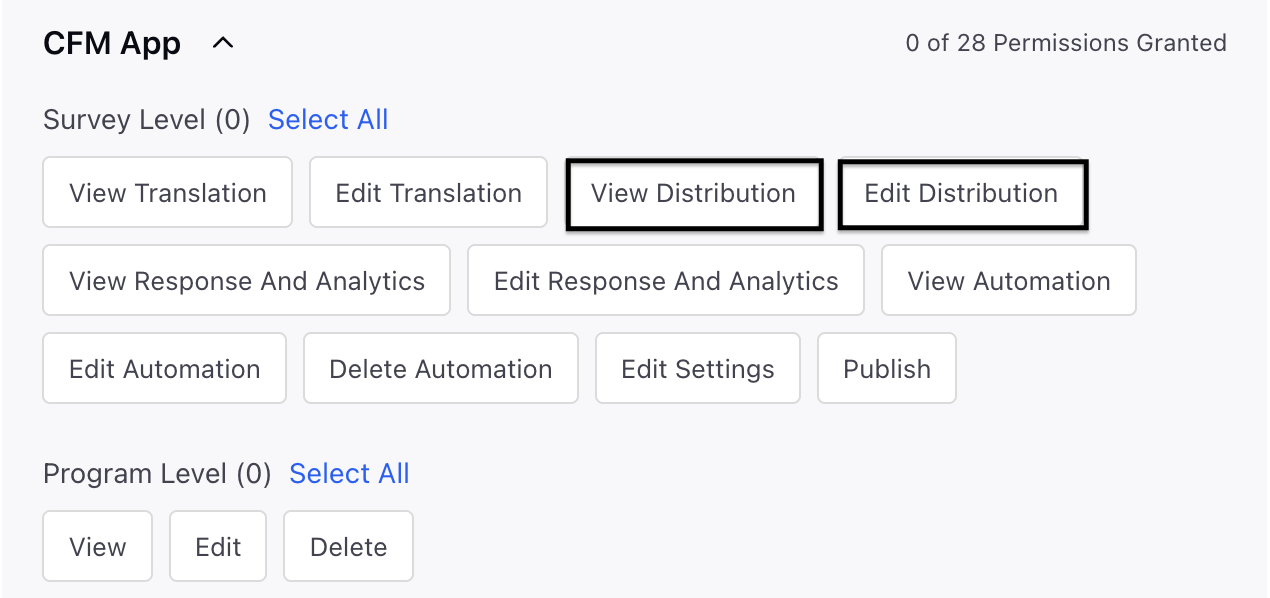
To access the WhatsApp distribution, you must have access to the following View and Edit Distribution permissions at the Survey Level.
Setting Up Adhoc Standard Live Chat Survey Distribution
Let us have a look at the steps:
Navigate to the Survey and go to Distribution and click Create Distribution.

Select Sprinklr Live Chat and Create Now.

Go to select Distribution Details page and fill in the details in Distribution Details page:

Distribution Name: You can enter a meaningful name to the distribution.
Distribution Description: You can enter a meaningful description to the survey.
Survey Format: Select Standard Survey from the drop-down menu and click Next.
Go to Creative Page and fill in the details:

In the Invitation Creative section, select a Creative already created or you can click + Creative and create a new creative and click Next.
Go to Translations section and and navigate to the Translation Conditions section and establish guidelines for sending messages in the correct language according to the recipient's characteristics. If no suitable condition exists, the message will be dispatched in the survey's default language. Ensure that translations are set up prior to sending the message.

Navigate to the Language section and choose the language that has been selected and published for that survey from the drop-down menu. You can click + Translation to add new languages aswell and click Add and define the condition and click Next.


Go to Scheduling Section and fill in the details:

Go to Survey Link Setting section and fill in the details:
Start Date and Time: You have the option to choose the start date and time. If a specific time is not chosen, the survey will gather responses once the distribution is set up.
Expiration Type: Select the expiration type from the drop-down either Static or Dynamic.

Static: Set a fixed expiration date and time, after which the survey link will no longer be accessible.
End Date and Time: You can select the end date and time.
Limit submissions per respondent: You have the option to enable or add the permitted submissions.
Reset limit after time interval: You can also adjust the reset limit after a specified time interval to refresh the limit and include the frequency.
Dynamic: Set the survey to expire based on when it is sent, ensuring each recipient has the same response time.
Expires After: You can select the expiry time and frequency.
Allowed Submissions: You can add the number of allowed submissions.
Reset limit after time interval: You can also adjust the reset limit after a specified time interval to refresh the limit and include the frequency.
Navigate to Distribution Tagging and choose the custom field and values. Set up custom tags for reporting associated with this distribution and click Save.
Click Go to Rule Engine in the pop-up. This distribution type can only be triggered through Case update Rules. To use it, create or edit a case update rule and add a CFM Survey Action.

Click + Create New Rule to create a rule and use it for this distribution. You need to configure the CFM survey with the appropriate condition as an action within the Rule Engine. To ensure this step is completed, the system will provide helpful nudges directing you to the Rule Engine so you can add the required CFM action.
Configure Rule Engine
Navigate to Rule engine and create a new Case Update Rule by selecting content as “Case Update”.


You can configure Rule Engine actions to automatically send survey invites messages based on case events and evaluation logic.
Steps to Configure a CFM Survey Action:

Add a new action to your rule.
Provide a name for the action.
In the right-hand pane, go to Actions to CFM Survey.
Select Trigger Survey Invitation action.
How to use it?
Monitor distribution metrics from the distribution Record Manager as the respondents start filling the survey and view distribution Report.
You can test it by using the available preview options in Sprinklr. While Sprinklr Live Chat does not currently offer a direct “test” feature, users can preview how the distributed message will appear within the Live Chat interface. The survey builder also provides a way to test the survey experience itself. To fully test the end‑to‑end Live Chat distribution flow, you can create a test distribution using a dedicated testing Live Chat application within Sprinklr.
Link for Testing:
https://live-chat-static.sprinklr.com/test-html/index.html?appId=68b6a60cc5892e048461a28a_app_66131287&env=qa6
Simply replace the appID with the app ID for the Sprinklr Live Chat Application and update env with the env on which your setup exists. This will help you create cases from LiveChat in the required environment.
Record Manager Columns & Metrics
Refer to these article for details on the columns and metrics available for Social DM distribution.
How to use it?
Users can also perform the following actions on the record manager.
Key points to note
Currently we have limited Text Formatting available for Livechat channel.
We do not support image in the LiveChat invitation messages.
Best Practices
Clear and Concise Messaging: Keep messages brief and easy to understand.
Avoid Spamming: Since Sprinklr Live Chat is a 100% Rule based trigger, please ensure the setup isn't spamming the livechat conversation before piloting the project on actual cases.
FAQs