Setting up a Case Update Rule triggered Social DM distribution
Updated
This article describes how to create and configure a Social DM Distribution for sending survey invitations within private social care conversations in Sprinklr Service. The distribution defines the survey invite, delivery settings, and scheduling for post-care feedback. Creating the distribution is a required step, but surveys are sent only after a rule is configured to trigger the distribution based on defined social care conditions.
You can create and configure a Social DM Distribution to send post‑care surveys directly within ongoing social care direct message conversations. When triggered by rules, survey invitations are delivered seamlessly in the same DM thread, ensuring timely and contextual feedback collection. The setup also provides clear visibility into delivery, engagement, and response metrics for Social DM surveys, helping teams measure effectiveness and optimize future interactions.
Business Use Case
You can refer to the overview article for more details on use cases and value additions.
Social DM Distribution enables context‑aware feedback collection by triggering surveys directly within active social care conversations, ensuring relevance and continuity. It offers centralized distribution management, with Social DM distributions configured and monitored from the same Distribution RM used across other channels. Additionally, it provides actionable distribution insights, with built‑in metrics that track invite delivery, engagement, and survey completion to give teams full visibility into post‑care performance.
Prerequisites
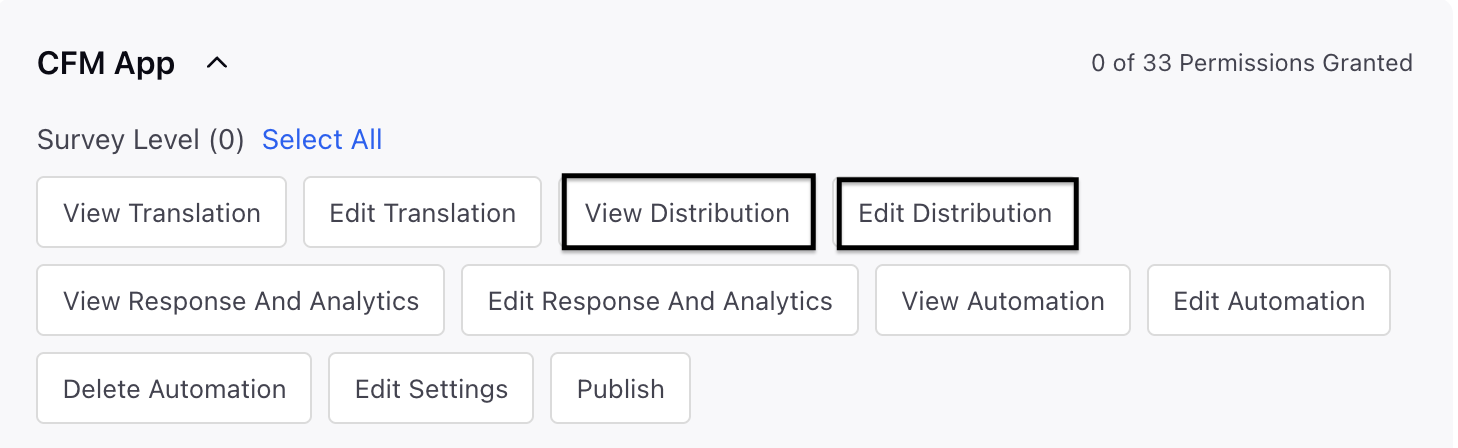
To access the Email Distribution, you must have the following View and Edit Distribution permissions at the Survey Level.
Setting Up Social Direct Message
Navigation steps are enlisted below.
Go to the Customer Feedback Management Persona App and then access a Survey.
Once you open the survey, click Distribution.
Go to Create Distribution and then navigate to Social.

Select Social Direct Message (DM).

Go to the Details section and fill in the details:

Distribution Name: Provide a meaningful name to the distribution.
Distribution Description: Enter a description of the distribution.
Survey Format: The survey format selected will be Standard or Conversational , and click Next. Kindly take note of the information below
For conversational surveys, the response validations, timeout settings, and thank you messages are selected from the conversational surveys within the survey builder.
The supported question types include single select multiple choice questions, multiple select multiple choice questions, text fields, Net Promoter Score (NPS), Customer Satisfaction Score (CSAT), matrices, and rating scales.
Multi-statement CSAT, Matrix, and Rating Scale questions are broken down and shown as separate questions in the conversational flow.
Question types that are not supported consist of MCQs with an "Other" option and text box, Text/Media, File uploads, Audio/Video, Heatmaps, Conjoint analysis, and Rank order.
Question types that are not supported have been eliminated from the survey to enhance the conversational experience.
Go to the Creative section and configure the Creative for Survey Invitation message:

Social Media Platform: Select a social channel from the drop-down either X or Reddit.
Invitation Creative: You can select an invitation creative or create a new creative inline and click Next.
You can Preview the survey invitation after selecting it.

Creatives created inline during distribution setup are automatically saved in the Creative Library for reuse.
Navigate to the Translation Conditions section and establish guidelines for sending messages in the correct language according to the recipient's characteristics. To determine the distribution language, you can set a condition by choosing from Profile or Case Custom Fields, along with their corresponding operator and value. If there isn't a condition that fits, the message will be sent in the survey's default language. Ensure that translations are set up prior to sending the message.
By default the language dropdown menu shows all the languages available as translations for the survey to indicate the languages in which translation need to be setup for distribution. But you can always add another language making the distribution setup independent from survey setup. As you select the languages, you can now setup translation logic by defining
Language: Select the language you want to assign for the recipient.
Controlling fields: Select amongst the Profile or Case Custom Fields and respective operator and the value to define the language of the distribution.
You can click + Translation to add new languages aswell and click Add and define the condition and click Next.

 Note:
Note: When translation conditions resolve to a specific language, the survey link opens in the same language as the invite.
If no language is resolved, the invite is sent in the base language and the survey opens in the browser language.
If the browser language cannot be determined and no translation conditions are defined, both the invite and the survey default to the base language.
Go to Scheduling section and fill in the details:

Go to Survey Link Settings and fill the details:
Start Date and Time: You can select a date and time. If no specific time is selected, the survey will collect response once the distribution is created.
Expiration Type: You have the option to determine the duration for which the survey link will be valid after distribution. Choose either "Static" or "Dynamic" from the provided menu.

Static: You can set a fixed expiration date and time, after which the survey link will no longer be accessible.
End Date and Time: You can select the end date and time.
Limit submissions per respondent (For Standard Format only): You can activate or include permitted submissions. Additionally, you can control the submission restriction per respondent by enabling or disabling it, and you can also define the maximum number of submissions each respondent is allowed. By default, each recipient is limited to a single response.
Furthermore, you have the flexibility to enable or disable the resetting of the submission limit following a set time, and you can adjust this limit according to the number of days.
Reset limit after time interval: You can also adjust the reset limit after a specified time interval to refresh the limit and include the frequency.
Dynamic: Dynamic Expiry calculates the expiration time for each respondent's survey link individually, based on when they receive it.
For example, if a dynamic expiry of 1 day is set and a respondent receives the link at 10 AM on June 4th, the link will expire at exactly 10 AM on June 5th, regardless of when the distribution was initially created. This feature offers precise control over response windows and can be configured within the survey settings, allowing you to set the survey to expire relative to the send time, thus guaranteeing each recipient the same response period.
You can configure dynamic expiry in:
Hours (1–24)
Days (1+)
Expires After: You can select the expiry time and frequency.
Limit Submissions per respondent (For Standard Format only): You can either enable or disable the restriction of submissions per respondent, and you can also set the maximum number of submissions allowed for each respondent. (By default, each recipient is limited to one response.)
You have the option to enable or disable the resetting of the submission limit after a specified time interval, and you can configure the limit in terms of days.
Allowed Submissions: You can add the number of allowed submissions.
Reset limit after time interval: You can also adjust the reset limit after a specified time interval to refresh the limit and include the frequency.
AI-powered conversations (Conversational format only): Enable this toggle to have AI powered conversational survey experience.\
Enable AI toggle to allow AI to reframe survey questions with a human and conversational tone.
If this is enabled, the experience becomes similar to that listed in conversational surveys - i.e. the questions are dynamically modified based on the response to the previous question.
For open-text responses, AI will trigger follow-up questions based on predefined objectives configured in the survey builder.
Navigate to Distribution Tagging where you can pre-fill any survey response field for all response that would be received from the survey link sent through this distribution. This helps in analytics and response workflows. You can configure multiple fields using the plus icon.
Note: Social DM Distributions support trigger‑based scheduling only, with no other scheduling types available. Sender account selection is not required, as surveys are automatically sent from the same social account used in the service conversation, ensuring seamless and consistent delivery.For Reddit, a subreddit account sends surveys in modmails, while a Reddit account sends surveys in private messages.
Setting up Case update Rule: Click Go to Rule Engine by clicking the pop-up. This distribution type can only be triggered through Case Update Rules by selecting content as “Case Update".

Click + Create New Rule to create a rule and use it for this distribution. You need to configure the CFM survey with the appropriate condition as an action within the Rule Engine. To ensure this step is completed, the system will provide helpful nudges directing you to the Rule Engine so you can add the required CFM action.
CFM Survey Conditions
You can configure CFM survey conditions in the Rule Engine before triggering other actions based on the invite status, response status, or time elapsed since a survey invite was sent. Steps to Configure a CFM Survey Condition are as follows:

Click the + Option and select Add Condition.
In the Edit Condition page fill in the details:
Name: Add a meaningful name to the condition.
In the right-hand pane, go to Conditions Applies to CFM Survey.
Select one of the following condition types to trigger follow-up actions.
CFM Survey Actions
After establishing your survey conditions, you have the ability to set up Rule Engine actions. These actions will automate the sending of survey invitation messages, which are triggered by case events and guided by evaluation logic. Here are the steps to configure a CFM Survey Action:

Click the + Option and select Add Action.
In the Edit Action page fill in the details:
Name: Add a meaningful name to the action.
In the right-hand pane, go to Actions to CFM Survey.
Select Trigger Survey Invitation action:
How to use it?
After setting up and turning on Social DM Distribution, surveys are automatically sent out according to the criteria set in the social care process. You can handle and keep an eye on these distributions from the main Distribution Record Manager.
To validate a Social DM Distribution, first ensure there is an active test case available for the social channel where the survey will be distributed. Then trigger the configured workflow or rule on that case and verify that the survey invitation is delivered within the same DM thread, the survey link opens correctly, and the distribution metrics are updated accordingly.
Record Manager Columns & Metrics
Refer to these article for details on the columns and metrics available for Social DM distribution.
Distribution Level Quick Actions
Action | Permissions Required | Description |
View | View distribution | View distribution in read only mode |
Edit | Edit distribution | Edit distribution configuration
|
Delete | Delete Distribution | Delete a created distribution
|
Clone | Edit distribution | Clone a distribution. |
Pause/Pause All | Edit distribution | The pause feature allows you to stop the distribution immediately if issues arise, halting any further invites from being sent.
|
Distribution Reports
The Distribution Report provides a detailed view of survey invitation and response activity for Social DM distributions. It helps you track invitation delivery, survey participation, and response progress, while also offering filtering, search, column management, sorting, and export capabilities for deeper analysis.
Field | Description |
Name | Name of the survey participant or recipient. |
Username | Social media username associated with the recipient. |
Invite Status | Current status of the survey invitation (for example, Sent, Delivered, Failed, or Pending). |
Response Status | Indicates whether the recipient has started, completed, or not responded to the survey. |
Invite Sent Time | Date and time when the survey invitation was sent. |
Survey Start Time | Date and time when the recipient began the survey. |
Survey Response Time | Date and time when the survey response was submitted. |
Survey Filled Language | Language in which the survey was completed. |
Response ID | Unique identifier assigned to the survey response. |
Invitation Status Details | Additional information about the invitation status, including delivery or failure details. |
Key points to note
Currently URL shorteners are not supported for survey URL and unsubscription links in the Reddit creative
Survey reminders and Thank You messages are not supported for Social DM distributions.
To validate the Social DM Distribution:
Ensure an active test case is available for the social channel where the survey will be distributed.
Trigger the configured workflow or rule on the test case.
Verify that:
The survey invitation is delivered within the same DM thread.
The survey link opens successfully.
The distribution metrics are updated correctly.
Best Practices
Trigger surveys only after the customer issue is fully resolved to ensure feedback is timely and relevant.
Keep the survey invitation message short and conversational so it fits naturally within a DM conversation.
Always ensure the customer has initiated the conversation, as Social DM surveys cannot be sent otherwise.
Include an opt-out option where possible to respect customer preferences.
Configure appropriate expiry dates and submission limits to avoid collecting outdated or duplicate responses.
Test the distribution in a controlled or low-volume workflow before activating it broadly.
Monitor invite failures, engagement, and completion metrics regularly to identify and address issues.