Setting Up the Website Distribution
Updated
This feature enables you to create and manage website surveys with seamless integration through LiveChat. It offers a flexible setup, allowing surveys to be triggered based on specific conditions, making it easy to gather real-time feedback from website visitors. Additionally, it supports performance analysis across different creative formats, languages, and devices, providing actionable insights to improve user engagement and survey effectiveness.
Please refer to the Website Distribution article for examples of use cases and additional benefits.
Prerequisites
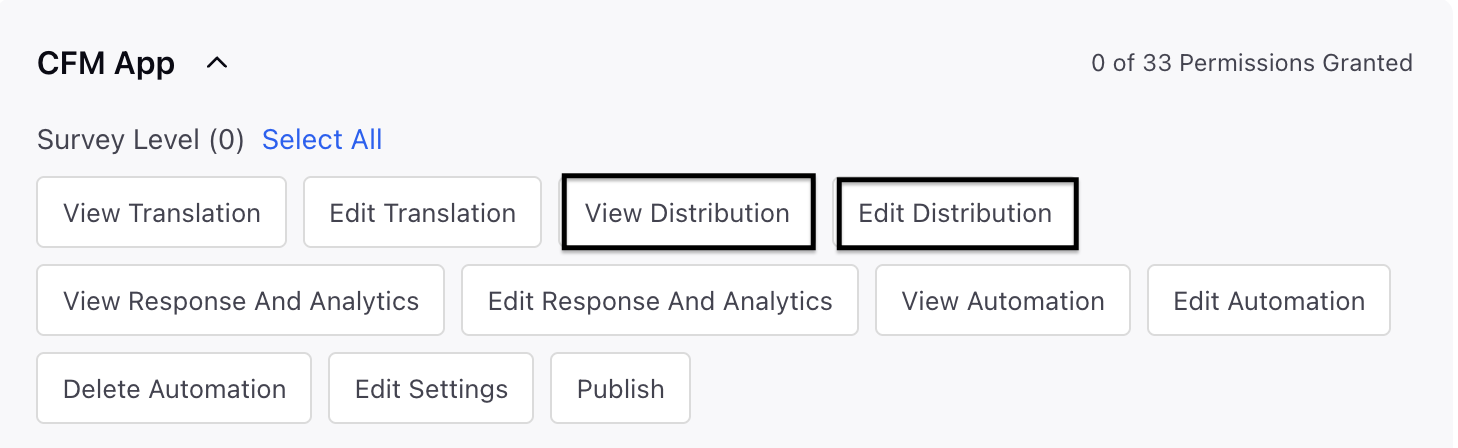
In order to access the Website Distribution, you must have the following View and Edit Distribution permissions at the Survey Level.
Setting Up Website Distribution with Trigger Conditions
Navigate to the Distribution sections.
Click Create Distribution and select Website distribution.

Go to Details page and fill in the details:

Distribution Name: Enter a meaningful name.
Description: Add a meaningful description.
Live Chat Application: You can either select an existing Live Chat or create a new one (proactive prompts associated with Live Chat will also appear in the dropdown). If an existing Live Chat is selected, you can view other surveys linked to that Live Chat.
 Note: Selecting a LiveChat application here does not display a live chat widget on the website. It simply associates the proactive prompts with the embed code needed to deploy the survey on your website.
For creating a new Live Chat application follow these steps, click Create New and go to New Live Chat Application page:

Name: Please provide a meaningful name for the Live Chat.
Note: The live chat name is not editable later.Website URL: To operate the web application on particular websites, choose them from the list. If no websites are selected, it will function on all sites where the code is integrated.
Note: Choosing a live chat application here does not display a live chat on the website; it merely links the proactive prompts to the necessary code for embedding the survey on the site where responses will be gathered.
Go to Intercept Setup and fill in the details to select creative and triggers.

Go to Select Creative section and select a creative.
Access the Creative section. You can then either develop a new creative or select one from the existing options.
Go to Select Trigger section and define the trigger condition for the creative to display. Fill the details as below:
Trigger Type: The default trigger type is Condition Based.
Trigger Condition: You can specify the criteria and select the values. Choose the field, operator, and value; you also have the option to add more conditions.
You can click + Add Condition and + Add Condition Group to define additional conditions and condition group and click Next.
Profile Custom Fields as Conditions: You can now use profile custom fields (passed through the SDK or authentication) as intercept condition triggers. For example, target a survey only to visitors whose customerTier equals "Enterprise."
Please navigate to the Translation page to set up the Translation Conditions. To enhance the end-user experience for Website Surveys, translations will primarily be determined by the browser's preferred language. Should the system be unable to detect the browser's preferred language, the content will then be delivered in the base language.

For Translations management, please ensure that the required languages are also added in the LiveChat application under languages head.

Navigate to Scheduling page and fill in the details:

Navigate to the Intercept Activation Details section and then configure the start date, time, and end date.

Start Date and Time: Date and time from which the intercept becomes active on your website.
End Date: Date and time at which the intercept becomes inactive.
Business Hours: Specific days or duration of day when the intercept should be active.
Timezone: Timezone for the start and end dates.
Navigate to Distribution Sampling section where you can define the sampling for the distribution on a scale of 100. Toggle Enable Distribution Sampling and specify the Distribution Sampling Rate, which determines the percentage of all eligible recipients who will be included in this distribution. The sampling is always randomized.

Access the Distribution Tagging section to tag the distribution with static response fields. Every response from this distribution is tagged with the specified value, useful for multi-distribution reporting.

Click Save.
After saving the distribution, a pop-up window displays the embed code with a Copy Snippet option for website integration and provides access to the Intercept ID, which can be copied from the ⋮ (kebab) menu and used for SDK Manual Trigger configuration.
Note: Only one LiveChat code can be embedded per website. Note: Similar pop up to be supported when user selects embed code from the 3 dots in Distribution Record Manager for a website distribution.
Analyze Distribution Report: Once the surveys have been distributed, you can examine the metrics for the distribution created. By choosing "Distribution Report" from the kebab menu next to the specified Distribution, you can view essential metrics along with the embed code as outlined below:
Key Metrics

Adding embed code within the website
After creating a website distribution, click Vertical Ellipsis menu and select "Copy Embed Code." Then, paste the embed code into your website's HTML to begin triggering surveys for visitors.
Analyse Distribution Report
After surveys are distributed, view metrics for each distribution by selecting Distribution Report from the ⋮ menu on the distribution row.
Name | Metric/Dimension | Description |
Survey Started Count | Metric | Number of times visitors started the survey. |
Survey Response Count | Metric | Number of completed survey responses received. |
Survey Completion Rate | Metric | Percentage of started surveys that were completed. |
Survey Abandonment Rate | Metric | Percentage of started surveys that were abandoned. |
Survey Engagement Rate | Metric | Percentage of visitors who engaged with the survey creative. |
Creative Triggered Count | Metric | Number of times the creative was displayed to visitors. |
Key points to note
Single LiveChat Code Per Website: Only one LiveChat code can be embedded per website; manage multiple distributions accordingly.
Load Time Theme: The loading screen currently uses the default white-background theme only. Custom theming for the loading screen is planned for a future release.
Cart Integration: Cart data is passed via response custom fields and requires implementation by the development team using the metadata enrichment pattern.
Best Practices
Ensure Proper Placement of LiveChat Code: Double-check that only one LiveChat code is embedded per website to avoid conflicts.
Test Across Devices: Make sure to preview the survey on multiple devices (desktop and mobile) to ensure responsiveness and optimize the user experience.
Timing and Conditions Sensitivity: Ensure that intercept conditions are defined clearly to avoid surveys being triggered at the wrong time, which could negatively impact the user experience.
Test metadata enrichment: Verify that profile and response custom fields appear in responses and reports after enrichment.