Creating WhatsApp Business Assets
Updated
The Creative Library is a centralized asset management system in CFM that enables teams to create, manage, and reuse WhatsApp message assets across survey distributions and automated workflows. It allows message content, structure, language, and metadata to be defined once and consistently reused across both Standard and Conversational surveys. Each creative is linked to a specific WhatsApp Business Account and is validated against Meta’s template requirements before it can be used for distribution. The Creative Library supports multiple message types, including invitation, reminder, thank-you, and language selection messages, and enables personalization through variables, category selection (Utility or Marketing), permission-based access control, and safeguards against Meta template reclassification. By decoupling creative configuration from distribution setup, the Creative Library ensures consistent messaging across campaigns, faster survey setup without recreating content, and stronger governance through approvals, permissions, and reuse.
Business Use Case
Gathering Feedback Through a Conversational WhatsApp Survey: Organizations often need a simple and effective way to collect feedback after events, workshops, or engagements. When communication with participants already takes place on WhatsApp, a conversational WhatsApp survey offers a natural and efficient feedback channel. Participants can respond directly within the same chat thread, eliminating the need to switch platforms or open external links.
This in-chat, conversational approach provides a familiar and low-friction experience, which helps increase response rates and improve the quality of feedback. By capturing insights quickly and seamlessly, teams can better evaluate outcomes, identify improvement areas, and make informed decisions with minimal effort from participants.
A standard WhatsApp survey distribution is one of the available approaches for conducting WhatsApp surveys, and therefore delivers the same core value associated with WhatsApp-based feedback collection. However, a conversational WhatsApp survey extends this value by offering a more interactive experience, allowing respondents to complete the survey directly within the WhatsApp chat without navigating to an external link or platform, which reduces friction and improves usability. By presenting questions in a natural, chat-like flow, conversational surveys feel more intuitive and engaging, resulting in higher response and completion rates and encouraging participants to respond more promptly.
Prerequisites
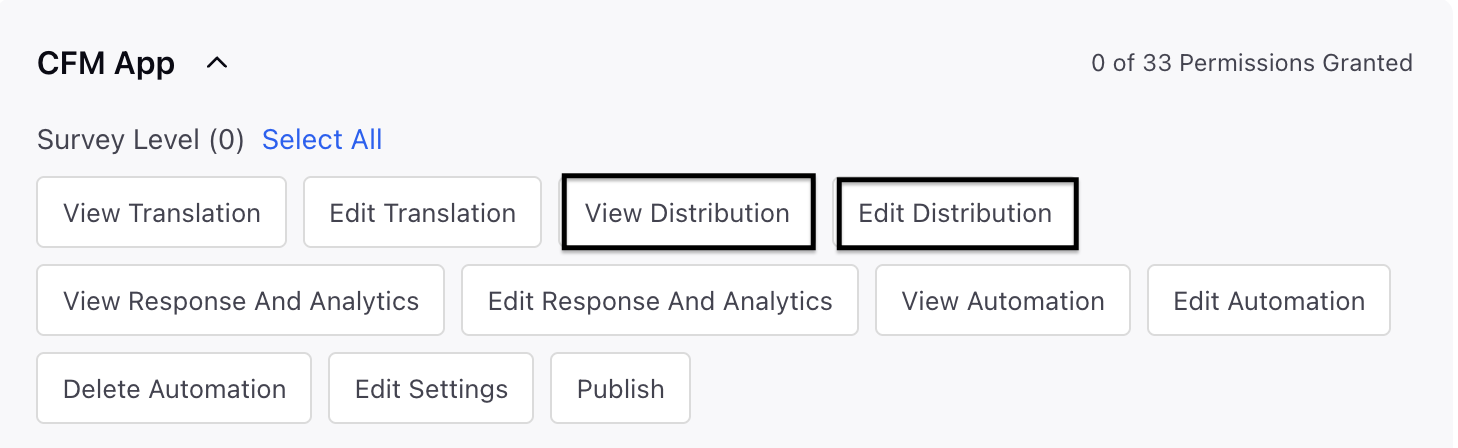
In order to access the WhatsApp distribution, you must have access to the following View and Edit Distribution permissions at the Survey Level.
Setting Up Creatives
Navigate to Customer Feedback Management and go to Creative Library in the left pane.

Click + Creative and select WhatsApp.


Go to the Details section and fill in the details:

Go to the Creative Details section and fill details:

Name: Add a meaningful name to the creative.
Description: Add a description to the creative.
Tags: Select the tags from the drop-down that would act as unique identifiers.
Go to the WhatsApp Message Detail Section and fill in the details:

WhatsApp Business Account: Select the WhatsApp Business Account from the drop-down under which the creative will be created (Mandatory).
 Note:
Note: When creating a WhatsApp distribution later, you will only be able to select creatives linked to the same WABA.
Once a creative is created, the WABA cannot be changed.
Survey Type: Choose the type of survey from the drop-down menu. You can select either a Standard Survey or a Conversational Survey.
Standard Survey: Sends a WhatsApp message with a survey link embedded in a button. The survey opens in a browser (in-app or external, depending on device and platform).
Conversational Survey: Starts a WhatsApp conversation where questions are asked one-by-one directly in chat.
Message Type: Choose the type of message from the drop-down menu either Standard or Conversation and fill in details related to Invitation Message, Reminder Message, or Thank You Message.
Standard Survey: For Standard Surveys, you can create three types of message creatives:
Invitation: The initial message sent to the customer, which includes the survey link.
Reminder: Reminder message are messages sent if the customer does not respond to the invitation. Identical configuration to the Invite Message.
Thank You: Sent after a response is received (Optional).
Conversational Survey: For Conversational Surveys, message creatives are configured slightly differently from Standard Surveys. Instead of standalone survey links, the entire experience happens within WhatsApp as an interactive conversation.
Invitation Message: This is the initial message sent to the customer and serves as the entry point for the conversational survey flow on WhatsApp. While its content and structure are similar to a Standard Survey invitation, it differs in delivery by starting the survey directly within the WhatsApp chat, rather than redirecting the customer to an external browser-based experience.
Reminder Message: This is sent if the customer does not respond to the Invitation Message. Configuration is identical to the Conversational Invitation Message. You can choose when and whether to trigger this message during distribution setup.
Language: Select the language in which the survey message should appear. If your survey supports multiple languages, you can configure a Language Selection Message to allow customers to choose their preferred language before continuing the survey. This step is particularly important for Conversational Surveys, as the entire interaction takes place within WhatsApp and the selected language determines the in‑chat experience. You can enable language selection in one of the following ways:
Interactive List (WhatsApp Native Dropdown): This option is recommended when supporting fewer than 10 languages and allows users to select their preferred language directly from a dropdown menu.
Reply by Number (Numeric Input): This option is recommended when supporting more than 10 languages and allows users to select their preferred language by responding with a number (for example, 1, 2, or 3).
Note: The Language Selection Message is automatically skipped if:
No translations are configured, or
The rule engine is configured to bypass language selection.
Completion, Timeout, and Validation Messages: These messages are not configured in the Creative Library and are instead managed directly from the Survey Builder. To configure them, navigate to the Survey Builder, switch the survey type to Conversational Survey using the left‑hand dropdown, and then customize the relevant system messages.
Completion Message: Completion Messages are sent after the customer answers all survey questions. Confirms that the survey has been successfully completed.
Timeout Message: Timeout messages are generated when a customer tries to submit a response after a survey has expired or timed out, or when their submission can no longer be processed.
This message is triggered only as a direct response to customer-initiated communication.
Timeout messages are not sent proactively when a customer does not respond, except in reminder-based survey workflows.
Because the message is sent in response to a customer action, it is not subject to Meta messaging charges.
The message informs the customer that the survey has closed and is no longer available for completion.
Validation Message: Validation Messages are sent when the customer provides an invalid response.
Example: Entering free text when a numeric response (such as 1–10) is expected.
Allows the customer to re-answer the question correctly.
Select Language: Choose the language in which the message content will be written.
This language is tied to distribution language.
If you plan to distribute surveys in multiple languages, you must create separate creatives per language.
Element Name: Choose a name for the element. The Element Name represents how your asset is saved in WhatsApp Business Manager. It needs to be unique and should not include any spaces. Use 'Validate' to verify its availability.
Important distinction:
Creative Name: Used only inside Sprinklr.
Element Name: Used to search, manage, and audit the template inside Meta Business Manager.
Category: Choose either Utility or Marketing from the drop-down menu.
Utility is strongly recommended for survey workflows due to:
Lower costs
Better delivery reliability
Ability to send messages within active service windows
Meta Reclassification Safeguard (Optional): Meta may reclassify templates at any time based on content. Toggle the option to stop sending survey if Meta changes template category to prevent unexpected sends when the category is changed in future.
Note: Behavior: When enabled at the creative level, all future survey sends that use this creative are stopped. When enabled at the distribution level, only the selected distribution is stopped while others continue unaffected.
Recommendation: Use distribution‑level control when you need to selectively block a specific survey send. Use creative‑level control when you want to fully disable the creative asset across all current and future distributions.
If the control is enabled at either level, any subsequent survey sends will fail safely, ensuring no messages are delivered unintentionally.
Go Creative Permissions section and select the details:
Set User Permissions: You can select the users and user groups and provide edit or view only permissions by clicking Add User(s).
Click Next and go to Configuration Page:

Auto Translate: You can access the auto translate option. The Auto-translation will overwrite all text in the selected version except the unsubscription keyword. You can check the local regulations for unsubscribe requirements. The default keyword “STOP” is always supported.
Go Message Header and fill the details:
Header Type: You can select header text from the drop-down menu options, including Text, Image, Video, and Document. To add header text, simply input the desired text, you can include up to 60 characters. Additionally, after choosing the header type, you can upload an image, video, or document.
Go to Body: You can write the message body (maximum 1024 characters), ensuring the content aligns with the selected template category, and note that the supported formatting options include bold, italics, and emojis.
Using variables (placeholders), you can personalize messages by inserting dynamic values into the content. Placeholder values are automatically populated when the message is sent.
Supported placeholder types include:
Profile Fields – Insert standard or custom audience profile attributes, such as name, email address, or other profile information.
Transaction Fields: Include transaction-related details associated with the survey.
Case (Service) Fields: Reference case-specific attributes for surveys and workflows linked to service cases.
Distribution Metadata: Insert system-generated values such as Survey Expiry Date and Current
Distribution Date to dynamically display date and time information.
Add Placeholders
You can add placeholders in either of the following ways:
Click Variable to insert a placeholder.
Manually enter placeholder tokens such as {{1}}, {{2}}, and so on.
For each placeholder:
Map the placeholder to a standard or custom field from Profile, Transaction, Case, or Distribution Metadata.
Provide Sample Content for each placeholder. This is required for Meta template approval.
Example
{{1}} → First Name
{{2}} → Custom Field: CFM Order ID
Note:Ensure that all placeholder values are available at the time the message is sent.
If any placeholder value is missing, Meta will reject the message delivery and the message will not be sent successfully.
Go to Footer: Footer text is optional but strongly recommended. The Creative footer includes a default, editable unsubscription message containing the keyword 'STOP'. While it's not mandatory to proceed, including an opt-out option is strongly recommended to respect respondents' privacy and ensure compliance with regional regulations. Applies across all languages (STOP must be in English).
Survey Link Button (Standard Only): You can customize the button label as required. Clicking the button opens the survey and starts the response flow.
Survey Start Button (Conversational Only): You can customize the button label as required. Clicking the button or typing the exact text starts the survey flow and may trigger either the first question or a language selection message.
Click Save.
Configure Creative Content (Language Selection): If your survey distribution is expected to includes multiple languages, you can configure a Language Selection Message to allow customers to choose the language in which they want to continue the survey conversation.
Sprinklr CFM supports two variants of the Language Selector Message:
Interactive List
Interactive List (Recommended for ≤ 10 Languages)
The Interactive List is a native WhatsApp capability that displays selectable options in a list-style menu.
How it works:
Customers tap a button to open a WhatsApp-native list.
They select their preferred language directly from the list.
The survey continues in the selected language.
Configuration details
Message Body (instructional text shown to the user)
List Button Label (the text that opens the language menu)
The list of languages is automatically populated based on the translations configured in the survey.
This option is available only when the survey has 10 or fewer languages.
If your survey has more than 10 languages, this option will not be available.

Reply by Number
Reply by Number (Recommended for > 10 Languages)
The Reply by Number option allows customers to select a language by replying with a numeric value.
How it works
The message displays a numbered list of available languages.
Customers reply with the number corresponding to their preferred language.
The survey continues in the selected language.
Configuration details
You can customize only the Message Body.
The list of languages is dynamically rendered based on the survey configuration.
This option supports surveys with more than 10 languages.

Key points to note: The Language Selector Message is shown only when:
Multiple languages are configured for the survey.
The rule engine does not explicitly skip language selection.
If no translations are configured, the Language Selector Message is automatically skipped.
Manage WhatsApp Creative
To manage WhatsApp Creative, click the Vertical Ellipsis against a creative and access the following:

Edit: You can select the edit option to modify the creative fields.
Add Translation: Within the Creative Library, you can manage translation workflows by adding, configuring, and previewing translations for assets.
Once you click on the Add Translations option, you will be directed to the Add Translation page where you can choose the desired language for translation from the drop-down menu. Additionally, make sure to check the auto-translate box before clicking Add.
Clone: You can make a duplicate copy of the creative by selecting clone.
Delete: You have the ability to remove the content that has been created.