Define Tasks and Tools in Agent Copilot
Updated
In this step, you will define what your Agent Copilot can do by configuring Tasks and Tools. Tasks are collections of actions your Copilot performs in specific scenarios, while Tools are the building blocks of those tasks, essentially, individual micro-capabilities like fetching data or processing text.
Click the expand button inside Define Tasks and Tools and start defining tasks, then proceed to create or manage the required Tools.

Create a Task
Tasks define the context-specific actions your Copilot will perform. You can create a task from scratch or use existing templates. This section walks you through creating a task manually.
Follow these steps to create a Task from scratch:
On the Tasks Manager screen, click the Add Task button in the top-right corner. The New Task screen opens.

In the Task Description section, fill in the following fields:
Name: Enter a descriptive name for the task.
Task Category: Specify a category to help organize tasks.
Description: Provide a summary of the task's purpose.
Proactive Mode: Enable this option to make this task proactive. The entire proactive setup will require further configuration depending on the use case.
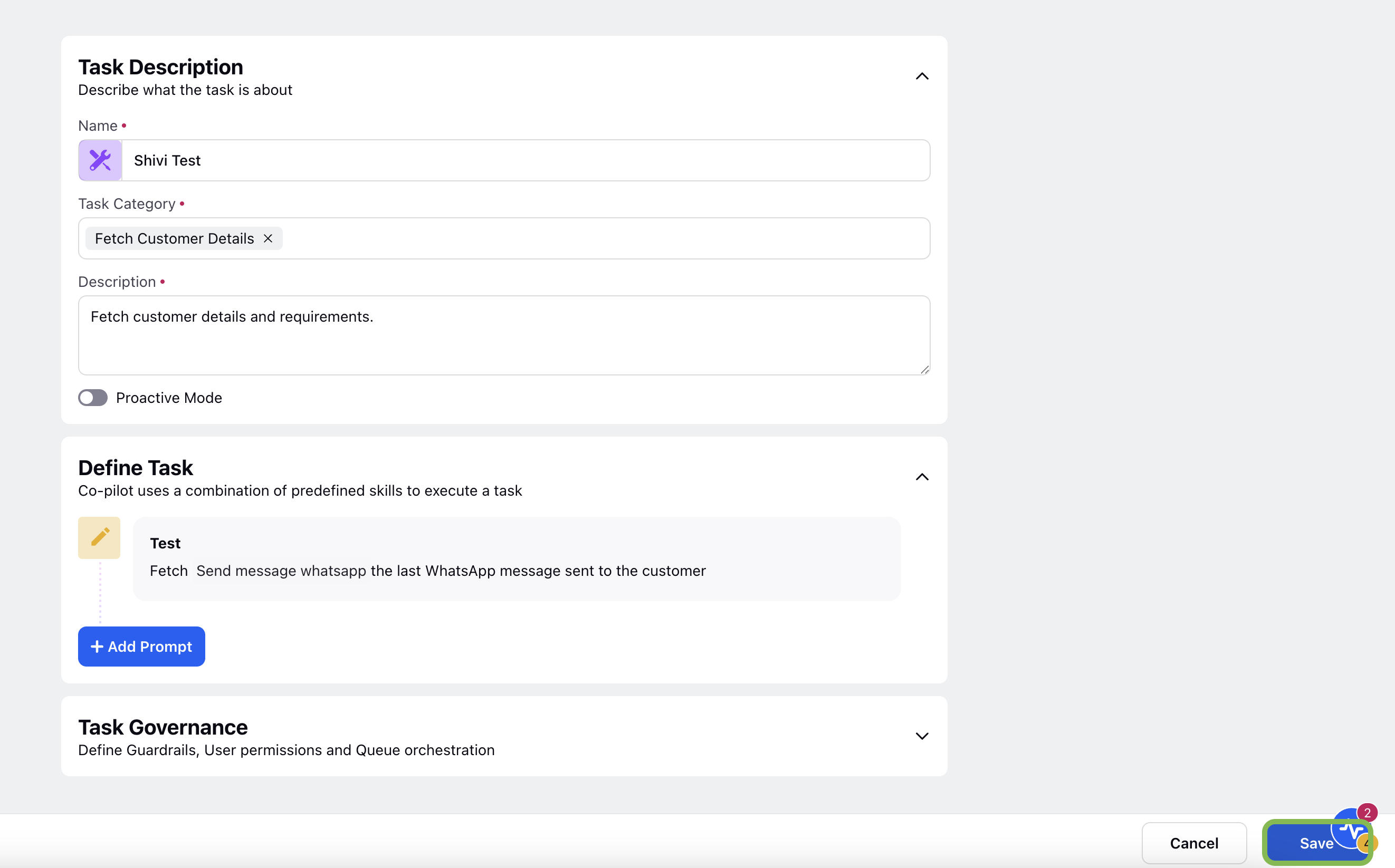
3. In the Define Task section, click Add Prompt to define how the Copilot should execute the task.
You can select an existing prompt from Saved Prompts or the Custom Library or create a new one.
4. To create a custom prompt:
Click Create Prompt.
In the New Prompt section, enter the following:
Name: Give your prompt a recognizable name.
Prompt: Define the action in natural language and use @ to reference relevant Tools. Use variable button (${x}) to add Case, User or Profile level entities while configuring prompts.
Save in Library (Optional): Select this checkbox to make the prompt available for future reuse.
Click Save to save the prompt.
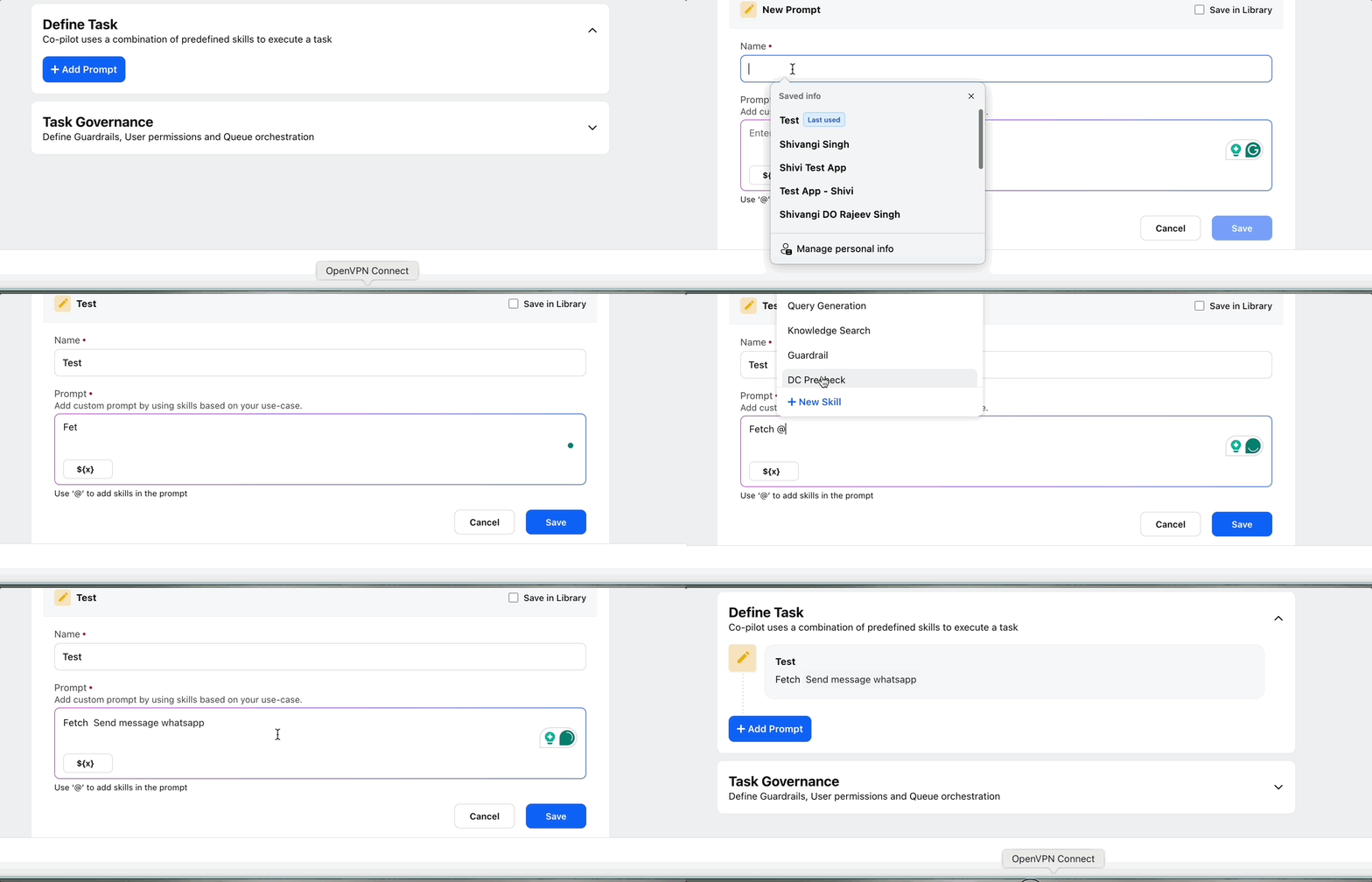
5. You can add multiple prompts by selecting Add Prompt again.
6. After configuring the task description and prompts, click Save to finalize the task.
 Note: Prompts guide how the Copilot responds or acts. Including precise instructions and relevant Tools improves the accuracy of task execution.
Supported Entities in Task Prompt Configuration
These entities can be dynamically referenced using placeholders while configuring task prompts to provide contextual and personalized AI responses.
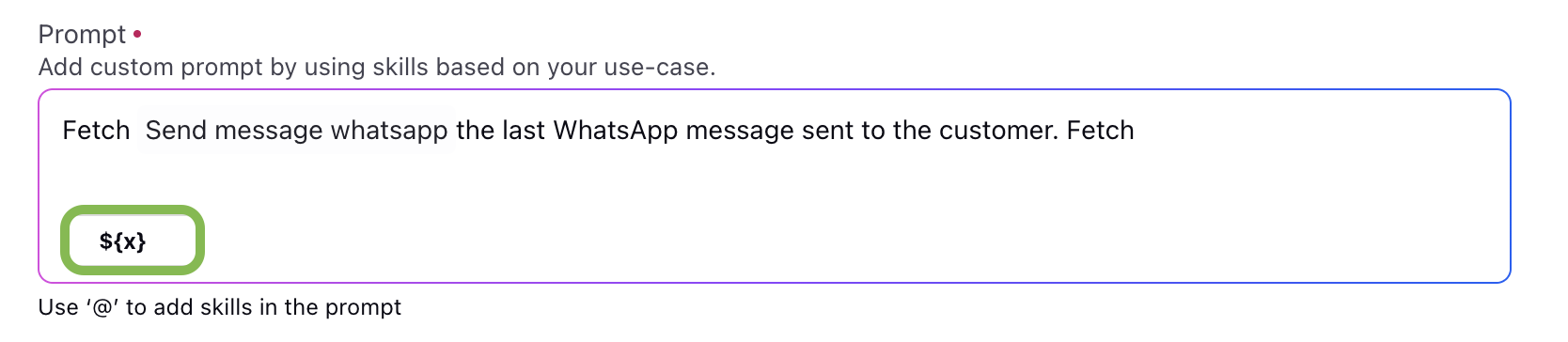
Use the variable button to open Resource Manager and use the entity based resources as per your requirement.
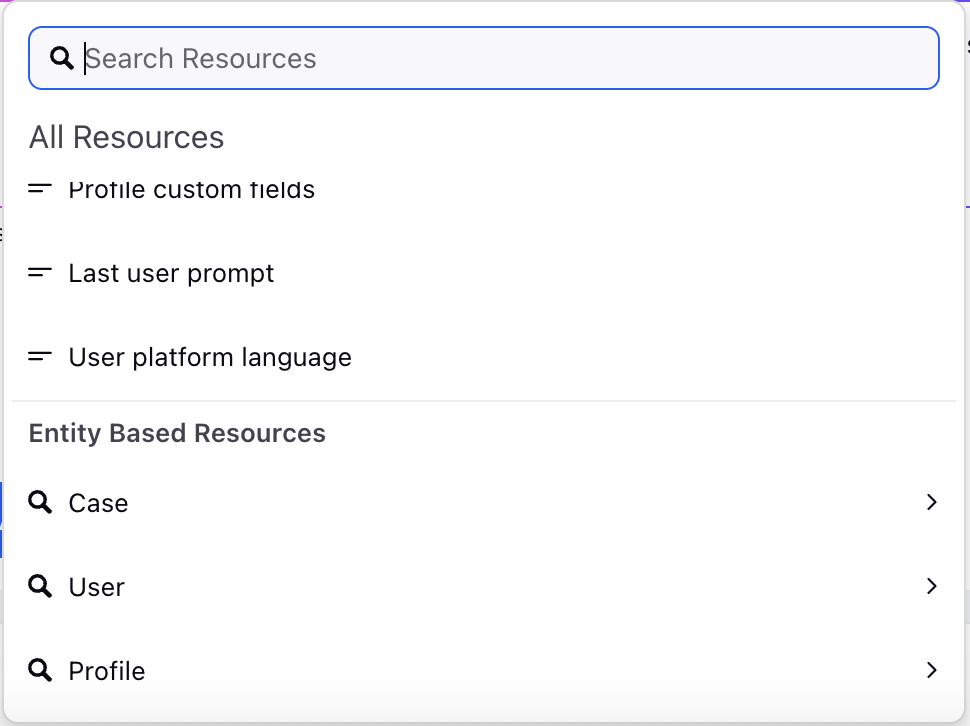
Case Standard Properties (${case_standard_properties})
Refers to default case attributes such as Case ID, Status, Priority, and Channel. Useful for tailoring responses based on the case metadata.
Case Properties (${case_properties})
Includes both standard and custom properties configured on the case. These may involve category, sentiment, or SLA breach status—enabling context-driven prompts.
Case Conversation (${case_conversation})
Represents the full conversation thread between the customer and the agent. This allows the Copilot to analyze previous messages and provide relevant follow-ups.
Case Notes (${case_notes})
Captures internal notes added by agents. These notes can guide the Copilot in understanding prior agent actions or instructions.
Associated Cases (${associated_case_details})
Refers to linked cases such as duplicates, child/parent cases, or escalation threads—providing a holistic view of the issue for accurate resolution prompts.
Fan Custom Fields (${fan_profile})
Includes customer-specific attributes like name, preferences, past purchases, or tier level. These enrich the prompt with user-specific context.
User Text (${user_text})
The most recent customer message. Helps generate real-time, direct responses to customer queries.
User Platform Language (${user_locale})
Detects the language of the customer’s platform or profile. Enables multilingual response generation or translation.
Previous Suggestions (${previous_suggestions})
Refers to earlier recommendations made by the Copilot in the same session. Ensures consistency and avoids repetition.
Historical Case Conversation
This variable allows you to control how many past cases, based on a selected time window, or past cases are sent to Agent Copilot as contextual input. Click the edit icon to configure this variable. The following screen will appear.
Configure the fields as mentioned in the table below:
Field Name
Description
Variable Name
Enter a descriptive name for the variable
Historical Case Range
Configure how many past cases, based on a selected time window, or past cases are sent to Agent Copilot as contextual input.
By default 20 cases are sent to copilot.
Case Filters
Apply case-level filters using custom fields to further refine which cases are included.
Custom Fields For Each Case
Select the custom fields that will be sent to Copilot as additional context, along with the conversation history and the standard fields from historical cases.

Click Save to save your variable.
Add or Manage Tools
Tools are reusable micro-actions that power your Copilot's capabilities. Each tool can be used independently or combined within tasks to create complex workflows.

To add a new tool:
On the Tasks Manager screen, click View Tools under the Tools section. The Tools Manager screen opens.
Click Add tool in the top-right corner.
From the Category dropdown, choose the appropriate category for the tool you want to create. Available categories include:
Category | Tool | Description |
Core | Context Capture | This tool enables you to store or record the value in a custom field or a variable while interacting in a conversation. |
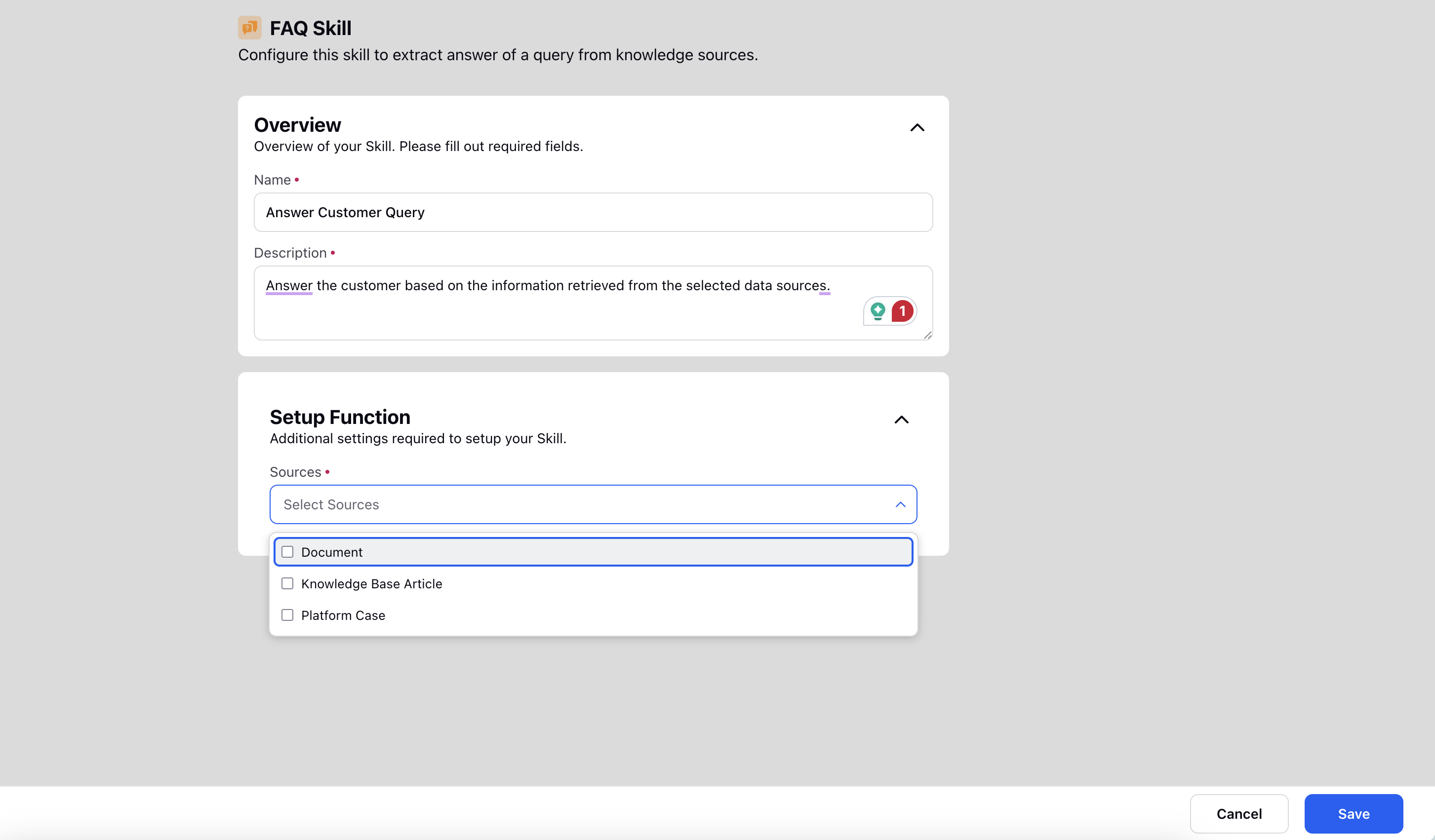
FAQ | This tool retreives answers to user queries directly from connected documents and resources. | |
Dialogue Tree | This tool enables you to incorporate and execute a specific and predefined workflow using structured dialogue tree nodes. | |
Integration | API | This tool enables you to interact with external systems by sending input data and receiving structured responses. |
Model Context Protocol | This tool introduces a structured and configurable system for exposing external tools to models, enhancing flexibility, scalability and enterprise-level intergation. | |
Get Records | This tool allows you to retrieve data from custom entities using defined filters and store the results in variables. | |
Communication | - | - |
Route | Handover | The Handover Function seamlessly shifts complete control from one task to another, allowing the new task to take full ownership of the workflow. |
Automation | Macro | The Macro Tool allows you to execute Sprinklr Macros inside the workflow. |
Composite | The Composite Tool allows you to combine multiple individual Tools into a single, cohesive workflow. | |
Supervisor Escalation | The Supervisor Escalation tool allows you to escalate a case from agent to a supervisor. | |
Processing | The Processing Tool simplifies output responses by converting them into readable formats. |
 Tip: Choose the category based on what the tool is intended to do. For example, select API if the tool needs to fetch or send data through an external API.
After creating Tools, you can reference them in prompts using the @ symbol during task configuration.
By defining well-structured tasks and granular Tools, you empower your Agent Copilot to handle a variety of complex customer interactions with speed and accuracy.
Next Steps